


Contents
Restore the CUPS Web Interface on macOS 27 (localhost:631 Alternative)
This page applies to:


Last updated November 19, 2026
Contents
On macOS 27 (Golden Gate), Apple removed the built-in CUPS web interface at http://localhost:631, even if you run cupsctl WebInterface=yes in Terminal. To manage printers, print queues, PPDs, and stuck print jobs in your browser on macOS 27 (or earlier macOS versions), install cups-webui — PaperCut’s free, open-source replacement that runs locally at http://127.0.0.1:6310.
Why is localhost:631 not working on macOS 27?
Starting with macOS 27.0 (Golden Gate), the cupsd web interface is no longer supported. If you’ve found localhost:631 not working in your browser after upgrading, this is why: with the CUPS web interface removed, you can no longer use it for macOS 27 printer admin tasks such as adding, configuring, or sharing printers.
On macOS 26 (Tahoe) and earlier, visiting http://localhost:631 showed “Web interface is currently disabled. Run “cupsctl WebInterface=yes” to enable it.” In macOS 27, running cupsctl WebInterface=yes no longer restores the page—browsers either show that the web interface is disabled or fail with localhost refused to connect (ERR_CONNECTION_REFUSED), and CUPS logs warn that “Printer drivers are deprecated and will stop working in a future version of CUPS.”
Native terminal commands like lpadmin and lpstat are not impacted by this macOS change. To bring back browser-based printer administration on macOS 27 (as well as macOS 26 Tahoe, Sequoia, and Sonoma), PaperCut has built a Web Interface for CUPS (cups-webui), a free, open-source alternative to the legacy CUPS web interface.
What is cups-webui?
cups-webui is a lightweight, single-file replacement for the legacy CUPS web interface on macOS. It runs locally on your Mac at http://127.0.0.1:6310 and manages CUPS through the standard command-line tools (lpadmin, lpstat, lpoptions, cancel and cupsctl).
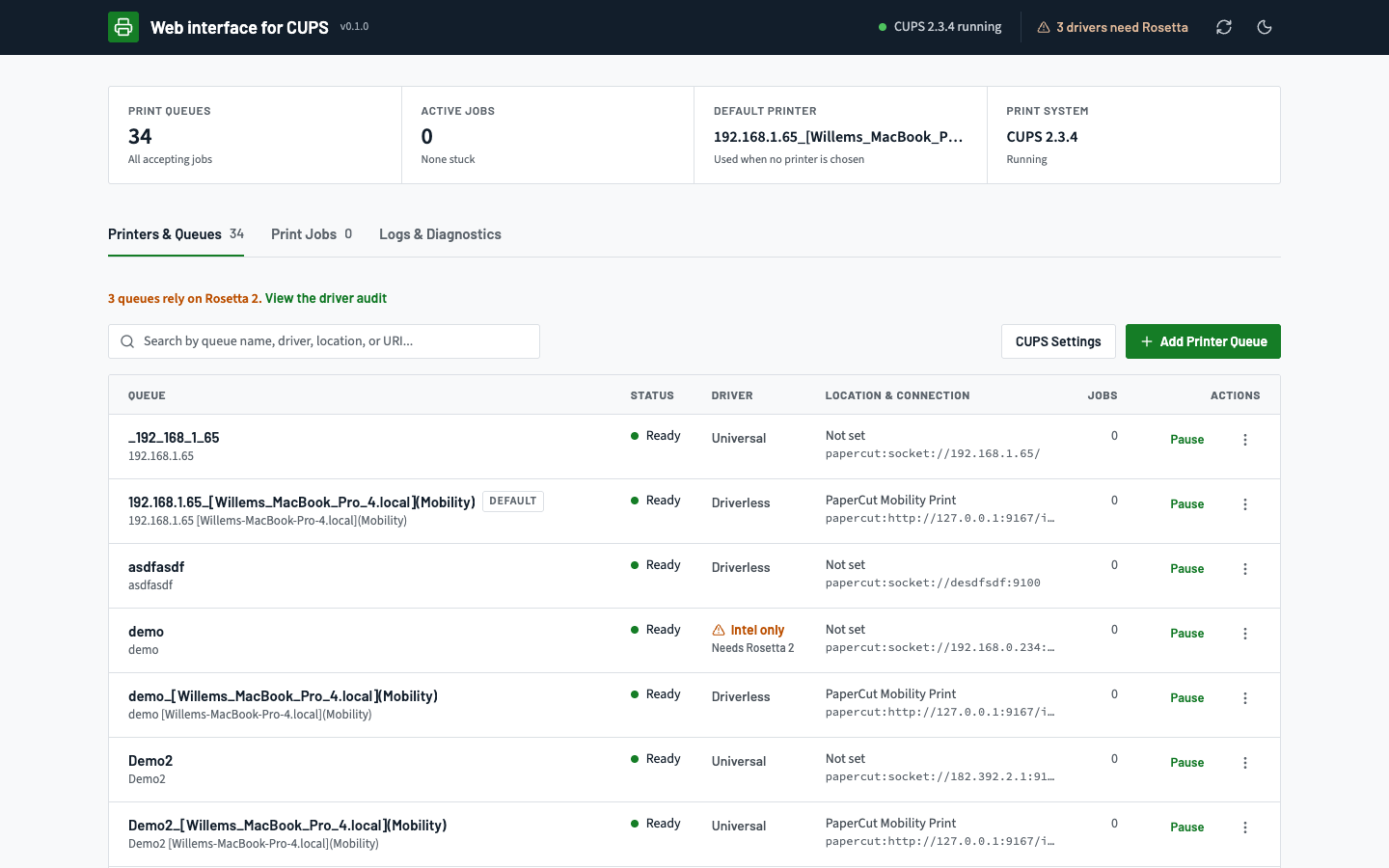
With cups-webui you can:
- Add and configure printers, print queues and printer pools (CUPS classes)
- View print queues, find stuck print jobs and cancel them with one click
- Audit printer drivers for Intel-only (
x86_64) binaries that rely on Rosetta 2, and inspect/var/log/cups/error_logwith plain-English remedies forFilter failederrors - Manage printers without running
cupsctl WebInterface=yesin Terminal - Use a modern dashboard with light and dark modes
cups-webui is a universal binary that runs on both Apple Silicon and Intel Macs, with nothing else to install.
| Feature | Legacy CUPS (localhost:631) |
cups-webui (127.0.0.1:6310) |
Terminal (lpadmin / lpstat) |
|---|---|---|---|
| Works on macOS 27+ | No (Removed by Apple) | Yes (macOS 27 & earlier) | Yes |
Requires cupsctl WebInterface=yes |
Yes | No | No |
| Add / Edit Queues, PPDs & Default Options | Yes (macOS 26 & older) | Yes (Browser UI) | Manual CLI flags |
Rosetta 2 / Intel (x86_64) Driver Audit |
No | Yes (Built-in Mach-O scanner) | Manual file / lipo |
Plain-English /var/log/cups/error_log Diagnostics |
No | Yes (Filter failed remedies) |
Manual log reading |
| License & Cost | Built-in (Deprecated) | Free & Open Source (MIT) | Built-in |
Is cups-webui free and open source?
Yes. cups-webui is open source and free to use under the MIT License. You can view the source code, report issues and contribute improvements on GitHub. Pull requests are welcome.
In line with the MIT License, the software is provided “as is”, without warranty of any kind. We recommend reviewing and testing it in your own environment before rolling it out widely.
Is cups-webui secure?
cups-webui only listens on your Mac’s loopback address (127.0.0.1), so it can’t be reached from other computers on your network. It automatically signs in only the macOS user account that started it; other accounts on the same Mac are not signed in. It also includes protections against malicious websites and command injection. For full details, see the cups-webui security model.
Please report suspected vulnerabilities through PaperCut’s security contact page, not as public GitHub issues.
How to restore the CUPS web interface on macOS 27
Download cups-webui (or browse the cups-webui GitHub repository) to restore web-based CUPS management. Once downloaded, follow these steps to install and run the interface:
- Make the file executable: Open Terminal, go to the folder you downloaded the file to (for example,
cd ~/Downloads), and runchmod +x cups-webui. If macOS later says the file can’t be opened because it was downloaded from the internet, runxattr -d com.apple.quarantine cups-webui, or allow it in System Settings → Privacy & Security. - Launch the interface: Run
./cups-webui -opento start the server and open the interface in your default browser. The interface runs locally athttp://127.0.0.1:6310. Once the server is running, you can open (or bookmark) that address directly. This runs until you close Terminal. To keep it running and start it at every login, see step 3. No login is needed for the user account that runs the server; other accounts on the same Mac are not signed in. - Set up Auto-Start on macOS Login (Recommended): Run
./cups-webui launchagent installonce. cups-webui then starts automatically every time you log in, with no other setup needed. Clicking CUPS Settings → Enable Auto-Start in the web interface does the same thing, so use whichever is easier. It starts at login (not when the Mac boots) and only for your user account.- Option A (Web UI): Click CUPS Settings → Enable Auto-Start.
- Option B (CLI): Run
./cups-webui launchagent install. This copies the binary to~/Library/Application Support/cups-webui/, registers it withlaunchd, and starts the service straight away (or upgrades an existing service in place). From then on it also starts automatically at every login. Then openhttp://127.0.0.1:6310in your browser and bookmark it. To check that the service is running, use./cups-webui launchagent status.
Quick Terminal one-liner (download, install as a service that starts automatically at login, and open):
curl -fsSL https://github.com/PaperCutSoftware/cups-web-interface/raw/main/bin/cups-webui -o cups-webui \
  && chmod +x cups-webui \
  && xattr -d com.apple.quarantine cups-webui 2>/dev/null || true \
  && ./cups-webui launchagent install \
  && ./cups-webui open
To try cups-webui with simulated printers and queues before using it on real printers, run ./cups-webui -mock -open.
How to uninstall cups-webui
- If you installed the background service (with
launchagent installor Enable Auto-Start), run./cups-webui launchagent uninstall. It stops the service, and it no longer starts at login. - Delete the downloaded
cups-webuifile and the~/Library/Application Support/cups-webui/folder. - Delete the
~/.cups-webui/folder, which holds the saved sign-in session.
Prefer the command line?
The CUPS command-line tools still work in macOS 27. Some common printer admin commands (replace Office_Printer and the address with your own; some commands need an administrator account):
- List printers and their status:
lpstat -p - Add a network printer using IPP Everywhere:
lpadmin -p Office_Printer -E -v ipp://192.168.1.50/ipp/print -m everywhere - Set your default printer:
lpoptions -d Office_Printer - Cancel all jobs on a printer:
cancel -a Office_Printer - Remove a printer:
lpadmin -x Office_Printer
Troubleshooting
- macOS won’t open the file: Remove the download quarantine with
xattr -d com.apple.quarantine cups-webui, or allow it in System Settings → Privacy & Security. - The browser doesn’t open: Go to
http://127.0.0.1:6310manually, or run./cups-webui open. - Port 6310 is already in use: cups-webui may already be running, for example as the auto-start service. Open
http://127.0.0.1:6310to check. To use a different port, start it with-port, for example./cups-webui -port 6320 -open.
FAQ
Why can’t I open localhost:631 on macOS 27?
The CUPS web interface is no longer supported in macOS 27. Printing and the CUPS command-line tools still work; only the browser-based admin page is gone. cups-webui provides a replacement at http://127.0.0.1:6310.
Do I need to run cupsctl WebInterface=yes?
No. cups-webui works without enabling the legacy CUPS web interface.
Does cups-webui start automatically when I log in?
Yes, if you installed it with ./cups-webui launchagent install (or the one-liner), or clicked Enable Auto-Start in CUPS Settings. Both do the same thing. Running ./cups-webui -open on its own does not start it at login.
Does cups-webui work on Apple Silicon and Intel Macs?
Yes. It’s a universal binary for both.
Is cups-webui free?
Yes. It’s open source under the MIT License and free to use, without warranty.
How do I report a bug or suggest an improvement?
Open an issue or pull request on GitHub. Report security issues through PaperCut’s security contact page.
Related articles
Category: Reference Articles
Subcategory: Installing, Uninstalling and Migrating
Keywords: localhost:631, cupsctl WebInterface=yes, macOS 27 CUPS web interface, cups-webui, Web interface is currently disabled, macOS printer administration, Rosetta 2 printer driver audit
Comments
Comments are not available in this preview environment. On papercut.com, this space shows the live Disqus comment thread for this page.