






This page describes how to enable unified authentication, a single identity management platform that provides users with Single Sign-on (SSO) to access PaperCut MF and NG components. For a full description, take a look at Unified Authentication in PaperCut MF and NG.
Default unified authentication setting
The default setting depends on your environment. The setting is in Options > User/Group Sync > Unified Authentication section.
Deployment | Default setting | Admin action required? | User impact/experience |
|---|---|---|---|
Fresh install | Share authentication session | No. | Single Sign-on experience across supported interfaces. |
Upgrade | Authenticate separately (log in required for each interface/client) | Yes (Opt-in). | None by default. Existing login workflows and security are preserved until explicitly changed. |
How to enable unified authentication
When upgrading from a version of PaperCut MF or NG that does not have unified authentication, to enable it:
-
Log in to the PaperCut MF or NG Admin web interface.
-
Go to Options > User/Group Sync.
-
In the Unified Authentication section, select Share authentication session (login once).
A message is displayed explaining that unified authentication will override any current user client authentication settings in Print Deploy and the PaperCut MF client.
How to override unified authentication for PaperCut client logins
When unified authentication is enabled, clients are directed to the browser-based interface to log in.
However, if you want the PaperCut client to use the existing dialog prompts that prompt them to enter their username and password or PIN, you can override the unified authentication login method for the PaperCut client.
For example, you would override unified authentication in environments where browsers are unavailable or locked down, or when you don’t want to disrupt existing user behavior.
To override unified authentication for PaperCut clients:
-
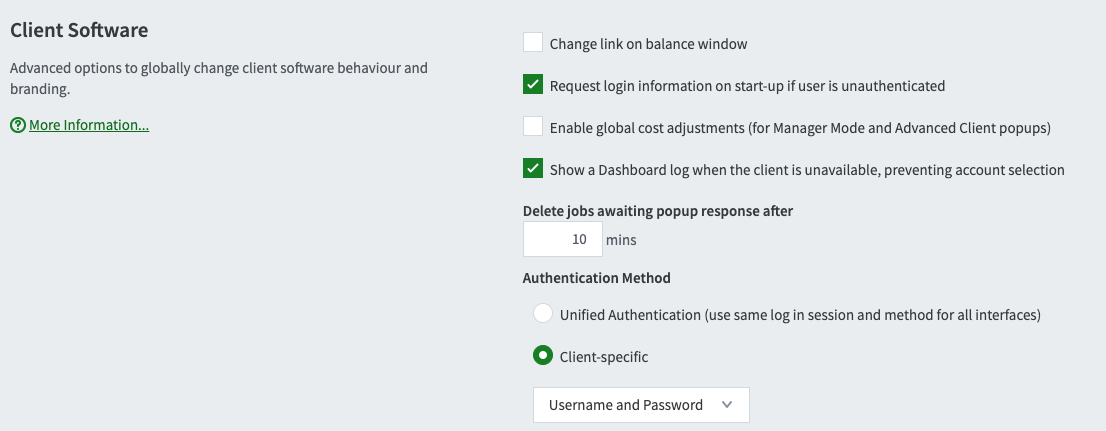
In the admin web interface, go to Options > General, and scroll down to Client Software.
-
Under Authentication Method, select Client-specific. If you can’t see this option, it’s not enabled. Go to How to enable unified authentication above.
-
Select Apply.
Now all login requests from web clients, the PaperCut client, and Print Deploy clients use the unified authentication flow. The user login process remains the same.
How to allow users to authenticate using a PIN and/or Card ID via the web-based login interface
When Unified Authentication is enabled, you can allow users to authenticate using a PIN and/or Card ID instead of a standard username and password on the web login interface.
If you want to maintain the convenience of PIN/ID-based logins for the new unified web login page, you can manually adjust two advanced configuration keys in the Advanced Config Editor. Update the configuration keys as follows:
Desired login method | Config key: | Config key: |
Username & Password only (Default) | N | N |
PIN / Card ID only | Y | N |
PIN + Card ID (Both required) | Y | Y |
Alternatively, if you use the client-specific option (to override Unified Authentication for PaperCut client logins), the existing client-specific settings are honored and the existing client login pages are used instead of the unified web-based login.
Comments
Comments are not available in this preview environment. On papercut.com, this space shows the live Disqus comment thread for this page.