






This page describes how Print Deploy works with Unified Authentication and how to configure Print Deploy to work with it. Unified Authentication is a single identity management platform that provides users with a ‘log in once’ experience to access PaperCut MF and NG components. For a full description, take a look at About Unified Authentication.
How Print Deploy works with Unified Authentication
From Print Deploy version v1.10.4178 and PaperCut NG/MF v26.0.2 and later, after Unified Authentication is enabled in PaperCut NG/MF, users no longer have to log in separately to different PaperCut MF and NG components, including the Print Deploy client. Users are instead directed to the browser-based interface to log in.
For new PaperCut NG/MF installs, Unified Authentication is automatically enabled.
For upgrades, administrators enable Unified Authentication via the PaperCut NG/MF admin interface and need to make some configuration updates in the Settings tab in the Print Deploy Admin user interface. See Enable Unified Authentication.
Print Deploy’s authentication methods for Unified Authentication
There are 3 authentication methods in Print Deploy. The following table explains the user login experience for each method when Unified Authentication is enabled.
User authentication method | When Unified Authentication is enabled |
|---|---|
AUTO | For domain-joined PD clients: Valid users will not be prompted to log in. For non-domain joined PD clients: Users will be prompted for their login details via the browser-based Unified Authentication login page. |
PROMPT | Users will be prompted for their login details via the browser-based Unified Authentication login page. |
TRUST | No change to the current end-user behavior. |
When Unified Authentication is enabled, depending on the user authentication method set, Print Deploy users will be prompted to open a browser to sign in.

After a user is successfully authenticated is successful, Print Deploy users close the Print Deploy client popup and proceed to print normally.

How to configure Print Deploy when Unified Authentication is enabled
For Print Deploy to work with Unified Authentication, you need to perform the following configuration in the Print Deploy admin console.
- Confirm that Unified Authentication is enabled.
- If you are running Print Deploy and PaperCut MF on separate machines, enter a base URL format:
https://host:portwherehostis the hostname of the MF Application Server.
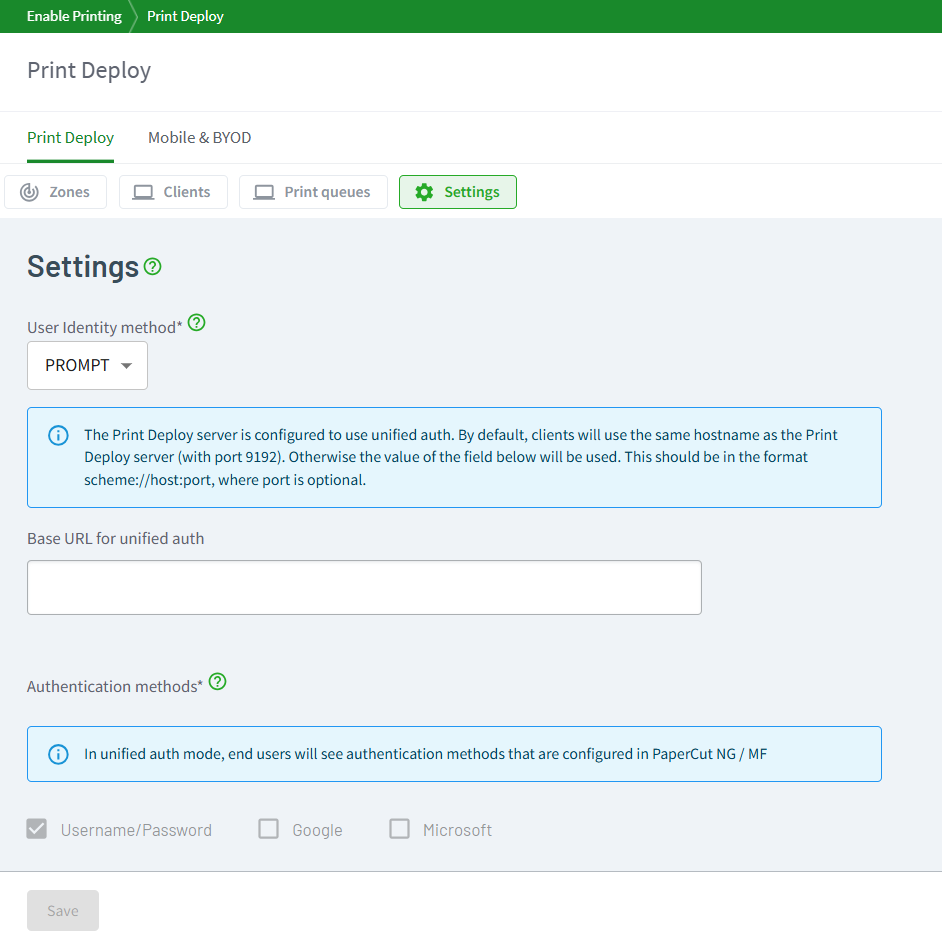
After Unified Authentication has been enabled on the MF Application Server, it can take up to 5 minutes for Print Deploy clients to synchronize and change to the new login behavior.
If done during business hours client login behaviour might not use the Unified Authentication flow in the 5-minute period. The existing user authentication method will be used until the sychronization has occurred.
When logging in to a Print Deploy client, Unified Authentication takes precedence over any Google and Microsoft sign-in methods that are configured for Print Deploy. If you want users to continue signing in with their Google or Microsoft accounts, you must configure those identity providers within the PaperCut NG/MF admin interface as part of the Unified Authentication configuration.
Authenticating Mobility Print queues imported into Print Deploy
Users will be prompted to authenticate any Mobility Print queues that are imported into Print Deploy, whether or not Unified Authentication is enabled.
VDI client support for Unified Authentication
VDI clients are not supported with Unified Authentication.
For environments running VDI clients solely, or a mix of classic and VDI clients, the clients still require their user authentication method to be set to TRUST.
Comments