






This page describes how to configure Google Workspace Single Sign-on (SSO) via SAML 2.0 for PaperCut MF and PaperCut NG. For more information about SAML 2.0, see User authentication and SSO.
Before you start
Ensure you have Cloud Application Administrator-level access or higher to Microsoft Entra ID.
Step 1. Provide your organization’s basic configuration details to PaperCut MF or NG
To add and enable a Microsoft Entra ID SSO configuration:
-
Log in to the PaperCut Admin web interface with SSL port (for example,
https://your-papercut-server-name:9192). -
Select Options > User/Group Sync tab.
-
Scroll down to the SSO Single Sign on section.
-
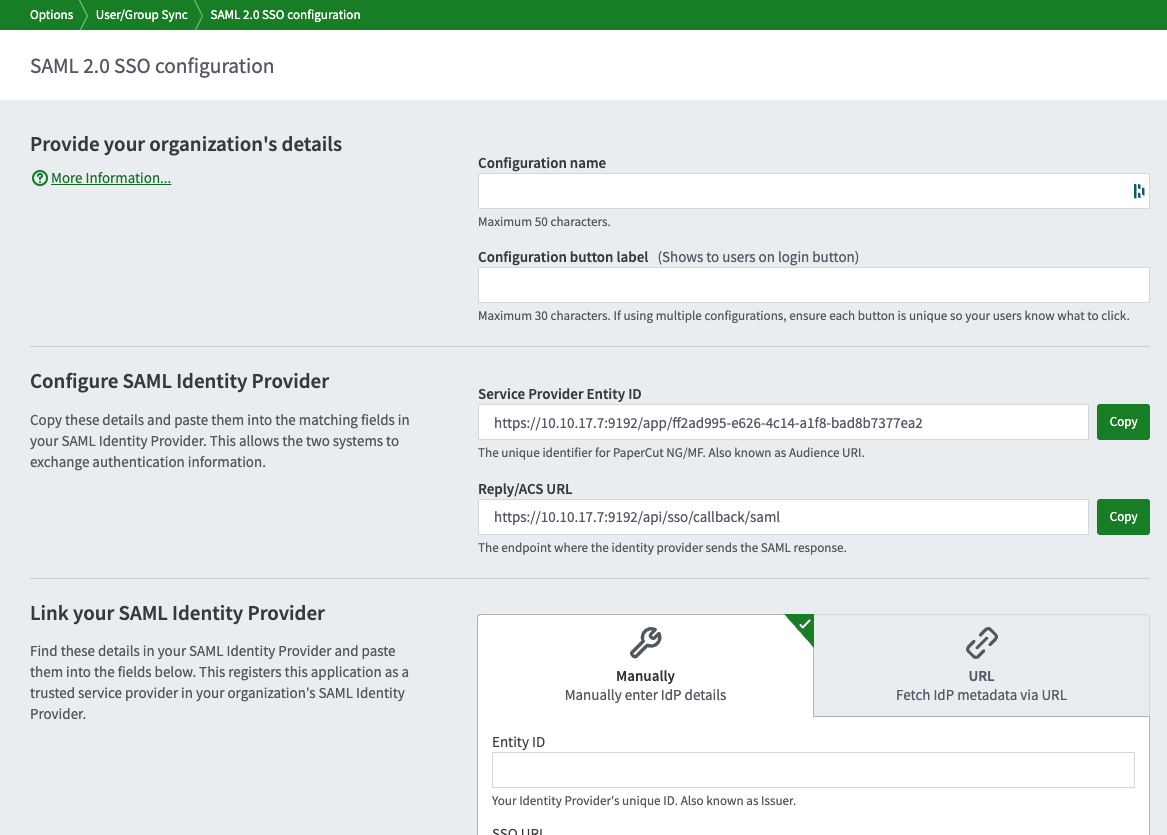
Click Add SAML2 configuration. The SAML 2.0 SSO configuration page is displayed.
-
In the Configuration name field, enter a name for this configuration. This name helps you know which configuration you’re using or editing.
-
In the Configuration button label field, enter the button label your users will see on your organization’s PaperCut NG or MF login page. Again, if you are using multiple SSO configurations simultaneously, ensure the button label helps users select the right button to log in.
Step 2. Configure Microsoft Entra ID with PaperCut details
-
In a separate tab, log in to your Microsoft Entra Admin Center.
You must have Cloud Application Administrator level access or higher. -
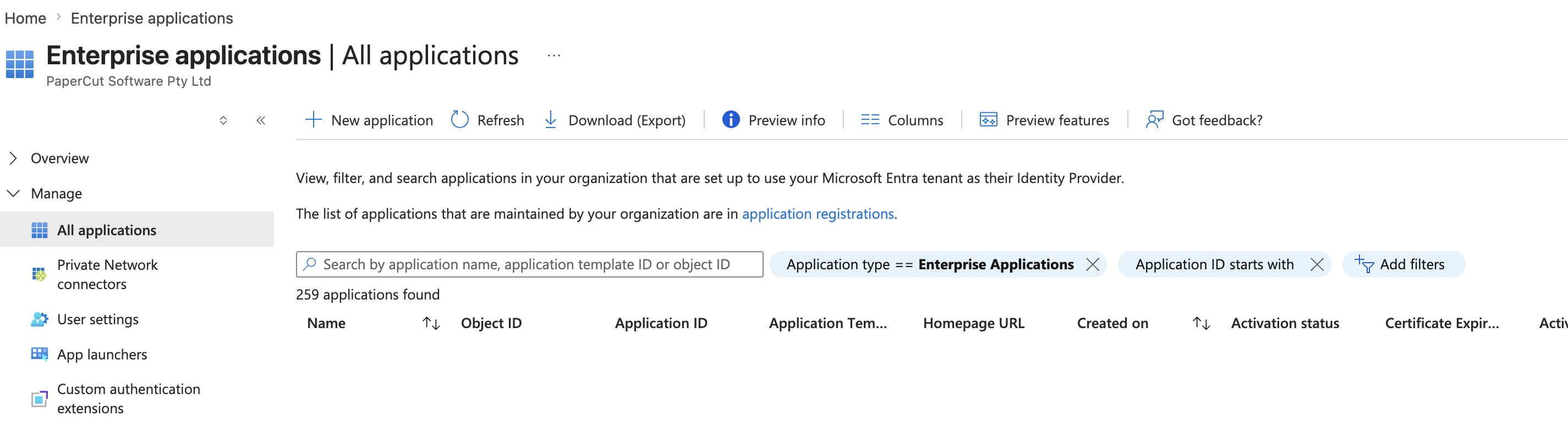
Select Enterprise apps. The Enterprise applications page is displayed.
-
In the left menu, select All applications.
-
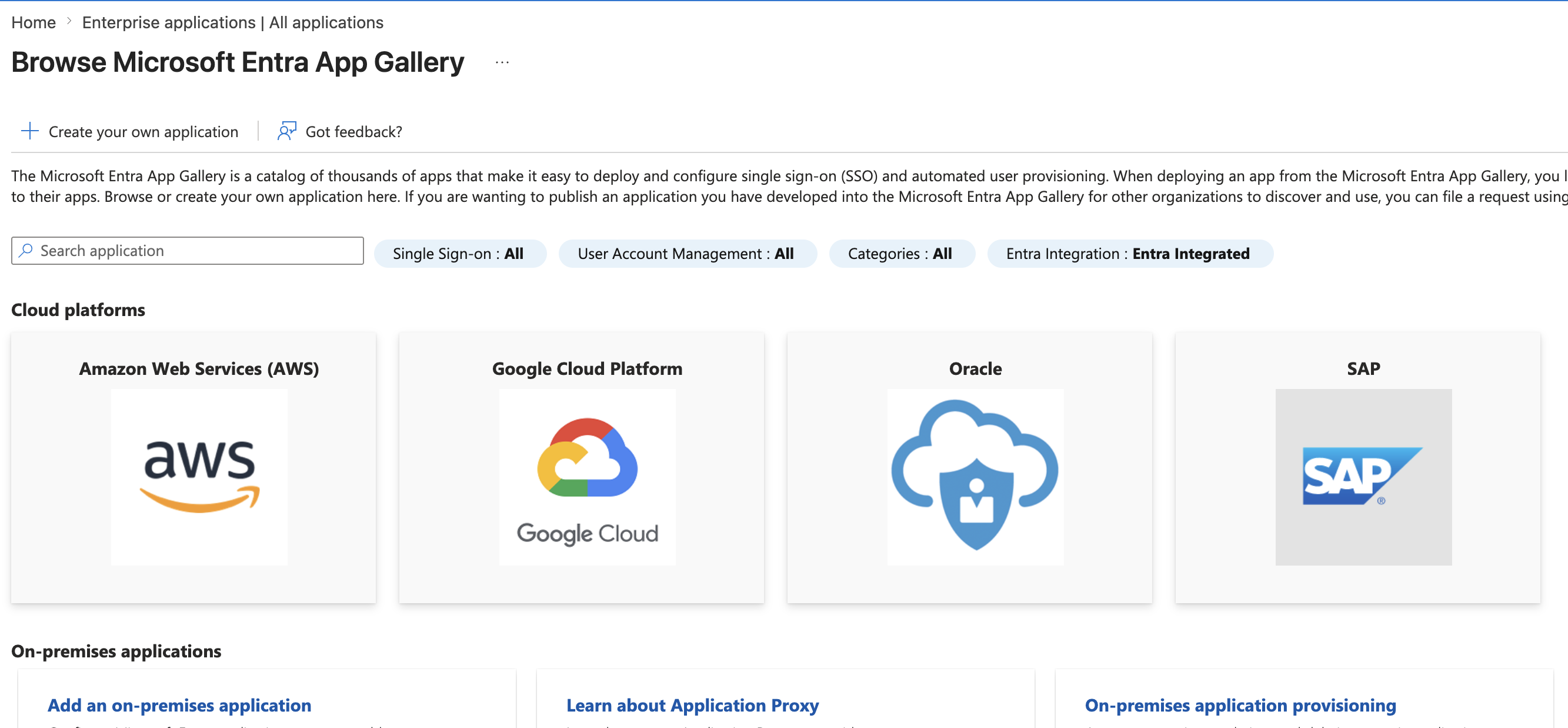
Select the New application tab. The Browse Microsoft Entra Gallery page is displayed.
-
Select the Create your own application tab. The Create your own application drawer is displayed.
-
Enter a name for your application. For this procedure, we’re using Example Application Name.
-
Make sure the option Integrate any other application you don’t find in the gallery (Non-gallery) is selected.
-
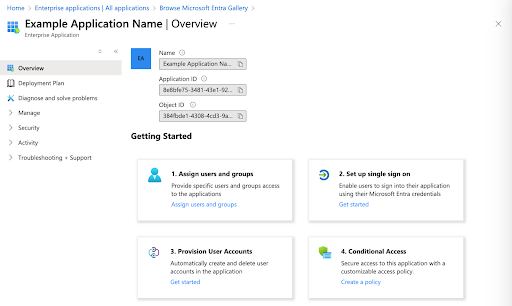
Select Create. The Overview page for your new app is displayed.
-
-
In the left menu, select Manage > Single sign-on, then select the SAML box.
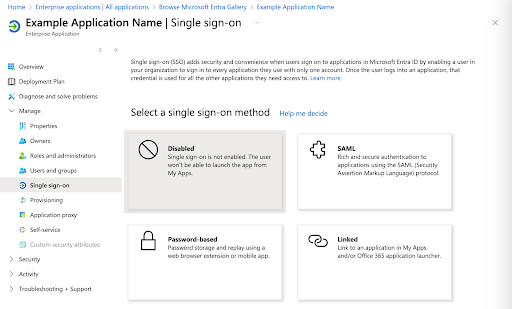
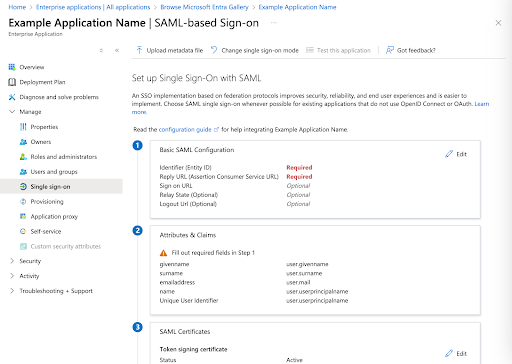
The SAML-based Sign-on configuration page is displayed.
-
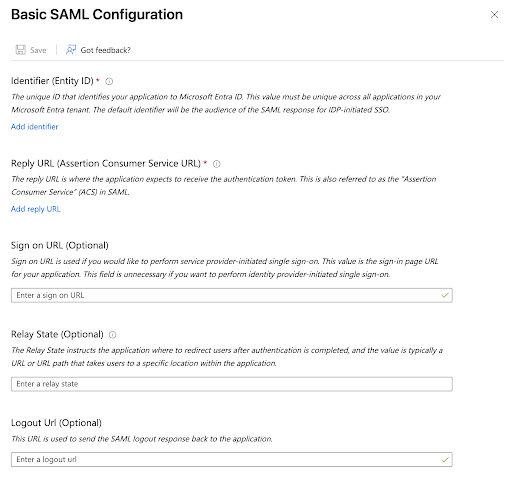
In the step 1 area, click Edit. The Basic SAML Configuration panel is displayed.
-
Copy the PaperCut Service Provider Entity ID and paste it into Entra ID:
For example,https://10.10.17.7:9192/app/fd2ad995-e626-4c14-a1f8-bad8b2547ea2, where10.10.17.7:9192is your MF host and port details.-
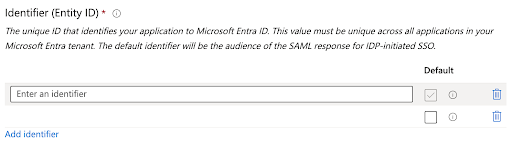
In the Identifier (Entity ID) area, click Add identifier.
-
Go to the PaperCut MF SAML 2.0 SSO configuration page > Configure SAML Identity Provider section and copy the Service Provider Entity ID.
-
Switch to Entra ID and paste the ID into the Identifier (Entity ID) box.
-
-
Copy the PaperCut Reply/ACS URL and paste it into Entra ID:
-
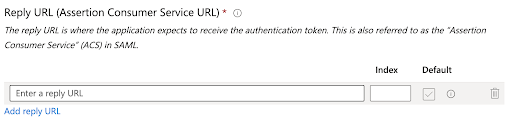
In the Reply URL section, click Add reply URL.
-
Go to the PaperCut MF SAML 2.0 SSO configuration page > Configure SAML Identity Provider section and copy the Reply/ACS URL.
-
Switch to Entra ID and paste the ID into the Reply URL (Assertion Consumer Service URL) box.
-
-
Select Save, then close the drawer.
-
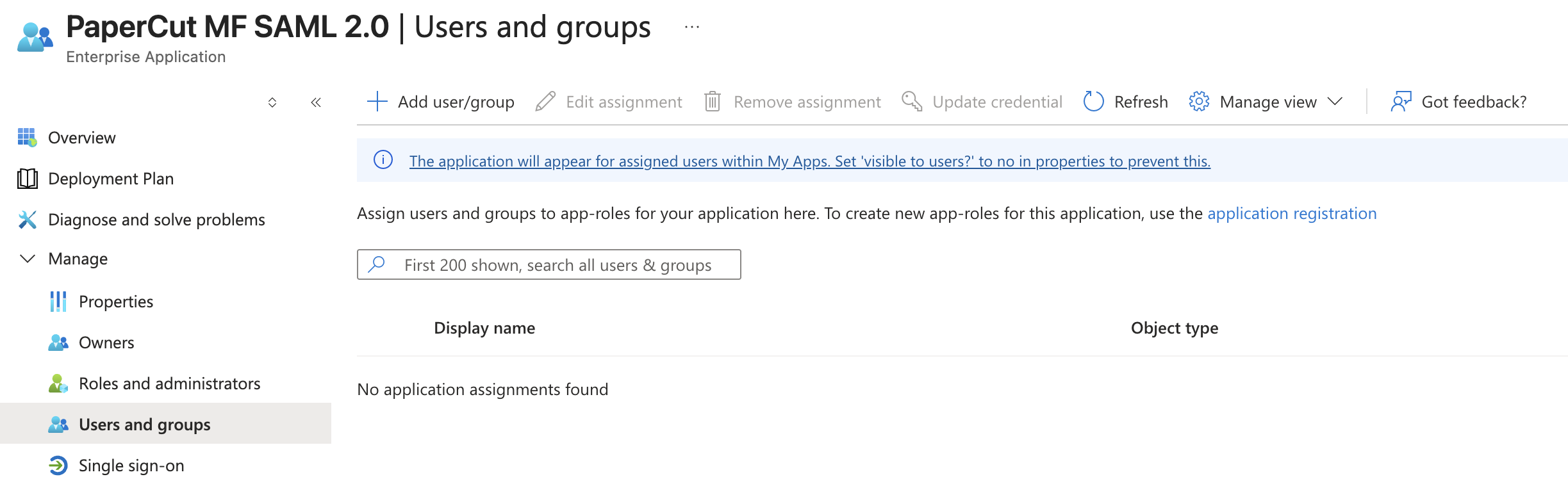
In the left menu, select Users and groups.
-
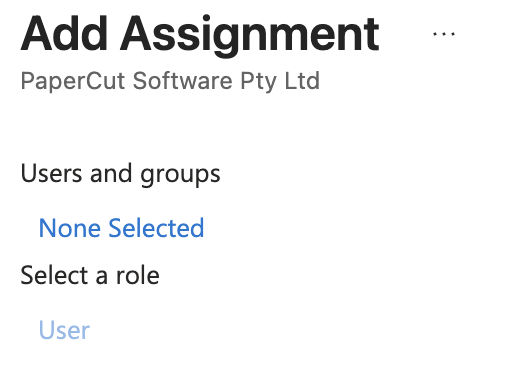
Select the Add user/group tab. The Add Assignment page is displayed.
-
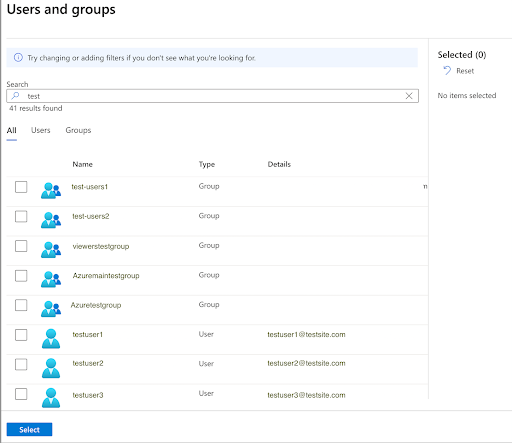
Select None Selected. The Users and Groups drawer is displayed.
-
Select at least one test user to add to your SAML application, then click Select. The Add Assignment page is displayed showing the users and groups you’ve selected.
-
Click Assign. The SAML App | Users and groups page is displayed. Microsoft Entra ID now has all the PaperCut details it needs.
Step 3. Link Microsoft Entra ID back to PaperCut
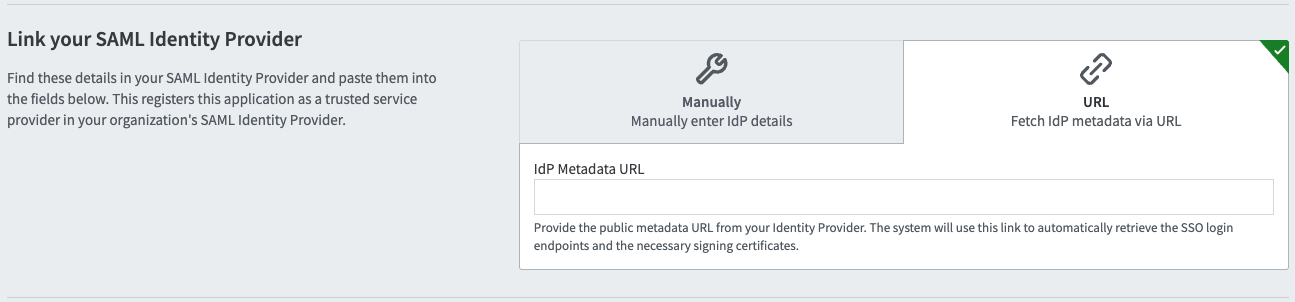
There are two ways to do this: automatically, by fetching the IdP details via the URL tab, or manually by entering the IdP details on the Manually tab.
Automatically entering IdP details using the metadata URL
- In In the Microsoft Entra ID, in the left menu, select Single sign-on > SAML. The SAML-based Sign-on page is displayed.
- In the SAML Certificates section, copy the App Federation Metadata URL.
- In PaperCut, in the Link your SAML Identity Provider section, paste the URL into the IdP Metatdata URL field.
- Go to Step 4. Test the configuration.
Manually entering IdP details
- In the Microsoft Entra ID, in the left menu, select Single sign-on > SAML. The SAML-based Sign-on page is displayed.
- Copy the Login URL and paste it into PaperCut:
-
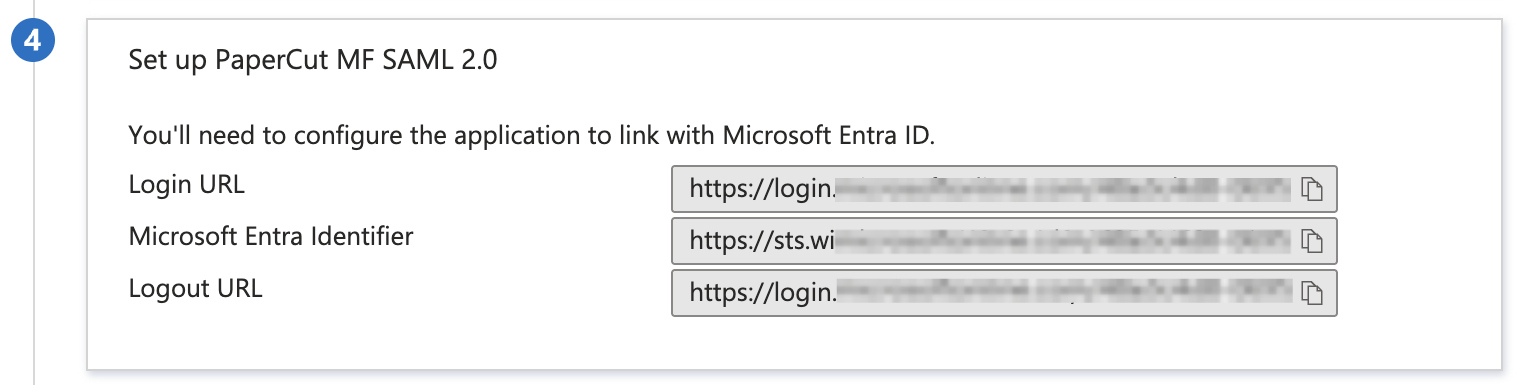
Scroll down to the 4 Set up SSO Application area, and copy the Login URL.
-
Switch to the PaperCut tab and paste the URL into the SSO URL box.
-
- Copy the Microsoft Entra Identifier and paste it into PaperCut:
- Switch to Entra ID and copy the Microsoft Entra Identifier.
- Switch to the PaperCut tab and paste the URL into the Entity ID box.
- Copy the certificate and paste it into PaperCut:
-
Switch to the Set up Single Sign-On with SAML page, in the 3 SAML Certificates area, select Download - Certificate (Base 64).
-
Locate the downloaded file and open it in a text editor.
-
Copy the certificate details, including the —–BEGIN CERTIFICATE—– and —–END CERTIFICATE—–.
-
Switch back to PaperCut and paste the details into the IdP Signing Certificate box.
-
Step 4. Test the configuration
Test that you can log in with an email address associated with the domain(s) you’re setting up for SSO.
- On the PaperCut NG or MF SAML 2.0 SSO configuration page, in the Test configuration section, select Test configuration.
- Log in to the IdP using an account with your SSO-related credentials from the domain you configured. A test user is always a good option!
- Wait until a test result is displayed.
- If the Test successful popup is displayed, select Return to SSO Configuration.
- If the Test failed popup is displayed, make a note of the error information, select Return to SSO Configuration, make the required changes, and test again.
- Select Return to SSO configuration to return to the configuration page.
Step 5. Enable the configuration
- On the PaperCut NG or MF SAML 2.0 SSO configuration page, in the Enable configuration section:
- If you’re ready to immediately allow SSO access to PaperCut NG or MF via this configuration, select Yes, enable now.
- If you’re not ready to start using this configuration, select No, enable later, and save the configuration. You can return to enable it at any time. Before enabling it, test the configuration again.
- Select Apply. The Authentication page is displayed.
- Check that your SSO configuration is enabled/disabled according to your previous “Enable configuration” selection. If enabled, use a test account to check that SSO is working.
Comments
Comments are not available in this preview environment. On papercut.com, this space shows the live Disqus comment thread for this page.