






PaperCut Hive and Pocket have four methods to deliver print jobs to a printer:
- Local queue delivery
- IPP (Internet Printing Protocol)
- RAW printing: 9100
- Printer pulls jobs (PaperCut Hive only) -
[Beta]
However there are major differences in how each work that affect set up and troubleshooting. This article explains which protocols are available, how they work, and how to set each up.
At the bottom of this article you’ll also find specific scenarios with custom setup recommendations for different types of organizations.
Print protocol comparison
The table below compares the print protocols supported by PaperCut Hive and Pocket.
RAW printing/ | Pull Printing | |||
|---|---|---|---|---|
Summary | Users send print jobs to the PaperCut Printer, then a workstation in the Edge Mesh relays print jobs to the printer hardware using the secure Internet Printing Protocol (IPP). | Users send print jobs to the PaperCut Printer, then a workstation in the Edge Mesh relays print jobs to the printer hardware using a preinstalled local print queue. | Admins deploy manufacturer print drivers to Mac and Windows computers using PaperCut. | Users send print jobs to the PaperCut Printer, then the PaperCut Hive embedded application running on a printer pulls print jobs from the cloud. This protocol removes the need for print clients in the network by connecting copiers directly to the PaperCut cloud. |
Released | 2020 | 2020 | 2024 | 2026 |
Availability | Hive & Pocket | Hive & Pocket | Hive & Pocket | Hive only |
On by default | Yes | Yes | No | No |
Default priority | Tertiary | Secondary | Primary | Not enabled |
Print drivers | Generic driver | Generic driver | Full-featured OEM drivers | Generic driver |
Supported devices | Windows | Windows | Windows | Windows |
Delivery ports | 631 | 9100 (Windows) | 9100 | 443 |
Requirements | Online edge node with access to printer | Online edge node with functioning print queues and access to printers | A signed print driver from your printer manufacturer, deployed through PaperCut Pocket, Hive | Hive full embedded application installed on copiers |
Benefits | Automatic setup | Automatic setup | Use OEM drivers for full printing capabilities | Print without additional on-premise infrastructure |
Considerations | Generic driver means limited print finishing options | Generic driver means limited print finishing options Requires always-on computers to act as Edge Mesh nodes Requires Windows Spooler or CUPS (macOS) on Edge Nodes to be in good working order Output may be inconsistent if workstations have different print drivers installed for the same printer May require Print Delivery Profiles configured to ensure predictable print routes | Requires signed OEM driver | Generic driver means limited print finishing options |
Setup | Enabled automatically upon first setup | Enabled automatically upon first setup, but additional steps recommended to maximize reliability | To enable, print drivers must be deployed to users | Manually enabled per printer |
IPP (Internet Printing Protocol)
Internet Printing Protocol (IPP) is a protocol for printing documents over a network or the internet. However, some older printers do not support all IPP capabilities.
Benefits
- Suits small offices where you do not maintain printer queues or drivers.
- Suits environments where a dedicated client is not possible.
- Works with many makes and models of A3 and A4 printers.
- Printers supporting IPPS allow PaperCut Hive and Pocket to provide end-to-end print job encryption.
Considerations
- Many OEM printers are not suited to a “high” volume of print jobs via IPP.
- High print volumes might see performance degradation and multiple attempts to print the same job.
- Batch Printing might see performance degradation and retries.
- OEM printer drivers are not supported via IPP.
- Supported PDLs are PDF, URF, and Image.
- PCL and Postscript PDLs are not supported across most makes and models.
- The stapling option is supported via Mobile Job Release.
- Requires Port 631 and Port 443 to be available between the printing edge node and the printer.
Local queue delivery
Local queue delivery uses print queue on users’ workstations as a bridge between the client and the printer. After you release the print job, the system checks for a computer with a local print queue and sends the job to the printer.
Benefits
- If you create a Print Delivery Profile with dedicated clients and queues, it’s a predictable print path for a printer.
- Provides consistent performance for batch job releases, compared to IPP.
Considerations
- Requires dedicated clients with verified working queues to provide a reliable print experience.
- Requires Windows Spooler or CUPS (macOS) in good working order.
- Works best with “Type 3” print drivers. Type 4 drivers are not recommended.
- macOS queue recommendations:
- set the protocol as LPR.
- Windows print queue recommendations:
- On the Ports tab disable “SNMP Monitoring”
- On the Advanced tab disable “Advanced Printing Features”
RAW printing/Port 9100
The most common use of Port 9100 is for RAW printing, where print jobs are transmitted to the printer in their raw form without additional processing. This simple, efficient method of communication reduces overhead and streamlines printing, making it ideal for IT departments managing multiple printers in an environment.
Benefits
- Excellent print performance for high volume and batch printing.
- OEM printer drivers are organically supported without the need for local queues or dedicated client nodes.
Considerations
- Port 9100 should be available through routers and firewalls.
- Raw printing: 9100 requires deployed drivers using Print Queues. If using OEM printer drivers (manufacturer drivers), these can be deployed via Print Queues as well.
[Beta] Printer pulls job (PaperCut Hive only)
With Printer pulls job (also known as Pull Delivery), the PaperCut Hive embedded app pulls the print job directly from the cloud. This method removes the need for a local client.
Pull delivery removes reliance on on-premises infrastructure where direct client-to-printer communication is not required.
Benefits
- Eliminates the need for local print clients in the network for print release.
- Allow you to achieve client network isolation.
Considerations
- This protocol is currently available for certain brands - other brands are in progress.
- If PaperCut Hive local clients are available, consider setting secondary and tertiary protocols to improve reliability.
- Printing speed depends on your internet speed and reliability.
Which protocol is the default?
After you set up the organization and the system discovers the printers, PaperCut sets the delivery method to Default. The Default setting defines three print delivery methods:
Delivery Method | Print protocol |
|---|---|
Primary | RAW printing: 9100 |
Secondary | Local queue delivery |
Tertiary | IPP (Internet Printing Protocol) |
PaperCut Hive and Pocket attempt to use these protocols in this order to deliver print jobs to the printer.
Set custom print protocols
Sometimes the Default settings do not provide the most efficient delivery for your specific environment. You can define a Custom print job delivery setup for each printer.
To configure a custom print protocol:
- In the PaperCut Hive admin console, select Printers.
- Select a specific printer to open the details drawer.
- Select the Advanced tab.
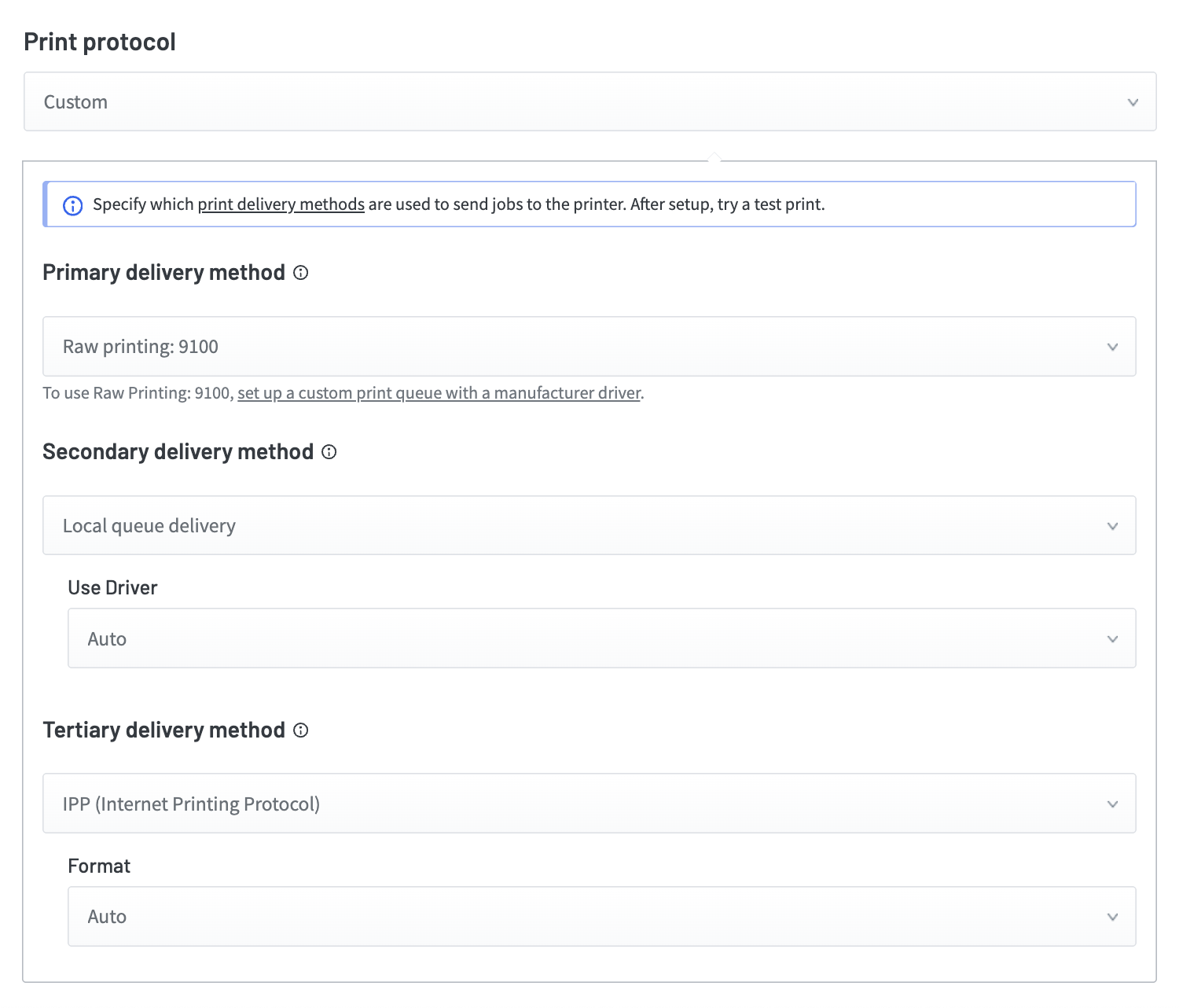
- Under Print Protocol, change from Default to Custom from the dropdown menu. The Primary, Secondary, and Tertiary delivery method options are displayed.
- For each delivery method, select a protocol from the dropdown menu.
- If you select Raw Printing:9100 you will be presented with a link to set up a custom print queue with a manufacturer driver.
- If you select Local queue delivery, a Use Driver menu appears. Select Auto or Specific Driver.
- If you select IPP (Internet Printing Protocol), a Format dropdown menu appears. Select Auto or Raster.
Custom print protocol scenarios
Each delivery method offers different benefits. Use the following scenarios to determine the best setup for your environment.
Scenario 1: Medium-sized office with manufacturer (OEM) printer drivers
Environment
Medium-sized office where an always-available client is not a feasible option.
Users like to submit jobs to be held for release at a later time (batch release).
The office has a mix of MFP manufacturer brands.
The office sysadmin wants to use the PaperCut Printer (Find-Me printing) and push out a manufacturer driver using a Universal Driver to their users (who need finishing options and tray calls).
Recommended setup
Install and deploy manufacturer drivers: using Print Queues in the PaperCut Hive or Pocket admin console, the sysadmin installs and deploys the printer manufacturer’s Universal Print Drivers (UPDs). Learn how to deploy a manufacturer driver.
Select the following “Custom” print protocol options:
Primary delivery: RAW printing: 9100
Secondary delivery: IPP (Internet Printing Protocol)/IPPS
Tertiary delivery: none
Benefits of this setup
In this configuration, manufacturer drivers deployed via PaperCut Hive and Pocket always use RAW printing: 9100 first, then fall back to IPP. This is a great option since most manufacturers’ UPDs cover entire families of models and negate the need for “model-specific” drivers. Then the SysAdmin can deploy the manufacturer driver to all users who are running the PaperCut Hive/Pocket Client.
This provides all deployed users with a PaperCut Printer for basic print job features like simplex/duplex and color/grayscale prints, but also access to manufacturer drivers with full-featured finishing options including tray calls, color controls, and media types.
However, when users select the “PaperCut Printer” (default Find-Me print queue), PaperCut Hive/Pocket will automatically use the secondary protocol, IPP.
Scenario 2: Multi-site environment with WAN interconnectivity
Environment
Always-available clients are strategically positioned at each location with queues servicing those locations’ printers.
Users frequently print large job sizes, and also require finishing options on their MFPs.
The sysadmin has deployed manufacturer (OEM) universal drivers and expects end users to use a combination of those and the PaperCut Printer (default Find-Me print queue).
Recommended setup
In this scenario, the best delivery setup is:
Primary delivery: Local queue via clients selected in the printer’s associated Print Delivery Profile
Secondary delivery: RAW printing: 9100 via clients selected in the Print Delivery Profile
Tertiary delivery: IPP (Internet Printing Protocol)/IPPS
Benefits of this setup
With this configuration, both OEM print queues are deployed and the PaperCut Printer will use the super node/print queue at each location. This provides efficient “locational” based queue delivery and provides good support for heavy print volumes and batch job release.
If, for some reason, the clients specified in the printer’s Print Delivery Profile are offline, or the print queue is in error, the manufacturer driver jobs will automatically use RAW printing: 9100. If this doesn’t work, the final fallback option is IPP/IPPS.
Scenario 3: Hybrid working places with no always-available clients for print release
Environment
Customer uses a network client isolation setup (where no end-user device is being able to talk to other device in the network directly). No dedicated infrastructure is available for inter-network printing
Recommended setup
In this scenario, the best delivery setup is:
Primary delivery: Printer pulls jobs
Secondary delivery: None*
Tertiary delivery: None*
*Note: if end-users very frequently print large size (>500MB) jobs, Secondary/Tertiary delivery protocols based on local network such as IPP or RAW printing: 9100 delivery, are recommended.
For a completely infrastructureless environment, also set up mobile release and/or job submission via the Chrome extension (for Chromebook users).
In the chance of a print release failure, the job will automatically appear to the end-user for re-release. When printing very large documents (>500MB), printing speed depends on available internet speed.
Benefits of this setup
With this configuration, organizations can have a print management system that is infrastructureless. No end-user device needs to talk to any other device in the network for secure print release.
Scenario 4: School with segmented network
Environment
The school segments their networks to distinguish between teachers and students.
A school does not want student devices to communicate directly with printers, other faculty devices etc.
Recommended setup
In this scenario, the best delivery setup is:
Primary delivery: Printer pulls jobs
Secondary delivery: IPP (Internet Printing Protocol)/IPPS
Tertiary delivery: RAW printing: 9100
For a completely infrastructureless environment, also set up mobile release and/or job submission via the Chrome extension (for Chromebook users). It is recommended to bulk deploy the print clients to end-users.
If users are prone to printing very large documents (> 500 MB), the printing speed will depend on internet speed availability. If some end-users (for example, teachers, faculty) need to print large volume jobs constantly, we recommend adding secondary or tertiary delivery methods based on local network protocols to maximise print performance.
In the chance of the print release failure, jobs will automatically appear to end-users for re-release.
Benefits of this setup
This minimizes the risk of a printer or port being accessible to outsiders for network attacks.
This setup works with the customer’s pre-existing network client isolation providing the print delivery configuration that fits right in!
Scenario 5: Private network with extensive privacy and data sovereignty policies
Environment
A hospital or government office with extensive privacy and data sovereignty policies.
They have internal networks to keep all data local. They do not want to adopt cloud storage and cloud job processing.
Recommended setup
In this scenario, the best delivery setup is:
Make sure the Cloud Node is disabled to prevent print jobs replicating to the Cloud.
Set up a Print Delivery Profile to ensure the print jobs are routed according to your requirements.
Add one or more of the "push delivery" Print Protocols that meet your requirements as delivery methods. Available push delivery methods are: Raw Printing: 9100, IPP or local queue delivery.
Benefits of this setup
This approach respects the preferred client settings in the custom print delivery profile associated with the printers.
Jobs are not sent to the Cloud Node.
Comments
Comments are not available in this preview environment. On papercut.com, this space shows the live Disqus comment thread for this page.