






If you have an existing PaperCut NG/MF installation using another Identity Provider (IdP), for example, Google, the implementation is more complex. It is simpler to configure this during a new PaperCut NG/MF installation.
You can enable Sign in with Microsoft in multiple areas of PaperCut NG/MF:
- the PaperCut admin and user web interfaces
- the Print Deploy client
Microsoft SSO is not currently supported for Mobility Print but it is under consideration. If you have any questions, please open a support ticket and reference MOB-2650.
Requirements
Before you start, ensure you meet the following requirements:
- an Entra ID tenant.
- the user in PaperCut NG/MF is configured with an email address that matches the UserPrincipalName (UPN) of the corresponding user in Entra.
Microsoft SSO for Admin and User web interfaces
Microsoft 365 users can log in to the PaperCut NG/MF admin interface or User web interface using their Microsoft credentials in the Username and Password fields.
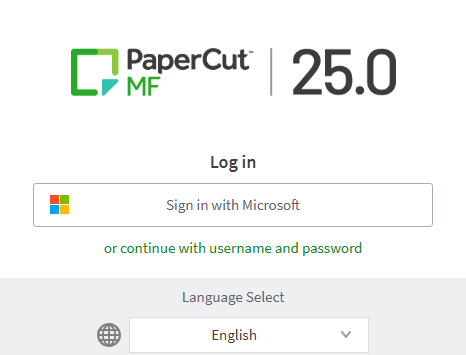
After Entra SSO is set up as shown below, users and admins will see the familiar Sign in with Microsoft button, with a link underneath to log in using their username and password instead.
1. Create an enterprise application
-
Sign in to the Entra Portal.
-
Under Home, expand Entra ID and select App registrations..
-
At the top of the new page, click New registration. The application creation screen is displayed.
-
Set the type to Web,.
-
In the Redirect URI (optional) field, enter your server’s call back URL.
-
Click Register to create the application. The application’s Overview page is displayed.
-
Copy the Application (client) ID and save it for the PaperCut NG/MF configuration.
-
After creating your application, Microsoft will take you to the overview page for your new App, In the left menu, click Authentication tab.
-
Scroll down to Implicit grant and hybrid flows and select the ID tokens (used for implicit and hybrid flows) checkbox.
2. Locate your tenant ID
- If you aren’t already signed into the Entra Portal, sign in.
- Expand Entra ID and click Overview.
- In the Basic information section, find the Tenant ID.
3. Configure PaperCut NG/MF
Enter the application details into the PaperCut NG/MF admin interface.
- Log in to the PaperCut NG/MF admin interface.
- Navigate to Options, User/Group Sync, Single Sign On with Microsoft
- Select the Enable the ‘Sign in with Microsoft’ button on the Admin and User web interfaces checkbox. Two extra fields are displayed.
- Enter the Tenant ID and App ID you saved earlier.
4. Test if the button is displayed
To test, navigate to http://<yourpapercutserver>:9191 . If your setup was successful, you should see the Sign in with Microsoft button on the User and Admin web interfaces and can sign in successfully.
Troubleshooting AADSTS50011 Redirect Errors
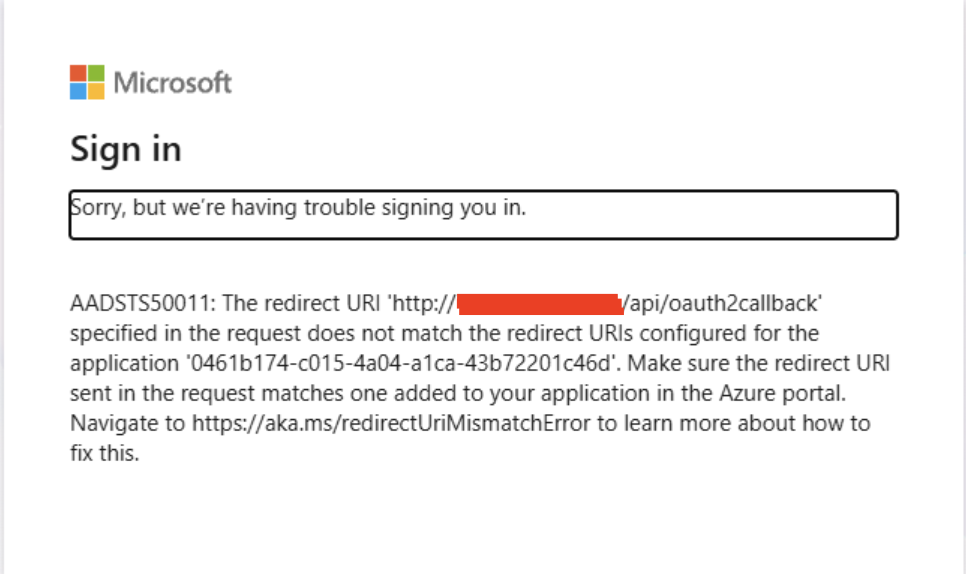
Don’t let a redirect error slow you down. We can get your login working again in just a few clicks. This error usually happens when the Redirect URI in Microsoft Entra ID does not match your PaperCut server. Use the exact address provided in the steps below to fix it.
- In the Microsoft Entra admin center, click App registrations.
- Select your PaperCut application from the list.
- From the sidebar menu, click Authentication.
- Under the Web platform section, find the Redirect URIs list.
- In the input field, enter the following address:
http://localhost:9191/api/oauth2callback - At the top of the screen, click Save.
Microsoft SSO for Print Deploy
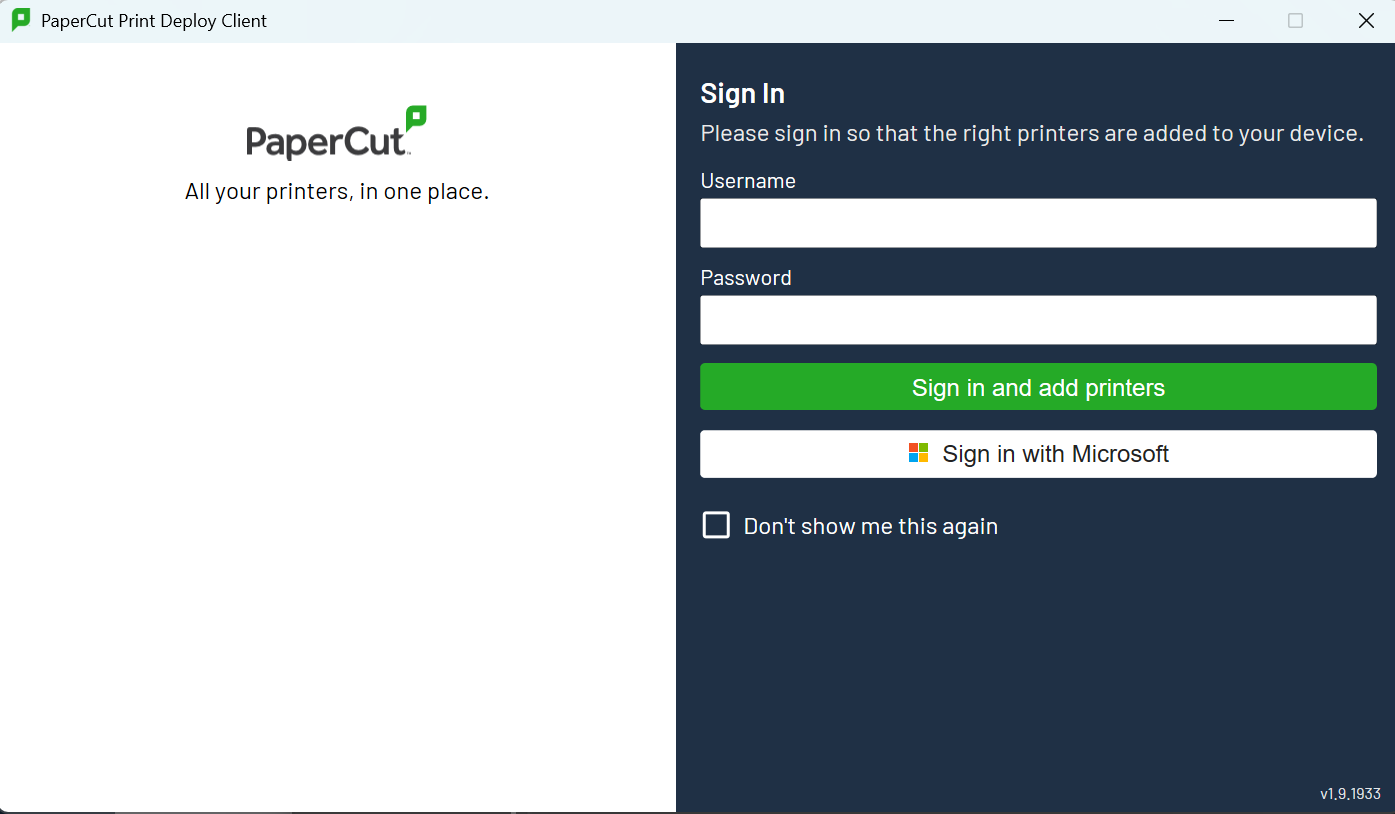
To allow users to authenticate with Microsoft in the Print Deploy client:
-
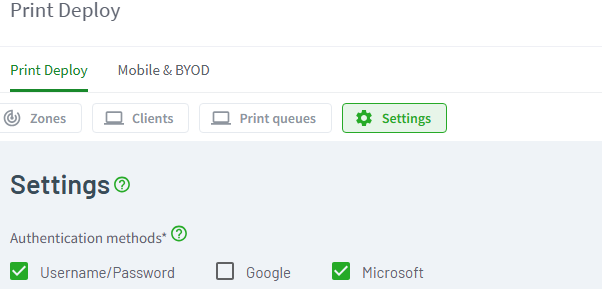
Go to Enable Printing, which opens automatically to the Print Deploy tab.
-
Click Settings.
-
Under Authentication methods, select the Microsoft checkbox.
-
Set the User Identity method to PROMPT.
-
Click Save.
Comments
Comments are not available in this preview environment. On papercut.com, this space shows the live Disqus comment thread for this page.