



This article walks you through the most common steps to troubleshoot errors when attempting to scan at the device, such as “Oops! Something went wrong”, “Failed to Process Scan Job”, “Failed to Process Scan Files”, and “Failed to get the Job Status”.
The integrated scan option is missing on the device’s touchscreen
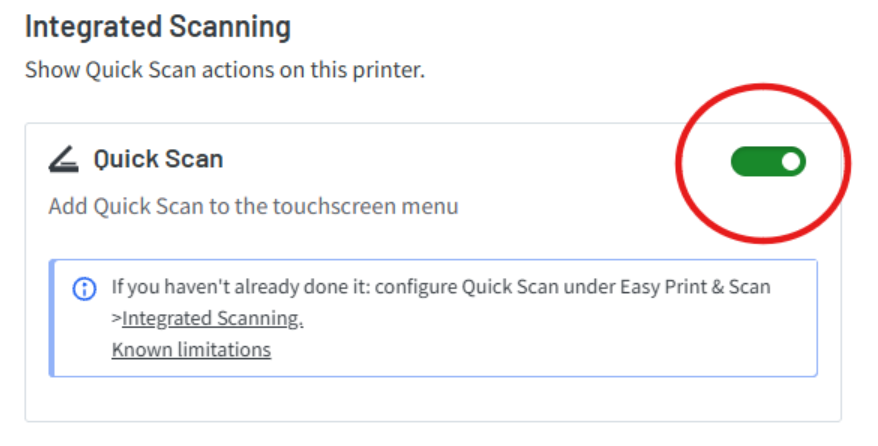
If you can’t see the Scan option on your device, make sure to enable Integrated Scanning in the PaperCut Hive Admin console.
-
In your admin console, go to the Printers page.
-
Select the printer. The printer’s details panel is displayed.
-
Select the Apps tab.
-
Make sure the Quick Scan toggle has been enabled.
Check the logs for error details
Depending on where the scan failure happens, the job details in the PaperCut Hive Job Log can provide useful error information.
Depending on the device manufacturer, you can also find the scan status in the native app’s scan logs. This can help determine whether the job is failing on the device or is having trouble reaching our cloud endpoints.
Check Firewall Ports and URLs are set up correctly
If you have a more restrictive firewall policy in place, you might need to allow the necessary ports and URLs to ensure your device can communicate with PaperCut Cloud Services and components. Review our Firewall and Networking requirements.
Perform basic device checks
- Check time and date settings: Scanning services require an encrypted, secure connection to communicate with PaperCut cloud platforms and scan destinations. If a device’s date or time is incorrect, SSL/TLS certificate validation can fail, causing the scanner to be unable to communicate with cloud endpoints.
- Ensure DNS is correctly configured: If a device cannot resolve or reach the PaperCut cloud scan endpoint, you’ll see scan failures. When troubleshooting, it can be helpful to test with a good baseline, like Google DNS (8.8.8.8).
- Make sure firmware is up to date: Occasionally, out-of-date device firmware can cause issues with PaperCut Hive features like Integrated Scanning. Ensuring the copier is running the latest firmware.
Reinstall the printer app
Reinstalling the embedded app can clear corrupted scan configurations and ensure you have the most recent app version.
To reinstall the embedded app:
-
In the PaperCut Hive Admin console, go to the Printers page.
-
Select the affected printer.
-
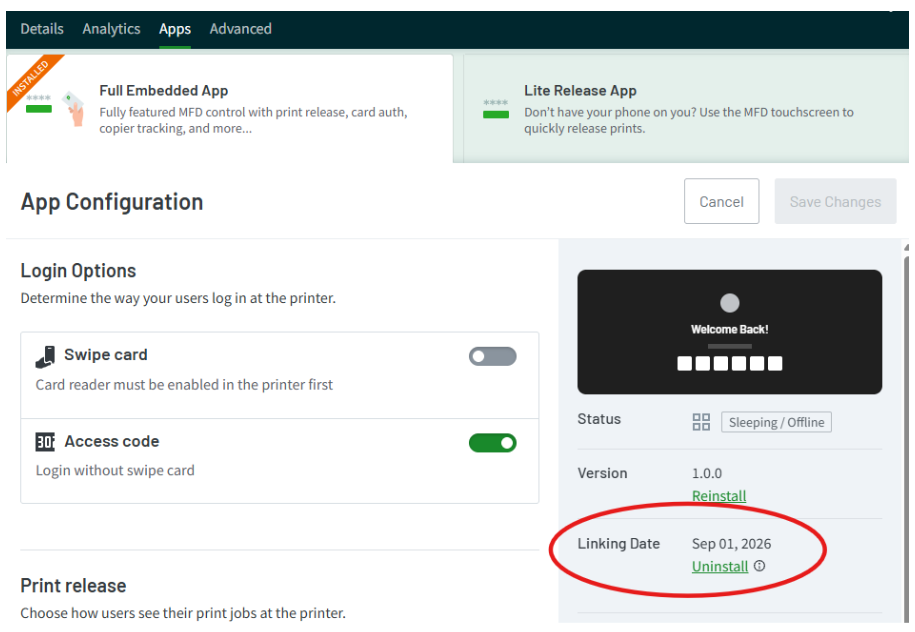
Select the Apps tab to uninstall and then reinstall the embedded app.
Review the embedded app installation guide
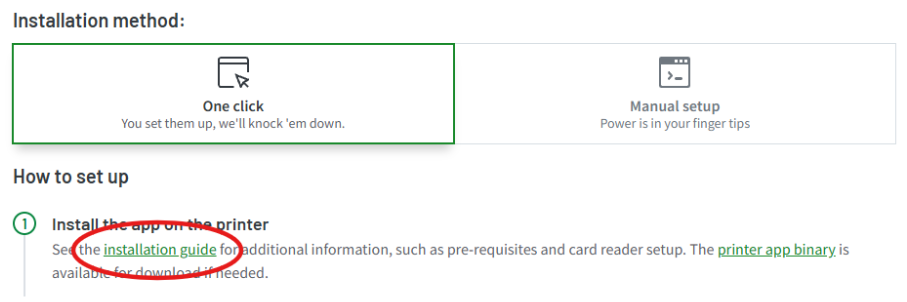
Depending on the device brand, certain configuration settings are required to ensure that the device functions correctly, such as scanning. Refer to the installation documentation for your device brand and review the settings.
To open the documentation, go to the printer’s Apps tab:
For Toshiba and Konica Minolta devices, try a Print Delivery Profile
Specific brands, such as Toshiba and Konica Minolta, rely on edge node connectivity to perform certain device functions, like Integrated Scanning. If you’re seeing issues on one of these brands, configuring a Print Delivery Profile can help ensure these device tasks are being routed successfully. For more in-depth guidance on configuring Print Delivery Profiles, refer to Configuring Print Delivery Profiles.
I’m still having scanning issues
If you have reviewed all of the above steps, but are still experiencing issues, it might be time to reach out for additional help. First, gather detailed diagnostic information to help speed up resolution times.
Contact your Partner
As an expert in third-party hardware, your Authorized PaperCut Partner is your first line of support for device and embedded app issues. They have access to embedded manuals and deep troubleshooting experience.
The following information can help ensure they have everything they need to assist you:
- Organization ID: Found in the Admin Console under Billing and Subscription.
- Device Details: Make, model, device name, and firmware version of the affected device.
- Device Diagnostic Bundle: Known as Deep Logs in PaperCutHive, these detailed device logs can sometimes provide additional troubleshooting info.
- Scan IDs: When failed scans are showing in the PaperCut Hive job log.
Submit a ticket
If you need help connecting with your partner, or to open a request directly with PaperCut, you can submit a support ticket via support.papercut.com.
Comments
Comments are not available in this preview environment. On papercut.com, this space shows the live Disqus comment thread for this page.