




This guide is intended for existing PaperCut Hive or Pocket admins looking to test and explore features within an active instance using Demo Mode.
Looking to evaluate PaperCut for the first time? If you’re interested in purchasing or requesting a new demo, head over to the Request a PaperCut Demo to get started.
Ever wanted to explore a new feature in PaperCut Hive or Pocket, but worried about accidentally disrupting the team’s print queue? Well, now you can go right ahead and test new features safely in the background without impacting production. Demo Mode gives you a completely safe space right in your PaperCut Hive or Pocket console to try out features and see how it all works.
Why choose Demo Mode?
Experience PaperCut Hive or Pocket in action! Demo Mode complements traditional documentation by giving you a live, interactive space to explore and learn by doing.
You can test security policies, access controls, release options, and other features before making them live, allowing your team to test before you invest or deploy. Your tests don’t affect real users or your production setup.
Demo Mode also speeds up team onboarding by providing a realistic, pre-populated environment where IT colleagues can explore features safely and gain immediate, practical experience.
What’s inside the Demo Mode?
When you switch on Demo Mode, PaperCut Hive instantly fills your console with interactive sample data so you can check out:
- Dashboard: Get a clear, bird’s-eye view of “Usage Over Time” graphs, active edge nodes, and live print activity.
- Security and Secure Print Release: Test out how watermarking, digital signatures, and Mobile Release options keep documents safe.
- Network and printer setup: Explore local, fast, and resilient print job handling.
- User and group management: Explore how easy it is to manage user permissions, invitation links, and access rules.
How to switch on Demo Mode
You don’t need a special license or a sales rep to turn it on—it’s already waiting in your account!
- Log in to your PaperCut Hive or Pocket admin console via any web browser.
- In the top right corner or the page, click your account settings.
- Select Demo Mode from the drop down menu.
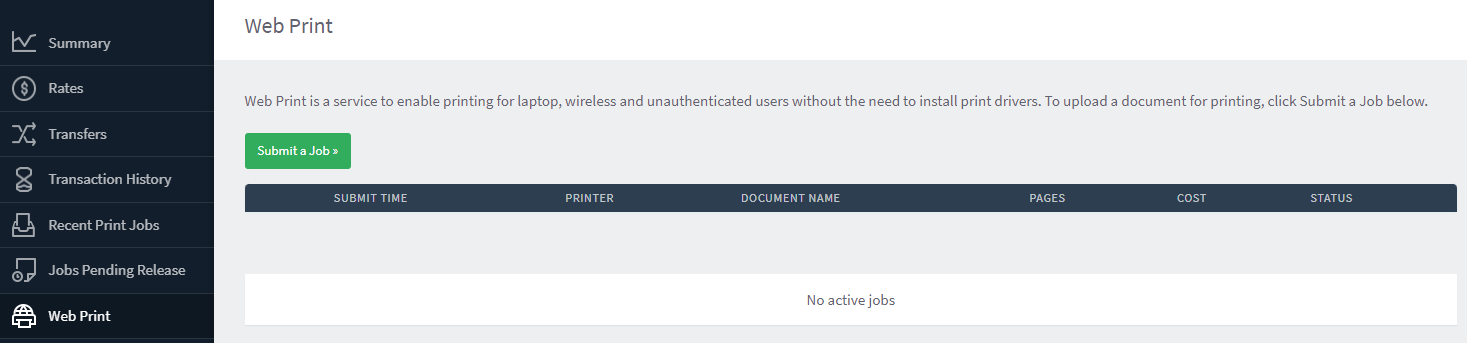
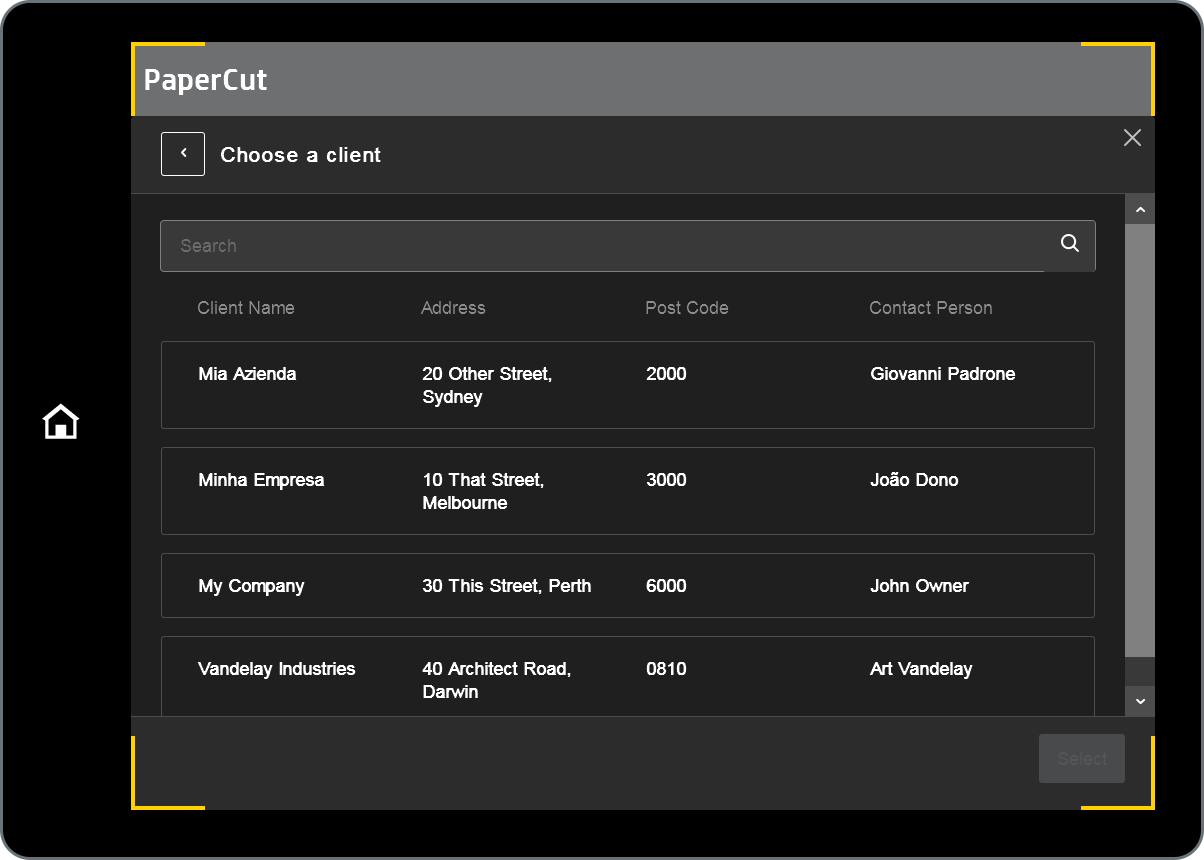
That’s it! The dashboard will reload with demo data, giving you instant hands-on access to test, click, and learn. When you’re done, simply select exit Demo from the banner to return to your normal view.
Comments
Comments are not available in this preview environment. On papercut.com, this space shows the live Disqus comment thread for this page.