




For organizations syncing users into PaperCut Hive and Pocket from identity providers (IdPs) such as Microsoft Entra ID, Google Workspace, and Okta (coming soon) via User and group sync, user groups are a convenient way to manage user policies and permissions in bulk.
After you add groups from your identity provider in Groups, PaperCut Hive and Pocket will match users in the Users page to their identity provider memberships of those groups. Then, whenever you add group-based rules to features in PaperCut Hive or Pocket — like who gets a print queue or who can only print in black and white — the policies will apply to the users of those groups. Handy!
Why use Groups in PaperCut Hive and Pocket?
Groups let you manage users in bulk rather than individually, saving you time. After adding Groups to PaperCut Hive or Pocket, and filling them with the appropriate users, you can use these groups to:
- control how quota/credit is allocated to users on a regular basis (prerequisite: enable the Cost Tracking feature)
- create initial settings given to newly-created users in a group (such as giving users “Restricted” status)
- filter/restrict user behavior and access (such as access to color printing or specific printers)
- automate user access to Print Queues (and drivers)
- create reports based on group activity.
By applying changes to large numbers of users via Groups, you can avoid managing permissions and policies on a user-by-user basis and ensure nobody gets missed out when making changes.
How to set up Groups in PaperCut Hive and Pocket
-
Log in to the PaperCut Hive or Pocket admin console as an administrator.
-
In the side navigation menu, select Groups. The Groups page is displayed.
-
Select Add groups. A popup is displayed.
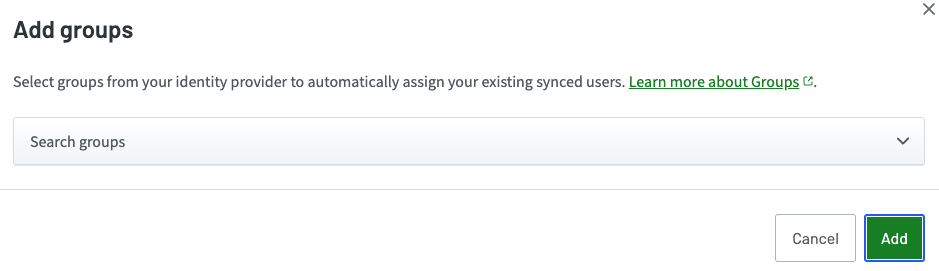
Search the Add groups popup to find and add groups from your connected identity provider
-
Select one or more groups to add into PaperCut Hive or Pocket from your connected identity providers.
-
Select Add. The groups are added to PaperCut Hive or Pocket, and the users’ memberships are updated to reflect group memberships in your connected identity providers. You can now use groups for policy and permission management in PaperCut Hive or Pocket.
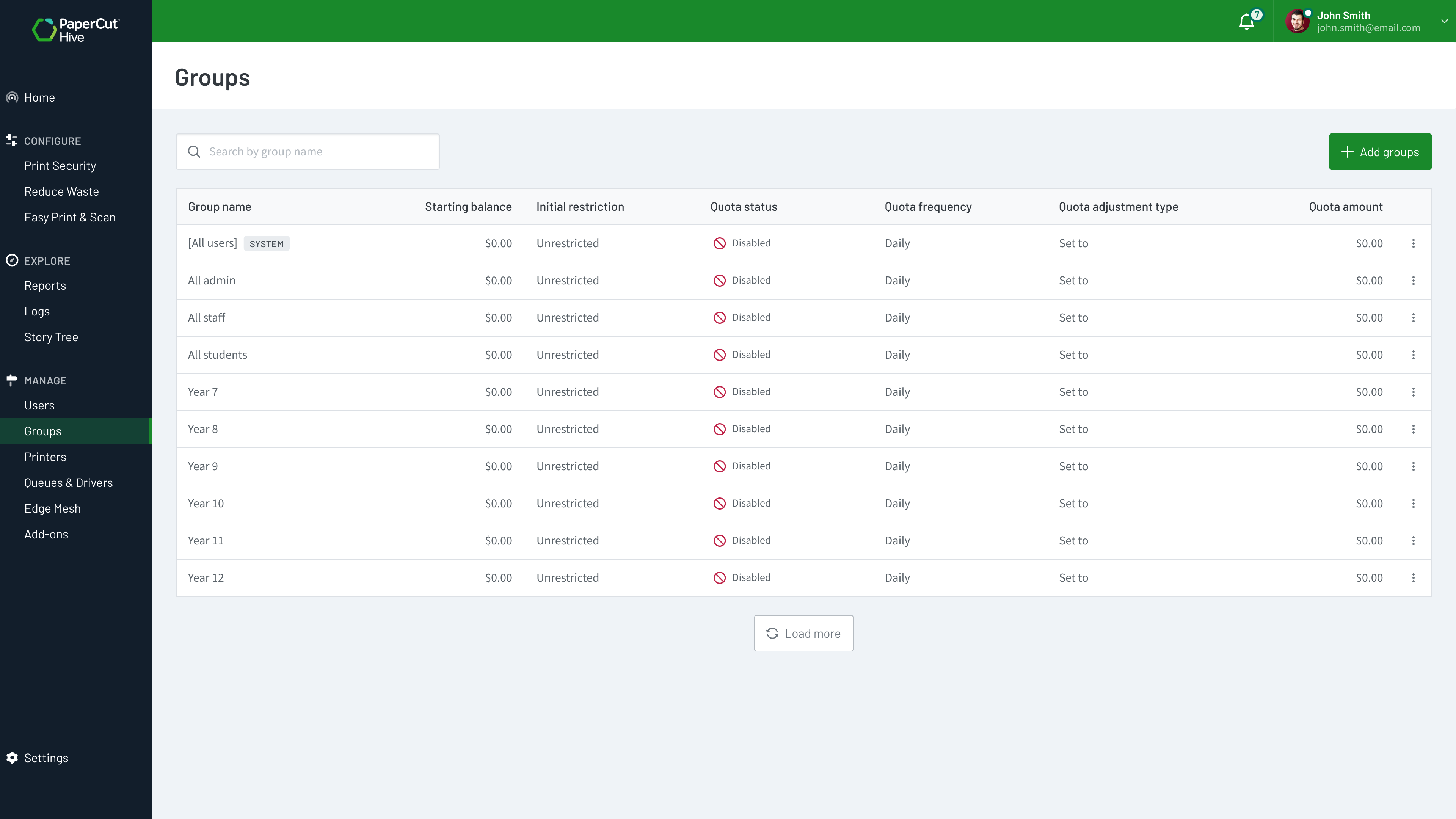
The Groups page in PaperCut Hive or Pocket
How to delete a group in PaperCut Hive and Pocket
To delete (remove) a group:
- Log in to the PaperCut Hive or Pocket admin console as an administrator.
- In the side navigation menu, select Groups. The Groups page is displayed.
- Select the three dot menu of the group you want to delete and select Remove group. The Remove the [group’s name] popup is displayed.
- Select Remove group. The group is now deleted from PaperCut Hive or Pocket.
Multiple group membership: what happens when a user is a member of multiple groups?
Users can be members of more than one group in PaperCut Hive and Pocket. But since groups can have different settings and rules, what happens when these settings and rules conflict or are different? Read on to understand how this works.
- Quotas
- A user that is a member of more than one group will receive multiple allocations from each group.
- New user initial settings
- If “initial settings” rules are defined for each user, they will receive the sum of the initial balances and the most permissive/least restrictive of relevant settings.
- The user obtains a starting credit that is the sum of all the matching groups. (The [all-users] group is ignored).
- If any of the matching groups has unrestricted access, the user inherits unrestricted status.
- If the user does not belong to any group with new user settings defined, they inherit the settings applied to the “All Users” group.
- Print Queue Deployment
- A user receives all print queues deployed to groups of which they’re a member.
Making changes to groups in your identity provider or PaperCut Hive and Pocket
Sometimes you’ll set up groups in PaperCut Hive or Pocket, and never need to touch them again. Other times, there’s a bit more to do, such as deleting groups in your identity provider, or changing users’ group memberships. Here are some common scenarios, and what happens.
To make things clear, in the following table:
- we call a group that has been added from your connected identity provider into Groups a “managed group”
- we call a group being used as a source to import users in a sync configuration a “User source group”.
| Change description | Result in PaperCut Hive or Pocket |
|---|---|
| Changing the name of a managed group in the identity provider | The new managed group name will display after the next time the identity provider is synced. |
| A managed group is deleted in the identity provider | The group remains intact inside PaperCut Hive or Pocket. To remove it, delete it in Groups. |
| A group used as both a managed group and as a User source group is deleted in the identity provider. No changes are made to the sync configuration or Groups in PaperCut Hive or Pocket. | On the next standard sync, any users with memberships of that group in the identity provider will lose their equivalent group memberships in Groups. They remain users in PaperCut Hive or Pocket. The group name still displays in Groups.On the next manual sync with user deletion selected, any users who are a member of that group in the identity provider are deleted from PaperCut Hive or Pocket unless they are included in another User source in the sync configuration. |
| A managed group is deleted in Groups | Users with memberships of the removed group will lose that membership. |
| A user has group membership in PaperCut Hive or Pocket and their membership of the equivalent group is removed in the identity provider. | Upon next sync, the user loses membership of the group in Groups. They remain a user of PaperCut Hive or Pocket. |
| A user is no longer covered by a group synced as a User source. | The user will remain a user, but their group memberships will be removed. |
| A user is not part of the synced User source (invited via manual invite or other external means) but their email address is included in a non-synced managed group in the identity provider. | The user has their group membership synced, because the email address matches a group membership in the identity provider. |
| A group used as a User source group is deleted in the identity provider. | The group is automatically removed from the sync configuration’s User source. The users associated with that group remain users in PaperCut Hive or Pocket. |
Frequently asked questions
Which identity providers are compatible with Groups in PaperCut Hive and Pocket?
At the moment, Microsoft Entra ID and Google Workspace are compatible with Groups in PaperCut Hive and Pocket. The team is hard at work on making groups compatible with Okta, so watch this space!
Can a single user be a member of multiple groups?
Yes, users can be members of multiple groups via the Groups feature. The membership is determined in the identity provider, then reflected in PaperCut Hive or Pocket. Note that where groups have different rules, policies, and permissions, some may override others.
Can I create groups which aren’t in my identity provider? (Internal Groups)
No. We know this is a functionality in PaperCut NG/MF, and may consider it in the future.
Can I manage users who aren’t in my identity provider with Groups?
Not at the moment. Only users synced from an identity provider connected to PaperCut Hive and Pocket via the User and group sync feature can be managed with Groups.
I have groups in my identity provider, but I can’t see them in Groups in my PaperCut Hive or Pocket admin console. What do I do?
Set up and authorize an identity provider configuration via User and group sync. You can then go to Groups, and add groups from your identity provider for user management (the groups do not appear automatically). Ensure that the administrator used to authorize the connection has the correct permission level in your identity provider as well.
Does deleting a group in Groups in PaperCut Hive or Pocket remove its users or affect my Identity Provider?
No. PaperCut Hive and Pocket only receive group names and memberships from your identity provider. Deleting a group in PaperCut Hive or Pocket does not affect anything in your identity provider, and also does not delete users in PaperCut Hive or Pocket.
Can I use groups to automatically assign PaperCut Hive or Pocket admin rights to users who are admins in my Identity Provider?
The Groups feature of PaperCut Hive and Pocket is limited to end user roles. There is no way to automatically assign admin roles to PaperCut Hive and Pocket users, even if those users are in an admin group in your identity provider. Instead, once your to-be-admin users are synced, invite them as PaperCut Hive or Pocket admins via the admin console.
Can I use groups synchronized from my identity provider to manage users who were onboarded through another method like Team Signup or manual email invitation?
It depends. Group memberships derive from your synced identity provider — so they only apply to users also synced from, or contained in, that same identity provider user source.
However, users in PaperCut Hive and Pocket are based on unique email addresses. This means that if you added a user via a non-sync method, but that user is also included in the sync source, PaperCut Hive or Pocket will “match” the user to the sync source record. In this situation, group membership for that user will be respected/apply.
Comments
Comments are not available in this preview environment. On papercut.com, this space shows the live Disqus comment thread for this page.