




Administrators use groups to manage large number of users. Groups are used for many purposes, such as reporting, access control, notifications, and management. Printer groups are most useful for organizations with a medium to large number of devices.
Printer groups allow administrators to tag or group printers by attributes. Group names are user definable and can represent any attribute appropriate for printer management. Examples include printer type, location, make, function, owner, age, etc. PaperCut NG/MF’s grouping is implemented using text based “tags” offering similar flexibility to that seen in many modern online systems.
Some examples of where printer groups are useful include:
- Grouping by printer type allowing an organization to compare volume on inkjets vs. laser printers.
- Grouping by floor, departments, or work areas providing comparison reports to identify areas that might need additional printers.
- Quickly locate printers by attributes or tags defined by administrators.
- Implement fine grained access control by ensuring administrators can only apply adjustments to devices under their ownership/responsibility.
- Facilitate group-level management of devices settings, such as copying new rules, costs and policies between similar devices.
To group printers:
-
Click the Printers tab.
The Printer List page is displayed. -
Select a printer.
The Printer Details page is displayed showing the Summary tab contents. -
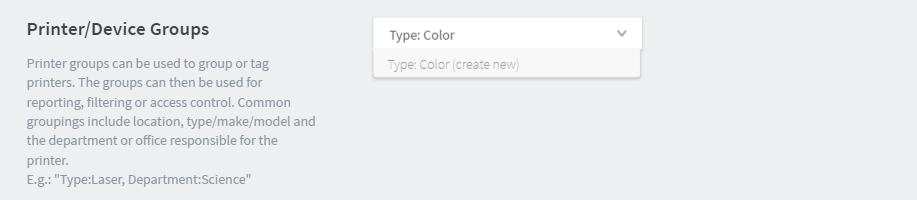
In the Printer/Device Groups area, enter an appropriate group name, such as Type:Color; then click Enter to add. Read best practices in Suggested best practices for naming printer groups.
-
Click OK.
-
On the Printer List page, select another color printer.
-
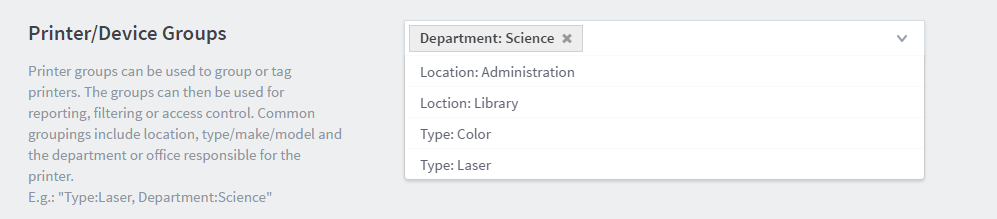
In the Printer/Device Groups area, click the drop-down arrow in the text box. A list of all available printer/device groups is displayed.
-
Select the printer group, such as Type:Color.
-
Repeat steps 5-7 for all printers/devices to be included in the group.
Suggested best practices for naming printer groups
An important requirement of group management is to have clear and consistent naming conventions for your groups. This convention needs to be followed by all involved in group management. Being able to see a list of printer/device groups is a good way to ensure consistency. A group name can contain any character except for ",". Administrators are encouraged to use a key-colon-value format such as:
- Type:Laser
- Location:Floor1
- Department:Science
- Subnet:192.168.4.*
- Office:NewYork
Prefixing the value with a type makes it easier to compare and locate groups of interest.
Similar to user groups, it’s important to keep printer groups up-to-date. Ensure someone is tasked with assigning printer groups when new devices are added to your network.
How to delete Printer Groups
Empty printer/device groups are automatically deleted during the nightly maintenance process, but only if both of the following conditions are met:
- They do not contain any printers or devices
- They are not associated with a notification
View Printers in a Printer Group
In the PaperCut Admin interface, you can filter the printer list by group to see which printers belong to it. At the bottom of that filtered printer list, there is also a green export icon that lets you download the list as a CSV file.
There is also a built-in report called “Printer groups - printer summary” available under the Reports tab in the Admin interface, which shows printer group memberships.
To get a group removed, you need to unassign all printers from it:
- Go to the Printers tab in the Admin interface.
- Select a printer that belongs to the group.
- In the Printer/Device Groups area on the Summary tab, remove the group tag from that printer.
- Repeat for all printers assigned to that group.
Once the group has no printers assigned and no notifications associated, it will be automatically cleaned up during the next nightly maintenance run.
Comments
Comments are not available in this preview environment. On papercut.com, this space shows the live Disqus comment thread for this page.