






This page describes how to configure Google Workspace Single Sign-on (SSO) via SAML 2.0 for PaperCut MF and PaperCut NG. For more information about SAML 2.0, see User authentication and SSO.
Before you start
Ensure you have Google Workspace Administrator-level access or higher.
Step 1. Provide your organization’s basic configuration details to PaperCut NG or MF
To add and enable a Google Workspace SSO configuration:
-
Log in to the PaperCut Admin web interface with SSL port ((for example,
https://your-papercut-server-name:9192). -
Select Options > User/Group Sync tab.
-
Scroll down to the SSO Single Sign on section.
-
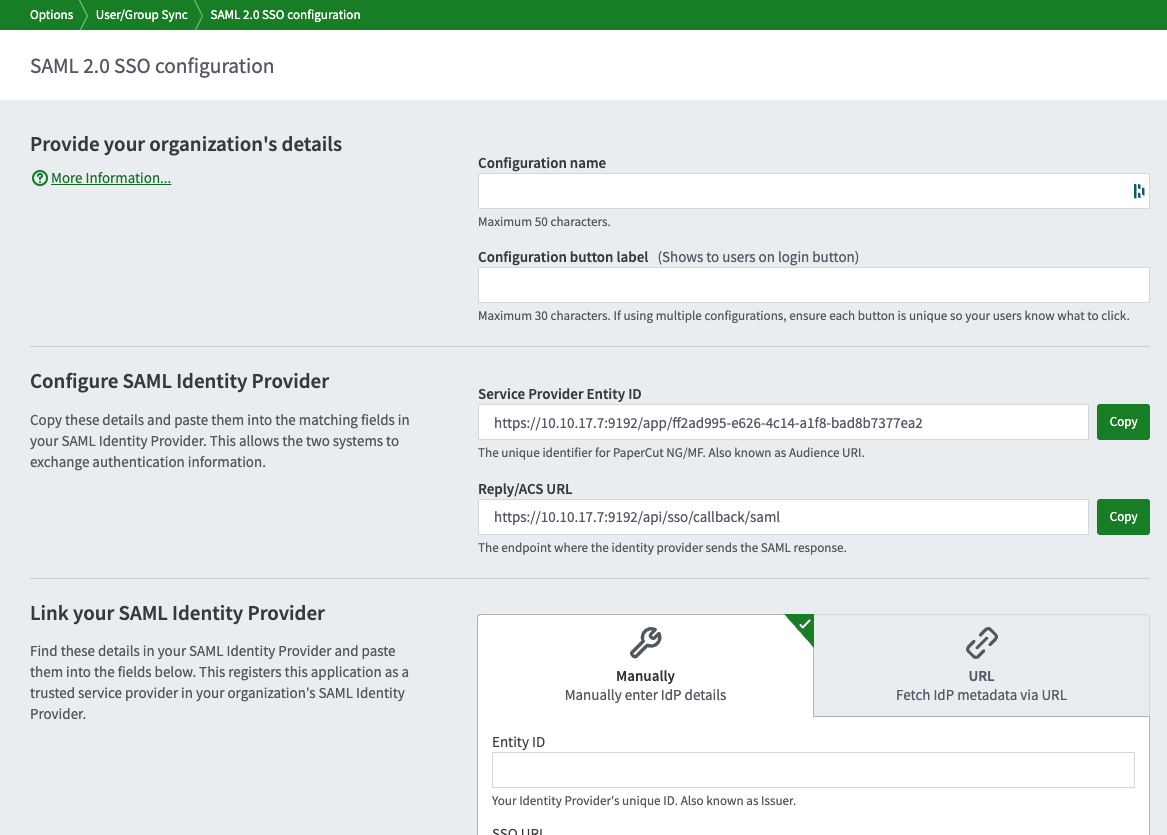
Click Add SAML2 configuration. The SAML 2.0 SSO configuration page is displayed.
-
In the Configuration name field, enter a name for this configuration. This name helps you know which configuration you’re using or editing.
-
In the Configuration button label field, enter the button label your users will see on your organization’s PaperCut NG or MF login page. Again, if you are using multiple SSO configurations simultaneously, ensure the button label helps users select the right button to log in.
Step 2. Link Google Workspace back to PaperCut
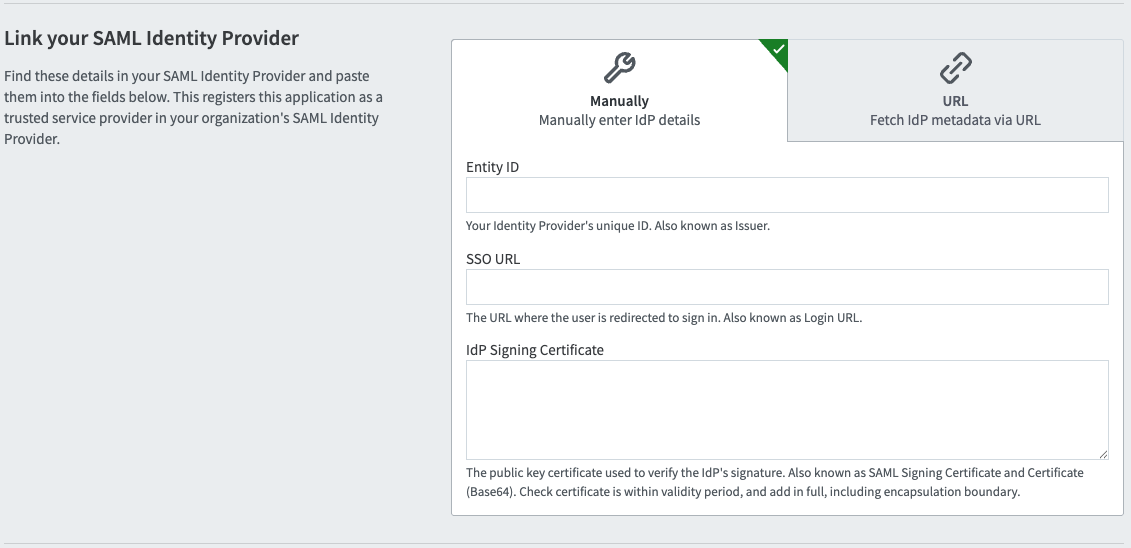
This step is for completing the Link your SAML Identity Provider section.
In a separate tab, log in to your Google Workspace Admin console. You must have Administrator access.
-
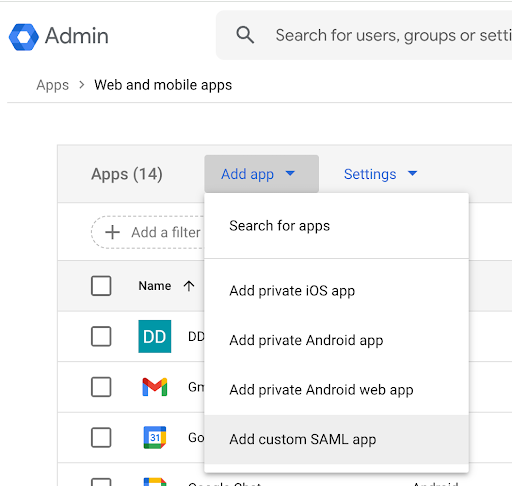
In the left menu, select Apps > Web and mobile apps.
-
In the action selection area, select Add app > Add custom SAML app.
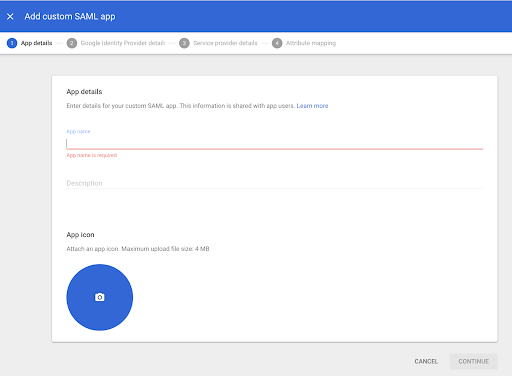
The App details page is displayed.
-
In App name, enter a name for your application. We’ll use
Example SAML app. Then select Continue. The Google Identity Provider details page is displayed.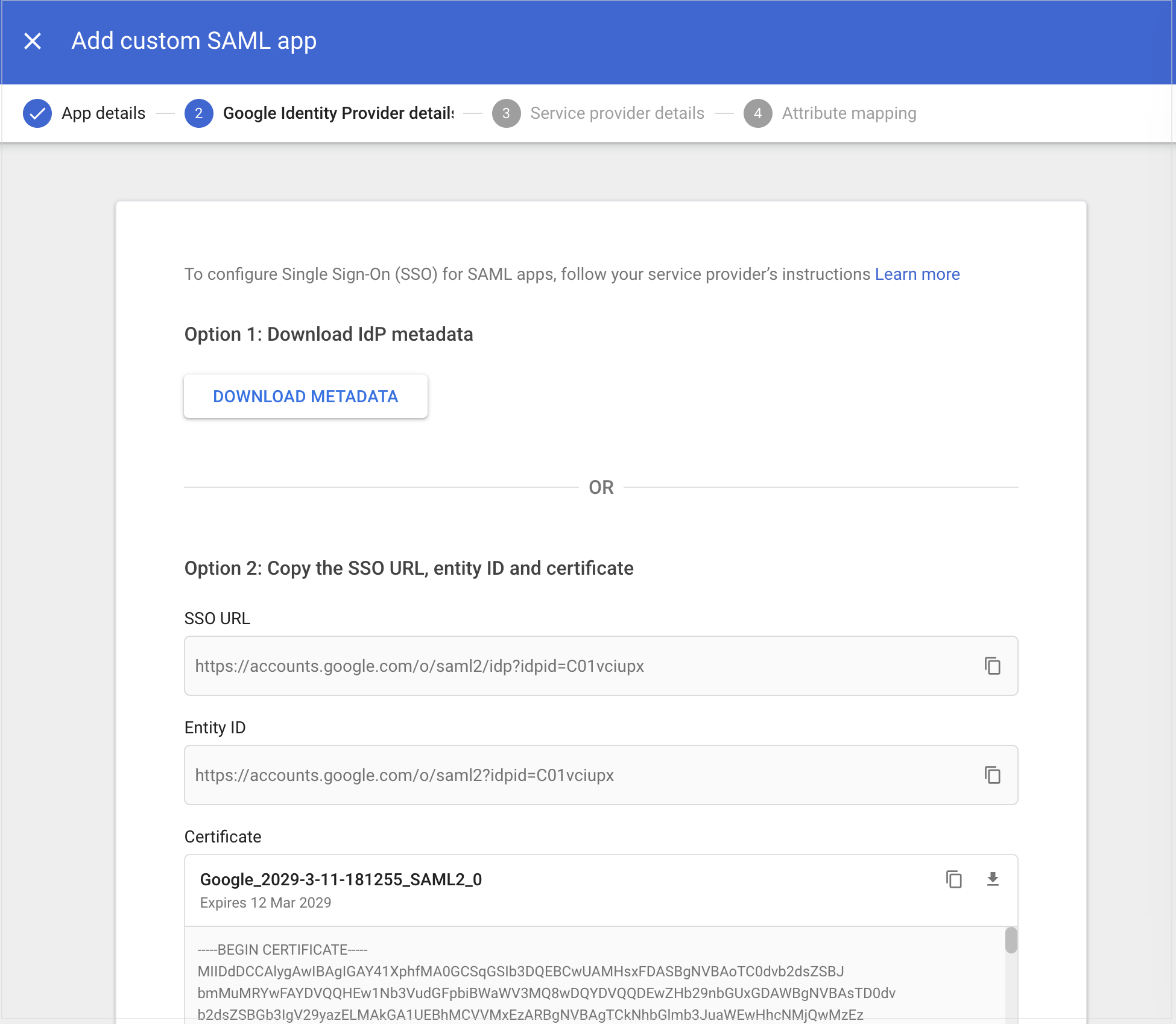
-
Copy the SSO URL and paste it into PaperCut:
- Go to Option 2 and copy the SSO URL.
- Switch to PaperCut and paste the SSO URL in the SSO URL box.
-
Copy the Entity ID and paste it into PaperCut:
- On the Google Identity Provider details page under Option 2, copy the Entity ID.
- Switch to PaperCut and paste the Entity ID into the Entity ID box.
-
Copy and paste the certificate into PaperCut:
-
On the Google Identity Provider details page, copy the details in the IdP Signing Certificate box, including the —–BEGIN CERTIFICATE—– and —–END CERTIFICATE—–.
-
Switch to the PaperCut page and paste the certificate in the IdP Signing Certificate box.
If you have done this correctly, a green tick and certificate validity message appears.
-
-
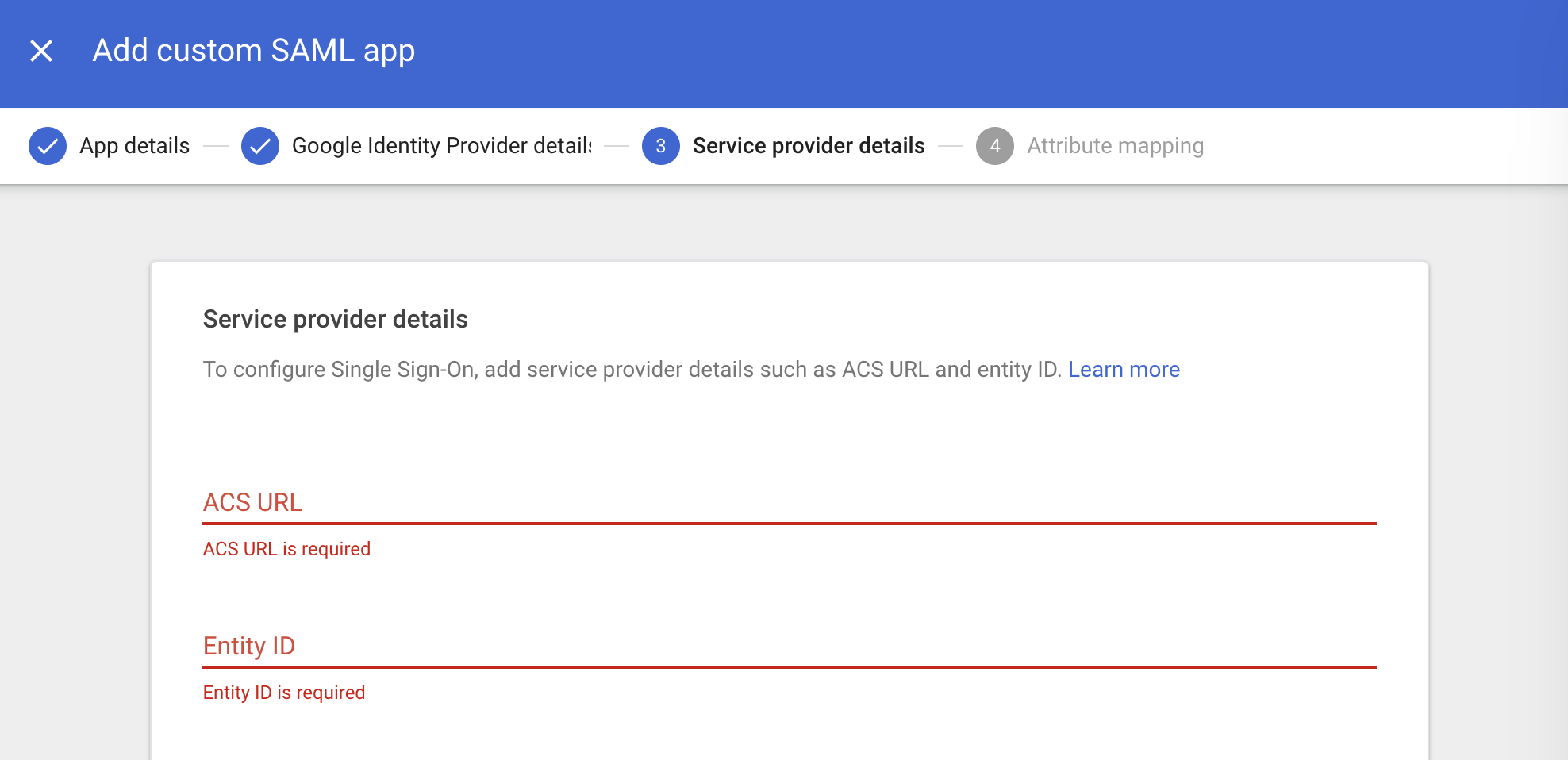
Leave other boxes on the page empty, and select CONTINUE. The Service provider details tab is displayed.
Step 3. Configure Google Workspace with PaperCut details
Both URLs below are also available on the PaperCut SAML 2.0 SSO configuration page, in the Configure SAML Identity Provider section.
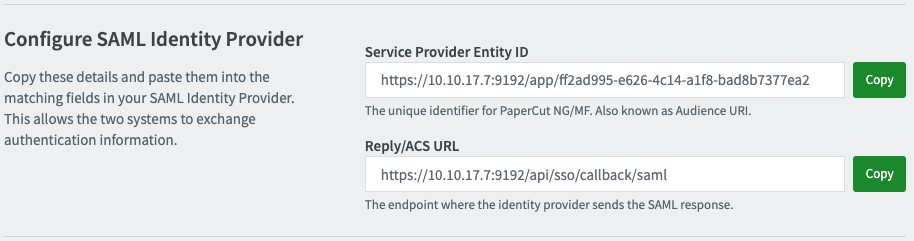
- Go to the PaperCut SAML 2.0 SSO configuration page > Configure SAML Identity Provider section.
- Copy the PaperCut Reply/ACS URL and paste it into Google Workspace.
For example:https://10.10.17.7:9192/api/sso/callback/saml, where10.10.17.7:9192is replaced with your MF host and port details.- Copy the Reply/ACS URL.
- Switch to the Service provider details tab in Google Workspace, and paste the URL into the ACS URL box.
- Copy the PaperCut Service Provider Entity ID and paste it into Google Workspace.
For example,https://10.10.17.7:9192/app/fd2ad995-e626-4c14-a1f8-bad8b2547ea2, where10.10.17.7:9192is your MF host and port details.- Switch to the PaperCut MF Configure SAML Identity Provider section and copy the Service Provider Entity ID.
- Switch to Google Workspace and copy the ID into the the Entity ID box.
- Leave the other boxes on the page empty, and select CONTINUE. The Attribute Mapping page is displayed.
- Leave the boxes on the page empty, and select FINISH.
- Switch to the PaperCut tab.
Step 4. Test configuration
Test that you can log in with an email address associated with the domain(s) you’re setting up for SSO.
- On the PaperCut NG or MF SAML 2.0 SSO configuration page, in the Test configuration section, select Test configuration.
- Log in to the IdP using an account with your SSO-related credentials from the domain you configured. A test user is always a good option!
- Wait until a test result is displayed.
- If the Test successful popup is displayed, select Return to SSO Configuration.
- If the Test failed popup is displayed, make a note of the error information, select Return to SSO Configuration, make the required changes, and test again.
- Select Return to SSO configuration to return to the configuration page.
Step 5. Enable the configuration
- On the PaperCut NG or MF SAML 2.0 SSO configuration page, in the Enable configuration section:
- If you’re ready to immediately allow SSO access to PaperCut NG or MF via this configuration, select Yes, enable now.
- If you’re not ready to start using this configuration, select No, enable later, and save the configuration. You can return to enable it at any time. Before enabling it, test the configuration again.
- Select Apply. The Authentication page is displayed.
- Check that your SSO configuration is enabled/disabled according to your previous “Enable configuration” selection. If enabled, use a test account to check that SSO is working.
Comments
Comments are not available in this preview environment. On papercut.com, this space shows the live Disqus comment thread for this page.