




This page describes how to set up your organization to use NinaOne to deploy PaperCut Hive or Pocket to your Windows devices.
Summary of deploying the client (edge node)
- The computer app is run with elevated privileges, so it doesn’t require the user to be logged in.
- The computer app creates the PaperCut Hive or Pocket edge node processes and PaperCut Printer object.
- The edge node can be deployed without a print client. For example, you can install a super node on a Windows Server.
- The edge node must be deployed before installing the print client.
Summary of deploying the print client
- The computer app creates the print client processes for print job submission.
- It installs files and processes in the Users Security Context.
- The install runs as “Run as current Logged on User”.
- After successful execution, it requires the user to perform the linking process. This can be automated by following our guidance on How to use the command line to automate user sign in for PaperCut Hive and Pocket, clicking “Get Started” in their email invitation, or logging into the task tray icon as pictured below.
Prerequisites
- Workstations managed through NinjaOne
- PaperCut Pocket/Hive Org
Bulk deployment for Windows
Download the installation file for PaperCut Hive/Pocket
- In the admin console, go to the Edge Mesh section.
- Select Add edge node > Manually Deploy Edge Nodes.
- Download the executable file.
Get the System and User Keys
-
In the admin console, go to the Add-Ons section.
-
Select the Intune add-on; then click Add to add it to your organization.
-
Click Manage > Follow these instructions. The instructions page is displayed.
-
Go to step 3 of the Intune guide and copy the install command. This command contains the system key and the parameters to pass into NinjaOne.

-
Go to step 4 of the Intune guide and copy the install command to get the user key.

Create the Automation in NinjaOne for Windows
Edge node installation
-
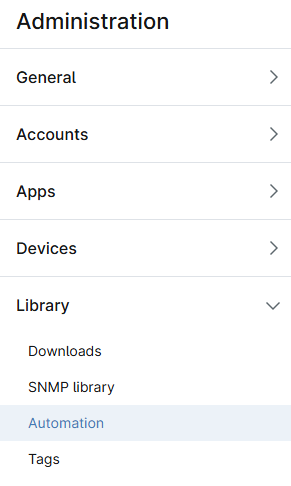
Log in to NinjaRMM and go to Administration > Library > Automation.
-
Select Add automation > Installation.
-
Type a name for the automation, for example, PaperCut Hive or Pocket edge node.
-
Select Windows as the operating system.
-
Select Run as system, then upload the PaperCut Hive or Pocket executable file you downloaded in the previous section.
-
In the Parameters field, paste the install command containing the system key that you copied from the Intune instructions.
Print client installation
- Log in to NinjaRMM and go to Administration > Library > Automation.
- Select Add automation > Installation.
- Type a name for the automation, for example, PaperCut Hive or Pocket print client.
- Select Windows as the operating system.
- Select Run as Current Logged-on User, then upload the PaperCut Hive or Pocket executable file you downloaded in the previous section.
- In the Parameters field, paste the install command containing the user key that you copied from the Intune instructions.
Set up the policy for Windows workstations
- Go to Administration > Policies > Agent Policies.
- Select the policy you use for your Windows workstations.
- Add a condition that looks for
pc-print-client-service. - Add the two automations you created previously in the following order: a. Edge node service b. Print client service
- Type a name for this condition.
- Select your preferences for the remaining fields related to Priority, Severity, and notifications.
Post-deployment checks
After both components are deployed, spot-check your test computer to ensure the following:
- In Task Manager, check the
pc-edgenode-serviceis running.
The Windows PC requires this service to perform Edge Mesh activities such as receiving, replicating, or printing jobs if the PaperCut Cloud Service calls upon it. - In Task Manager, check that
pc-print-client-service.exeis running.
This is the print client needed to link the end-user to PaperCut Pocket or PaperCut Hive and submit jobs via the PaperCut Printer. This process must be running in memory. It provides the functions the user needs to print jobs via the PaperCut Printer.
If either of these are not running, contact your PaperCut Reseller and provide copies of the logs.
Locations of logs
- Edge node service and setup logs:
C:\Program Files\PaperCut Hive\data\logsorC:\Program Files\PaperCut Pocket\data\logs - User print client logs:
%AppData%\Local\Programs\PaperCut Hive\data\logsor%AppData%\Local\Programs\PaperCut Pocket\data\logs - User client set up logs:
%AppData%\Local\Programs\PaperCut Hive\data\logsor%AppData%\Local\Programs\PaperCut Pocket\data\logs%AppData%\Local\Temp
Comments
Comments are not available in this preview environment. On papercut.com, this space shows the live Disqus comment thread for this page.