


macOS Rosetta transition (end of life)
THE PAGE APPLIES TO:




Last updated September 3, 2026
About Rosetta
Rosetta 2 enables a Mac with Apple silicon (e.g. an M5, M4 etc processor) to use apps that have been built for a Mac with an Intel processor.
You can tell which apps currently use Rosetta by viewing the application or process within Applications > Utilities > Activity Monitor on macOS, then reviewing the Kind column. Apps written for Apple silicon will say Apple and those using Rosetta will say Intel. For example:
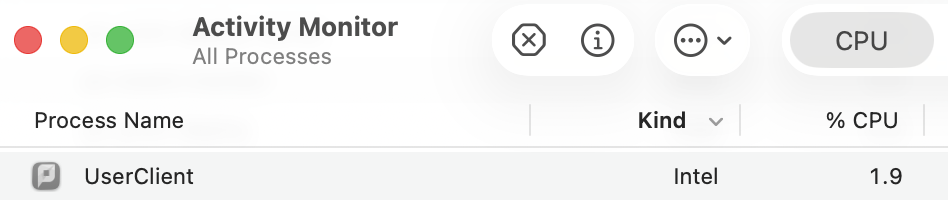
See above for a screenshot of Activity Monitor, showing the PCClient.app running as an Intel based app, included in previous versions of PaperCut NG/MF (26.0.2 or earlier):
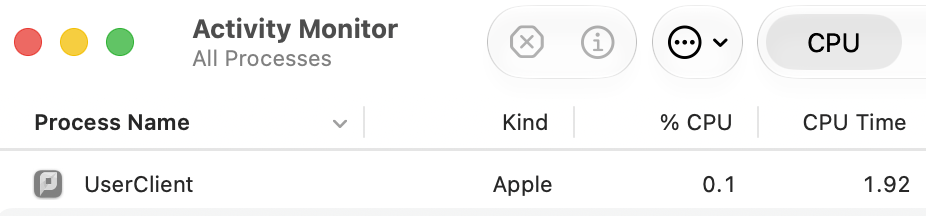
See above for a screenshot of Activity Monitor, showing the PCClient.app running as an Apple based app, included in current versions of PaperCut NG/MF (see PaperCut product component details for more info).
Using Rosetta
If you don’t already have Rosetta installed, you’ll be asked if you want to install Rosetta automatically when you launch a PaperCut client or application. See If you need to install Rosetta from Apple.
Rosetta will still be available and supported in macOS 26 (Tahoe) and macOS 27 (Golden Gate). Following Apple’s previous yearly release cycle we’d expect macOS 27 to be released around September 2026.
Note that we have successfully tested Apple Silicon and Rosetta 2 with all PaperCut apps - including PaperCut NG/MF Application Server, Mobility Print Server, PaperCut Print Deploy Server, PaperCut Print Provider, PaperCut User Client, PaperCut Print Deploy Client, PaperCut Pocket client / Edge Node software and PaperCut Hive client / Edge Node software.
End of life for Rosetta
Apple announced last year that they plan to phase out support for Rosetta in late 2027, as documented on their About the Rosetta translation environment article.
Note that there are two strands of support ending around “Intel”:
- macOS 26 (Tahoe) will be the last release of macOS compatible with Intel-based Mac computers. That means that version of macOS 27 will not be compatible with Intel-based Macs.
- macOS 27 (Golden Gate) will be the last release of macOS to fully support Rosetta. That means that from macOS 28, apps requiring Rosetta will not work. Note: Rosetta will still be supported on macOS 27 (Golden Gate) when released at the end of this year, and support for Rosetta ends with macOS 28.
| macOS version | Compatibility |
|---|---|
| macOS 26 (Tahoe) |
|
| macOS 27 (Golden Gate) |
|
| macOS 28 |
|
Notifications and tools
Apple have added warning notifications in the beta releases of macOS 26.4, and continued the warning notifications in the macOS 27 beta versions.
These notifications have wording along the lines of “Support Ending for Intel-based Apps. This version of [application] will not open in a future release of macOS. Learn how to update to an Apple silicon version”, or “App Update Required. This version of [application] will not open in macOS 27, the next major release. An Apple silicon update may be available on the developer’s website”.
See Apple’s Using Intel-based apps on a Mac with Apple silicon article for more information. Apple have mentioned that sys admins can control the notification experience on managed devices - see the Tahoe 26.4 beta release notes for more information.
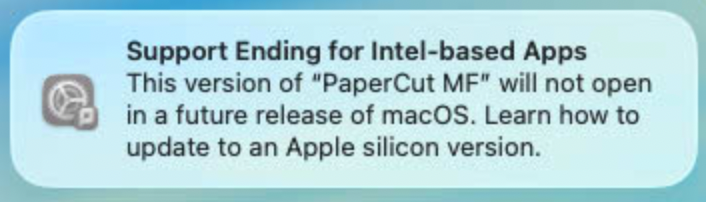

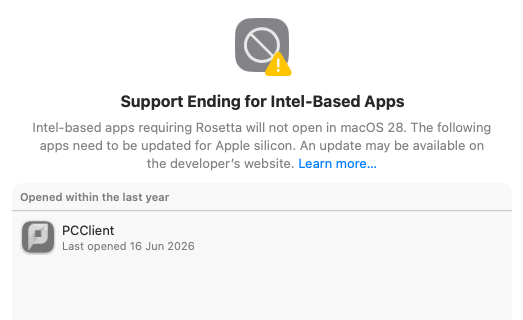
In the beta versions of macOS 27, you can also find Intel-based applications which require Rosetta, listed under System Settings > General > About > macOS > Details. Note that this will only show ‘user’ based apps like the PCClient app, but will not show agents that run in the background like the Application Server or Print Provider services etc.
PaperCut product component details
PaperCut is updating our software to run natively on Apple Silicon without requiring Rosetta, ensuring continued compatibility with macOS 27 and future Apple releases. We are also investigating ways to help customers more easily identify printer drivers that depend on Rosetta so they can plan any required updates ahead of time.
We will continue to update this page with our progress and share timelines and product availability as they become available.
PaperCut component (on macOS) | Status of the component (compatibility with macOS without using Rosetta) | Details | Upgrade details |
|---|---|---|---|
PaperCut NG/MF Application Server | ⚠️ Planned | In progress. |
|
PaperCut NG/MF Site Server | ⚠️ Planned | In progress. |
|
Print Provider (secondary server or direct print monitor) | ⚠️ Planned | In progress. |
|
PaperCut NG/MF user client | ✅ Ready | A PCClient.app universal binary (compatible with Intel and ARM) is available with the PaperCut NG/MF 26.0.3 release. |
|
PaperCut NG/MF standard release station | ✅ Ready | A standard release station universal binary (compatible with Intel and ARM) is available with the PaperCut NG/MF 26.0.3 release. |
|
PaperCut Pocket/Hive Edge Node and Print Client | ✅ Ready 1 | An Edge Node and Print Client universal binary (compatible with Intel and ARM) is available with the Edge Node v2026-08-21-0157 and Print Cllient v2026-08-18-0951 releases. See PaperCut Pocket/Hive release notes for more information. |
|
PaperCut Pocket/Hive Installer | ⚠️ Planned | In progress. |
|
Mobility Print Server | ✅ Ready 1 | A Mobility Print server universal binary (compatible with Intel and ARM) is available with the PaperCut Mobility Print server v1.0.4268 release. See Mobility Print release (server) history for more information. |
|
Mobility Print Client (known host) | ✅ Ready 1 | A Mobility Print known host client universal binary (compatible with Intel and ARM) is available with the PaperCut Mobility Print known host client v1.0.825 release. |
|
Mobility Print Client (cloud print) | ✅ Ready 1 | A Mobility Print cloud print client universal binary (compatible with Intel and ARM) is available with the PaperCut Mobility Cloud Print client v1.0.660 release. See Mobility Print macOS client (Cloud Print) release history for more information. |
|
Print Deploy Server | ⚠️ Planned | In progress. |
|
Print Deploy Client | ✅ Ready 1 | A Print Deploy client universal binary (compatible with Intel and ARM) is available with the Print Deploy Server version 1.10.4708 release (client version v3524). |
|
Print Deploy Cloner | ✅ Ready 1 | A Print Deploy cloner universal binary (compatible with Intel and ARM) is available with the Print Deploy Server version 1.10.4708 release (cloner version 1.0.0+1045). |
|
Job Ticketing | 🏵️ Rosetta required | Re-installation of Rosetta will be required to run the Job Ticketing server on macOS 27. |
|
Universal Print Connector (server side) | ☑️ N/A | Windows only. |
|
GhostScript manual installation | ✅ Ready | A universal binary compatible with Intel and ARM is already available from version 10.03.0 and later (3rd party utility). |
|
Printer driver compatibility | 🙋 Manufacturer-dependent | While not necessarily a “PaperCut” component, your Printer Drivers may be relying on Rosetta, and may stop working after upgrading to macOS 27. |
|
1 Note that with the initial versions of Apple Silicon ready apps, you may still be prompted to install Rosetta if you’re installing on a device running macOS 26 (Tahoe) or earlier, which does not already have Rosetta installed. You will not be prompted to install Rosetta if you are installing on macOS 27 (Golden Gate). See Print Deploy known issue PD-2667, PaperCut Pocket/Hive known issue CORE-3049 or Mobility Print known issue MOB-3231 for more information.
Printer driver compatibility
Some macOS print queues rely on background components (filters or backend binaries) that are architecture-specific. If your manufacturer built these binaries strictly for older Intel processors, they will completely stop working on Apple Silicon Macs that don’t run Rosetta 2.
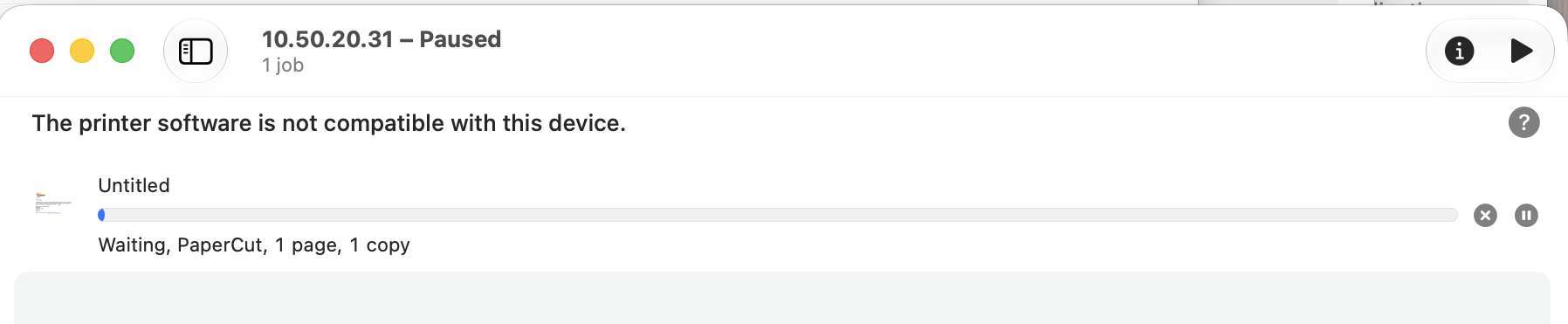
In testing macOS 27, printing to a print queue using a printer driver that requires Rosetta, results in an error displayed in the print queue window: The printer software is not compatible with this device or Filter Failed. Note that Apple’s error messaging may change in the final release:
How to check macOS 27 printer driver compatibility
To easily audit your fleet and find out which Print Queues and PPDs are impacted, we have built a diagnostic script. Here is how to run it:
- Download the tool:
Download our bash script and save it to your Mac’s Downloads folder aspapercut_rosetta_audit.sh - Make it executable:
Open the Terminal app and run the following command to grant execution permissions:chmod +x ~/Downloads/papercut_rosetta_audit.sh - Run the audit:
Execute the script with administrator privileges (you will be prompted for your Mac password):sudo ~/Downloads/papercut_rosetta_audit.sh - Review your results:
The scan may take a minute or two. Once finished, a file namedrosetta_print_audit_report.csvwill be saved directly to your Desktop. Open this in your preferred spreadsheet app and look for any items flagged as INTEL (ROSETTA DEPENDENT) in the Architecture Status column.
Next Steps: What to do if you find incompatible drivers
If your CSV report flags any of your active queues or PPDs as INTEL (ROSETTA DEPENDENT), here is exactly how to keep your users printing seamlessly.
- Check for Manufacturer Updates Head directly to your printer manufacturer’s support website and download their latest macOS driver packages. It is highly likely that their most recent releases have already been updated to include Apple Silicon native Universal binaries.
- Use the macOS 27 Safety Net If a vendor’s latest drivers are still not Apple Silicon ready, you have a temporary fallback. After upgrading to macOS 27 (Golden Gate), you can manually re-enable Rosetta to keep those specific legacy print queues functioning.
Simply open the Terminal app and run the following command:softwareupdate --install-rosetta --agree-to-license - Prepare for macOS 28 Treat re-enabling Rosetta as a temporary bridge rather than a permanent solution. It is very likely that manufacturers will release fully compatible drivers over the next year, which is critical because Apple will completely remove all support for Rosetta in macOS 28.
FAQ
Is there a way to check the App or even specific binary compatibility?
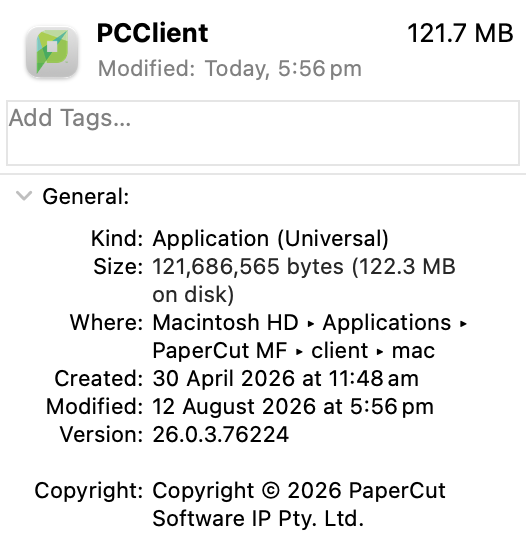
Yes! To check what type or ‘Kind’ of app you have (e.g. Intel or Universal), you can right-click (control-click) the app in question and select Get Info. That will show the ‘Get Info’ (details) panel for the app.
The screenshots below show the ‘Get Info’ panel for different PCClient app versions on varying macOS versions:
The older Intel version of the PCClient app on macOS 26

The older Intel version of the PCClient app on macOS 27

The newer (26.0.3 and later) Universal version of the PCClient app on macOS 27
You can also see the ‘Kind’ of app being run in the Activity Monitor (see About Rosetta above).
If you prefer to do this at the command line, you can run the file command to inspect the binary. For example, you can open the Terminal app, then change directory to e.g. /Applications/PaperCut MF/client/mac/PCClient.app/Contents/MacOS, and then run: file PCClient
For the PCClient binary included within the PCClient.app folder in PaperCut NG/MF version 26.0.3 and later, this command produces:
PCClient: Mach-O universal binary with 2 architectures: [x86_64:Mach-O 64-bit executable x86_64] [arm64:Mach-O 64-bit executable arm64]
PCClient (for architecture x86_64): Mach-O 64-bit executable x86_64
PCClient (for architecture arm64): Mach-O 64-bit executable arm64
This highlights that the binary in question is a Universal binary (Mach-O universal binary) which contains code that runs natively on Apple Silicon (Mach-O 64-bit executable arm64) as well as Intel (Mach-O 64-bit executable x86_64).
On some PaperCut component .pkg installers I see a pre-installation message. Is that related to Rosetta?
If you see a message “This package will run a program to determine if the software can be installed”, this is not related to Rosetta:
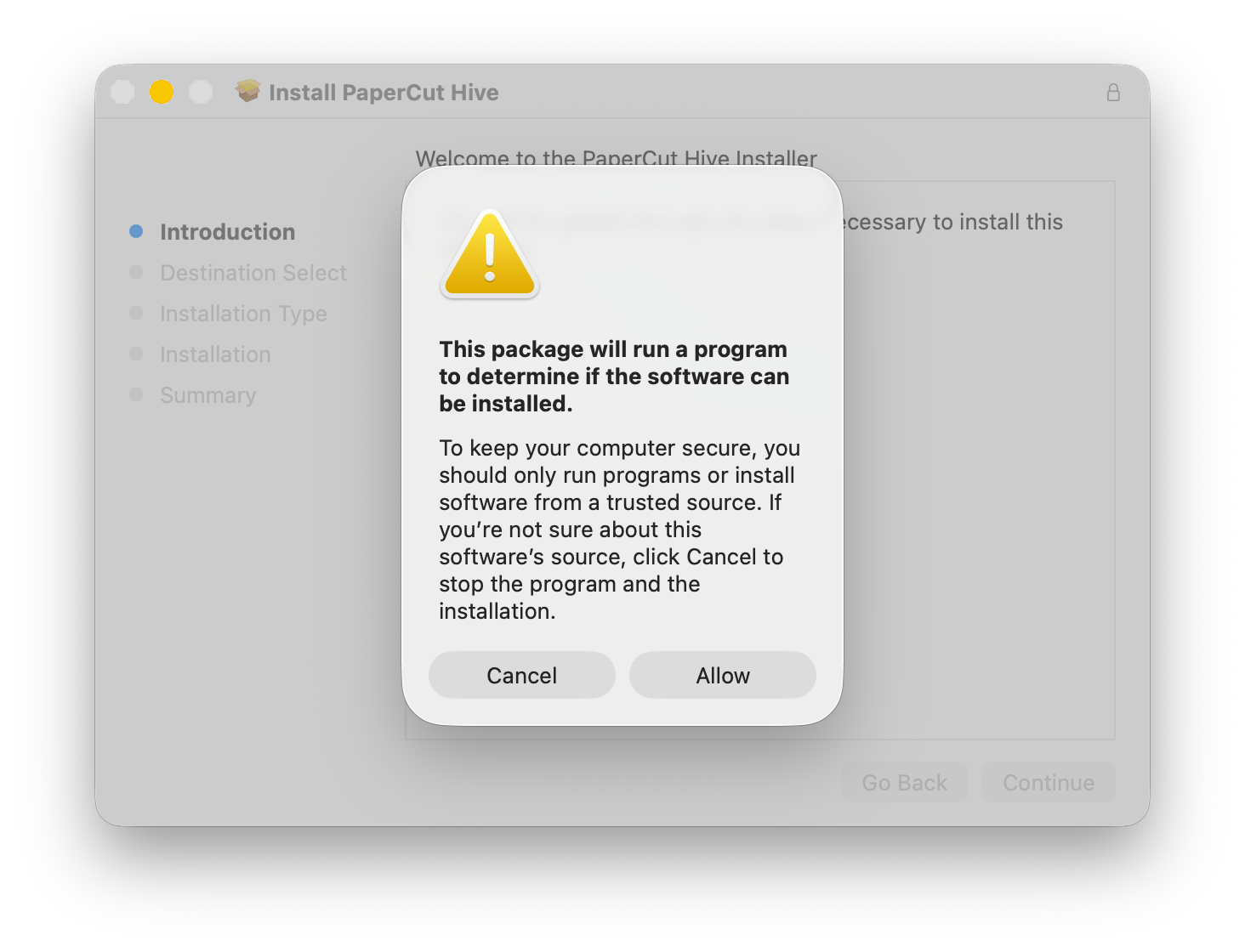
This is a standard macOS system notification that appears when a .pkg installer contains a pre-install script. Typically the pre-install script checks if the system meets certain requirements, such as OS version, hardware compatibility, or available disk space - before proceeding with the actual installation.
If you need to check the authenticity of the actual installer package, see Apple’s How to verify the authenticity of manually downloaded Apple software updates.
Category: Reference Articles
Subcategory: Installing, Uninstalling and Migrating
Comments
Comments are not available in this preview environment. On papercut.com, this space shows the live Disqus comment thread for this page.