


Contents
Troubleshooting PaperCut Hive and Pocket System Tray and Menu Bar (Task Tray)
This page applies to:


Last updated October 30, 2026
Contents
The PaperCut Hive and Pocket System Tray (Windows) and Menu Bar (macOS) application provides end-users with visibility into print client status, notification prompts, and quick access to sign-in and device-linking workflows.
If the task tray icon fails to appear, displays an error (such as a red warning overlay), or runs into installation issues, follow this guide to identify the root cause and apply the recommended resolution.
Requirements
The PaperCut system tray application (pc-tasktray.exe on Windows, pc-tasktray on macOS) runs within the context of the logged-in user profile and communicates with local background client processes to reflect registration and connectivity status.
Minimum component versions | Supported operating systems |
|---|---|
Print Client: v2026-03-06-1735 or later | Windows 10, 11 (x64 and ARM64) |
Edge Node: v2026-03-11-0003 or later | macOS 12 Monterey or later |
Task tray icon not appearing (Windows)
Symptom: After signing into Windows, the PaperCut icon does not appear in the system tray or in the taskbar overflow menu.
Causes & resolutions
1. The Print Client is not installed in the user’s local profile
The Print Client installs per-user into the local AppData directory.
- Check: Verify that the folder
%localappdata%\Programs\PaperCut (Hive/Pocket)\exists in the affected user profile. - Resolution: If the directory is missing, redeploy or reinstall the print client under the active user account.
2. pc-tasktray.exe is missing from the active version folder
The executable resides inside the active version subfolder.
- Check: Navigate to
%localappdata%\Programs\PaperCut (Hive/Pocket)and open the latest version folder (e.g.,v2026-08-18-0951). Confirm thatpc-tasktray.exeexists.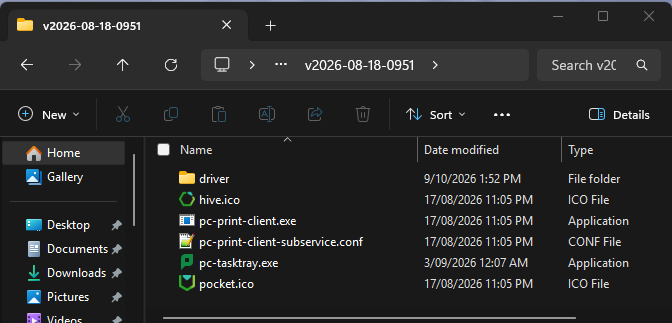
- Resolution: If the executable is missing or quarantined, review your local antivirus/EDR activity logs or reinstall the client.
3. Outdated client version
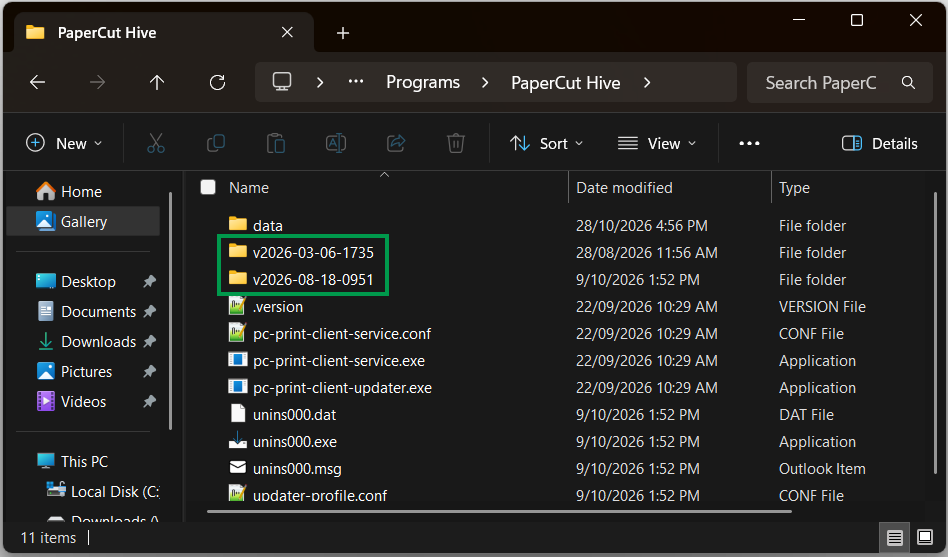
- Check: Confirm that version
v2026-03-06-1735or newer is installed in%localappdata%\Programs\PaperCut (Hive/Pocket)\. - Resolution: Upgrade both the Edge Node and Print Client to the latest release. If you deploy using an MDM tool (such as Microsoft Intune), update your deployment package.
4. Print Client background processes are not running
The tray application requires the print client services to initiate.
- Check: Open Task Manager > Details and verify whether the following processes are active:
pc-print-client.exepc-print-client-service.exe
- Resolution: If missing, restart the device or manually start
pc-print-client-service.exefrom%localappdata%\Programs\PaperCut Hive\(orPaperCut Pocket\).
5. Windows taskbar notification overflow settings
Windows may collapse inactive or newly installed tray icons into the overflow flyout by default.
- Resolution: Open Windows Settings > Personalization > Taskbar > Other system tray icons (or Taskbar corner overflow) and toggle PaperCut Hive/Pocket to On.
Task tray icon not appearing (macOS)
Symptom: On macOS endpoints, the PaperCut Hive or Pocket menu bar icon is not visible in the top status bar.
Causes & Resolutions
1. The Print Client is not installed in the user’s local profile
The user client component installs into the user’s local Library folder.
- Check: Verify that
~/Library/PaperCut Hive/(orPaperCut Pocket/) exists in the active user profile. - Resolution: If missing, reinstall the Print Client while logged in as that user.
2. pc-tasktray is missing from the active version folder
- Check: Navigate to
~/Library/PaperCut Hive/(orPaperCut Pocket/) and open the latest version directory. Confirm thatpc-tasktrayis present. - Resolution: If quarantined or missing, check your endpoint security logs and reinstall the client.
3. Outdated client version
- Check: Confirm that version
v2026-03-06-1735or newer is installed in~/Library/PaperCut Hive/(orPaperCut Pocket/). - Resolution: Upgrade the Edge Node and Print Client to the latest release. If managing devices via Jamf Pro or another MDM tool, update the distribution policy.
4. Print Client background processes are not running
-
Check: Open Activity Monitor or run the following command in Terminal to verify that the processes are running:
Bash
pgrep -fl "pc-print-client" -
Resolution: Restart the workstation or launch
pc-print-client-servicemanually from~/Library/PaperCut Hive/(orPaperCut Pocket/).
5. Menu bar space exhaustion
On MacBook models with a display notch, macOS hides menu bar extras when active application menus and status items fill the horizontal space.
- Resolution: Quit or hide unnecessary menu bar items to make room for the PaperCut icon, or manage icon density using a third-party utility like Bartender or Ice.
Access denied or locked files during upgrade / reinstall
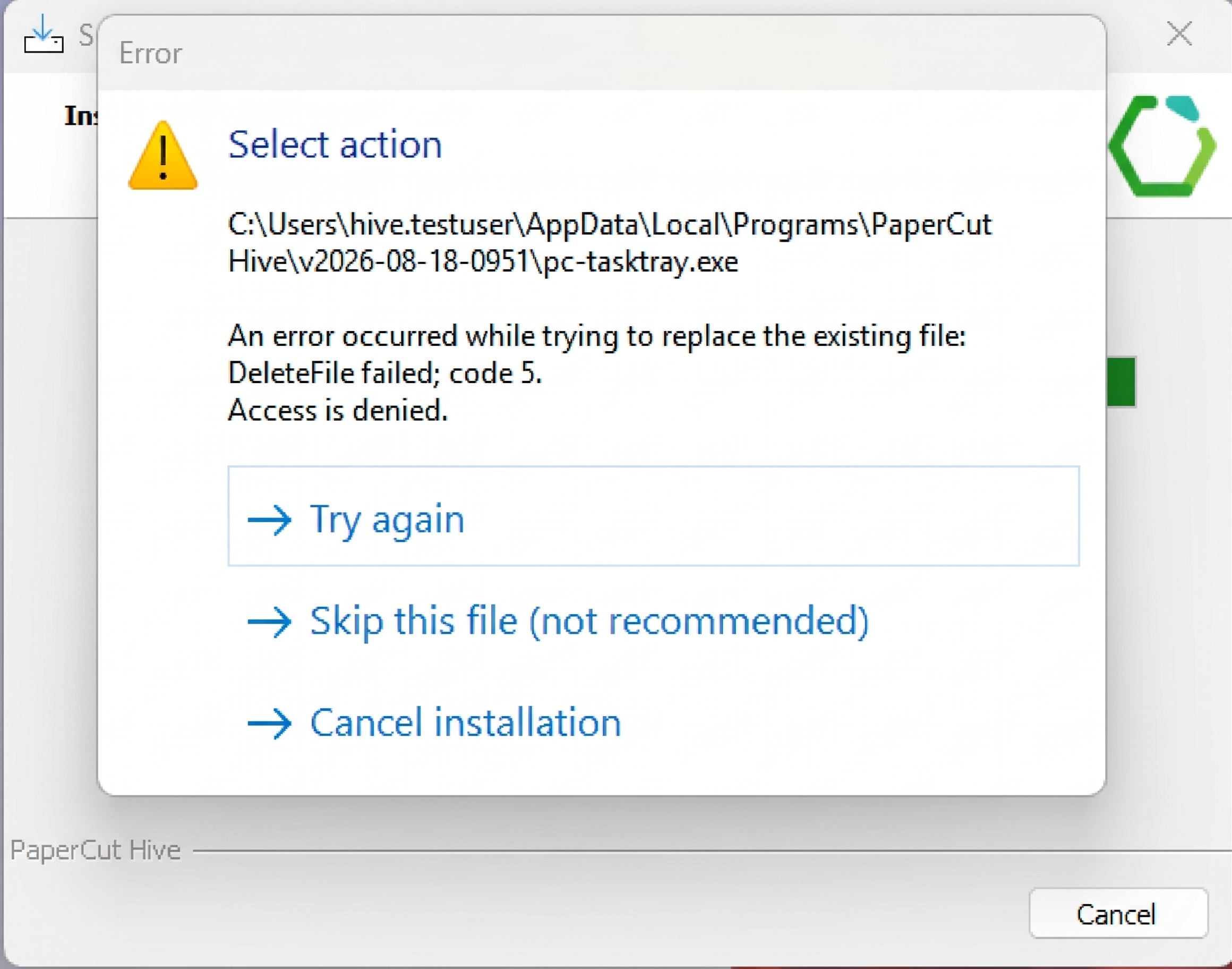
Symptom: Installation fails with an Access Denied error. This occurs when an existing instance of PaperCut Tasktray is running in the background, which prevents the installer from overwriting pc-tasktray.exe.
Resolution: Terminate background processes and “Try again”
- Terminate background processes:
- Windows: Open Task Manager > Details, locate, and end the following processes:
pc-tasktray.exepc-print-client.exepc-print-client-service.exe
- macOS: Open Activity Monitor (or run
killall <process_name>in Terminal) to terminate:pc-tasktraypc-print-clientpc-print-client-service
- Windows: Open Task Manager > Details, locate, and end the following processes:
- Select Try again in the installer dialog, or download a new setup package and re-run.
Resolution: Clean reinstallation procedure
- Uninstall: The print client and edge node. If needed, please see our guide on how to uninstall Hive/Pocket from user devices -
How to uninstall the PaperCut Pocket / Hive Print Client (Edge Node and Printer) - Reinstall: Re-run the PaperCut Hive /Pocket installer using elevated administrative permissions.
Task tray status: “PaperCut: Client not configured”
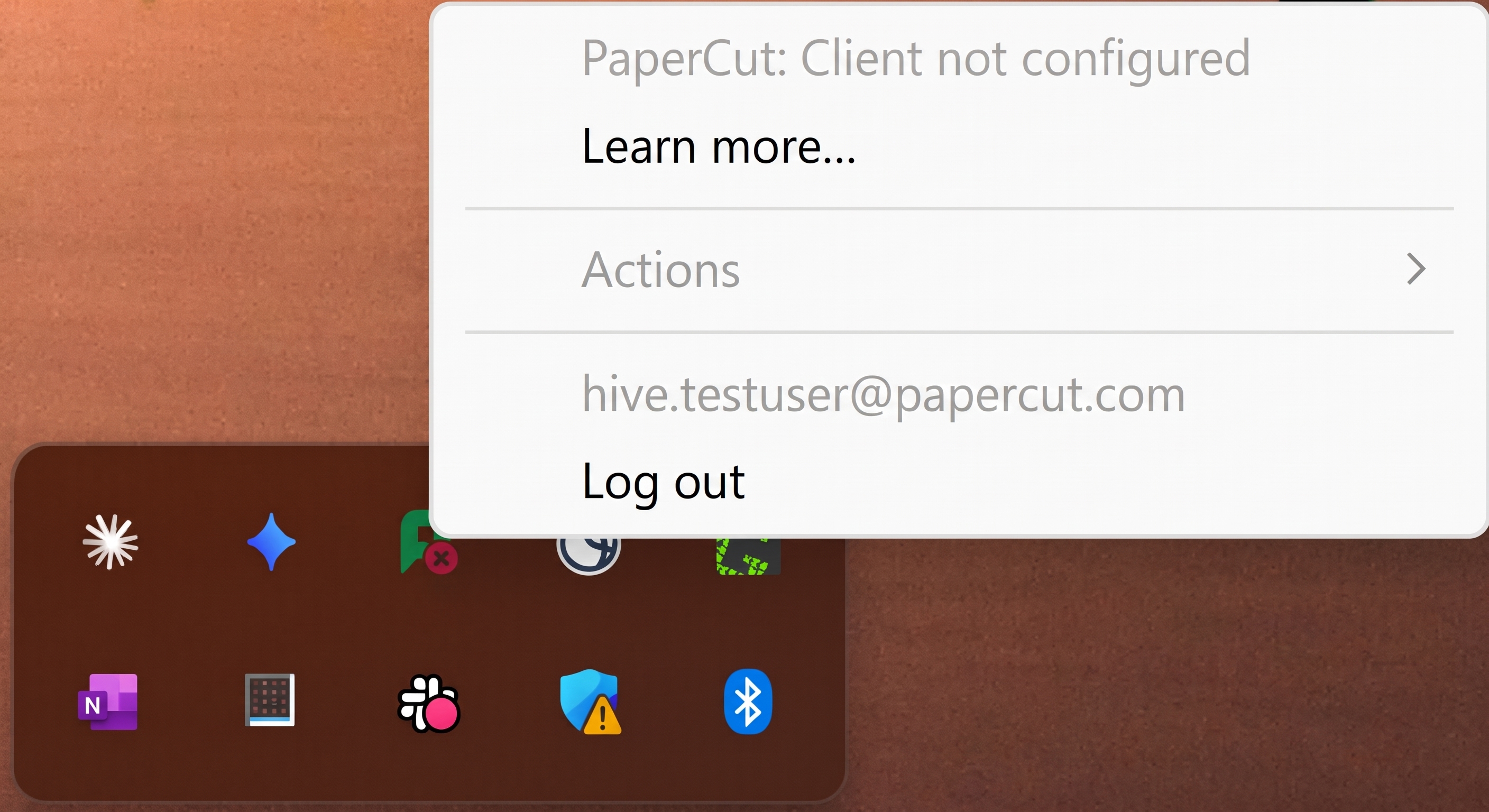
Symptom: The task tray icon appears with a red badge or “X” overlay and reports the tooltip or status: PaperCut: Client not configured.
Background process dependencies
The task tray icon’s launch is managed by the print client, but its active operational status relies on the Edge Node service and its sub-processes (subservices). For a full list of these services, please see our article -
How the Edge Node Print Client and Service work with PaperCut Pocket & PaperCut Hive.
Causes & resolutions
The task tray relies on local inter-process communication with the Edge Node service. If the Edge Node service or subservices stop, crashes, or is blocked, this error appears.
1. Edge Node service is stopped or uninstalled
- Check (Windows): Open Services (services.msc) and ensure PaperCut Hive/Pocket Edge Node Service is in the Running state. Ensure C:\Program Files\PaperCut (Hive/Pocket)\ exists.
- Check (macOS): Open Terminal and run:
Bash
sudo launchctl list | grep papercut
Confirm /Library/PaperCut (Hive/Pocket) exists. - Resolution: If the Edge Node directory is missing, reinstall the Edge Node package. If present, restart the Edge Node service (refer to How to restart an Edge Node).
2. Security software blocking Edge Node executables
- Resolution: Add directory exclusions for the Hive/Pocket install locations, or add the individual executables listed above to your firewall/EDR allow list.
3. Edge Node subservices in a “Suspended” state (Windows)
If subservices associated with Edge Node processes are suspended unexpectedly, inter-process communication stops.
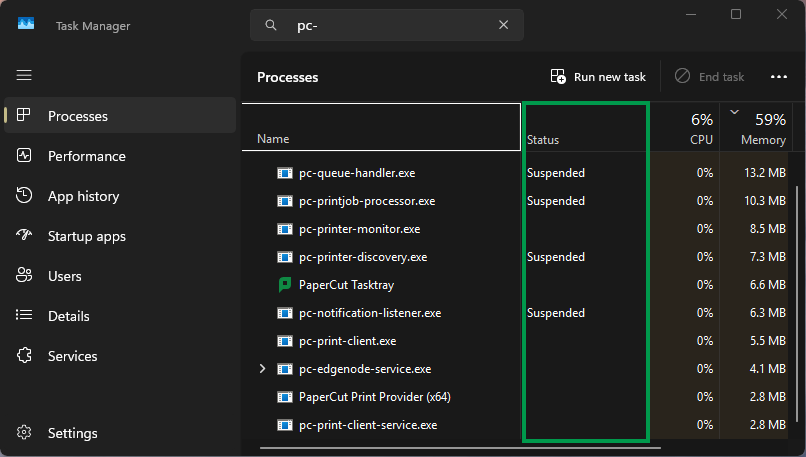
- Check: Open Task Manager, type pc- in the search bar, and check the Status column for any processes marked Suspended.
- Resolution: Open
services.msc, locate PaperCut Hive/Pocket EdgeNode Service, and click Stop. Wait for the service to stop then click Start. If subservices are suspended intermittently, add the full PaperCut folder tree to your endpoint security exclusions.
Task tray status: “PaperCut: Connection limited”
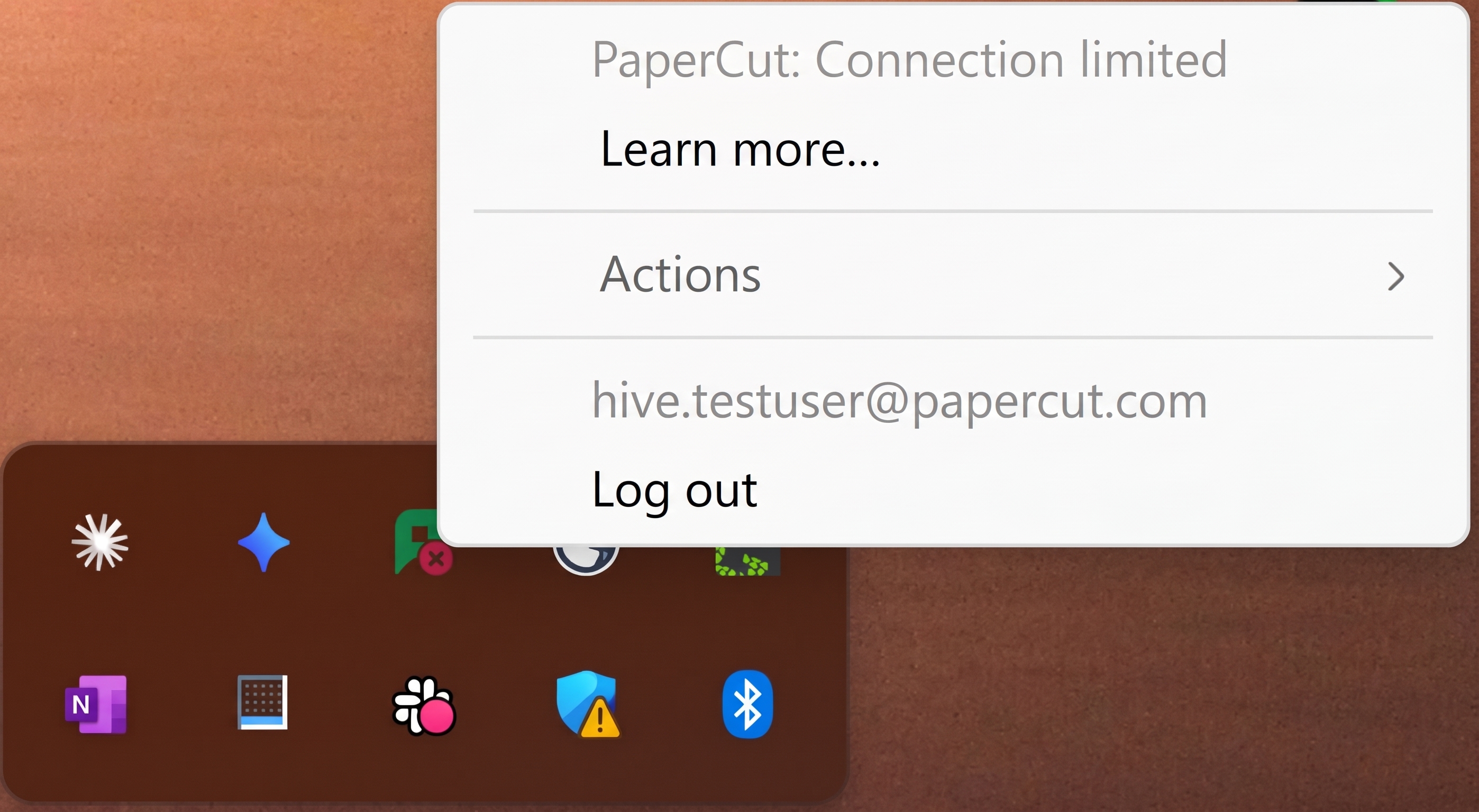
Symptom: The task tray icon displays a red warning badge with the tooltip: PaperCut: Connection limited.
The workstation has lost internet access or cannot establish outbound communication with PaperCut’s cloud notification broker (MQTT).
Required network endpoints & ports
Ensure outbound firewall and web proxy rules permit traffic to:
- Host Wildcard: *.notifications.cloud.papercut.com
- Specific Hosts:
- mqtt.notifications.cloud.papercut.com
- mqtt2.notifications.cloud.papercut.com
- mqtt3.notifications.cloud.papercut.com
- Required Ports:
- TCP 443 (HTTPS / WSS)
- TCP 8883 (MQTTS / TLS)
For more details on firewall and network requirements, please refer to Hive and Pocket System Requirements
Resolution
- Verify the workstation has active internet access.
- From a command prompt or terminal, test network connectivity:
-
Windows (PowerShell):
PowerShell
Test-NetConnection -ComputerName mqtt.notifications.cloud.papercut.com -Port 443 Test-NetConnection -ComputerName mqtt.notifications.cloud.papercut.com -Port 8883 -
macOS (Terminal):
Bash
nc -vz mqtt.notifications.cloud.papercut.com 443
nc -vz mqtt.notifications.cloud.papercut.com 8883
-
- If SSL/TLS deep packet inspection or TLS decryption is active on your network gateway, configure an exclusion bypass for
*.notifications.cloud.papercut.com.
Further help
Need further assistance? Please reach out to your PaperCut Reseller/Partner, or open a ticket with our PaperCut Support team via Support Portal.
Related articles
· PaperCut Hive Installation Troubleshooting
· Client Configuration & Verification Guide
· How does the Edge Node Print Client and Service work with PaperCut Pocket & PaperCut Hive
Category: Troubleshooting Articles
Subcategory:
Comments
Comments are not available in this preview environment. On papercut.com, this space shows the live Disqus comment thread for this page.