


Contents
Troubleshooting User Creation and Onboarding
This page applies to:


Last updated October 26, 2026
Contents
When onboarding users into PaperCut Hive or Pocket, administrators occasionally encounter situations where accounts fail to import from an external identity provider (IdP), or users remain in an unlinked state following software rollout.
This guide provides step-by-step troubleshooting workflows for directory synchronization issues, explains user invitation and onboarding statuses across desktop and mobile platforms, and outlines resolutions for common error codes across Microsoft Entra ID and Google Workspace integrations.
Users not imported during user sync
When a user account does not appear in PaperCut Hive or Pocket after running a directory synchronization:
- Verify group scope and sync configuration: Confirm that the target user is an active member of the designated security group or administrative unit assigned in your sync configuration.
- Determine where the failure occurred: Check whether the synchronization failure originated within PaperCut Hive/Pocket or upstream at the Identity Provider.
Identifying sync failures by user sync method
The diagnostic steps depend on which of the three synchronization integrations your organization is using:
User/group sync (Modern Graph API)
- In the PaperCut Hive admin console, navigate to the Activity Log.
- Download the sync error report to pinpoint conflicting user accounts.
- Correct duplicate or invalid attributes directly in your identity source.
- In PaperCut Hive, click Sync now to re-evaluate the directory.
(Legacy) Microsoft Entra ID User Sync
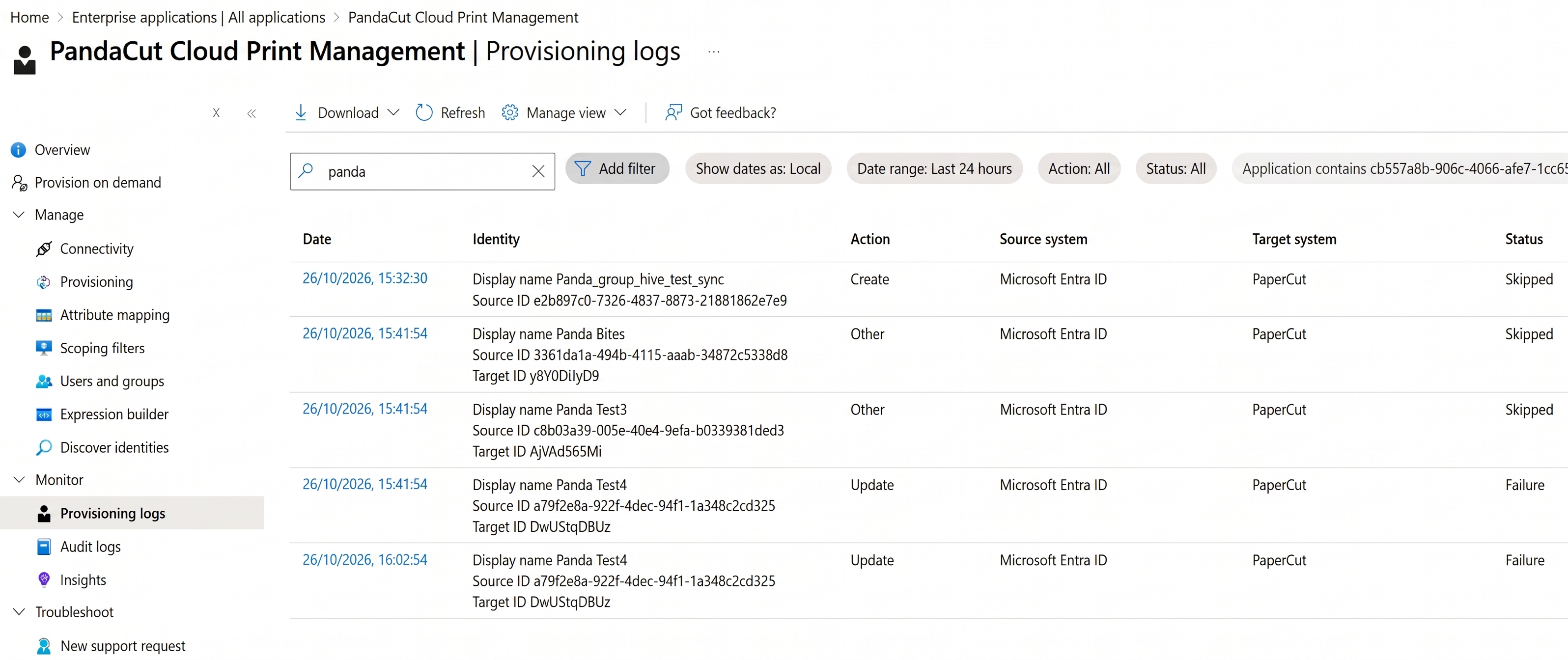
- Review provisioning logs in Entra ID: Check the Provisioning logs and Audit logs inside the Microsoft Entra admin center (Enterprise applications > Provisioning logs). Synchronization evaluation errors—such as malformed attribute mappings, missing required fields, or scoping filter rejections—occur within Entra ID before data reaches PaperCut Hive.
- Sync cycle intervals: Automatic provisioning cycles in Microsoft Entra ID run on a fixed schedule (typically every 40 minutes). To test configuration updates immediately without waiting for a scheduled cycle, use Provision on demand within the Entra admin center.
(Legacy) Google Workspace User Sync
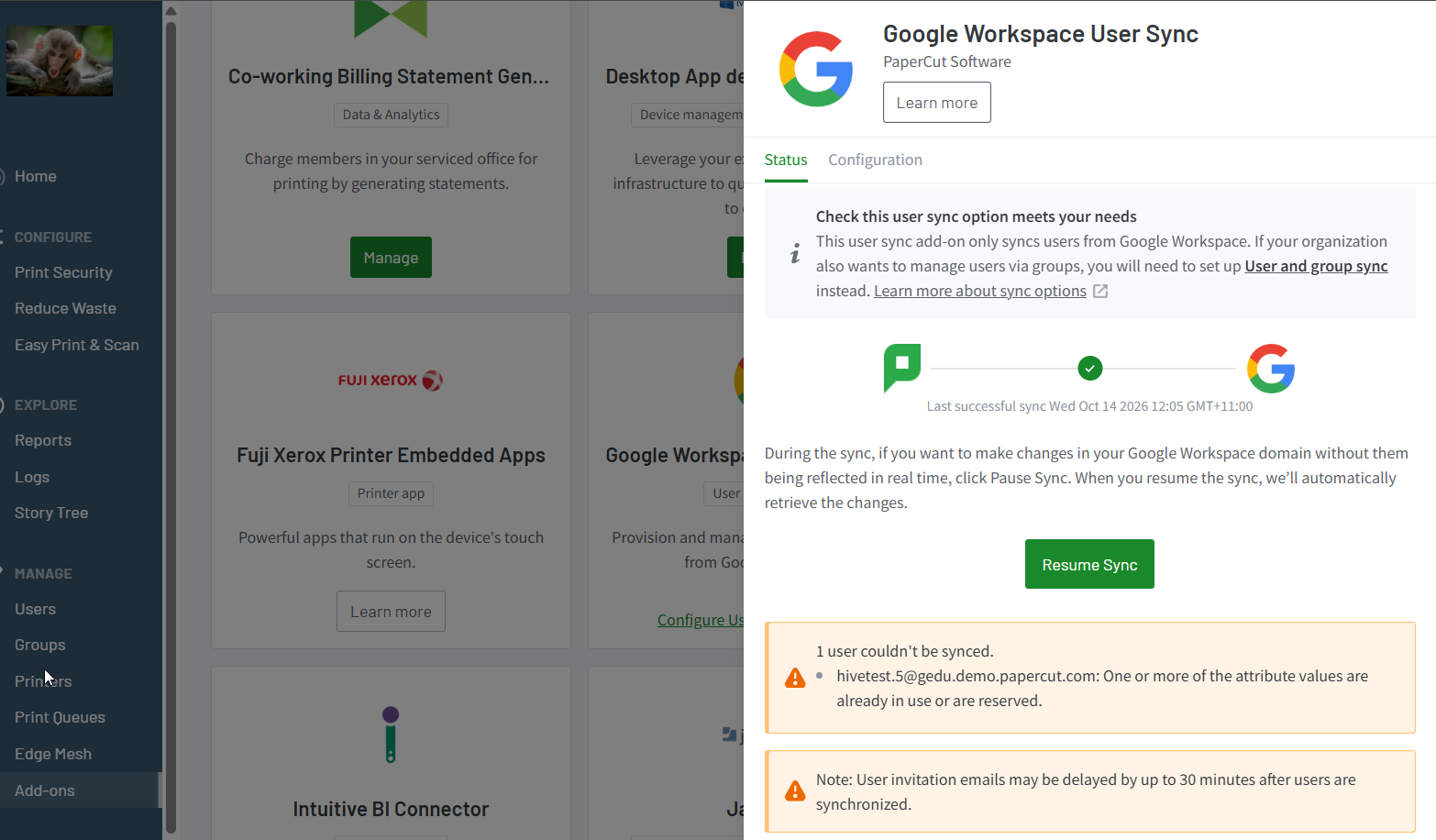
- In the PaperCut Hive/Pocket admin console, select Add-ons.
- Locate Google Workspace User Sync and click Manage to view active sync errors and failure banners.
Common user sync errors categorized by user sync method
1. (Legacy) Microsoft Entra ID User Sync (SCIM 2.0)
This legacy integration relies on SCIM 2.0 provisioning configured inside a Microsoft Entra ID Enterprise Application.
|
Error Message / Behavior |
Root Cause |
Recommended Action |
|---|---|---|
|
"The specified path did not yield an attribute or attribute value that could be operated on" StatusCode: BadRequest (400) EscrowProportionThresholdReached |
Entra ID is attempting to update or map a SCIM attribute that PaperCut Hive does not support, does not exist in the schema, or is blank on the source user record. |
In the Entra Enterprise Application, navigate to Provisioning > Attribute Mapping. Strip custom or optional mappings back to the minimal supported attribute set (Name, Email, Username). |
|
"The 'path' attribute was invalid or malformed" |
An incorrect SCIM schema namespace was applied to custom extension attributes (such as card numbers or access codes). The target mapping uses the standard enterprise schema instead of the PaperCut Hive schema. |
Correct the target schema URN to the required PaperCut Hive namespace - urn:ietf:params:scim:schemas:extension:papercut:2.0:User:accessCard |
|
“The 'Microsoft Entra ID User Sync' addon failed to perform 'User Read'” |
An administrator manually deleted a user from the PaperCut Hive console rather than unassigning or removing them in Entra ID. The sync engine cannot locate the target user ID. |
Re-create or unassign and reassign the user within Entra ID. Always manage user lifecycles directly within your IdP rather than manually deleting synced records in Hive. |
|
Groups not appearing in PaperCut Hive |
The legacy SCIM add-on only evaluates group assignments in Entra ID to determine sync scope; it does not import group objects into Hive. Attempting to map groups directly triggers an EntityTypeNotSupported error. |
To sync and manage group objects for access rules and printing quotas, migrate to the modern User and group sync integration. |
2. User and group sync (Microsoft Graph API)
The modern, native synchronization integration in PaperCut Hive connects directly through the Microsoft Graph API (MS_group_sync).
|
Error Message / Behavior |
Root Cause |
Recommended Action |
|---|---|---|
|
Failed to authorize Microsoft Entra ID. Error: AADSTS650051: Resource '[0]' does not exist... |
Cause A: The legacy Entra ID User Sync SCIM add-on remains active in Hive, causing authorization conflicts. Cause B: Tenant consent was granted in the Azure portal without completing the interactive authorization flow inside Hive. |
1. Remove the legacy Entra ID SCIM add-on in Hive. 2. In the Hive admin console, navigate to Settings > User and group sync and complete the interactive Authorize connection workflow. |
|
"User and group sync for ... was prevented from running due to a system issue" |
Backend authentication token failure, identity mapping conflict, or expired/stale service principal permissions in Microsoft Entra. |
Disconnect the sync integration under Settings > User and group sync, clear stale tenant consent in Entra ID, and re-authorize the integration. |
|
All tenant users (including guests) imported and emailed invites |
The integration requested tenant-wide Graph permissions (User.Read.All, Group.Read.All). When the scope under User source is left unconstrained, all accounts are ingested. Additionally, automatic onboarding emails are enabled by default. |
1. Under Sync configuration > User source, restrict synchronization to designated security groups. 2. Navigate to Easy Print & Scan > User Invites and select “Don’t send invitation emails automatically” before triggering the initial sync. |
|
"error trying to load account" "Failed to retrieve account balances" |
User objects were originally provisioned using the legacy SCIM add-on and their internal identifiers conflict with new records generated via the Graph API. |
Ensure all legacy add-on mappings are deleted and user IDs are cleared from stale escrow states. |
|
ERROR User ... email address could not be updated to: ... Existing email address retained. |
A user's email address was updated in the source IdP after the user record was already established in Hive with a different primary email. Hive retains primary identity keys to prevent orphaned print balances and tracking logs. |
If an email address change is required, update the record following PaperCut's documented user migration procedure, or delete and re-provision the account. |
3. (Legacy) Google Workspace User Sync
The legacy Google Workspace integration imports organizational users and directory attributes into PaperCut Hive/Pocket.
|
Error Message / Behavior |
Root Cause |
Recommended Action |
|---|---|---|
|
The overall directory sync job aborts with the generic banner: “There's an issue that's stopping us from syncing but we'll keep trying!...” |
A single user record in Google Workspace contains an invalid attribute value for access codes or card numbers. Because directory sync processes records in batches, a single formatting violation halts the entire sync process. |
1. Audit your Google Workspace user directory for the following formatting rules: • Access Codes: Must contain alphanumeric characters only (letters and numbers). Remove spaces, hyphens, and special symbols (e.g., #, @, !). • Card Numbers: Must not be blank/whitespace-only and must not exceed 100 characters in length. 2. Correct attribute values in the Google Workspace Admin Console under Directory > Users > User information. 3. In PaperCut Hive, click Sync now to re-evaluate the directory. |
User status stuck on “Invitation sent” or “Invitation not sent”
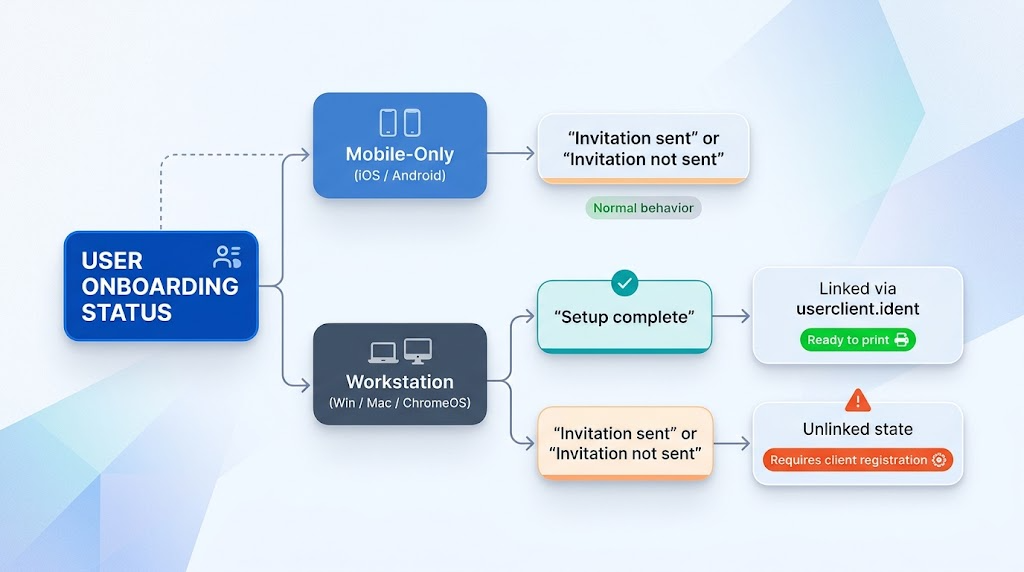
Understanding the user onboarding status in the PaperCut Hive admin console depends on whether the user is on a mobile device or a desktop workstation:
Mobile-only users (iOS / Android)
For users designated to print exclusively from mobile devices:
- The admin console will display their status as either Invitation sent or Invitation not sent.
- This behavior is by design. Mobile print authentication does not require client desktop identity registration; these statuses do not prevent users from releasing print jobs from mobile devices.
Workstation users (Windows, macOS, ChromeOS)
When the PaperCut Hive desktop print client is fully installed and associated with a user identity, the admin console displays the status as Setup complete.
If a desktop user remains in Invitation sent or Invitation not sent, the client is currently in an unlinked state. The desktop print service has not yet associated the local computer session with the user’s cloud identity via a local userclient.ident file.
Resolving unlinked desktop client status
To move desktop workstations from an unlinked state to Setup complete, use one of the following methods:
Method 1: Trigger “Authenticate on Print”
This is the fastest resolution for active user workstations without requiring administrative intervention:
- Instruct the user to submit any test print job to the PaperCut Printer queue.
- The print client intercepts the print job and opens a browser window prompting the user to sign in with their organizational credentials.
- Upon successful sign-in, the client generates the local userclient.ident file, registers the workstation, and updates the console status to Setup complete.
Method 2: Re-send the classic invitation email
If the user cannot initiate printing or requires guided onboarding:
- In the PaperCut Hive admin console, go to Users.
- Click the user’s card, open the More options (…) menu, and select Reinvite.
- Instruct the user to open the invitation email on their target workstation and click Get Started using Google Chrome or Microsoft Edge to complete browser-based linking.
Method 3: Configure zero-touch auto-linking for MDM / Intune
Default deployments via Microsoft Intune or other Mobile Device Management (MDM) platforms install the print client software in an unlinked state. To eliminate manual interaction:
- Configure automated client linking by passing the user’s primary email/UPN using the /useremail command parameter within your Intune deployment package or post-installation script.
- When executed under the user session context, the client immediately binds without sending email invitations.
Related articles
Category: Troubleshooting Articles
Subcategory: Pocket & Hive Troubleshooting Articles, User Management, Administration
Comments
Comments are not available in this preview environment. On papercut.com, this space shows the live Disqus comment thread for this page.