


Contents
- Overview
- Transitioning from PaperCut MF to PaperCut Hive
- Before you start
- Certified firmware portals
- WebDAV Configuration (Status 404)
- OpenAPI and security protocol stability
- Regional marketing area compatibility
- One-Click versus command line deployment
- Deep sleep and controller timeout
- Troubleshooting device panel lockups and UI errors
- Need further assistance?
- Overview
- Transitioning from PaperCut MF to PaperCut Hive
- Before you start
- Certified firmware portals
- WebDAV Configuration (Status 404)
- OpenAPI and security protocol stability
- Regional marketing area compatibility
- One-Click versus command line deployment
- Deep sleep and controller timeout
- Troubleshooting device panel lockups and UI errors
- Need further assistance?
Troubleshooting PaperCut Hive issues on Konica Minolta devices
This page applies to:

Last updated October 22, 2026
Contents
- Overview
- Transitioning from PaperCut MF to PaperCut Hive
- Before you start
- Certified firmware portals
- WebDAV Configuration (Status 404)
- OpenAPI and security protocol stability
- Regional marketing area compatibility
- One-Click versus command line deployment
- Deep sleep and controller timeout
- Troubleshooting device panel lockups and UI errors
- Need further assistance?
- Overview
- Transitioning from PaperCut MF to PaperCut Hive
- Before you start
- Certified firmware portals
- WebDAV Configuration (Status 404)
- OpenAPI and security protocol stability
- Regional marketing area compatibility
- One-Click versus command line deployment
- Deep sleep and controller timeout
- Troubleshooting device panel lockups and UI errors
- Need further assistance?
This page helps troubleshoot PaperCut Hive on Konica Minolta devices, covering firmware, WebDAV configuration, OpenAPI checks, and troubleshooting panel errors.
Help! I’m a Systems Administrator or PaperCut reseller trying to resolve issues with a Konica Minolta embedded solution. Which firmware builds are certified, how do I escalate persistent issues, and what steps should I take to ensure API stability across my fleet?
Transitioning from PaperCut MF to PaperCut Hive
PaperCut authorized partners often encounter deployment failures when migrating Konica Minolta hardware from PaperCut MF to PaperCut Hive. These errors typically arise from residual configuration data or lingering embedded application components from the MF environment.
It is important to remember that PaperCut Hive and PaperCut MF are independent solutions; they cannot co-exist or operate concurrently on a single physical device.
We recommend that you reach out to your reseller to factory reset the device fully, then re-install PaperCut Hive
Discovery and Browser Licensing prerequisite
- Browser Functionality: Consult the “List of Enabled Functions” to confirm the internal web browser is licensed. A full reboot is required after activation.
- SSDP Discovery: Enable SSDP under Utility > Administrator > Network Settings to facilitate network visibility.
Before you start
Before installing PaperCut Hive on a Konica Minolta device, verify the following prerequisites:
- Check the List of Enabled Functions page to confirm the internal web browser is licensed. A full restart is required after activation.
- Go to Utility > Administrator > Network Settings and enable SSDP to ensure network visibility.
- Default Konica Minolta security policies often include active IP filtering that blocks essential traffic between the edge node and the device. Add the edge node IP to the allowlist for OpenAPI (port 50003) and HTTPS (port 443), or temporarily deactivate IP filtering during the installation phase.
Administrator sessions: Ensure no administrator is currently logged in to the web interface, as concurrent sessions can prevent successful OpenAPI calls.
Certified firmware portals
For cloud deployments using PaperCut Hive, consult the bEST Solutions - Hive (PID 47) matrix to identify certified firmware builds.
Always start with bEST certified firmware to ensure API stability. That being said if you’ve still seen issues like the ones listed below, please know that Konica Minolta has recommended specific firmware versions as fixes for certain known issues ( for example GC4-SA , which fixed cloud drops, and token failures).
WebDAV Configuration (Status 404)
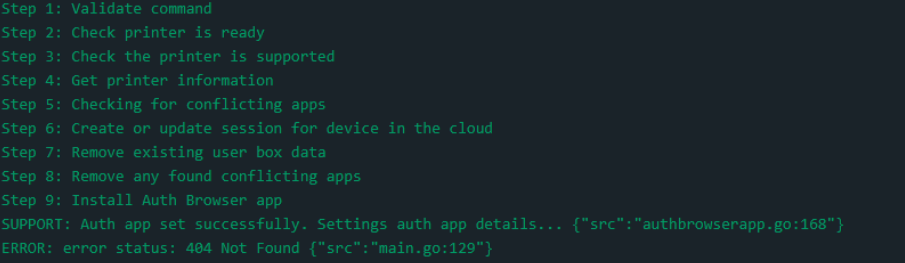
If a deployment fails immediately after an “Auth app set successfully” message, the installer likely encountered a 404 Not Found error. This occurs when the system cannot upload UI resources because the device’s WebDAV service is unreachable.
-
Verification Path: Log into the KM Web Connection and navigate to Administrator Settings > WebDAV Settings > WebDAV Server Setting.
-
Mandatory Configuration: Ensure the server is set to SSL/Non-SSL.
-
Critical Note: Avoid using “SSL Only” or “Non-SSL Only” modes, as these are primary triggers for 404 deployment errors.

OpenAPI and security protocol stability
Step 1: Validate command
Step 2: Check printer is ready
Step 3: Check the printer is supported
Step 4: Get printer information
ERROR: "500 Internal Server Error": "0640ServerServer
ErrorNackUnknownRequestOpenApiNotPermittedRequest" {"src":"main.go:129"
Persistent connection rejections or OpenApiNotPermitted warnings require a baseline auditof the following PKI and socket settings:
- Device Certificates: Verify a valid self-signed certificate under Security > PKI Settings. If issues persist, delete and recreate the certificate, assign it as the device default, and reboot.
- TCP Socket Protocol: Enable “Use SSL/TLS” within the Network > TCP Socket Setting menu.
- OpenAPI Parameters: Configure Network > OpenAPI to “SSL Only” using Port 50003. Ensure all “Certificate Verification Level Settings” are disabled (Do not request/confirm). Additionally, verify that “Authentication” under System Connection is toggled OFF.
Regional marketing area compatibility
Deployment will fail if the device is set to an unsupported marketing region. Valid regions include Japan, US, Europe, and Others 2 or 5. Specifically, “Others 1, 3, and 4” are incompatible.
A certified technician must enter Service Mode on the panel, navigate to System 1 > Marketing Area, and select a supported locale (for example, US or Europe) before restarting.

One-Click versus command line deployment
Depending on the network layout, you can deploy using the one-click process or the command line:
- Node Availability: The automated One-Click process requires a healthy, online edge node with local network access to the printer. Because the backend selects nodes dynamically, you cannot target a specific machine.
- CLI Fallback: If the One-Click method is unresponsive, initiate a manual installation via the command prompt directly from your preferred edge node to bypass regional or discovery limitations.
Deep sleep and controller timeout
Aggressive power management configurations on Konica Minolta hardware can cause the print engine or OpenAPI interface to remain offline during release, resulting in delayed output or timeouts. You might observe the following performance issues:
- Extended Wake-up Latency: Devices exiting a sleep state may exhibit significant responsiveness delays. In some cases, initialization failures result in frozen white screens that require a physical door cycle to force a panel refresh.
- Output Delays and Session Timeouts: The bEST browser may trigger an actionBootLogout after 30 seconds of inactivity if the controller fails to respond promptly to a Release command. Consequently, documents may emerge several minutes after the user session has concluded.
To fix power management issues:
- Disable Deep Sleep within the Konica Minolta Administrator menu.
- Transition the hardware to a more responsive power mode, such as Low or Ready.
- Access the web interface to increase the OpenAPI timeout parameter to at least 60 seconds.
Troubleshooting device panel lockups and UI errors
Resellers often encounter frozen interfaces, unresponsive touch panels, or “cloudy day” timeout warnings on Konica Minolta hardware. These display issues typically result from browser memory exhaustion, firmware version mismatches, or intermittent network drops between the copier and the edge node.
Black screen during function transitions
If the screen turns entirely black after a user attempts to pivot from print release to Quick Scan or native device functions, the primary root causes are:
- The MFP cannot resolve the destination URL or lacks a stable route to the Edge Node.
- The internal bEST browser has reached memory limits or contains legacy MF configuration data.
To resolve a black screen:
- Restart the device to flush the local browser cache.
- Confirm the printer can reach the Edge Node IP. Consider assigning the device to a dedicated Super Node for improved availability.
- Deploy certified firmware (for example, GC2-RF) to fix known panel lockup bugs.
Stuck on “Securely connecting…” screen
If the interface hangs indefinitely on connection prompts or becomes unresponsive during the login handshake, the primary root causes are:
- Extended JavaScript: Legacy Chromium 1.1 browsers often experience JS incompatibilities. Verify that IsUseExtendedJS is set to false in device deep logs.
- Socket Timeout: The printer has lost outbound access over Port 443 to PaperCut Cloud services.
Some ways you can resolve connection hangups are to:
- whitelist *.papercut.com in the network firewall according to the details on our firewall KB on Hive page
- check local DNS server configurations to make sure that your devices can connect.
“Oops! It must be cloudy today” errors
If you see intermittent session drops or timeouts accompanied by the “cloudy day” error message, the primary root causes are:
- High network latency or packet loss between the device and the cloud.
- The active Edge Node is experiencing resource contention or high CPU utilization.
Some ways to resolve cloudy day errors include:
- inspect the App Logs for latency spikes
- establish a dedicated Super Node in the Print Delivery Profile to stabilize communication.
Diagnostic log collection
To isolate intermittent or complex embedded application failures, administrators should activate advanced diagnostic captures to extract granular telemetry from the Konica Minolta controller.
To enable deep logging:
- In the PaperCut Hive admin console, go to General Settings > Advanced. The Advanced Settings page is displayed.
- Turn on Diagnostic mode.
- Go to Manage > Printers and select the affected printer. The Printer Details panel opens.
- In the Apps tab, scroll to the bottom and turn on Start deep logging.
- Click Save.
- Wait 5 minutes, then replicate the issue on the physical device. Take note of the timestamp, user, printer name, and IP address.
- Wait another 5 minutes, then return to the Apps tab.
- Click Diagnostic to download the embedded logs.
These records utilize a rolling 24-hour buffer. Ensure that diagnostic modes are deactivated following successful data collection to prevent resource overhead.
Decoding OpenAPI log errors
When auditing device telemetry, administrators may encounter specific error codes within the PaperCut Hive deep logs or the install process itself. These entries provide critical insight into communication failures between the embedded application and the Konica Minolta controller.
Code | KM error name | OpenAPI action | Analysis & remediation |
|---|---|---|---|
1 / 3 / 5 | TagMissing / IllegalValue | SetApplicationDetails | Protocol Violation: Detected an XML schema mismatch. Action: Escalate to engineering for investigation. |
6 | OverAccessLimit | AppResExtLogin | Session Leak: Exceeded the 10-login limit. Action: Restart the physical device to flush active sessions. |
9 | OutOfTiming | GetDeviceInfo | System Not Ready: Internal storage (HDD) is still mounting or formatting. Fix: Allow 10 minutes for initialization before retry. |
21 | InvalidState | StartJob / ChangeScreen | Printer Busy: Job submission blocked; occurring during Vendor Mode operations or while navigating system menus. |
37 | SupportError | AppResExtStartJob | Hardware Limitation: Functional request denied; device lacks necessary scan hardware or is a single-function printer. |
65 / 70 | URISchemeNotValid | SetApplicationDetails | Network Misconfiguration: Invalid Edge Node addressing or non-HTTPS URI scheme detected. |
66 | AlreadyLoginSameUser | NotifyAuthenticate | User Logged In: Conflict detected; account already active via Web UI or control panel. Fix: Ensure all admin sessions are terminated. |
Need further assistance?
If you encounter persistent issues or require additional troubleshooting guidance beyond the scope of this article, please get in touch with PaperCut support.
Category: Troubleshooting Articles
Subcategory: Devices, Devices (PaperCut Hive), Integrations, Integrated Scanning, , Pocket & Hive End-user Articles, Pocket & Hive How-to Articles, Pocket & Hive Troubleshooting Articles
Comments
Comments are not available in this preview environment. On papercut.com, this space shows the live Disqus comment thread for this page.