


Handling hidden characters in card numbers
This page applies to:

Last updated April 16, 2026
Card readers might introduce hidden characters that cause duplicate entries in PaperCut Hive. Invisible characters, for example, Carriage Return (CR) and Line Feed (LF), might cause PaperCut to treat identical-looking numbers as unique values.
PaperCut Hive removes these characters when displaying card numbers in the admin console. This means two entries might look identical in the interface but remain distinct in the system.
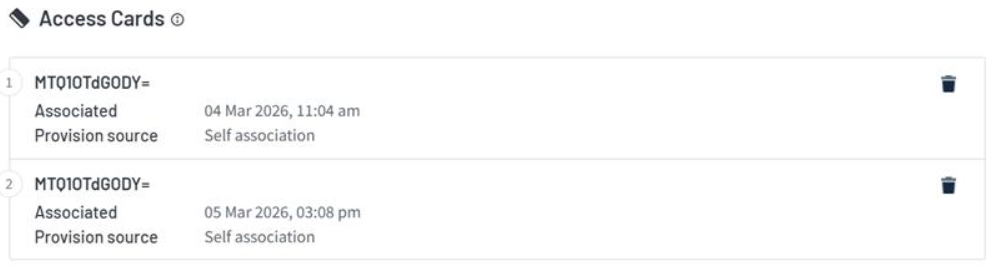
Identify hidden characters
To find hidden characters, you must review the raw data. Because the PaperCut Hive admin console removes these characters from the display, export your user data first.
When you open the file in a spreadsheet, you might notice unusual data. As shown in the following image, one cell contains invisible characters. The contents are only displayed after you double-click the cell. This action does not reveal the specific hidden character.

This can be examined more closely by opening the file in Notepad++, which reveal specific hidden characters (shown below, a Carriage Return (CR) and Line Feed (LF) within quotation marks).

Clean up existing card data
After you identify duplicates, clear the incorrect IDs using the bulk import tool.
- In your CSV file, find the users with the extra characters in their Card number column.
- Replace the incorrect card number with a hyphen (-) to clear the field.
- In the PaperCut Hive admin console, select the Users tab.
- Click Bulk Management and upload your corrected CSV file.
For more information, see the guide on removing card numbers.
Prevent duplicates with Regex
You can stop hidden characters from entering the system by using a card conversion. This ensures every reader sends the exact same string to PaperCut Hive.
- In the admin console, select the Printers tab.
- Select the printer causing duplicate IDs.
- Click the Apps tab.
- Locate the Card conversion field.
- Enter the following string to filter out everything except standard characters:
Regex:[A-Za-z0-9+\/=]+:Regex - Click the Save button to apply the changes.
For more detail, see the guide for converting card numbers in Hive.
Category: How-to Articles
Subcategory: Authentication
Comments
Comments are not available in this preview environment. On papercut.com, this space shows the live Disqus comment thread for this page.