


Contents
Troubleshooting Sharp BP devices with RED (v5) firmware
This page applies to:

Last updated September 15, 2026
Contents
Due to the European Union’s Radio Equipment Directive (RED), Understanding RED many hardware manufacturers are releasing firmware updates that include hardened security features. Please be aware that these updates may affect how your devices communicate with PaperCut. Following a firmware update, enhanced security measures may potentially block certain network ports or restrict standard connectivity methods.
When installing PaperCut MF on a Sharp BP device with the latest RED (v5) firmware, you might encounter connection errors. This article explains the common issues and the recommended device settings to ensure successful communication between the device and the PaperCut MF server.
Troubleshooting common connection errors
Depending on your security and authentication settings, the device might display one of the following errors.
Error: “Moved to ad hoc authentication mode…”
This error occurs if certificate verification is enabled in the security settings and offline mode is enabled in the authentication settings.
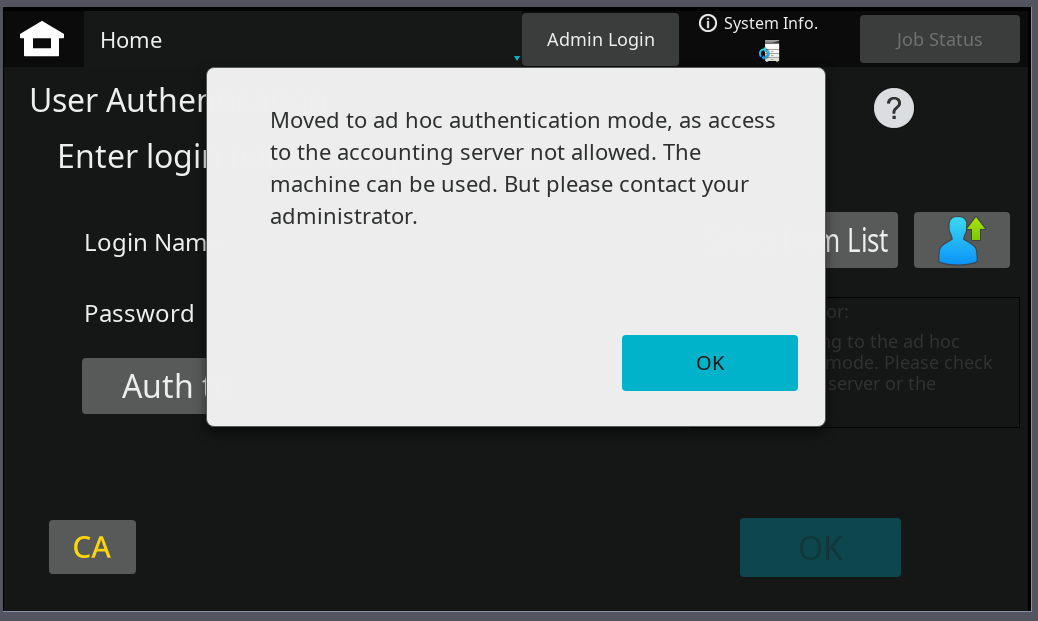
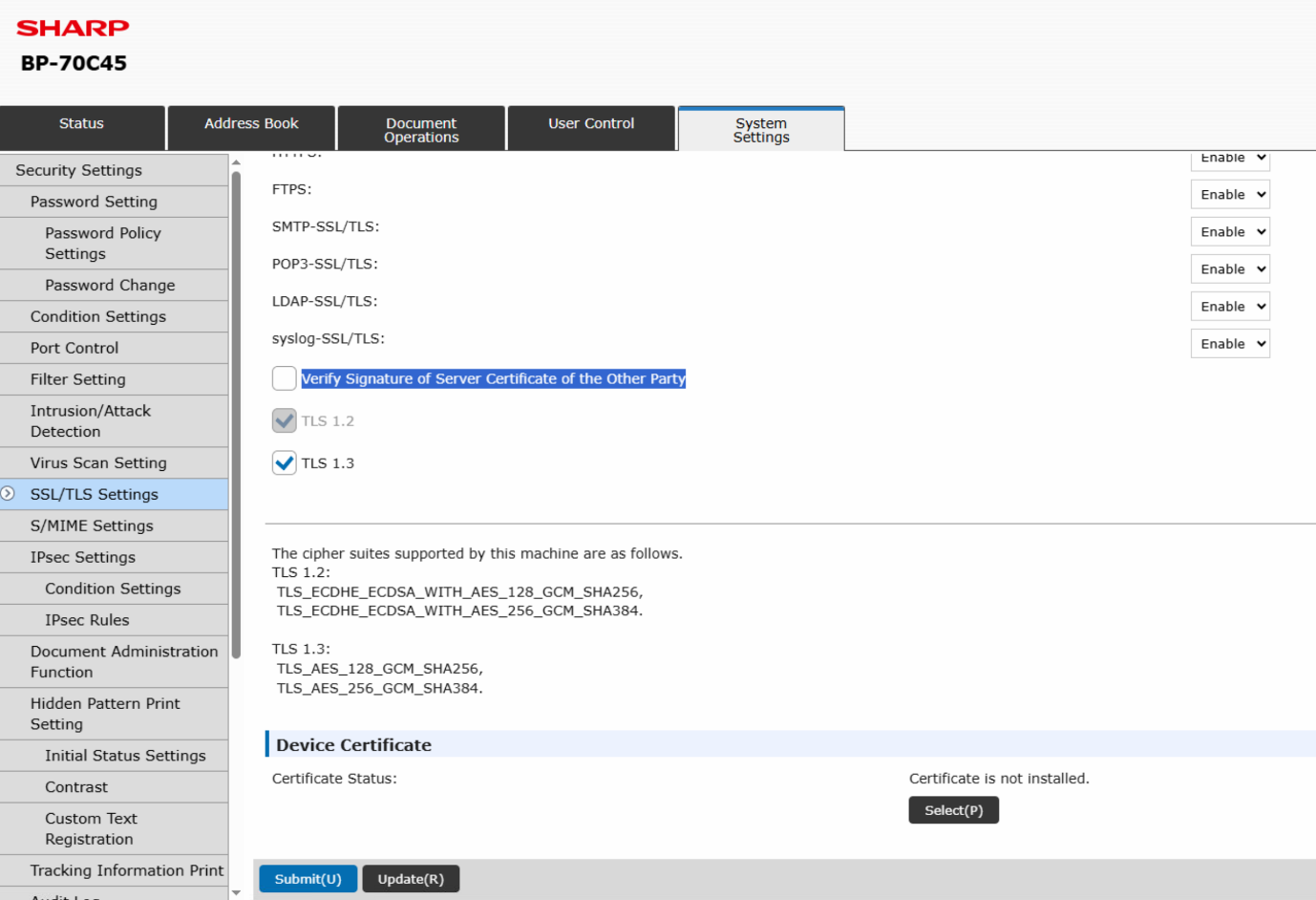
To resolve this error, disable server certificate verification.
-
Go to System Settings > Security Settings > SSL/TLS Settings.
-
Clear the Verify Signature of Server Certificate of the Other Party checkbox.
Error: “Could not access the accounting server…”
This error is displayed when certificate verification is enabled in the security settings, but offline mode is disabled.
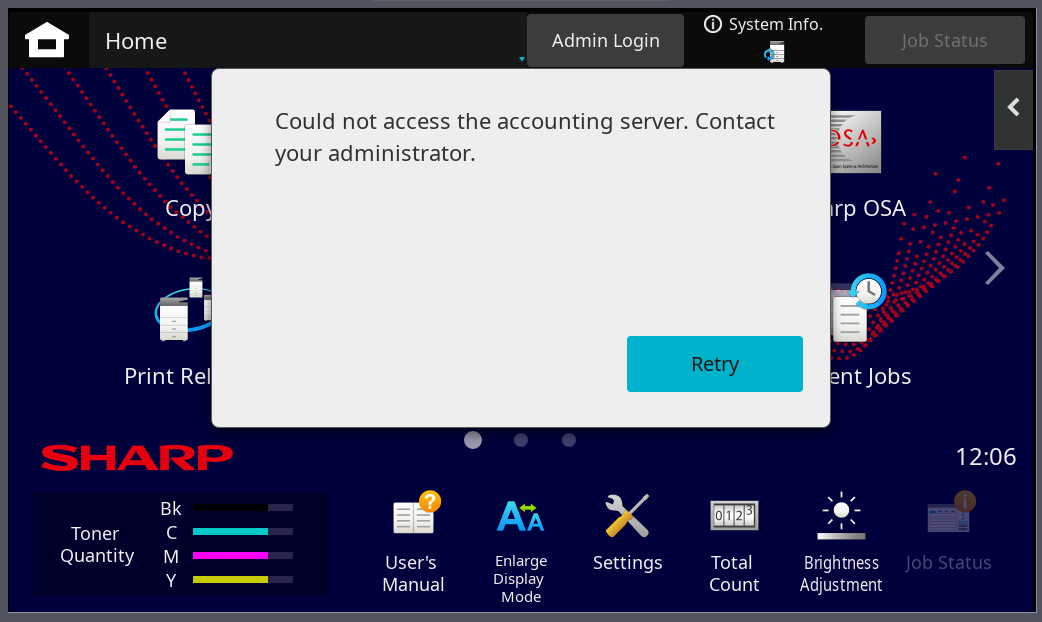
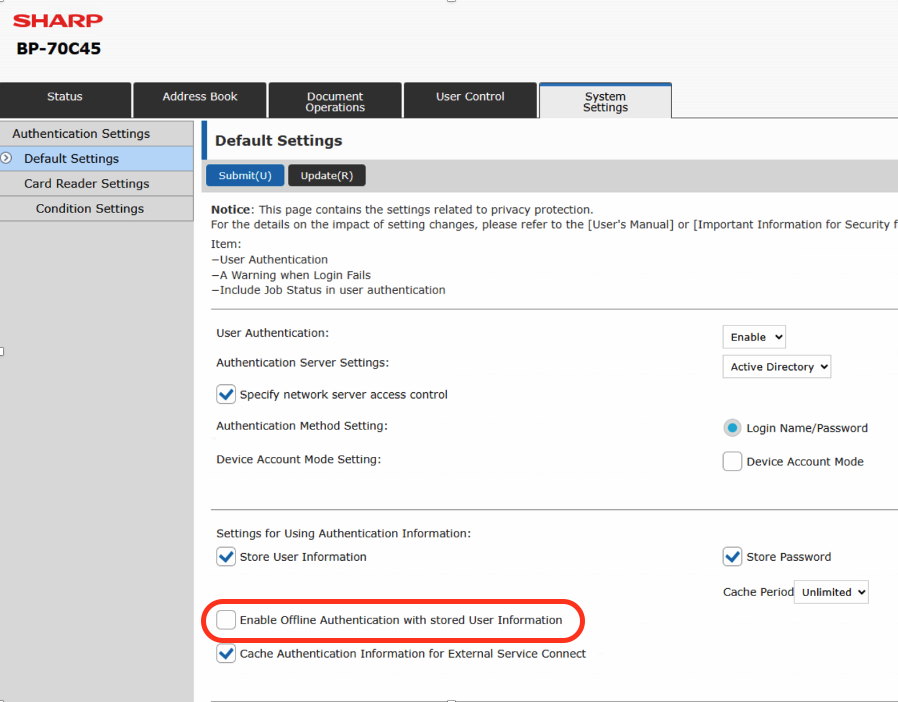
To resolve this error, disable offline authentication.
-
Go to System Settings > Authentication Settings.
-
Clear the Enable Offline Authentication with stored User Information checkbox.
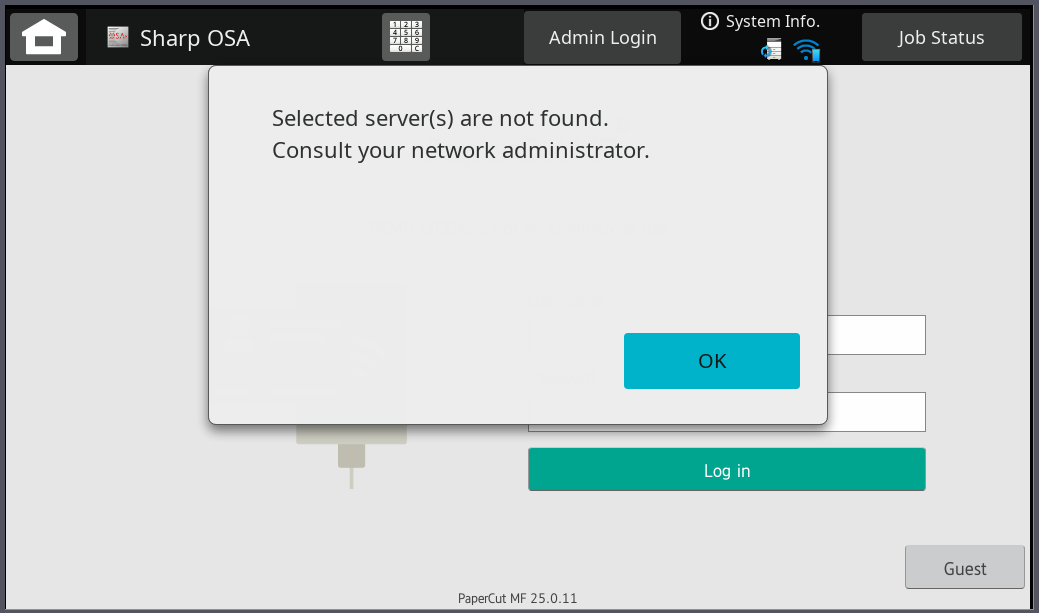
Error: “Selected server(s) are not found…”
This error appears if legacy cipher suites are not selected on the device and the server.ssl.using-strong-defaults key is set to N
Enable legacy cipher suites (optional)
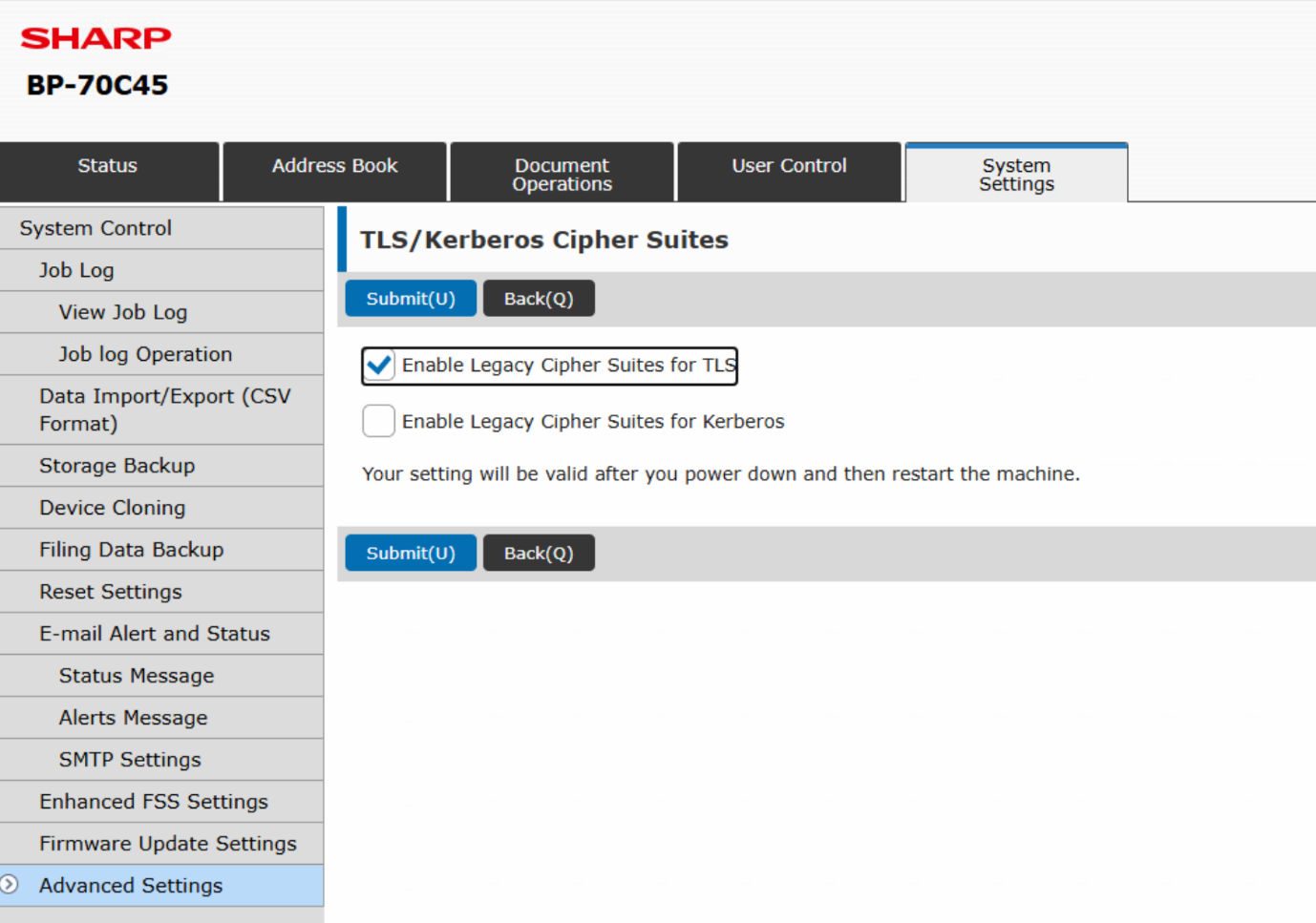
In some environments, it might be required to allow legacy cipher suites.
- Go to System Settings > System Control > Advanced Settings.
- Go to option 00048.
- Select the Enable Legacy Cipher Suites for TLS checkbox.
Setup wizard ports and functions
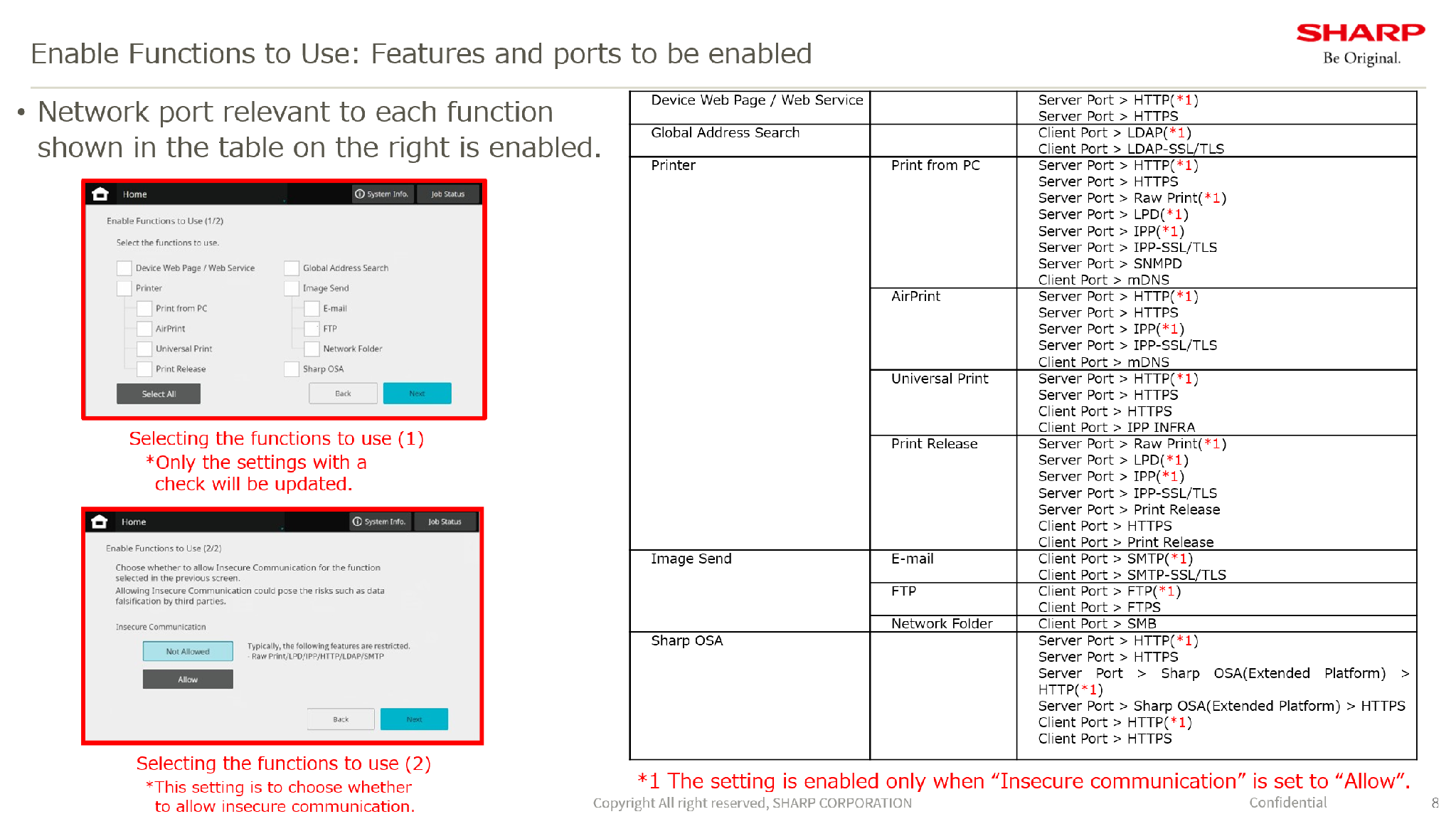
The setup wizard enables specific network ports based on the functions you select. Review your selections to ensure the necessary communication settings are allowed for your environment.
Category: How-to Articles
Subcategory: Devices
Comments
Comments are not available in this preview environment. On papercut.com, this space shows the live Disqus comment thread for this page.