


Contents
How to configure card self-association with Microsoft Entra ID MFA in PaperCut MF
This page applies to:

Last updated September 29, 2026
Contents
This article explains how to configure card self-association for PaperCut MF users and how to troubleshoot the expected authentication and email workflow when Entra ID MFA (Multi-Factor Authentication) is enabled.
In PaperCut MF 24.0.4, PaperCut updated the default card self-association prompt on Web Services-enabled devices to improve the user login experience at the copier.
When Microsoft Entra ID MFA is enabled, the MFD cannot display or respond to interactive MFA challenges, such as number matching. As a result, when an MFD requires MFA, Microsoft Entra ID might reject the MFD’s initial authentication attempt.
PaperCut MF handles this scenario by sending the user a Card Association User Notification email containing a secure link. The user has to open this link in a web browser and complete the Entra ID authentication and MFA challenge to finish associating their card to their user profile in PaperCut.
Prerequisites
Before you start, ensure you meet the following requirements:
-
PaperCut MF 24.0.4 or later is installed, so you can use the updated device prompt. The email notification workflow requires PaperCut MF 23.0.8 or later. PaperCut MF 24.1.1 or later is recommended, particularly when you use Entra ID MFA.
-
You have administrative access to the PaperCut MF admin console.
-
You have administrative access to the Microsoft Entra ID portal if changes to the Entra ID authentication or Conditional Access configuration are required.
-
Users are synchronized to PaperCut MF and authenticate using their full User Principal Name (UPN).
-
Users have a valid primary email address configured in PaperCut MF. This is required so that PaperCut MF can send the Card Association User Notification email.
How card self-association works with Entra ID MFA and PaperCut MF
The authentication workflow follows these steps:
- The user swipes an unassociated card at the MFD.
- The MFD prompts the user to enter their username and password.
- PaperCut MF submits the credentials to Entra ID for validation. If Entra ID requires MFA, the MFD cannot complete the interactive MFA challenge.
- PaperCut MF sends the user a Card Association User Notification email.
- The user opens the secure link in the email using a web browser and completes the Entra ID authentication and MFA challenge in a web browser.
Part 1: Configure PaperCut MF for card self-association
This section explains how to configure the device and synchronization settings in the PaperCut MF Admin web interface.
-
Verify the 24.0.4 default prompt by swiping an unknown card. The device should display the following message: “Unknown card”. To associate this card with your account, enter your username and password, then press Log in.

-
Customize the on-screen message to change the message on the device:
-
In the admin interface, select Devices > [Select Device] > Advanced Config.
-
Locate
ext-device-msg.card-associationand enter the text you want displayed on the MFD.
-
-
Enable MFD self-association to allow users to associate their own card:
- In the admin console, select Devices > [Select Device].
- Scroll to the Access Methods section and select Swipe Card.
- Select the Enable self-association with existing user accounts checkbox.
-
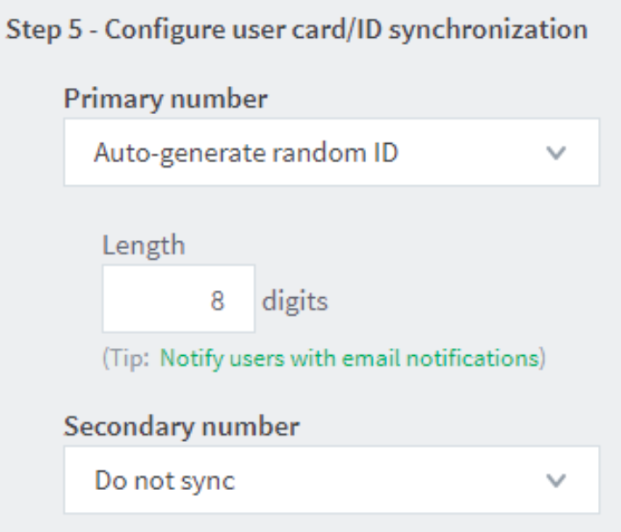
Prevent directory synchronization from overwriting associated cards to ensure external directories don’t overwrite user-associated cards:
-
In the admin console, select Options > User/Group Sync.
-
Under the card synchronization options, set Primary number and/or Secondary ID number to Do not sync, as appropriate for your environment.
-
-
If you want self-associated cards to populate the secondary card field, change the following key in the Config Editor:
Setext-device.card-self-association.use-secondary-card-number= Y -
Verify card regex settings in the Config Editor. If you use a regular expression to extract or truncate the card number, make sure the self-association validation pattern matches the resulting card number.
In the Config Editor, verify the following configuration keys:-
ext-device.card-no-regexdefines how the card identifier is extracted. -
ext-device.self-association-allowed-card-regexvalidates the resulting card identifier during self-association.
For example, if:ext-device.card-no-regex= \d{6}(\d{8})
extracts an 8-digit identifier, then use:ext-device.self-association-allowed-card-regex= \d{8}
to validate that 8-digit identifier.
By default,ext-device.self-association-allowed-card-regexis set to .*, which permits all card numbers.
-
Part 2: Check the PaperCut MF email workflow
This section covers how to ensure the notification email is correctly configured and reachable for the end user.
-
Verify the Card Association User Notification. In the admin interface, select Options > Notifications > Card Association User Notification.
-
Check the following points:
-
A working SMTP server is configured.
-
The Card Association User Notification is enabled.
-
The notification template still contains the required %startlink% and %endlink% tags.

-
-
Ensure the link in the user email can be reached.
-
In the Config Editor, verify the appropriate configuration keys based on your environment’s SSL enforcement.
-
If SSL is not enforced (
client.config.use-ssl= N ), check:system.network-address.user-facing
system.network-port-http.user-facing -
If SSL is enforced (
client.config.use-ssl= Y ), check:system.network-address.user-facing
system.network-port-https.user-facing
The address must also be reachable by the user’s browser from their network.
-
Part 3: Troubleshoot Microsoft Entra ID authentication when using MFA
When MFA is required, the MFD cannot complete the interactive MFA challenge. An MFA-related Entra ID error at the MFD, therefore, does not necessarily indicate a problem with PaperCut MF.
Microsoft Entra ID error AADSTS50076
What this means
MFA is required. Entra ID requires MFA, but the MFD cannot complete the interactive MFA challenge. This is expected when MFA is enforced for the user’s account.
What to do
No configuration change is normally required in PaperCut MF for this response. PaperCut MF should send the user a Card Association User Notification email. The user should open the secure link in the email and complete the Entra ID authentication and MFA challenge in a web browser.
Version note: PaperCut MF 24.1.0 contained a known issue (PO-2847) where association could fail after returning from the Microsoft login. Upgrading to 24.1.1 or later is strongly recommended.
The user doesn’t receive the email notification
If the user does not receive the Card Association User Notification, check the PaperCut MF notification and SMTP settings described in Part 2 of this article.
Invalid credentials or Microsoft Entra ID error AADSTS50126
This code means Entra ID rejected the username and password that the user supplied during direct credential validation. Confirm that the user is entering their full UPN and that the credentials are correct.
If the domain is federated
Direct username and password validation might not be available because authentication is handled by the external identity provider. Make any required changes to cloud password validation or federation in the Microsoft Entra ID or federation configuration.
For federated domains, one possible approach is to configure an HRD policy with
AllowCloudPasswordValidation = true assigned to the PaperCut service principal. Alternatively, you might exclude the PaperCut Application Server’s outbound IP address from the relevant MFA or federation requirements using Entra Named Locations and Conditional Access.
If the environment is passwordless
If your environment does not use passwords, you must use an alternative card association method.
Microsoft Entra ID error AADSTS50034
This code means the user account does not exist. Entra ID could not find the account represented by the username supplied.
Confirm that the user’s PaperCut username matches their Entra ID UPN. A common cause is the user entering a Windows/AD username such as jsmith when Entra ID expects the full UPN, such as jsmith@example.com .
Also confirm that the user has been synchronized into PaperCut MF using the expected Entra ID identity.
Optional: Avoid the email-based MFA workflow
If the organization’s Entra ID security policy allows it, you can adjust the MFA requirement for authentication originating from the PaperCut Application Server.
Configure this in Microsoft Entra ID, rather than in PaperCut MF. Depending on the organization’s Conditional Access configuration, this might involve the following actions:
- Add the PaperCut Application Server’s outbound public IP address to an appropriate Named Location.
- Exclude that location/IP from the relevant MFA Conditional Access policy.
Ensure any such change is reviewed against the organization’s security requirements.
Related PaperCut MF articles
Category: How-to Articles
Subcategory: User Management, Devices
Comments
Comments are not available in this preview environment. On papercut.com, this space shows the live Disqus comment thread for this page.