


Contents
Print Deploy VDI client — User identity methods in mixed OS environments
This page applies to:

Last updated October 7, 2026
Contents
This article explains how the Print Deploy Classic client and the Print Deploy client for VDI operate based on the user identity method you select.
PaperCut Print Deploy supports mixed client environments comprising Windows, macOS, Chromebooks, and VDI sessions under a single or highly available Print Deploy server deployment.
When deploying both Print Deploy clients in your environment, select the appropriate User Identity Method setting in the Print Deploy admin interface, under the Settings tab.
User identity methods and client behaviors
The default User Identity Method setting in the Print Deploy admin interface is Auto.
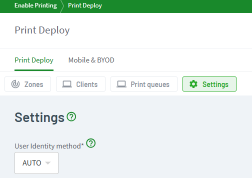
If a domain-logged-in user on the operating system (reported by either the Classic or VDI client) matches a username in the Application Server, the Print Deploy server automatically trusts the username. It then authenticates the user and deploys the print queues.
With Auto, if the reported operating system username does not match a username in the Application Server:
- the Print Deploy Classic client prompts the user for their credentials
- the Print Deploy client for VDI can’t prompt users, so authentication doesn’t happen.
In summary, the Print Deploy Classic client supports Auto, Prompt, and Trust methods for user identification. The Print Deploy client for VDI supports the Auto and Trust methods, provided the username reported by the operating system matches a username in PaperCut MF.
The following table shows the client behaviors for the 3 user identity methods and which ones apply to each client:
Client behavior by user Identity Methods | Print Deploy Classic Client | Print Deploy Client for VDI |
|---|---|---|
Auto Method | Either Prompt or Trust | Always Trusts |
Prompt Method | Always Prompts | Currently Not Supported |
Trust Method | Always Trusts | Always Trusts |
Identity method rules for clients
Both Print Deploy clients follow these rules:
- Trust method: Both clients always sign the user in.
- Prompt method: The Print Deploy Classic client always prompts the user. The Print Deploy client for VDI does not support this method.
- Auto method:
- If the computer is joined to the domain, the client trusts the user.
- If the computer is not joined to the domain, the client prompts the user, even if the user is in PaperCut MF.
You might need to adjust how the Print Deploy server interacts with the Classic and VDI clients to support the required methods. Consider the following three scenarios.
How to configure Print Deploy for mixed client environments
Here are three environmental scenarios and how to configure each.
Scenario 1: Configure Print Deploy Classic clients on shared computers and VDI sessions
This scenario requires the Prompt method. To configure the Print Deploy server to prompt users on shared computers or Macs:
- In the PaperCut MF Web admin interface, select Enable Printing > Print Deploy tab.
- Go to Settings and set the User Identity method to Prompt. The Print Deploy Classic client prompts users for their credentials, which are required for shared computers where users log in with a guest Windows account.
- Open the client.conf.toml file located in
C:\Program Files\PaperCut MF\providers\Print-Deploy\win\data\config. - Add the following line to the file:
VDIForceTrust = true.
You also inherently support the Trust method for VDI sessions because the VDIForceTrust = true setting forces the VDI client to use the Trust method.
Scenario 2: Configure Print Deploy Classic clients for a mix of shared and dedicated computers plus VDI sessions
When there is a mix of computers, both Prompt and Trust identity methods are required. Configure the Auto method for this scenario.
- In the PaperCut MF Web admin interface, select Enable Printing > Print Deploy tab.
- Go to Settings and set the User Identity method to Auto.
This results in the following:
- When users log in with a guest Windows account on shared computers, the Print Deploy Classic client will prompt for user credentials.
- When the logged-in username reported by the client matches a username in PaperCut MF, the Classic and VDI clients will automatically trust the user.
You do not need to make any changes to the client.conf.toml file.
Scenario 3: Configure Print Deploy Classic clients with dedicated computers plus VDI sessions
This scenario requires the Trust method. It is suitable when there are no shared computers or Macs in the environment, so prompting is not required.
To configure the Trust method for this scenario:
- In the PaperCut MF Web admin interface, select Enable Printing > Print Deploy tab.
- Under Settings, set the User Identity Method to Trust.
This results in the following:
- The server trusts the operating system username reported by either the Classic or VDI client. If the reported username matches a username in PaperCut MF, both clients automatically authenticate the user.
- The VDI client automatically uses the Trust method.
You do not need to make any changes to the client.conf.toml file.
Troubleshooting username mismatches between the OS and PaperCut MF
A common issue when using the Auto or Trust identity methods is a mismatch between the logged-in operating system username and the username configured in PaperCut MF. To resolve username mismatches:
- Verify the operating system username: Ensure the user account logged into the workstation or VDI session matches the primary username or user alias defined in PaperCut MF.
- Configure user aliases: If the operating system username differs from the primary PaperCut username (for example, due to a domain prefix or localized account names), add the operating system username as an alias in the user’s details in the admin console.
- Switch to Prompt mode: If usernames frequently differ or you cannot use aliases, configure the Print Deploy server to use the Prompt method for standard clients.
When a mismatch occurs, automatic authentication fails, and Print Deploy does not deploy print queues.
Category: Reference Articles
Subcategory: Print Queue Deployment, Print Queues
Comments
Comments are not available in this preview environment. On papercut.com, this space shows the live Disqus comment thread for this page.