


Resetting the PaperCut Hive or Pocket app (Android & iOS)
THE PAGE APPLIES TO:




Last updated March 10, 2026
If print jobs sent from your phone do not appear in PaperCut Hive or Pocket (for example, they are missing from the Job Log or the device), your phone might not be linked correctly to your account. This can occur after you get a new phone, reinstall the app, or change your user account.
To resolve mobile linking issues, follow the steps below to reset and relink the mobile app to your user account.
Android: Reset and relink the app
To resolve linking issues on Android, remove the old account data from the app and link it again.
Method A: Uninstall and reinstall the app
Uninstalling and reinstalling the app is the most common way to resolve mobile linking issues.
- On your Android phone, uninstall the PaperCut Hive or Pocket app.
- Install the app again using the link in your invitation email or the User Portal. We have more details in our guide right here .
- Send a test print from your phone and confirm it prints at the device.
Method B: Clear app data and relink
If you do not want to uninstall the app, you can clear the app’s data to perform a fresh link.
-
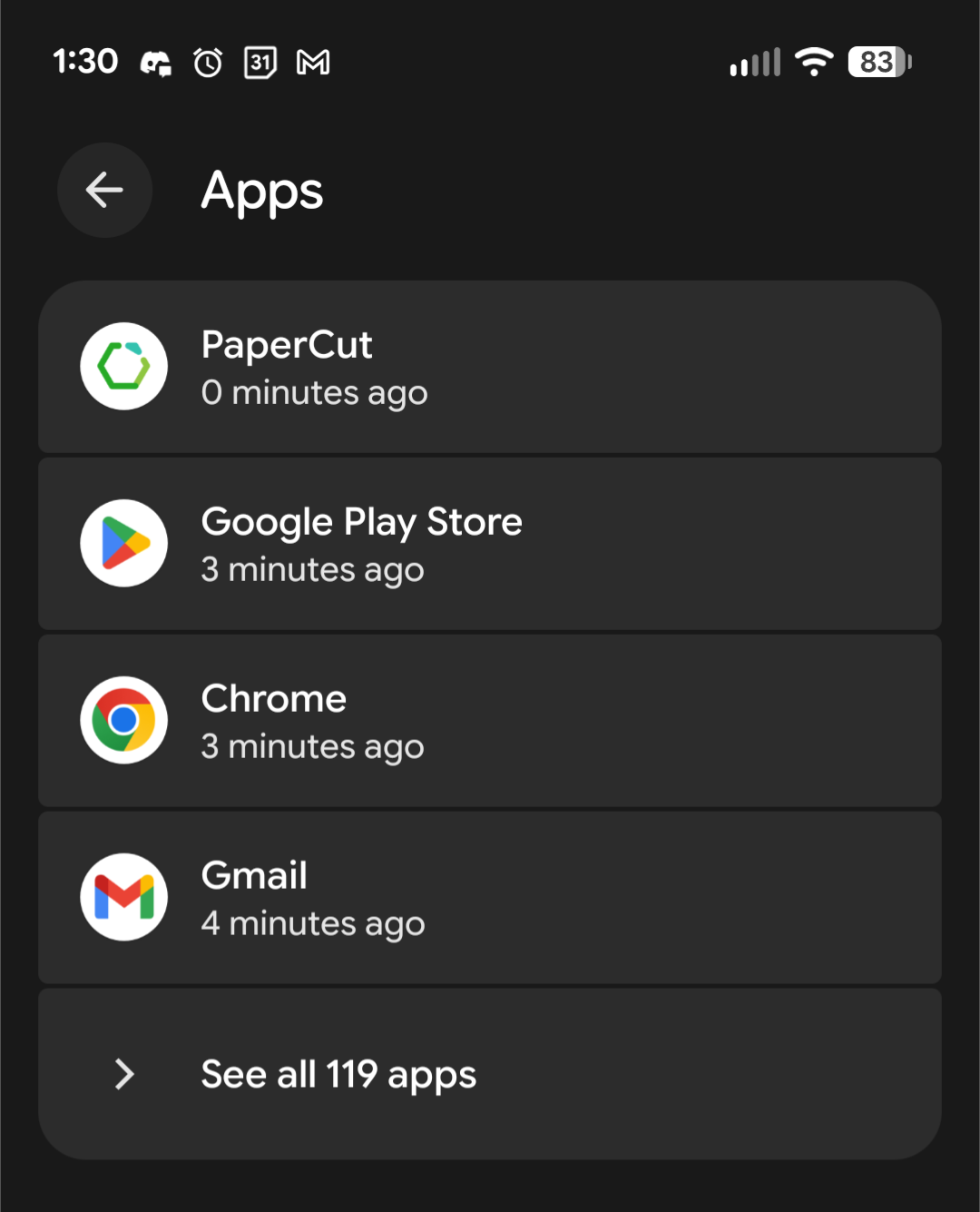
On your Android phone, go to Settings > Apps.
-
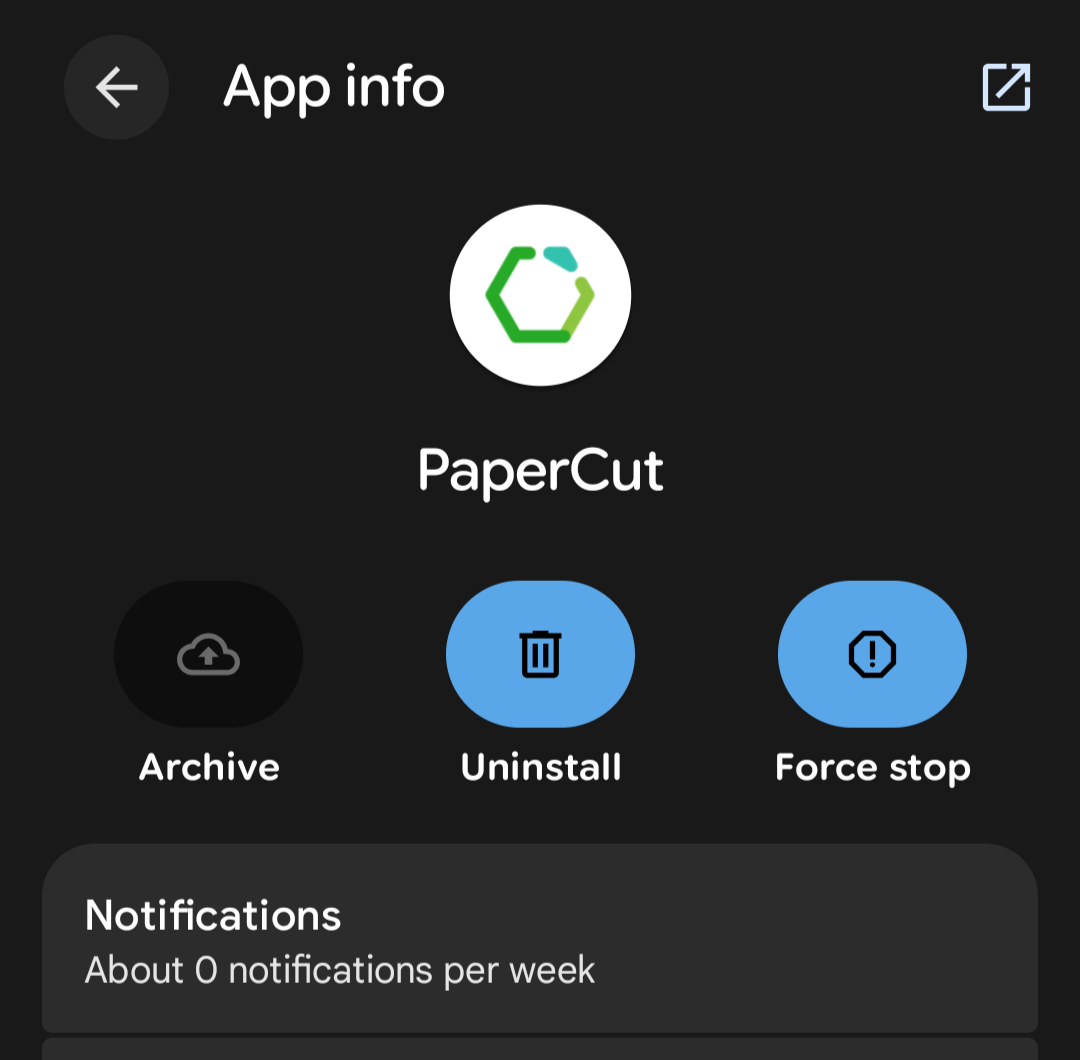
Select PaperCut.
-
Select Force stop to close the app.
-
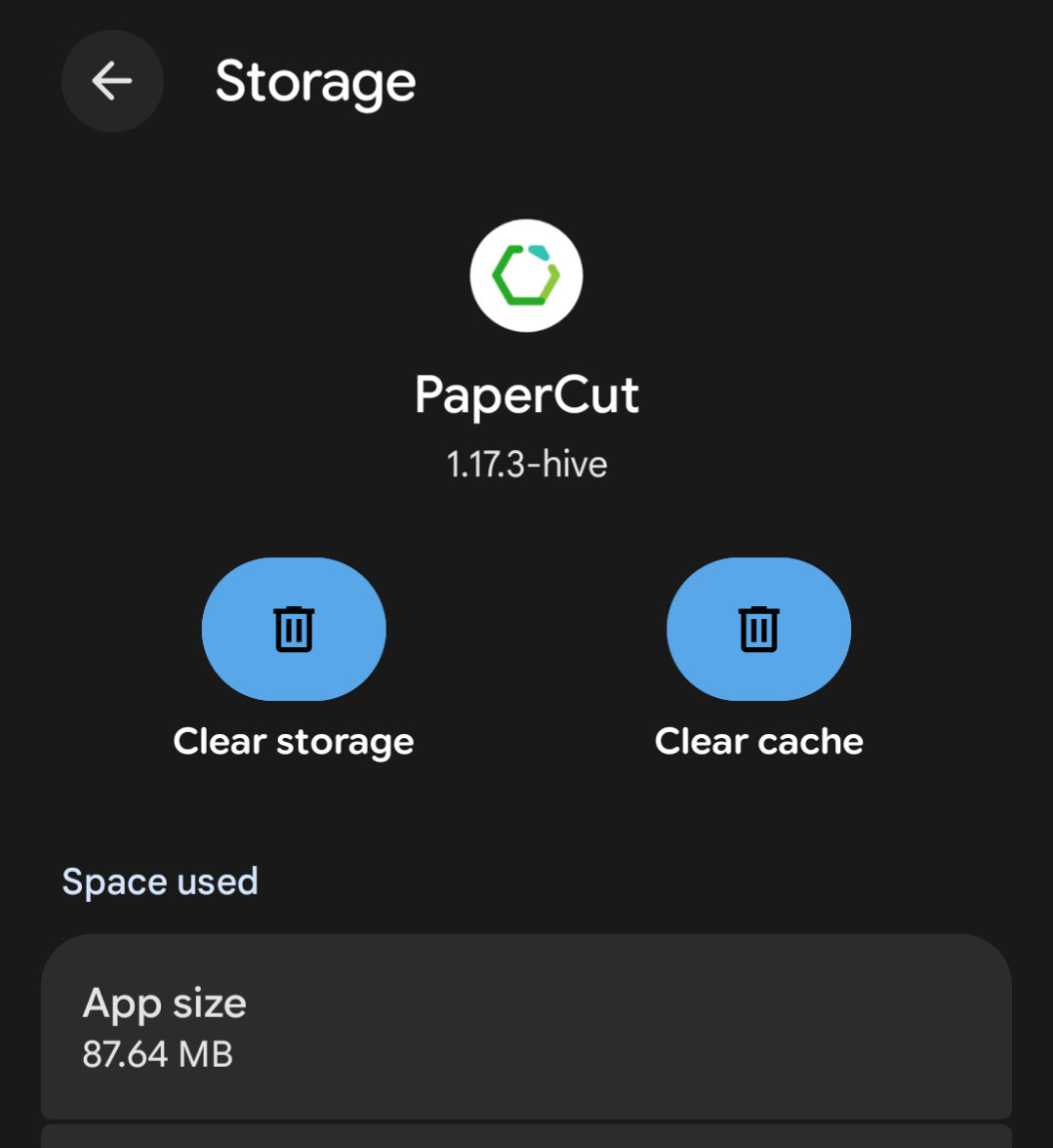
Select Storage, then select Clear storage and Clear cache.
-
Open the PaperCut Hive or Pocket app.
-
Link the app using your invitation email or the User Portal.
-
If your invitation has expired, ask your administrator to send a new one.
-
Print a test job from your phone and confirm it appears in the Job Log.
iOS: Reset and relink the app
On iOS, the standard method to disconnect or switch users is to delete the app and its data, then set it up again.
Method A: Uninstall and reinstall
- Delete the PaperCut Hive or Pocket app from your iPhone or iPad.
- Reinstall the app from your invitation email or the App Store.
- Open the app and type the linking code or scan the QR code from your invitation or the User Portal.
- Follow the prompts in the app to install the iOS printing profile. This ensures the PaperCut Printer appears in your printer list.
- Print a test job from your phone and confirm it prints at the device.
Method B: Sign out and sign in
-
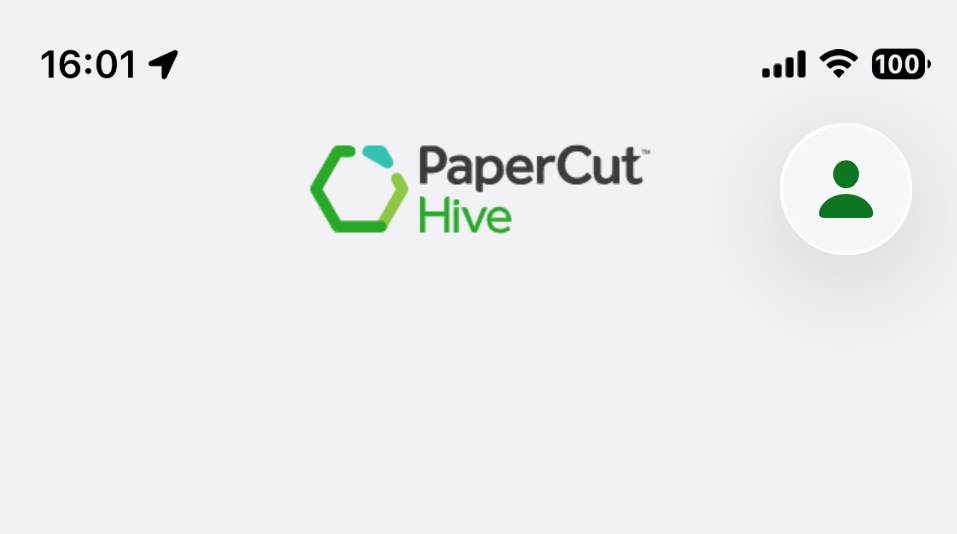
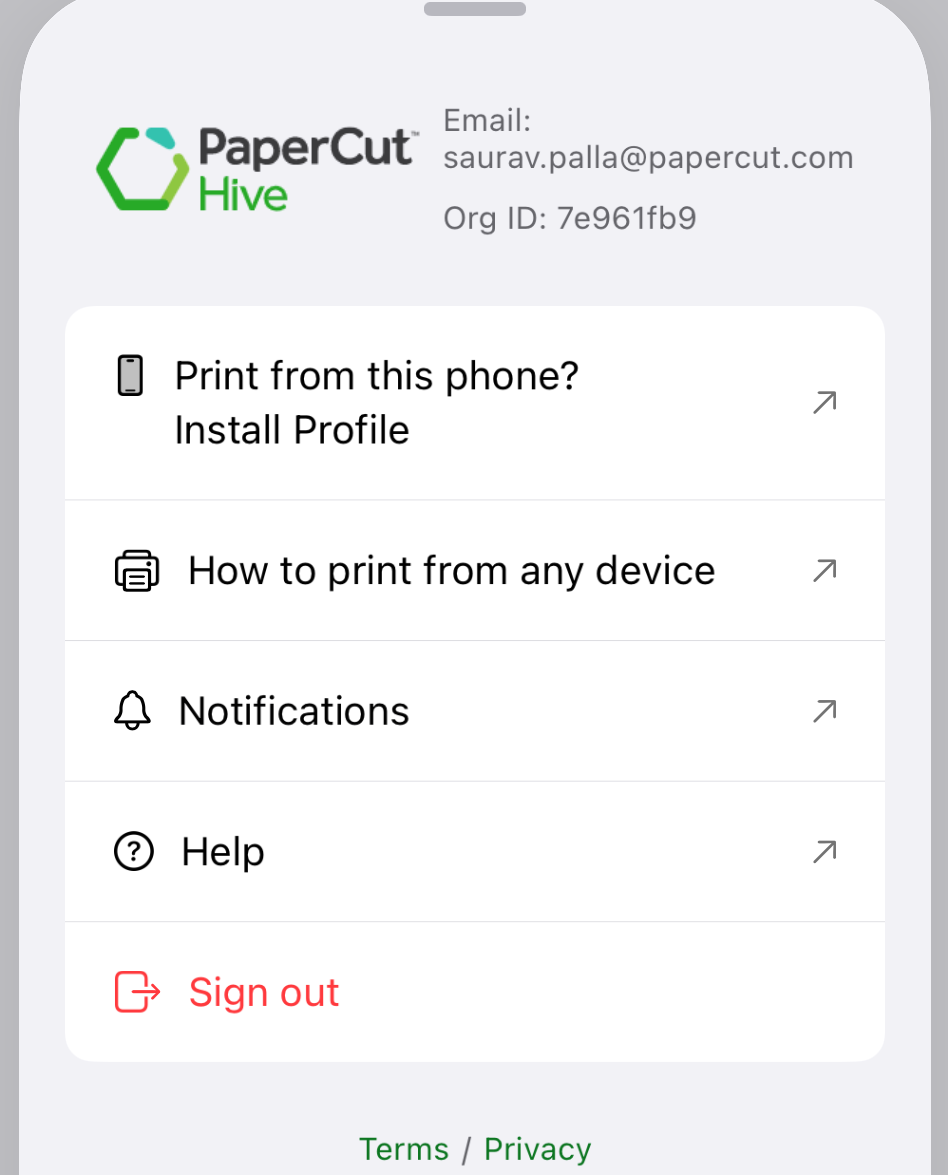
In the app, tap your Profile picture in the top-right corner.
-
Tap Sign out, then sign in again.
Troubleshooting linking issues
If jobs still do not appear in the Job Log after relinking, or if you see “Something went wrong” errors, ensure you are using a new, valid invitation or linking code.
If the issue persists, ask your administrator to open a support ticket at support.papercut.com with the following details:
- Your Organization ID
- The date and time of the failed print attempts.
Category: Troubleshooting Articles
Subcategory: Pocket & Hive End-user Articles
Comments