


Contents
PaperCut Hive and Pocket Compatibility Tool
THE PAGE APPLIES TO:




Last updated March 18, 2026
Contents
The PaperCut Hive and Pocket Compatibility Tool (also known as the pc-compatibility-tool) is a standalone utility designed to verify network requirements and troubleshoot connectivity issues.
Since PaperCut Hive and Pocket rely on a cloud-native architecture, the network environment must meet specific requirements for reliable operation. This tool helps Administrators validate these requirements before installation or diagnose specific issues in an existing deployment.
When to use the PaperCut Hive and Pocket Compatibility Tool
There are three primary scenarios where using this tool is recommended:
1. Pre-installation checks
Goal: Validate the network before deploying software.
Usage: Run the tool on a representative computer at the organization’s site. It checks if the firewall allows traffic to the PaperCut Cloud and if local ports (9263 and 9264) are open for Edge Mesh communication.
Benefit: Confirms the environment is ready for deployment, which reduces setup time and improves setup success.
2. Troubleshooting client (edge node) connectivity
Goal: Diagnose why a client (edge node) is offline or unable to communicate.
Usage: If a client appears “Offline” in the admin console and the associated device is powered up and online, run the network diagnostics. This can identify if a security update, firewall rule, or web filter (for example, Zscaler) is blocking access to PaperCut’s cloud services.
Benefit: Isolates whether the issue is local to the device or related to the network.
3. Verifying printer communication
Goal: Troubleshoot printer status or toner level reporting issues.
Usage: Run the protocol connectivity diagnostic to verify the client can communicate with the printer via SNMP, RAW Port 9100, and/or IPP.
Benefit: Often reveals if the printer is not ready to print as their correct protocols are not open, for example, RAW Port 9100 is required for printing.
How to use the PaperCut Hive and Pocket Compatibility Tool
The tool is a standalone executable and does not require a PaperCut installation to run.
Prerequisites
- Ensure you have access to the internet, the organization’s LAN or WAN, and the printers you want to test.
- Use a computer running Windows 10 (or higher) or macOS 12 (or higher).
- The tool runs in a Command Prompt on Windows or a Bash shell terminal on macOS.
- Decide which mode you would like to use the tool in:
- Interactive Mode (Wizard): prompts for information step-by-step.
- Command line mode: an advanced mode that allows you to run specific diagnostics individually without using the wizard.
How to download and run the PaperCut Hive and Pocket Compatibility Tool
- Download and extract the .zip file.
- Open a terminal (macOS) or Command Prompt/PowerShell (Windows).
- Navigate to the extracted directory and run the appropriate command:
- macOS — Interactive Mode:
./pc-compatibility-tool.command -i - macOS — Command line reference:
./pc-compatibility-tool.command [enter command here] - Windows — Interactive Mode:
.\pc-compatibility-tool.bat -i - Windows — Command line reference:
.\pc-compatibility-tool.bat [enter command here]
- macOS — Interactive Mode:
How to use the tool in Interactive Mode (Wizard)
For a guided experience, run the tool in Interactive Mode. This launches a text-based wizard that prompts for information step-by-step.
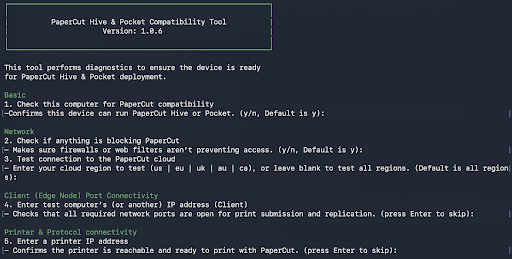
Checks performed by Interactive Mode
When run in Interactive Mode, the tool performs six sequential checks. Press Enter to accept defaults or skip specific sections.
- Basic System: Checks OS compatibility, version, and disk space.
- Network Security: Scans for interfering proxies or “man-in-the-middle” inspections.
- Cloud Connectivity: Tests connection to PaperCut Cloud regions.
- Edge Node Ports: Checks if Ports 9263, 9264, and 9266 are open on a target IP. These are required for job replication in the Edge Mesh.
- Printer Connectivity: Pings a target printer’s IP to verify reachability.
- Protocol Connectivity: Verifies printing protocols (SNMP, RAW Port 9100, and IPP) are active.
Running the tool in command line reference mode (advanced)
You can run specific diagnostics individually without using the wizard. This is useful for scripting or quick checks.
Basic system information
To check the hostname, OS version, and disk space, run:
./pc-compatibility-tool.command basic
Network diagnostics
To verify DNS, and access to Google Cloud, PaperCut APIs, and IoT services, run:
./pc-compatibility-tool.command network cloud
Port checker
To check connectivity to another machine (for example, verifying Port 9264), run:
./pc-compatibility-tool.command network ports <target_ip>
Printer diagnostics
To validate communication with a printer using standard protocols, run:
./pc-compatibility-tool.command printer ping --ip <printer_ip>
Interpreting and troubleshooting Compatibility Tool results
After the Compatibility Tool has run, you will receive results. Here’s how to interpret and troubleshoot them.
Compatibility Tool results:
| Check | Message in interface | Meaning | How to troubleshoot |
|---|---|---|---|
| All checks | [OK] | The check passed successfully. | Not required. |
| Basic: Hostname (Windows only) | [WARN] | Hostname exceeds 15 characters. This causes NetBIOS truncation and may break Windows printing. | Rename the computer hostname to use 15 characters or fewer. |
| Network: DNS resolvers found (N) | N/A | The tool successfully retrieved the system’s DNS configuration. | Check the IP list: Ensure the IPs match your organization’s known DNS servers. If cloud endpoints failed, one of these IPs is likely blocking the request. |
| Network: Web gateway agents detection | [NOT DETECTED] | No web gateway was found that could interfere with PaperCut functioning. | Not required. |
| Network: Web gateway agents detection | [WARN] | A potential gateway restriction {GatewayName} was detected. | Ensure this device allows background traffic. |
| Network: Cloud connection detection | [WARN] | Unable to reach required Cloud services: {List blocked URLs}. | Allow these URLs in your firewall/proxy settings. |
| EdgeNode Port Connectivity: Port 9263 | [FAIL] | Port 9263 is blocked. Users can’t submit print jobs from this computer (origin client/Edge Node) during an internet outage. | Open inbound TCP 9263. |
| EdgeNode Port Connectivity: Port 9264 | [FAIL] | Port 9264 is blocked. Job replication will fail, preventing print job redundancy. | Open inbound TCP 9264. |
| EdgeNode Port Connectivity: Port 9265 | [FAIL] | Port 9265 is blocked. Client (Edge Node) processes can’t run on the computer. | Open inbound TCP 9265. Ensure that pc-edgenode-service is running in Task Manager (Windows) or Activity Monitor (Mac). |
| EdgeNode Port Connectivity Check: Port 9266 | [FAIL] | Port 9266 is blocked. Users can’t release jobs via the mobile app if the internet is down. | Open inbound TCP 9266. |
| Printer Connectivity: Printer Device Status | [WARN] | Printer is reporting an error state (for example, jam, empty, offline). | Check the printer for any problems and resolve. |
| Printer Connectivity: Printer Device Status | [FAIL] | Printer failed to respond | Ensure the right IP address was entered |
| Printer Connectivity: Printer Status | [WARN] | Printer status: Idle. It is currently available and ready to release your documents. | |
| Printer Connectivity: Printer Status | [FAIL] | Printer failed to respond | Ensure the right IP address was entered |
| Printer Protocol Check: 9100 | [FAIL] | Port 9100 is closed on the printer Firewall Policy blocking 9100. |
If required, enable RAW Port 9100 on the printer or check the firewall. Learn more about choosing print protocols |
| Printer Protocol Check: IPP | [FAIL] | IPP connection failed. |
If required, enable IPP on the printer. Learn more about choosing print protocols |
| Printer Protocol Check: SNMP | [WARN] | SNMP query failed. The system cannot read toner levels or detailed status. | Check SNMP community string or enable SNMP. |
Compatibility Tool log file (Interactive Mode only)
At the end of an interactive session, the Compatibility Tool generates a log file containing detailed debug information. This log acts as a persistent record of the compatibility check, capturing everything that was assessed and the results.
Users of the Compatibility Tool can keep this log as a reference point to:
- revisit what was validated without re-running the tool
- track issues or gaps identified during the check
- compare results across devices or environments.
It’s also designed to be shared. The log can be provided to an Authorized Partner or PaperCut Support to:
- speed up troubleshooting by giving full context upfront
- avoid repeating diagnostic steps
- enable more accurate and faster guidance.
Here’s an example of log file content:
Log Bundle name: diag_20260121090120.zip
SUCCESS Saved log bundle to .../logs/diag_20260121090120.zip
Additional troubleshooting — common errors
Windows Logs: If erratic print behavior persists despite passing checks, enable Windows Print Operational Logs in Event Viewer (Applications and Services Logs > Microsoft > Windows > PrintService) for OS-level tracing.
Release history
- February 24th, 2026: Version ** ** 1.0.6
Category: PaperCut Pocket and Hive Articles
Subcategory: , Pocket & Hive Troubleshooting Articles
Comments