


Scan to any email with PaperCut MF
THE PAGE APPLIES TO:




Last updated November 21, 2025
People who scan often need to send the document to another person instead of themselves. With the release of PaperCut MF’s Advanced Scanning , it’s now possible to let users type in a destination email address at the panel of the copier.
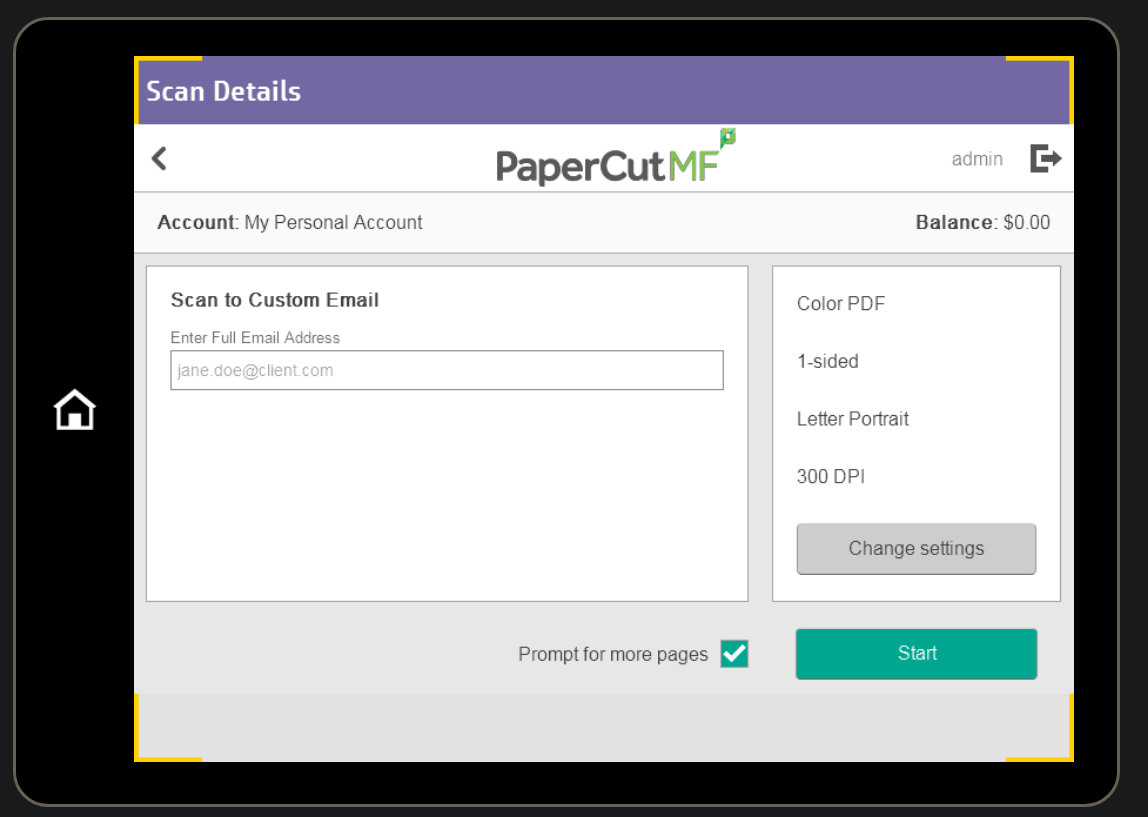
This article gives you simple, step-by-step instructions on how to use PaperCut MF’s Advanced Integrated Scanning feature to create a flexible “Scan to custom email” button. Keep in mind this does require an additional Advanced Scan license assigned to each device. See:
Enable Advanced Scan actions on a device
.
This setup lets users type the full, specific email address they need directly on the copier screen every time they scan.
Let users scan to a custom email address:
- Log into the PaperCut MF admin interface.
- Navigate to Devices, select Scan Actions, and click Create new scan action.
- For the type Type of scan action, leave as Email.
- Set the Label to a descriptive label users will see on the MFD, such as “Scan to Custom Email”.
- Under the Metadata section, Choose the Advanced tab to open the detailed configuration options
- Fill out the User Fields. This section creates the text input box for the user on the device screen and uses regex validation to ensure the user enters a properly formatted email.
- ID:
CustomEmailAddress - Label:
Scan to a custom email - Field Type:
Text - Placeholder:
Enter e.g., jane.doe@client.com. - Validation:
^[^@\s]+@[^@\s]+.[^@\s]+$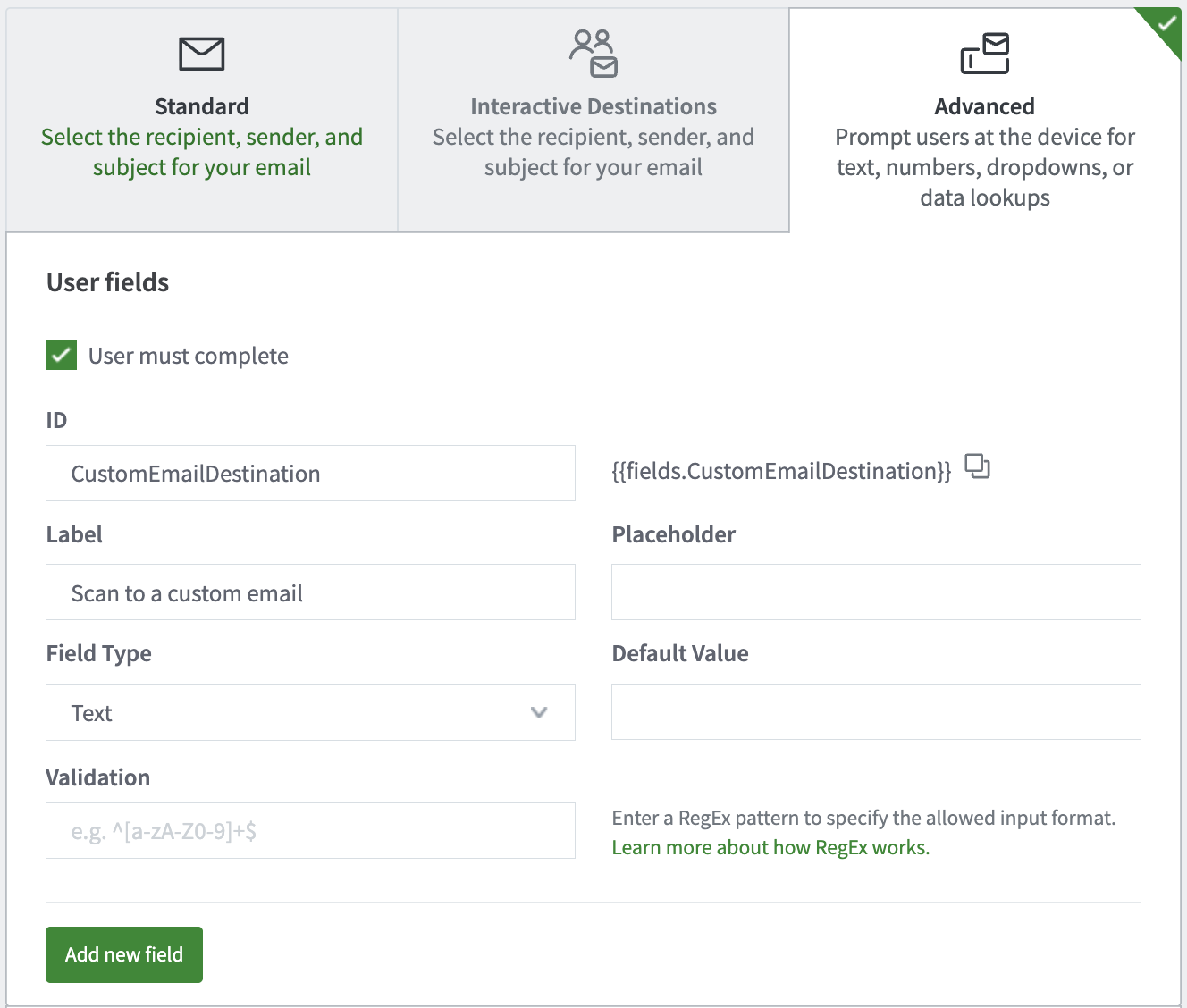
- ID:
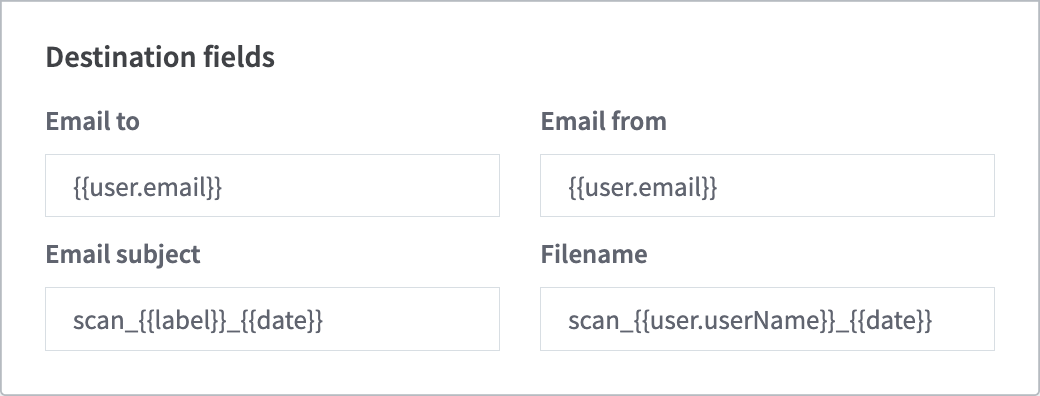
- Fill out the Destination Fields. This section routes the scanned document to the email address entered by the user at the device panel.
- Email to:
{{fields.CustomEmailAddress}}. - Other fields: leave with the default values or update as needed to change the subject or filename.
- Email to:
- Scroll to the bottom and click Save & configure access.
- Follow the steps on screen to assign the scan action to a group as needed.
- Lastly, log onto a copier running PaperCut MF as a user and confirm the scan works as expected.
Category: How-to Articles
Subcategory: Integrated Scanning
Comments