






It’s easy to deploy the PaperCut Hive and PaperCut Pocket edge node and print client to macOS end-user computers managed by Jamf .
We’ve made an add-on available from the admin console that provides all the necessary steps to push out the required software to your users.
1. Enable the Jamf Pro add-on
-
From the PaperCut Hive or Pocket admin console, in the left menu, select Add-ons.
-
On the Device management tab, locate the Jamf Pro card and click Learn More.
 a
a -
Read the important legal information, then click Add.

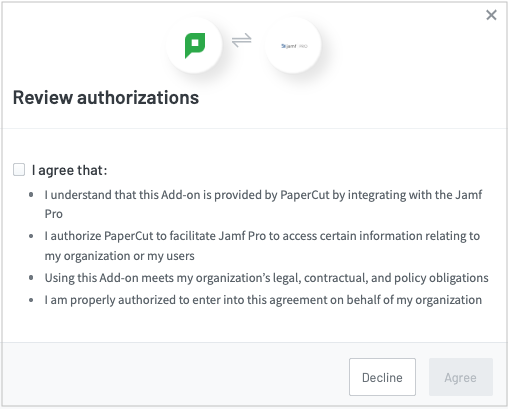
The Review authorizations popup is displayed.
-
Read the points, select the I agree that: checkbox and select Agree to enable this add-on for your organization. The Jamf Pro panel is displayed.
2. Add the PaperCut Hive package to Jamf Pro
- In the Jamf Pro Add-on, on the Setup instructions tab, click Download zip file.
- Go to your Jamf Pro environment, for example
{yourEnv}.jamfcloud.com. - Click Computers, then under Settings select the Computer Management tab.
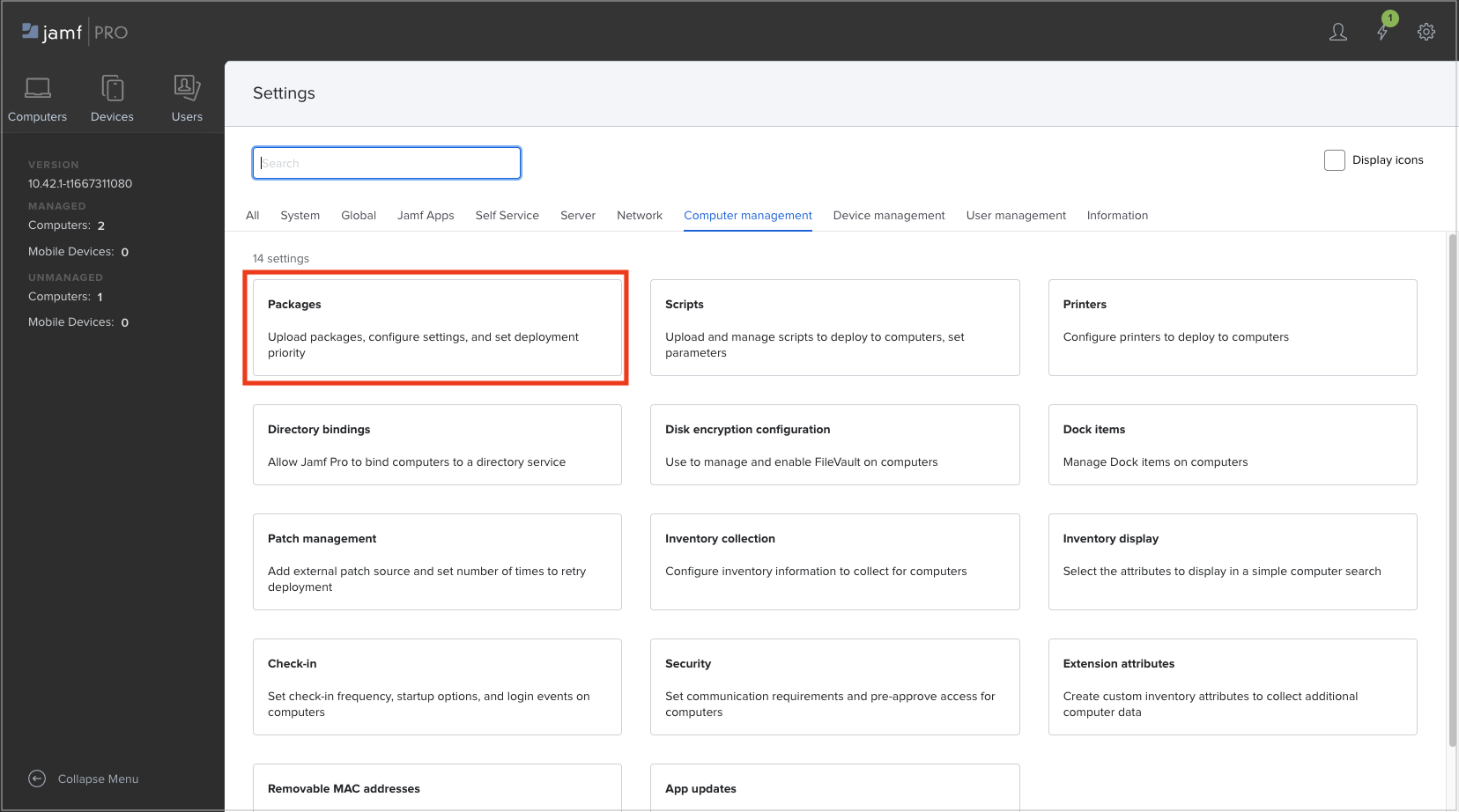
- Click Packages.
- Click + New.
- Under Filename click Choose file, then select the zip file you downloaded in the first step of this procedure.
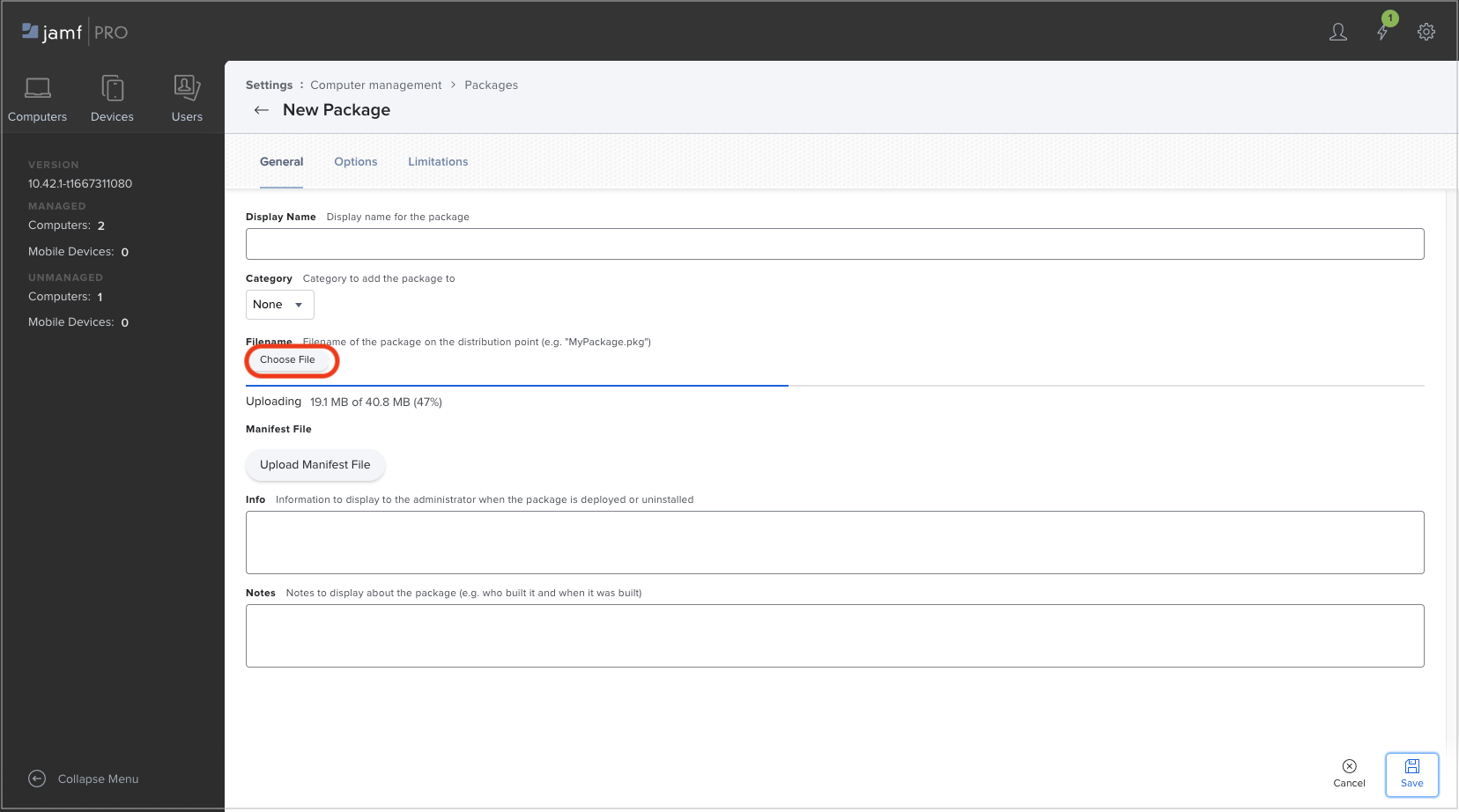
- Click Save. The file uploads.
3. Create a script to deploy the package to users’ devices
-
Click Computers, then under Settings click Computer Management.
-
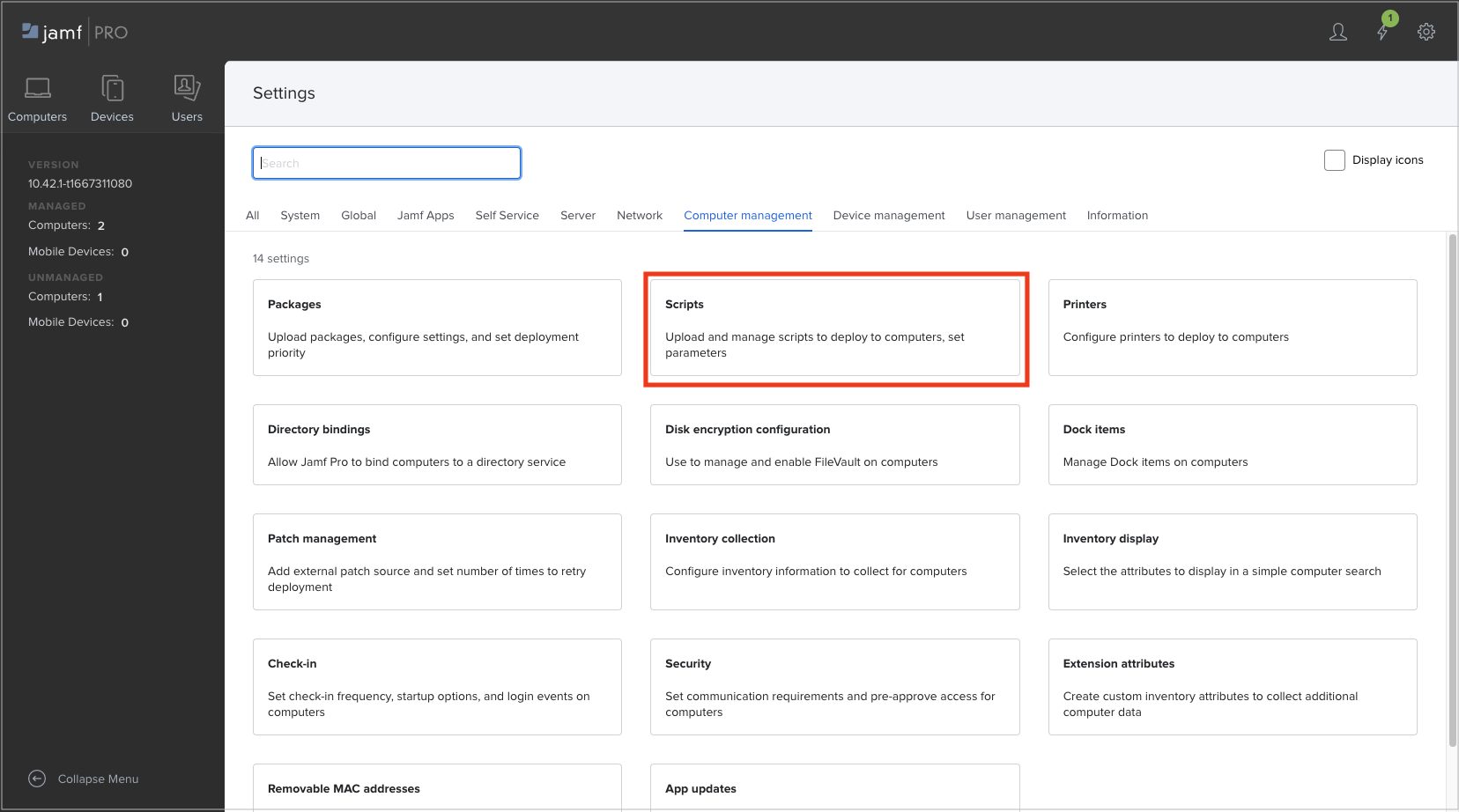
Click Scripts.
-
Click + New.
-
In the Display Name field, enter the following:
PaperCut edge node & Print Client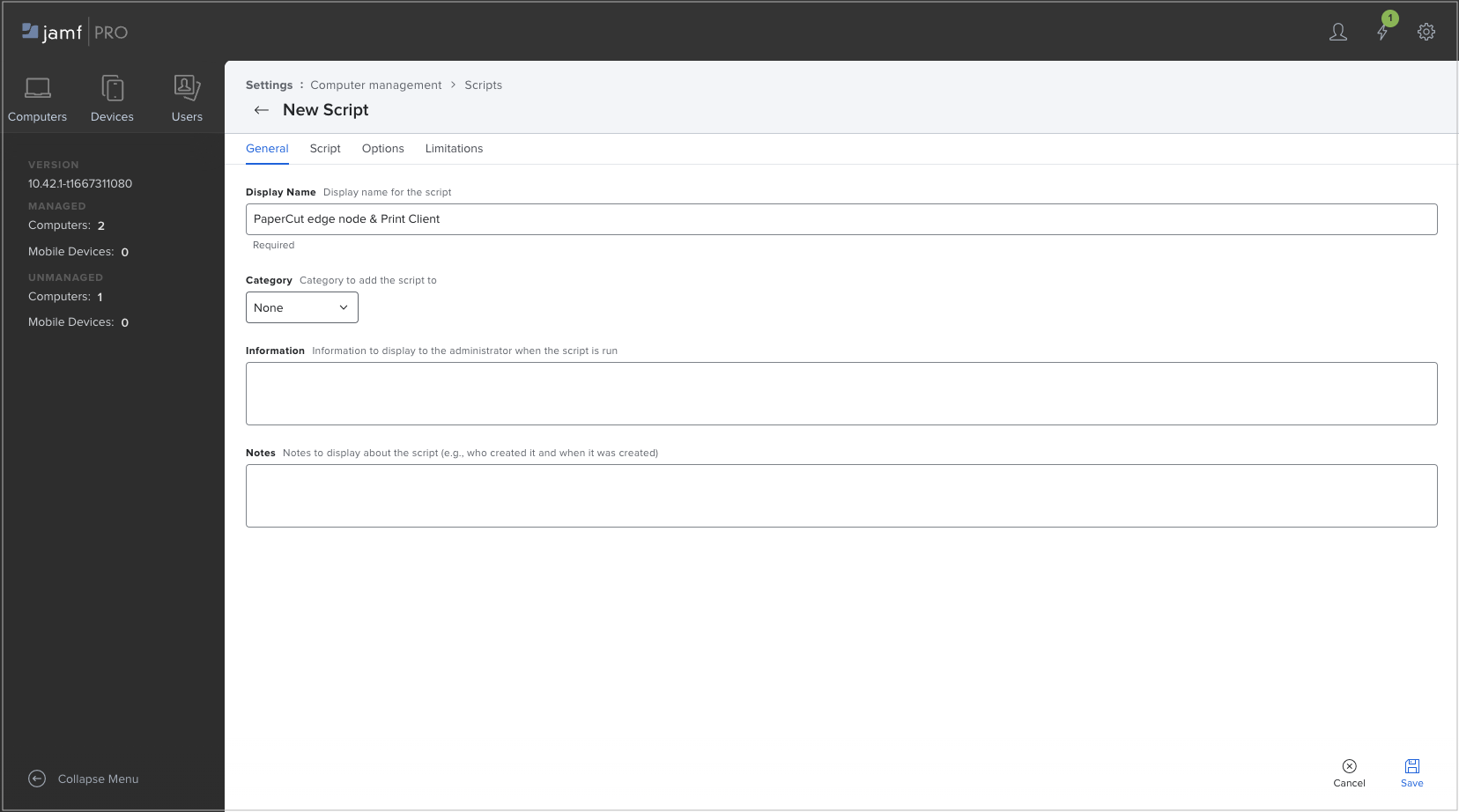
-
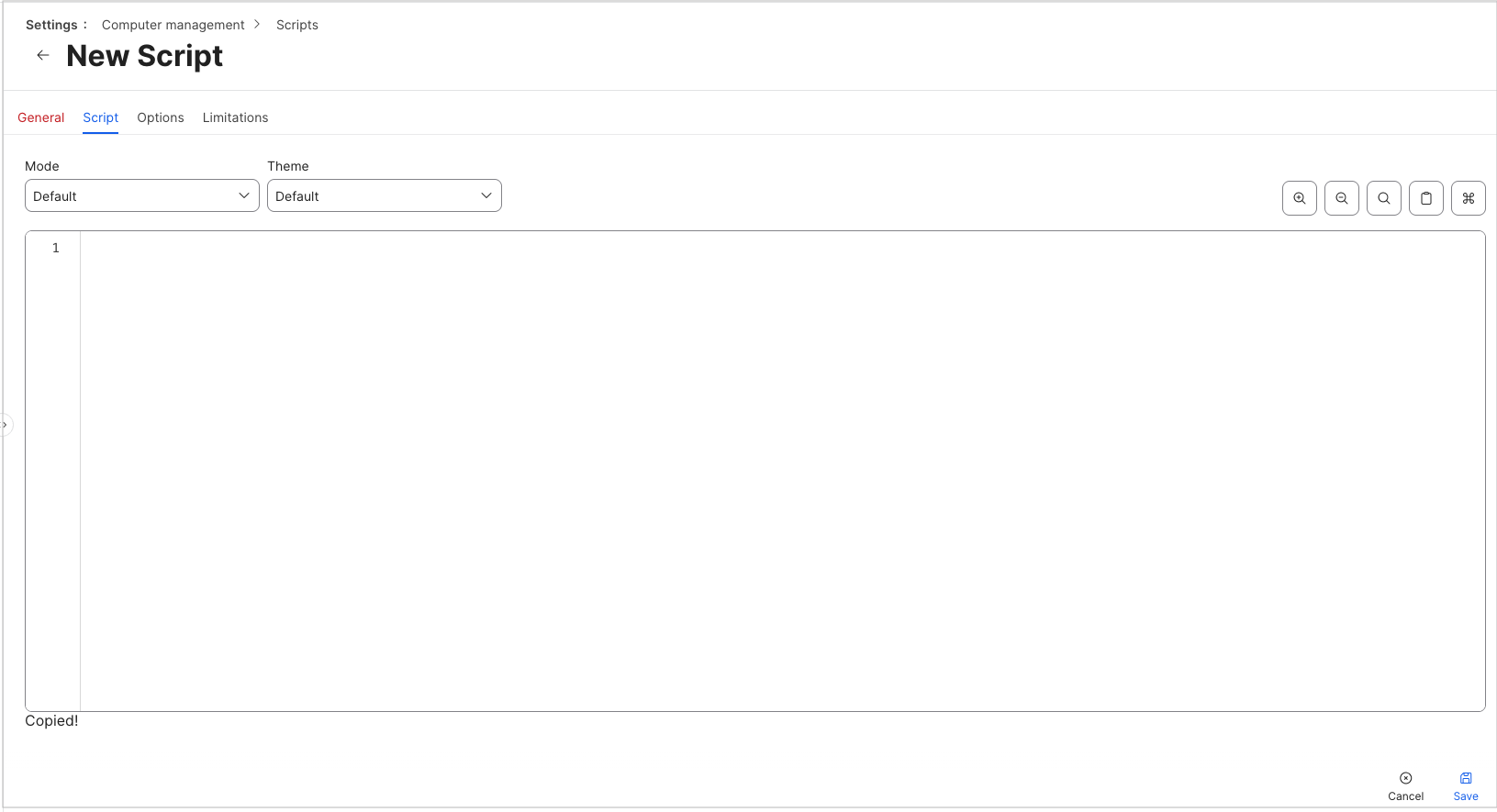
Click the Script tab.
To obtain the script:
- Go back to the Jamf Pro Add-on in PaperCut Hive or Pocket. On the Setup instructions tab copy the script code.
- Go to the Jamf Script tab and paste the code into the box.
-
Click Save. You are now ready to add a policy to determine when PaperCut Hive or Pocket will be deployed to the users’ devices.
4. Create the policy to deploy to users’ devices
-
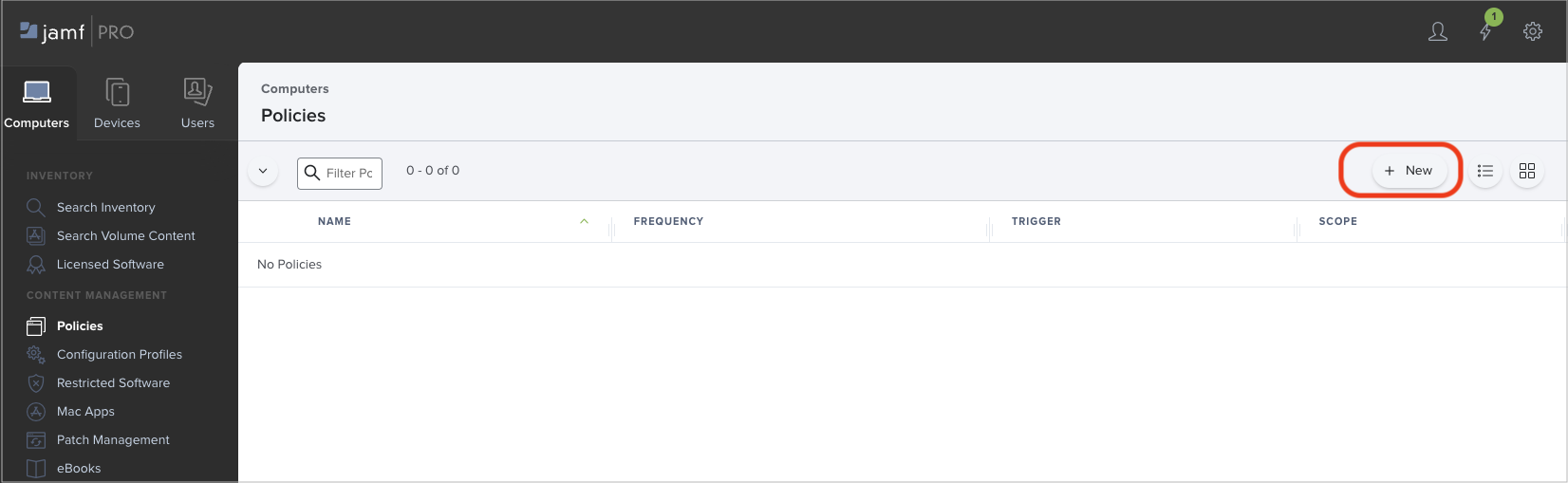
Click Computers, then under Content Management click Policies.
-
Click + New.
-
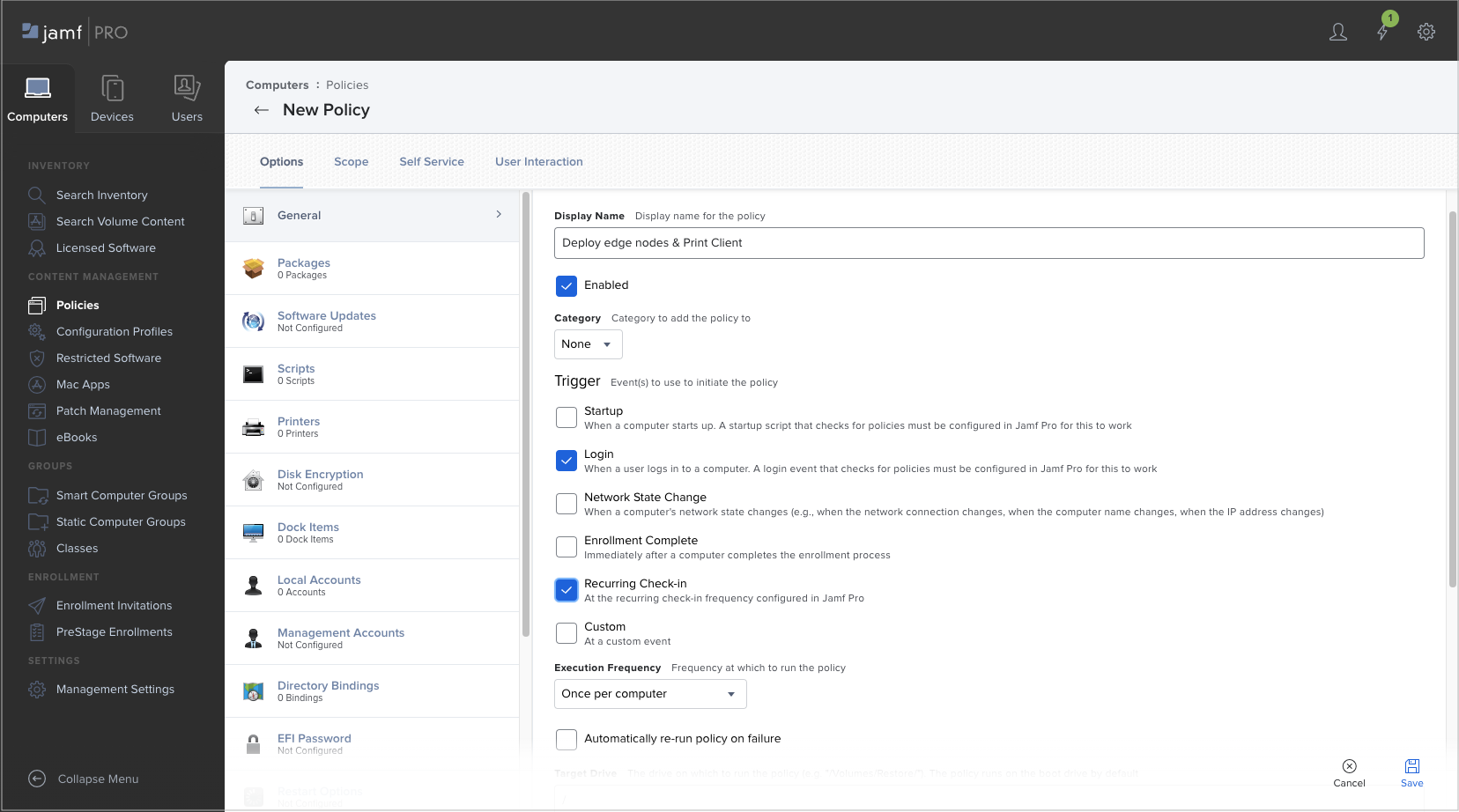
In the Display Name field, enter the following:
Deploy edge nodes & Print Client -
Under Trigger, select the following checkboxes:
- Login
- Recurring Check-in
-
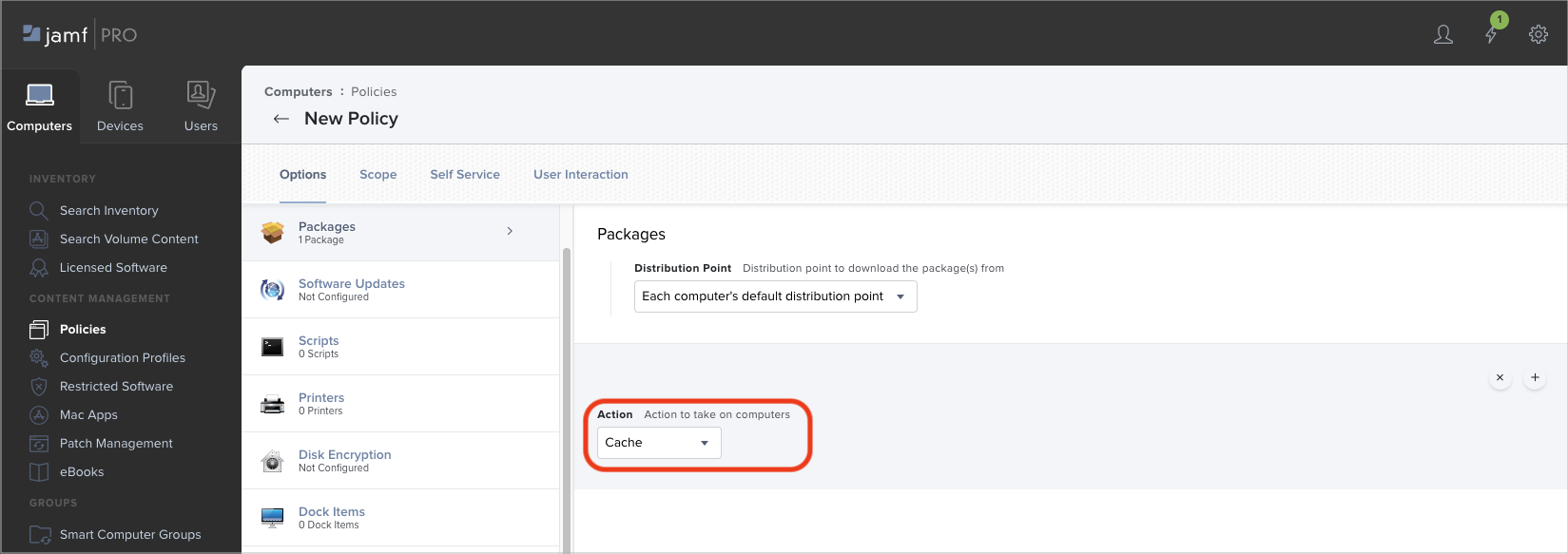
In the Options menu click Packages, then click the Configure button. Your script should show up called papercut-hive.zip.
-
At the right of the package name, click Add.
-
Under the package name, in the Action dropdown select Cache.
-
In the Option menu click Scripts, then click the Configure button. Your script should show up called PaperCut edge node & Print Client.
-
Click Add.
-
Click the Scope tab. Under Add Deployment Targets, select the target type; Computers, Computer Groups etc..
-
In the NAME section, select the names you require and click Add.
-
Click Save. Your edge nodes and print clients roll out to your users’ devices.
5. Post-deployment checks
To check your installation is working from a sample Mac:
- On a sample Mac, in Activity Monitor, check that the
pc-edgenode-serviceprocess is running.
The computer requires this service to perform activities such as receiving, replicating, or printing jobs if the PaperCut Cloud Service calls upon it. - In Activity Monitor, check that
pc-print-clientprocess is running.
This is the print client needed to link the end-user to PaperCut Pocket or PaperCut Hive and submit jobs via the PaperCut Printer. It provides the functions the user needs to print jobs via the PaperCut Printer. - Are both processes running?
Yes: You can start managing your users .
No: If either of these are not running, please contact your PaperCut reseller and provide copies of the logs.
Managing PaperCut Pocket / Hive client upgrades
After you deploy the PaperCut Hive or Pocket client to users, the client will automatically check for important updates and upgrade itself.
Even though the client will automatically update, it is good practice to update the PaperCut package in Jamf Pro from time to time.
To see what PaperCut updates are available, read the PaperCut Pocket / Hive release notes .
Locations of logs
- setup logs —
/Library/PaperCut Hive/data/logs/Setup Log %date% 00X.txt - edge node logs — The edge node service logs are located in:
/Library/PaperCut Hive/data/logs/ - print client logs — The print client service logs are located in:
~/Library/PaperCut Hive/data/logs
Note: For macOS, since the print client is installed under the user context, you need to perform either of the below steps to grab the set of logs:
- Open Finder.
- Hold down the Option key when clicking the Go menu. The library will appear below the current user’s home directory
Or
- Open Finder.
- Click on the Go menu and choose Go to Folder.
- In the popup, type ~/Library and press Enter.
Uninstalling PaperCut Hive from users’ computers using Jamf
This procedure uses Jamf to uninstall and delete PaperCut Hive from users’ computers.
1. Create a script to uninstall and delete
-
Click Computers, then under Settings click Management Settings.
-
Click + Scripts.
-
Click + New.
-
In the Display Name field, enter the following:
Uninstall PaperCut edge node and Client -
Click the Script tab and paste the script below into the box.
#!/bin/bash /Library/PaperCut\ Hive/Uninstall.command -y -
Click Save. You are now ready to add a policy to determine when PaperCut Hive will be uninstalled from the user’s device.
2. Create the uninstall policy
-
Click Computers, then under Content Management, click Policies.
-
Click + New.
-
In the Display Name field, enter the following:
Uninstall edge nodes & Print Client -
Under Trigger, select the following checkboxes:
- Login
- Recurring Check-in
-
In the Options menu click Scripts, then click the Configure button. Your script should show up called Uninstall PaperCut edge node and Client.
-
Next to the name, click Add.
-
Click Scope to configure which computers or users you want to uninstall from.
-
Click Save.
Comments