






It’s easy to deploy the PaperCut Hive and PaperCut Pocket client (edge node) and print client to Windows computers managed by Microsoft Intune .
This page describes how to get the .intunewin package from the Add-ons area of the admin console, and all the necessary steps to deploy the software to your users.
Deploying the PaperCut Hive or Pocket software to end-user computers
1. Enable the Microsoft Intune Add-on
From the PaperCut Hive or Pocket admin console, in the left menu select Add-ons.
Select the All Add-ons tab.
Locate the Desktop App deployment with Microsoft Intune card and click Learn More.


Read the Important legal information.
Click Add to enable this add-on for your organization. The Review authorizations popup is displayed.

Select the I agree that: check box and click Agree. The Microsoft Intune > Status panel is displayed.
2. Download the Microsoft Intune deployment package
The Intune deployment package contains two components:
The system component includes print infrastructure (the edge node) and is used to manage printer queues.
The user component is used to manage the user identity.
On the Microsoft Intune Setup instructions panel:
Select the Setup instructions tab, then select Download Intune Package. The
papercut-hive.intunewinfile is downloaded.Save the file ready to use in the next step.
Keep the panel open. You'll need to copy details from here as part of setting up Intune below.
3. Install and set up the system component
Follow these steps to set up and deploy the Intune system component in the Microsoft Intune admin center.
Sign in to Intune.
If you’ve created an Intune Trial subscription, sign in as Global administrator, which is the account you created the subscription with.
Otherwise, sign in as an Intune Service administrator.
Select Apps > All apps > Create. The Select app type panel is displayed.
For App type, select Windows App (Win32), then click Select. The Add App page is displayed.
In the App information tab, upload the
papercut-hive.intunewinfile (that you saved earlier), then click OK.Enter these details:
Name: PaperCut Hive Edge Node
Description: PaperCut Hive Edge Node
Publisher: PaperCut Software
Note: The remaining fields are optional.
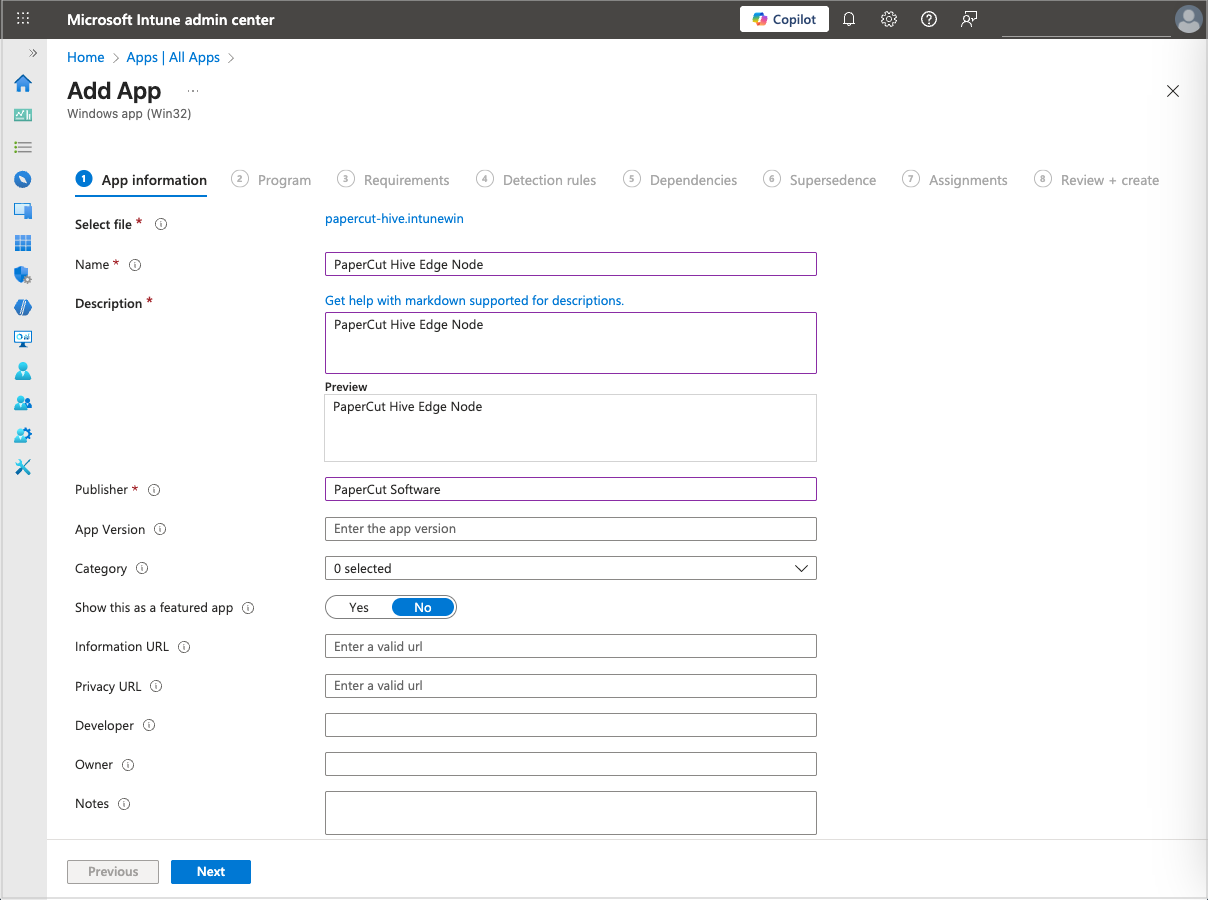
Click Next. The Program tab is displayed.
Go to the PaperCut Hive or Pocket Microsoft Intune Setup Instructions panel, copy the Install command, then paste it into the Intune Program tab > Install command field.
Note: The command looks something likepapercut-hive.exe /VERYSILENT /systemkey="DfMVfdfafafdsafdsafdasfWQSXZxWZ").Copy the Uninstall command below, then paste it into the Intune Program tab > Uninstall command field.
"C:\Program Files\PaperCut Hive\unins000.exe" /VERYSILENT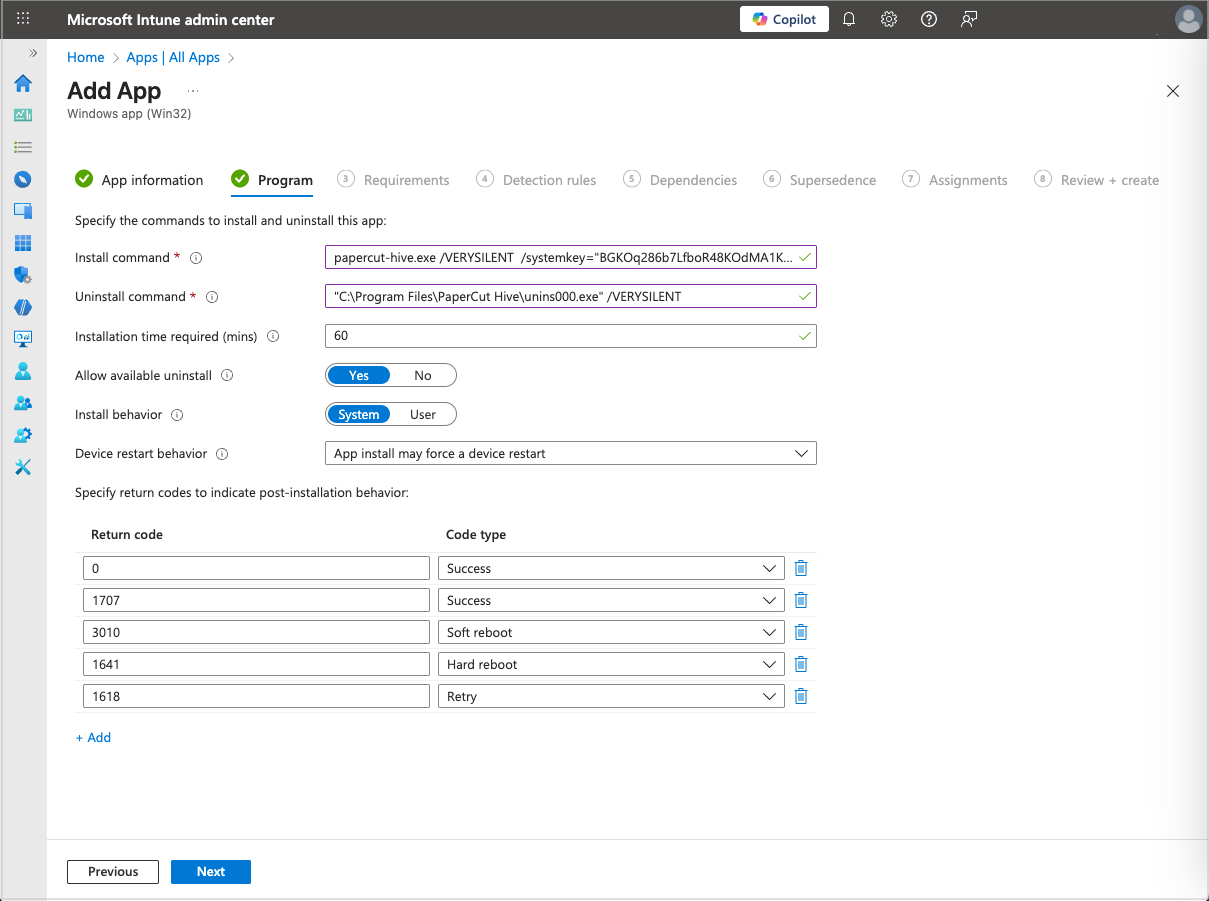
For Allow available uninstall, keep the default of Yes.
For Install behavior, select System, then click Next. The Requirements tab is displayed.
For Check operating system architecture, select Yes. Specify the systems the ap can be install on, then select:
Install on x64 system
Install on ARM64 system.
Under Minimum Operating System, select Windows 10 1607.
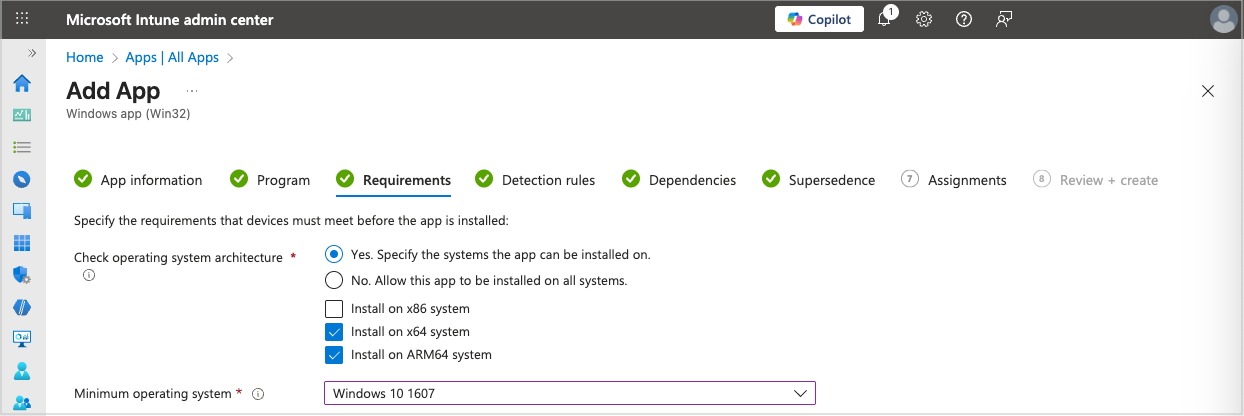
Click Next. The Detection rules tab is displayed.
In the Rules format field, select Manually configure detection rules, then click Add. The Detection rule panel is displayed.
For Rule type, select File.
Complete the Path and File or folder fields with the following:
Path: C:\Program Files\PaperCut Hive
File or folder: pc-edgenode-service.exe
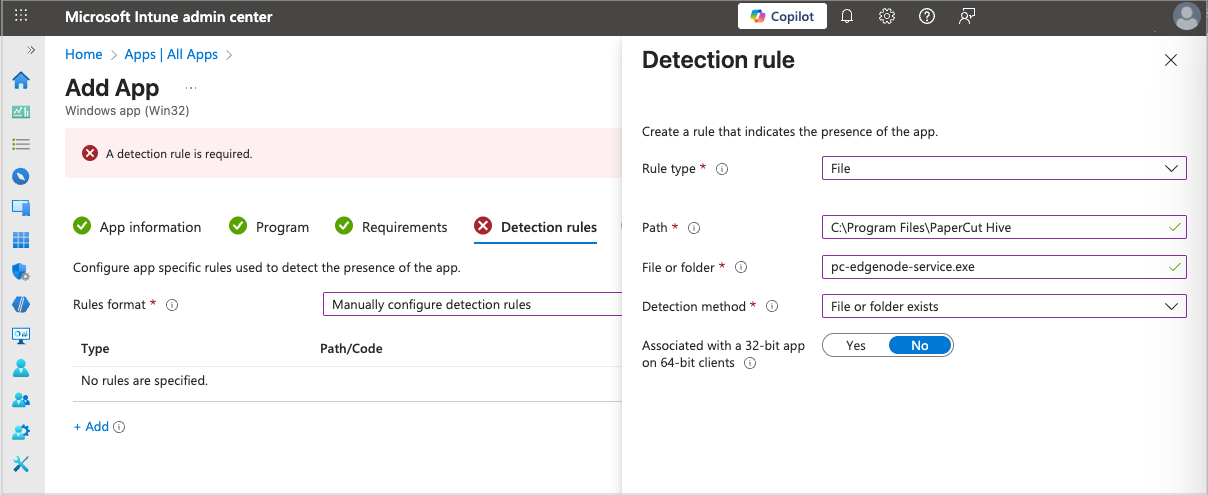
In the Detection method field, select File or folder exists.
For Associated with a 32-bit app on 64-bit clients, keep the default of No, then click OK.
Click Next three times to skip the Dependencies and the Supersedence tabs. The Assignments tab is displayed.
Select the group/users you want to deploy the PaperCut Hive or Pocket application to.
Click Next, then on the Review + create tab, review the values and settings you entered.
When you are done, click Create to add the app to Intune.
4. Install and set up the user component
These are the same steps as for the system component above, but with changes for the Install/Uninstall commands, and the Path and File or folder details.
In Microsoft Intune, select Apps > All apps > Create. The Select app type panel is displayed.
For App type, select Windows App (Win32), then click Select. The Add App page is displayed.
In the App information tab, upload the
papercut-hive.intunewinfile (that you saved earlier), then click OK.In App Information, enter these details:
Name: PaperCut Hive Edge Node
Description: PaperCut Hive Edge Node
Publisher: PaperCut Software
Note: The remaining fields are optional.
Click Next. The Program tab is displayed.
Go to the PaperCut Hive or Pocket Microsoft Intune Setup Instructions panel, copy the Install command, then paste it into the Intune Program tab > Install command field.
Note: The command looks something likepapercut-hive.exe /VERYSILENT /CURRENTUSER /userkey="ffef3324323e23cssdcsadasdasdasdsasa" /orgId="abcde1231"Copy the Uninstall command, then paste it into the Intune Program tab > Uninstall command field.
"%localappdata%\Programs\PaperCut Hive\unins000.exe" /VERYSILENTFor Allow available uninstall, keep the default of Yes.
For Install behavior, select System, then click Next. The Requirements tab is displayed.
For Check operating system architecture, select Yes. Specify the systems the ap can be install on, then select:
Install on x64 system
Install on ARM64 system.
Under Minimum Operating System, select Windows 10 1607.
Click Next. The Detection rules tab is displayed.
In the Rules format field, select Manually configure detection rules, then click Add. The Detection rules panel is displayed.
For Rule type, select File.
Complete the Path and File or folder fields with the following.
Path: %localappdata%\Programs\PaperCut Hive
File or folder: pc-print-client-service.exe
For Detection method, select File or folder exists.
For Associated with a 32-bit app on 64-bit clients, keep the default of No, then click OK.
Click Next three times to skip the Dependencies and the Supersedence tabs. The Assignments tab is displayed.
Select the group/users you want to deploy the PaperCut Hive or Pocket application to.
Click Next, then on the Review + create tab, review the values and settings you entered.
When you are done, click Create to add the app to Intune.
That’s it! Your Add-on is now active.
Post-deployment checks
Check both services are running. In a sample Windows computer:
- In Task Manager, check the
pc-edgenode-serviceis running.
The Windows PC requires this service to perform Edge Mesh activities such as receiving, replicating, or printing jobs if the PaperCut Cloud Service calls upon it. - In Task Manager, check that
pc-print-client-service.exeis running.
This is the print client needed to link the end-user to PaperCut Pocket or Hive and submit jobs via the PaperCut Printer. This process must be running in memory. It provides the functions the user needs to print jobs via the PaperCut Printer.
Check clients exist by viewing them in the admin console:
- In the PaperCut Hive or Pocket Admin Console, in the main menu, select Edge Mesh.
- Search for specific clients to confirm that the deployment worked.
Managing PaperCut Hive and Pocket client upgrades
After you deploy the PaperCut Hive or Pocket client to users, the client will automatically check for important updates and upgrade itself. Even though the client will automatically update, it is good practice to update the PaperCut package in Microsoft Intune from time to time.
To see what PaperCut updates are available, read the PaperCut Pocket / Hive release notes .
Location of logs
If the client services don’t successfully start, you can find log files at the following locations:
- Edge node and setup logs:
C:\Program Files\PaperCut Hive\data\logsorC:\Program Files\PaperCut Pocket\data\logs - Print client logs:
%AppData%\Local\Programs\PaperCut Hive\data\logsor%AppData%\Local\Programs\PaperCut Pocket\data\logs - Print client setup logs:
%AppData%\Local\Programs\PaperCut Hive\data\logsor%AppData%\Local\Programs\PaperCut Pocket\data\logs%AppData%\Local\Temp
Please contact your PaperCut reseller and provide copies of the logs.
Comments