






Importing users and groups from Microsoft Entra ID (formerly called Azure Active Directory) is becoming a more and more popular method of managing users in PaperCut NG/MF as businesses shift infrastructure to the cloud.
If you’re interested in how to set up PaperCut NG/MF to synchronize with users in Microsoft’s cloud, head over to
Synchronize user and group details with standard Azure AD
. Continue on this page to learn about some of the issues that customers have raised with us when using this sync method.
Zero users and groups synchronized
One issue that gets reported is that after following the setup instructions, the sync appears to be successful with no errors, even though no users or groups are imported from Microsoft Entra ID.
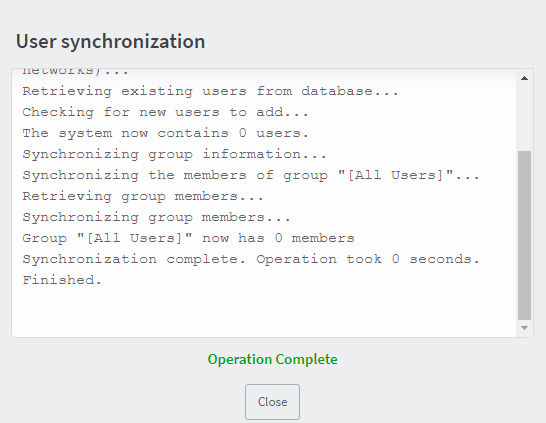
When this happens, you might also see this error in the server.log file on the PaperCut server:
AADUserDirectory - Error getting response Forbidden (User synchronization).
This might also be accompanied by two more errors in the server.log file:
- AADUserDirectory - Error getting response Forbidden
- AADUserDirectory - Failed getting all users details
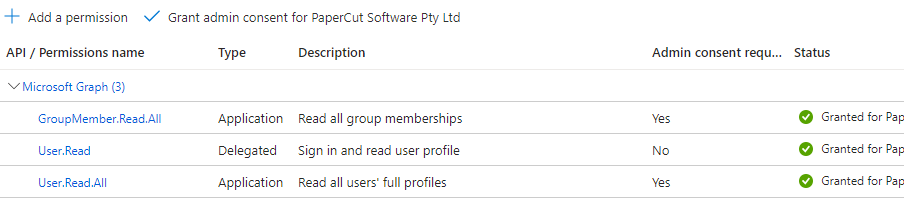
These errors are due to the API permissions on the Microsoft Entra ID Application Registration. The correct configuration for these permissions is outlined here: Step 2: Give your application permissions to read users and groups
In particular, when setting User.Read permissions, be sure you select Microsoft Graph > Delegated Permissions and not Application Permissions by mistake. As per
Step 2
, make sure the permissions are correctly set, then attempt the sync again.
Error contacting Microsoft Entra ID
When applying Microsoft Entra ID Sync credentials (Tenant ID, App ID, Client Secret Value), or when selecting the Synchronize Now button, you might be presented with the message:
There was an error contacting Azure using the details provided. Please check all values are correct and try again.
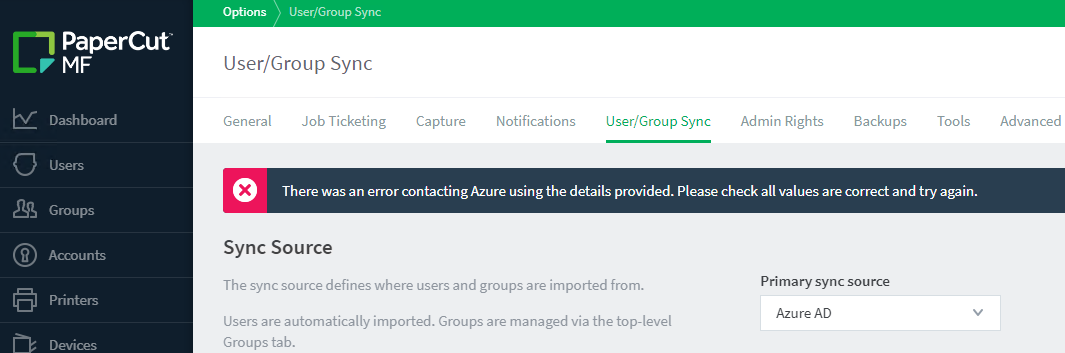
Along with the above application-level error, you might also see this error posted in the server.log file:
ERROR AADUserDirectory - No access token received from url:
https://login.microsoftonline.com/
…
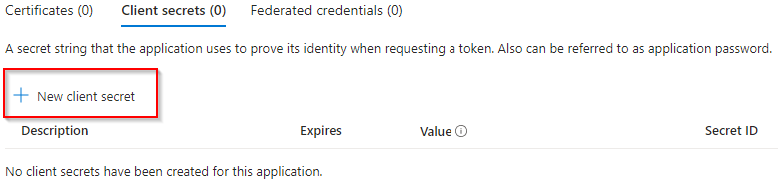
This error is because Microsoft Entra ID is rejecting the values that have been set for the Tenant ID, App ID, or the Client Secret Value. Please ensure that all three of these values are correct and correspond with the Tenant and Application Registration you are attempting to connect to.

Some users are not synced
This can occur for a couple of different reasons related to group settings, which are listed below.
Group members are not syncing
Microsoft groups include an attribute named HiddenGroupMembershipEnabled, which is set to either $True or $False. This attribute is designed to hide group members from people outside the group and can only be enabled by creating the group via PowerShell.
If you enable this attribute on a group, it also hides the group members from PaperCut. That makes it so the group members do not sync into PaperCut NG/MF.
Users in nested groups are not synced
When using the Standard Entra ID sync source in PaperCut NG/MF, users who are members of nested groups are not synchronized. Only users who are direct members of the selected group in Entra ID will be imported into PaperCut.
This is a known limitation of the current integration as we mention on the page
Overview of synchronizing user and group details with Microsoft Entra ID (Azure AD)
To ensure all required users are synced, you must explicitly select each group whose users you want to import. Selecting a parent group will not include users from any nested (child) groups; you need to add each nested group individually to the sync configuration. This behaviour is different from on-premises Windows Active Directory sync, which does support nested group membership.
This limitation has been logged as a feature request in our internal issue tracking system as “PO-952”.
Entra ID usernames don’t match print job owner usernames
One challenge with Microsoft Entra ID sync is that the username that gets synced into PaperCut NG/MF might not precisely match the format of username on the workstation.
The outcome of this mismatch is that print jobs might be cancelled, or users might not see their print job to release.
This issue and the solutions are documented in detail in our article Preparing to use UPN usernames with PaperCut when syncing with the standard Azure AD sync method .
Troubleshooting user login issues
If users are experiencing login issues with Microsoft Entra ID and receiving an Invalid username or password error, take a look at Invalid Username or Password" when users log into PaperCut NG or MF . It covers common causes and solutions for various login errors, including those related to multi-factor authentication (MFA) and specific AADSTS error codes.
Comments