


Contents
Finding the Mobility Print logs for Troubleshooting
THE PAGE APPLIES TO:




Last updated April 13, 2026
Contents
If you’re experiencing issues with Mobility Print, collecting the logs is an important step in troubleshooting.
This article explains how to find logs for the server and various clients. The exact steps and location of log files on the client depends on the OS and the printer discovery method in use (mDNS, DNS, Known Host, or Cloud Print). Mobility Print logs are in debug mode by default, to there’s no need to enable debug logging.
Keep in mind there are no logs for iOS clients because Mobility Print leverages the way that Apple devices discover printers on the network using the Bonjour/DNS-SD/RFC8011/RFC2782 protocol.
Before you collect logs
Make sure to gather the following information:
-
The date and time when the problem happened
-
The username
-
The name of the printer or print job with the issue
-
Ideally a screenshot of any error message or a quick video of the problem
Mobility Print Server logs
- In the Mobility Print Admin web interface, click on the three vertical dots (⋮) upper right corner.
- Select Download Logs.
- Save the new log file to your Downloads folder.
If you can’t log in to the Mobility Print server, you can manually download the log files from these locations:
- Windows:
C:\Program Files (x86)\PaperCut Mobility Print\data\logs\pc-mobility-print.log - Mac:
Applications > PaperCut Mobility Print > data > logs - Linux:
/home/papercut/pc-mobility-print/data/logs
Windows Client Logs
mDNS and DNS Client
- Run the Mobility Print Printer installer as you normally would.
- Open Windows Explorer and go to the
%TEMP%directory (usuallyC:\Users\<username>\AppData\Local\Temp). - Look for a log file created on the same day, such as
setup log 2024-12-03.
Known Host Client
- Open a Command Prompt window.
- Run the installer with the
/LOGflag and specify the log file name (and path).
Example:mobility-print-printer-setup-235[mobility-server.lan] /LOG="install.log" - Find the log file in the same directory as the installer, or in the custom directory if a path was specified.
Cloud Print Client
The Cloud Print installer will generate two log files at the following locations:
- Cloud Print Client log:
C:\Program Files\PaperCut Mobility Print Client\data\logs\mobility-print-client.log - User Context Service logs; compress this folder to send its entire contents:
C:\Users\<username>\AppData\Local\PaperCutMobilityPrintClient
macOS Client Logs
When mDNS or DNS are selected as the discovery method, Apple devices use native protocols (Bonjour/DNS-SD/RFC8011/RFC2782) for printer discovery - no log is generated. However, a log file is generated when you run the Known Host client or Cloud Print client. In some cases it’s useful for the PaperCut support team to know if you’re using printers with AirPrint-enabled hardware.
Known Host Client
- On your Mac open Finder and navigate to Applications > PaperCut Mobility Print Client.
- Find the
installer.logfile inside the folder.
Cloud Print Client
- On your Mac open Finder and navigate to
/Applications/PaperCut Mobility Print Client/data/logs/. - Find the file named
pc-mobility-print-client.log.
Android Client Logs
- Make sure you are running the latest version of the Android app, which you can download here.
- Click on the Settings icon in the app.
- Move the slider to Enable error reporting and take a screenshot of the Log ID.
- Try to discover the printers as you would normally to reproduce the issue. Logs will be generated and sent to our cloud service.
- Send the screenshot of the Log ID to your PaperCut support contact.
Chrome Client Logs
When troubleshooting an issue with the Chrome extension, there are two types of logs to collect:
- For most issues, such as not seeing any printers, the Printer Discovery logs will be needed.
- For issues logging in specifically, the Authentication log might be required.
Printer Discovery Logs
-
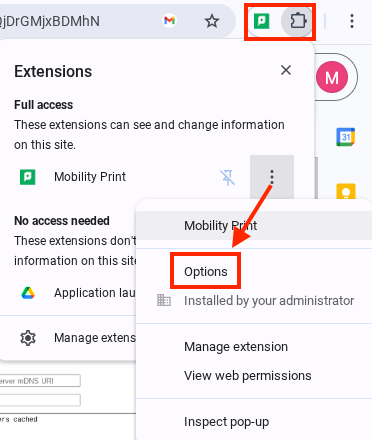
Right click on the PaperCut icon on your browser bar, or click the 3 dots next to the PaperCut icon in your list of extensions, and select Options.
-
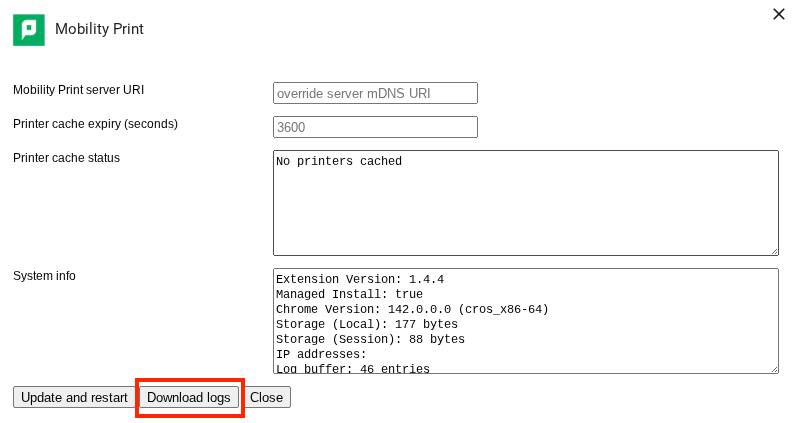
In the Options menu, click on the Download logs button.
-
Send the log file to your PaperCut support contact.
Authentication Logs
-
Open the Extensions menu in Chrome by going to
chrome://extensionsin the address bar. -
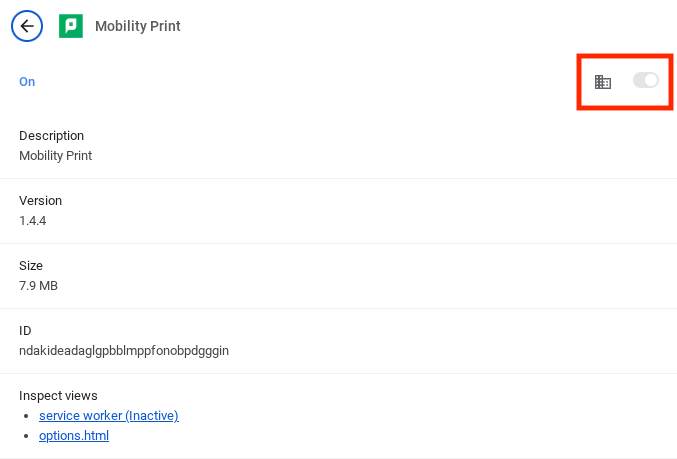
In the Mobility Print extension, toggle the slider for Developer Mode.
-
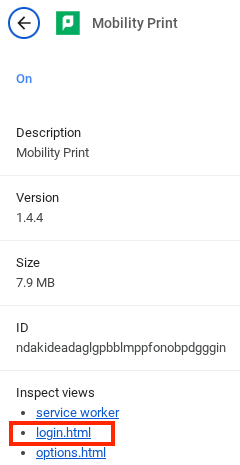
Try printing something, and when the Mobility Print authentication box appears, look under Inspect views and click the newly-appeared login.html page.
-
Once the Chrome console window pops-up, try and reproduce the problem by attempting to log in.
-
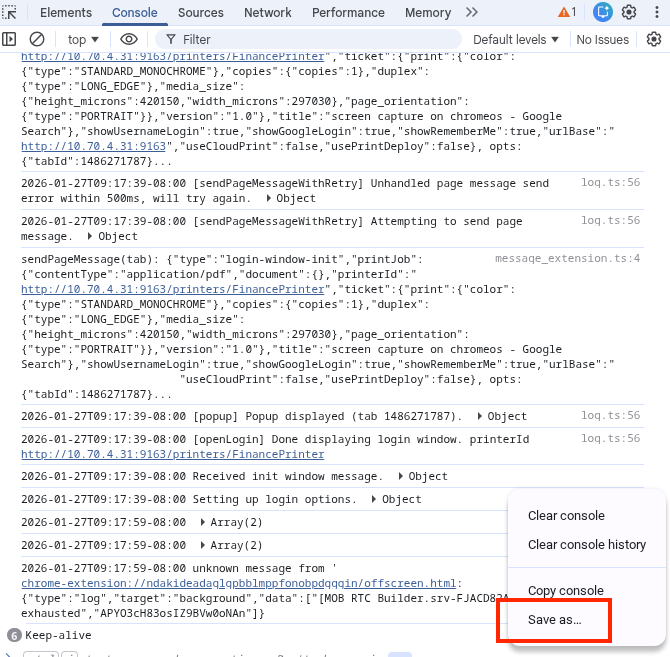
In the DevTools login.html console window, right-click on any white space and choose Save as. The new log file will save to your Downloads folder.
Advanced - mDNS discovery debug mode
This advanced logging mode is only used when troubleshooting printer advertisement issues when using the mDNS discovery method.
-
Edit the
dns.conf.tomlfile located in:- Windows:
C:\Program Files (x86)\PaperCut Mobility Print\data\config\dns.conf.toml - macOS:
/Applications/PaperCut Mobility Print/data/config/dns.conf.toml - Linux:
/home/papercut/pc-mobility-print/data/config/dns.conf.toml
- Windows:
-
Add the line
DebugLog = truewithin the [Mdns] section (keep the other settings as you already have them unless requested to change them). And save the file.The below snippet shows an example Mdns section with debugging set to true:
[Mdns] MaxMTU = 0 Compress = false AnnouncementTimer = "0s" MaxResponseRecords = 1 DebugLog = true -
Restart the Mobility Print Server service (see Stopping and starting PaperCut services).
-
Perform the specific testing required while debug is enabled. Do not leave it in this mode for regular production usage.
-
Remove the extra DebugLog line from the .toml file above (and save the file) and then restart the service again, to return the server to normal logging levels.
Category: How-to Articles
Subcategory: Mobility Print
Comments