Choose your language

Choose your login

Support

Print queue deployment made easy with Print Deploy

Get the right print queues and drivers onto your users' devices, automatically. No scripts, GPOs, or help desk tickets in sight.

Deliver the right print queues to the right users, automatically

Stop manually installing printers, wrestling with group policy objects, or waiting on login scripts that only behave sometimes. Print Deploy automatically installs queues and drivers based on user identity, group membership, network location, or device (hostname), so your users don’t have to raise a help desk ticket.

When a user logs in for the first time, changes teams, or moves office, Print Deploy updates their printers on its own. You don’t have to touch their computer.
Learn how to get started with Print Deploy.

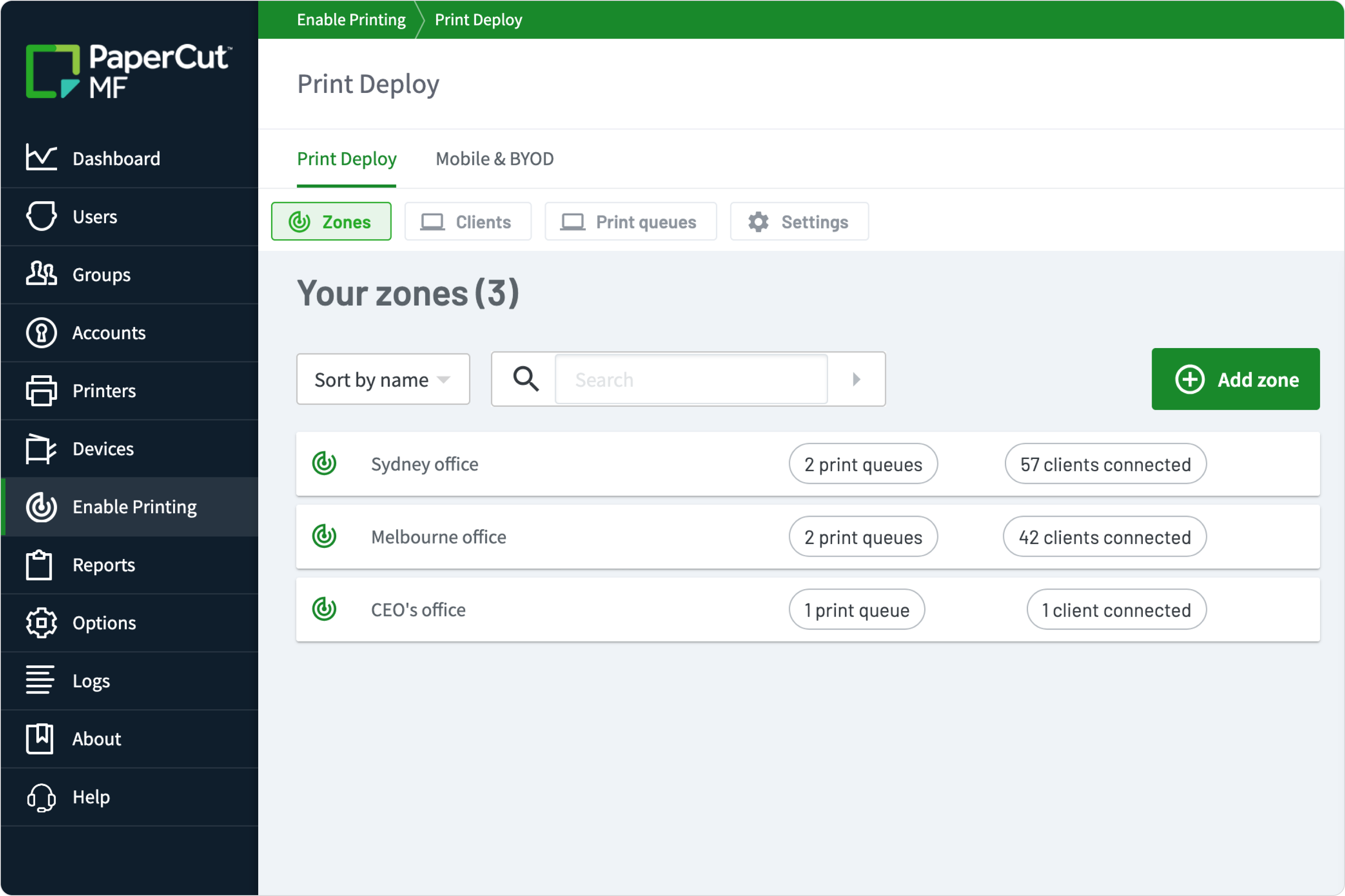
The PaperCut MF Print Deploy admin console showing three zones: Sydney office and Melbourne office with two print queues each, and a CEO’s office zone with one print queue and one client.

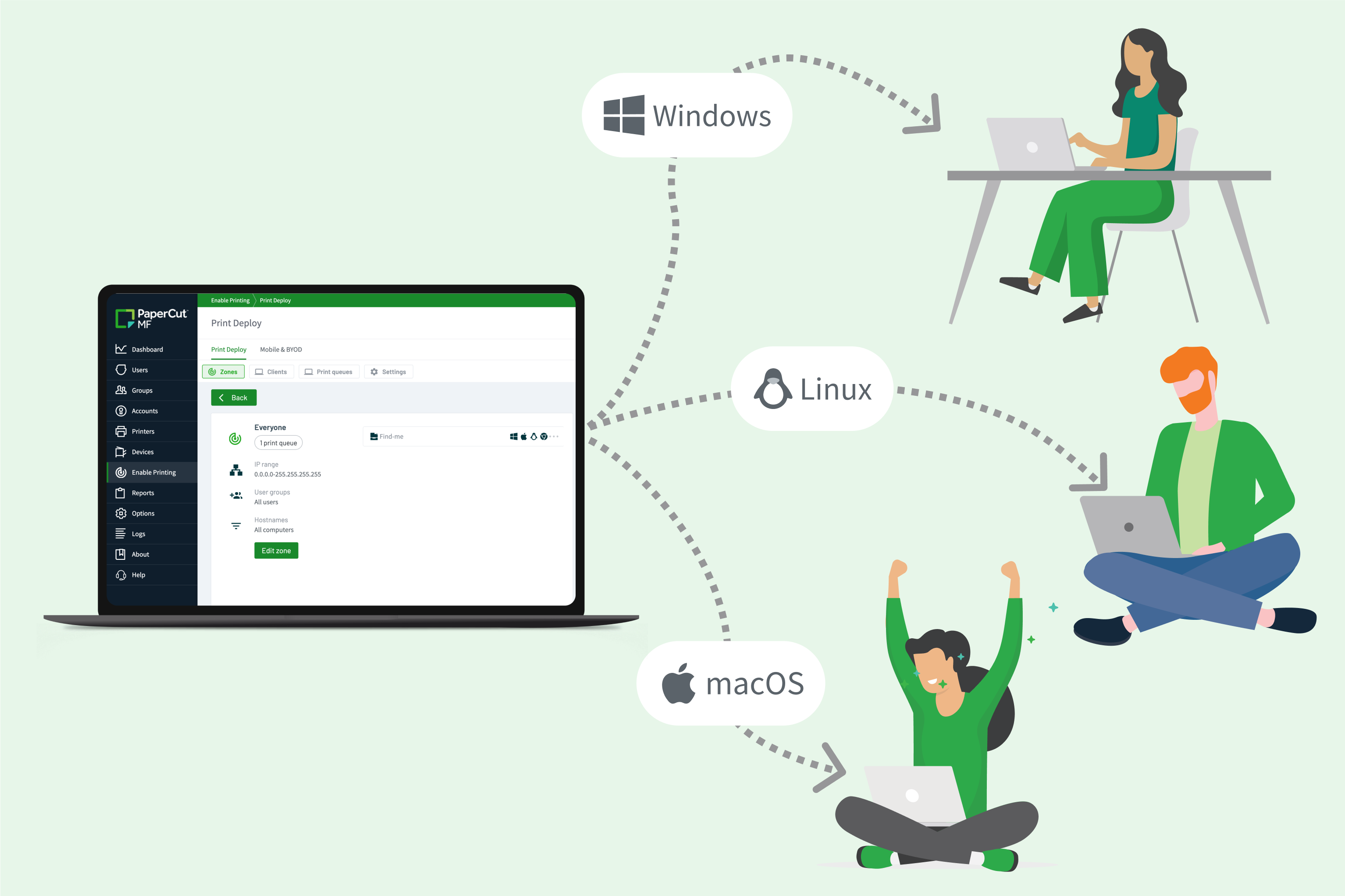
Manage print queues on Windows, macOS, ChromeOS and Linux

In a recent Quocirca survey, 49% of organizations named the administrative burden of managing and installing print drivers as a top challenge. Print Deploy manages queues and drivers on every platform from one console.

Print Deploy installs full manufacturer drivers, ensuring your users have access to finishing options like stapling and hole-punching. Where a native driver isn’t available, such as on Windows-on-ARM devices, the PaperCut Global Print Driver closes the gap seamlessly.

See how to deploy manufacturer print drivers across your fleet.

The Print Deploy admin console delivering print queues to people working on Windows, macOS and Linux devices.

Let your users install their own printers

Print is a well-documented drain on IT support, with print-related issues accounting for 20-23% of help desk tickets in a typical environment. Requests for a specific printer shouldn’t be part of that.

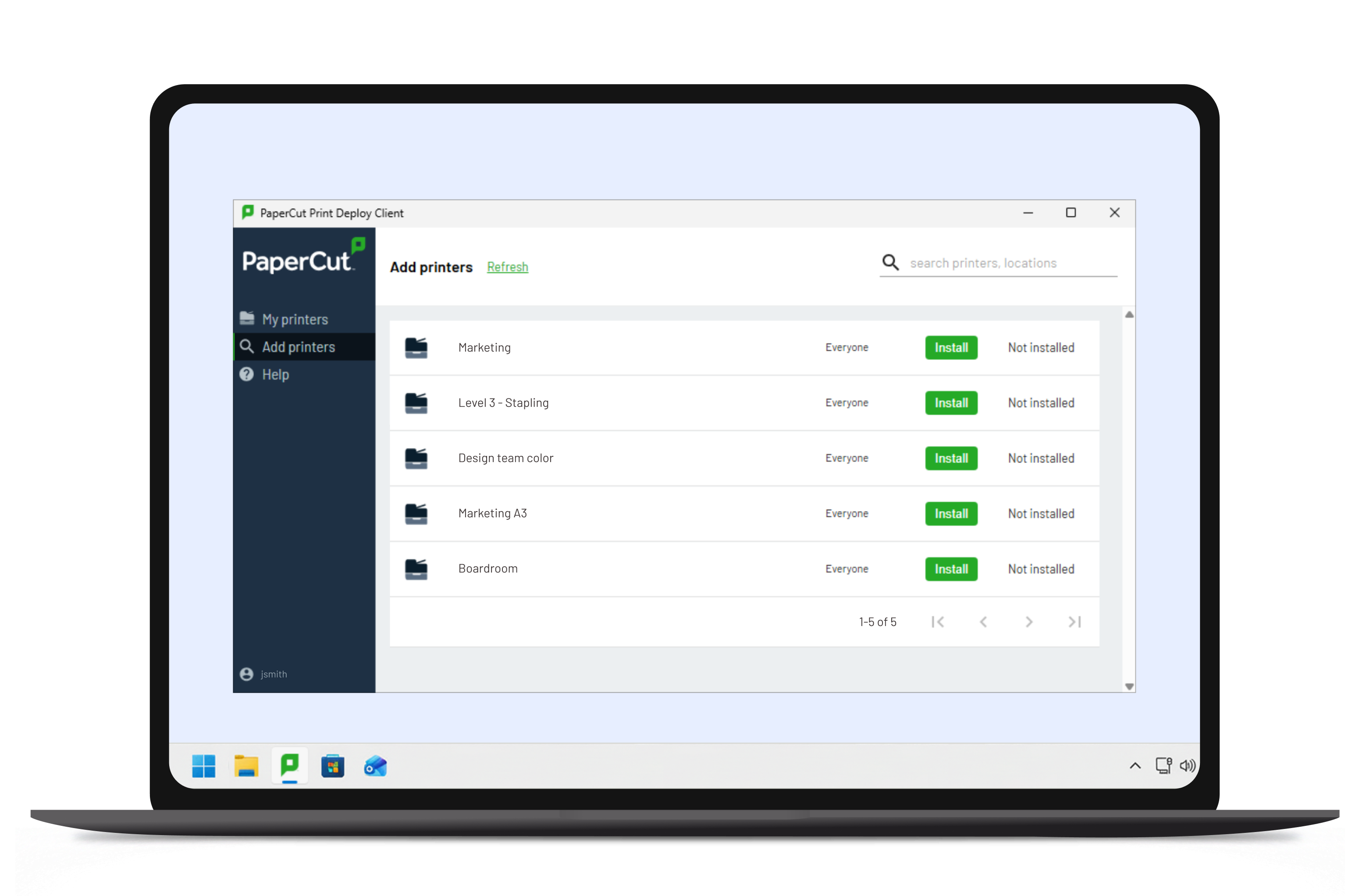
Your rules cover the printers you can plan for. For the bespoke ones only some users need, like the third-floor printer with the stapling unit or the design team’s colour printer, Print Deploy lets them browse the optional printers you’ve made available and install with a single click. No local admin rights or ticket required.

Read more about the end-user client experience.

The Print Deploy client on a Windows laptop listing optional printers users can install with one click, including Level 3 – Stapling, Design team color and Boardroom.

Use your existing MDM to roll out the client silently

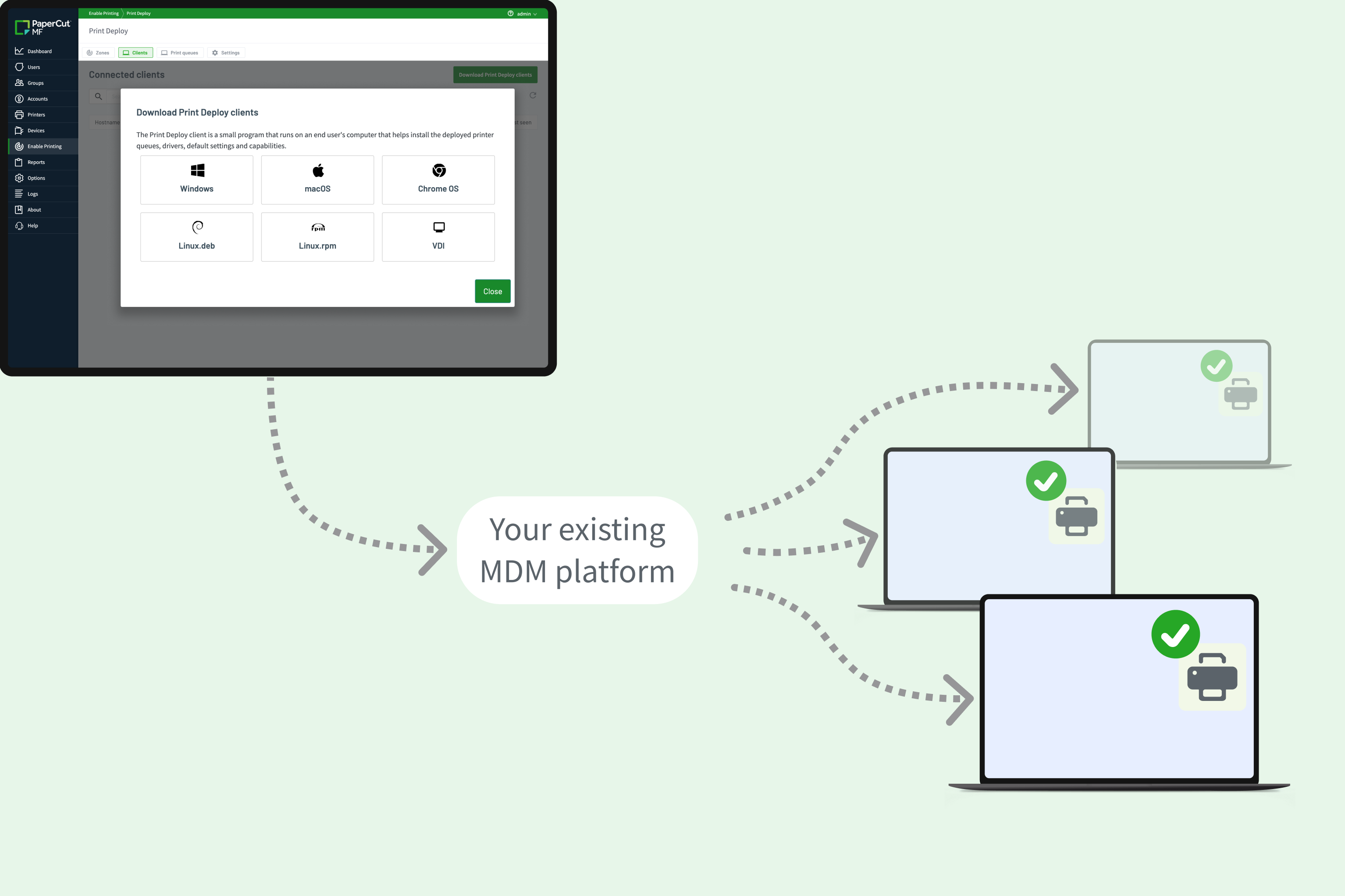
Print Deploy doesn’t ask you to adopt a new deployment tool. Push the client silently to your managed devices using Microsoft Intune, Jamf, Kandji, Group Policy, or almost any other MDM tool you already use. Once it’s installed, Print Deploy takes over, with no further end-user setup required.

Find out more on deploying the Print Deploy client at scale.

The Print Deploy client download options for Windows, macOS, ChromeOS, Linux and VDI, rolled out through your existing MDM platform to managed laptops with printers installed.

Retire the print server in every branch office

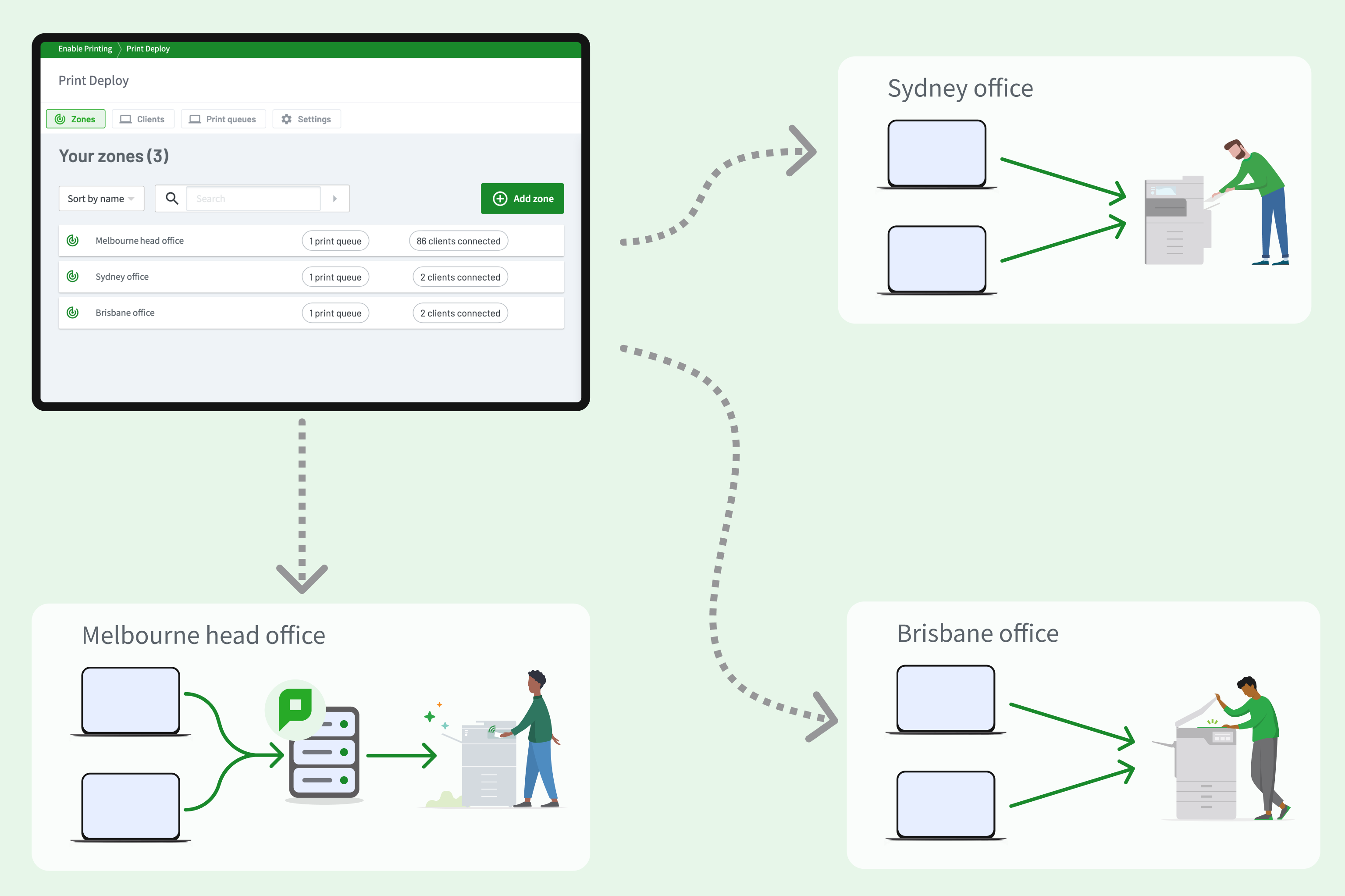
Local print servers in satellite offices demand a maintenance cost you’d rather not carry: patching, hardware refreshes, the occasional outage nobody wants to troubleshoot remotely. Print Deploy lets you deploy direct print queues straight to user devices in serverless branch locations, all managed from one central console. Your remote teams get fast, local printing, and the branch office loses a server rack it never needed.

Read our guide to setting up direct serverless printing.

Print Deploy zones for a Melbourne head office and Sydney and Brisbane offices. Head office prints through a print server, while the branch offices print directly to their local printers.

Built for virtual desktop environments

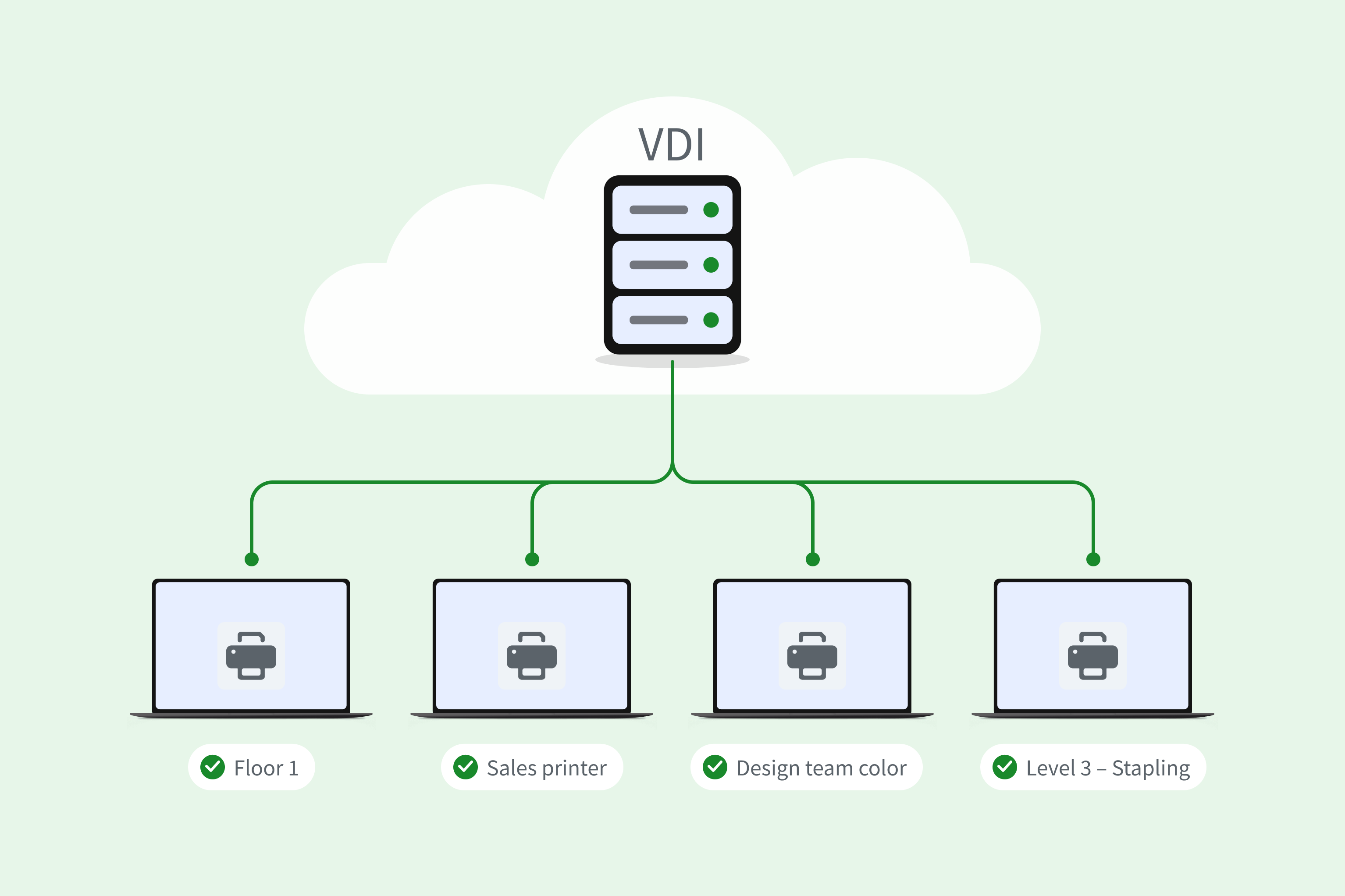
Without Print Deploy, when users print from a virtual desktop there’s a risk the wrong printer follows the session, or worse, no printer shows up at all. Print Deploy maps print queues to the correct user and location automatically across Citrix, Azure RDS, Microsoft RDS, and Omnissa Horizon. Persistent or non-persistent; single-session or multi-session. Users log in and their printers are just there.

Dive into our guide to Print Deploy for VDI environments.

A VDI server connected to four virtual desktop sessions, each with its own printer installed: Floor 1, Sales printer, Design team color and Level 3 – Stapling.

Security that holds up on networks you don't control

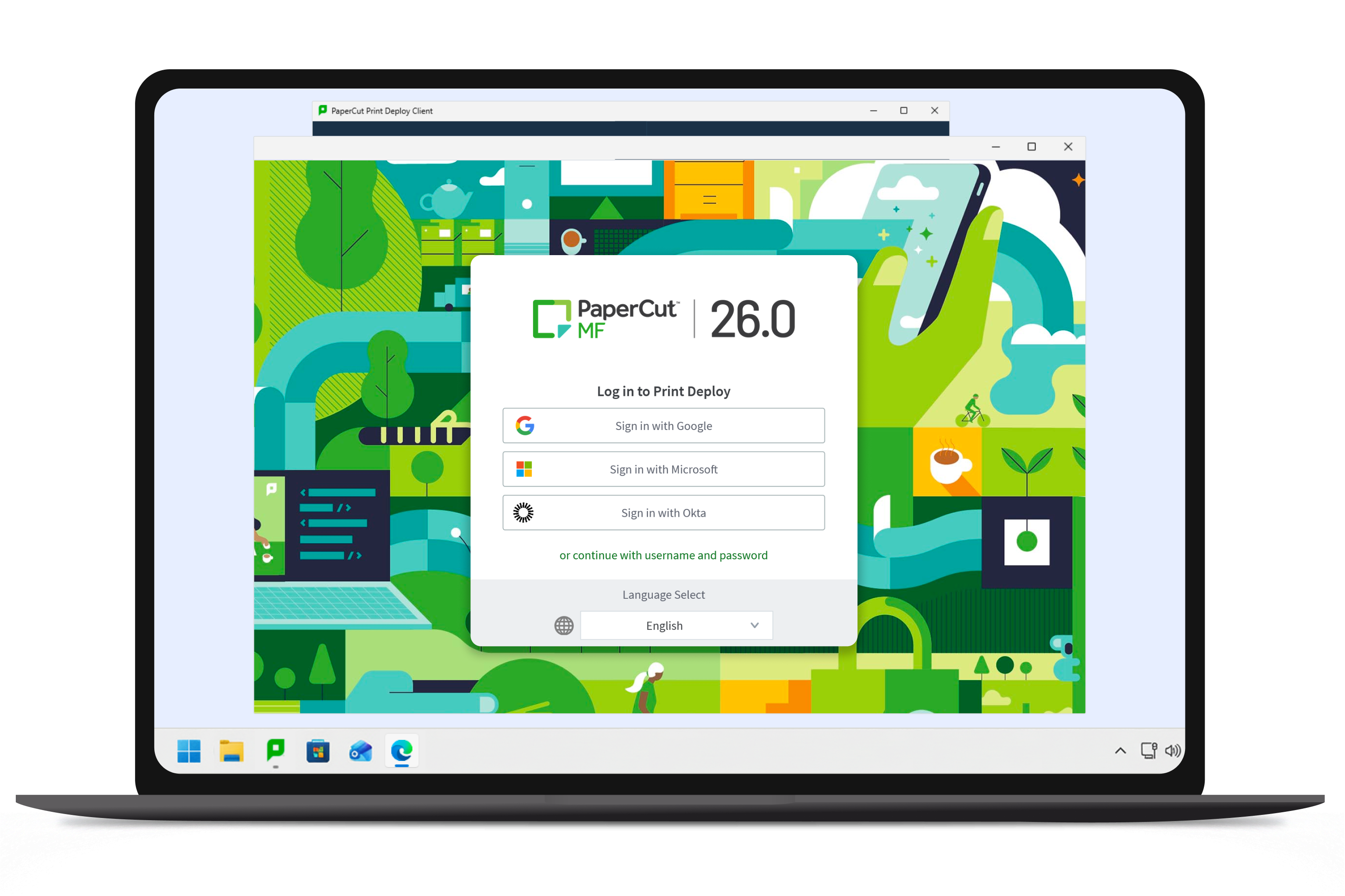
BYOD, remote logins, and branch offices without a VPN send your print traffic over networks you don’t control. Print Deploy can enforce CA-signed certificates on every client connection, a higher bar than a device’s built-in print queue, and keep jobs encrypted in transit. Modern authentication through Google, Microsoft, or any SAML2-compliant provider means even personal devices sign in before they see a print queue.

Organizations with the most to lose hold their infrastructure to the same bar, from a US community bank recovering from PrintNightmare to Google’s zero-trust print environment.

A Windows laptop showing the PaperCut MF Print Deploy sign-in screen, with options to sign in with Google, Microsoft or Okta.

Ready for what comes after the print driver

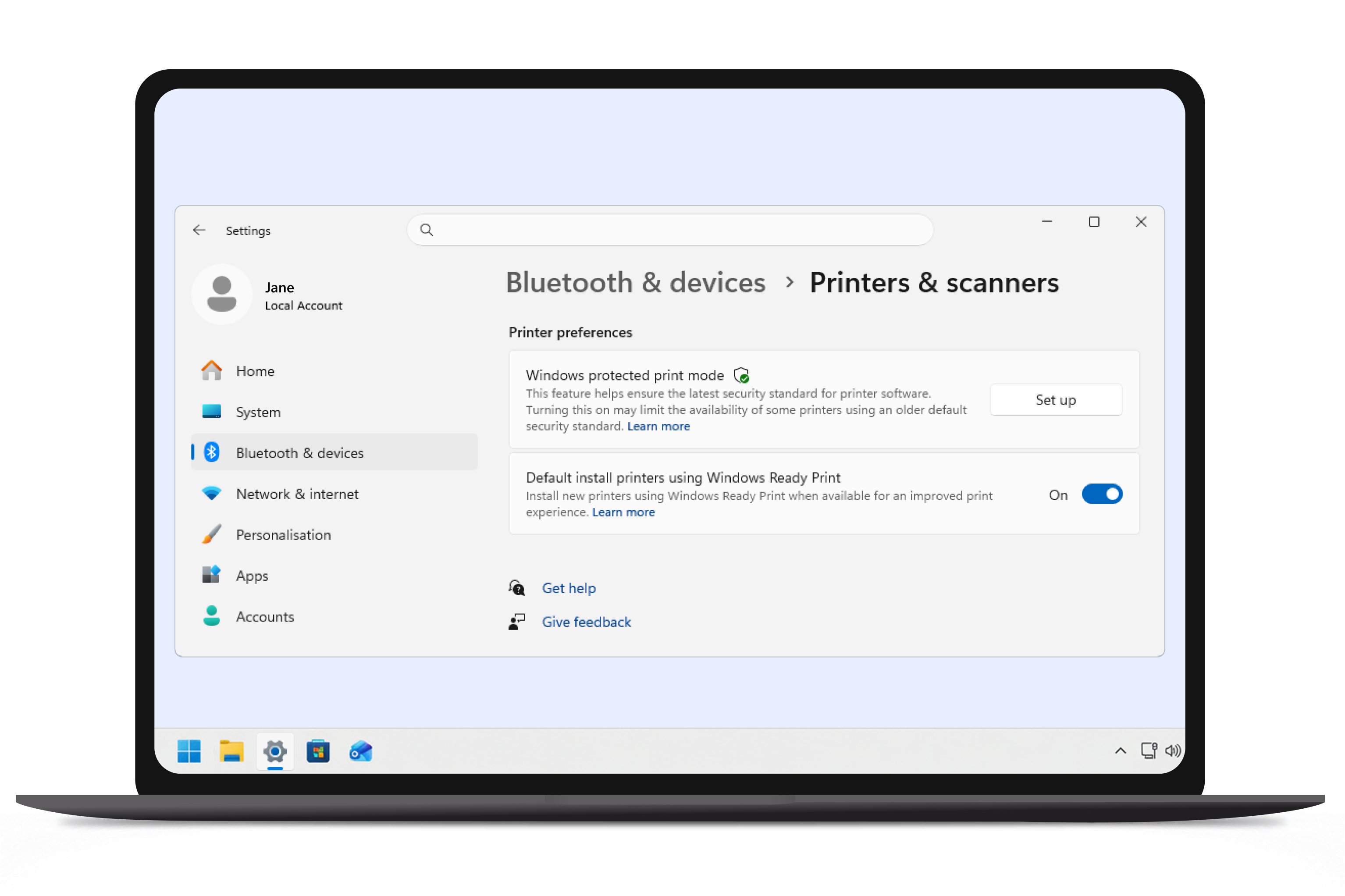
Print drivers are on their way out, and not just on one platform. Windows is moving toward Windows protected print mode and Windows Ready Print. Linux is heading the same direction with the shift to CUPS v3. Whichever platform you run, the destination is the same: driverless, IPP-based printing.

Print Deploy solves your driver management headaches today, using the print infrastructure you already have. As the industry shifts away from traditional drivers, PaperCut MF is built to carry that infrastructure forward, so today’s deployment doesn’t turn into tomorrow’s migration project.

Windows 11 Printers & scanners settings showing Windows protected print mode and the option to install printers using Windows Ready Print by default.