Choose your language

Choose your login

Support

How can we help?

PaperCut's AI-generated content is continually improving, but it may still contain errors. Please verify as needed.

Lightbulb icon
Lightbulb icon

Here’s your answer

Sources:

* PaperCut is constantly working to improve the accuracy and quality of our AI-generated content. However, there may still be errors or inaccuracies, we appreciate your understanding and encourage verification when needed.

Lightbulb icon

Oops!

We currently don’t have an answer for this and our teams are working on resolving the issue. If you still need help,
User reading a resource

Popular resources

Conversation bubbles

Contact us

Find-Me Printing & Secure Print Release

The hero of your print environment. Secure your documents, save money by eliminating waste, and simplify printing for everyone, all from a single, easy-to-manage virtual queue.

Make any printer a personal printer

Give your users the ultimate convenience. With Find-Me Printing, they print to a single queue and can release their job from any enabled printer in the building.

Printer jammed or busy? No problem. They just walk to the next device. It’s that simple.

For more detailed information see our Manual page on Setup Find-Me Printing on Multiple Operating Systems.


An illustration of a print job releasing their print job at any available printer of their choice

Enforce a "Clean Printer Policy"

You have a clean desk policy for security, but what about your printers? Find-Me Printing ensures confidential documents are never left exposed.

Jobs are held in a secure queue and only print when the user releases them at the device. This simple step helps you meet compliance standards including ISO 27001, GDPR, and HIPAA. Forgotten jobs are automatically deleted after a time you control.

To learn more about securing your devices, see the Card/ID Number and Card Reader FAQ.

A screenshot from the PaperCut MF module showing how users have the option to delete a print job if it isn't released after 30 minutes

Save money from day one

Just by turning on Find-Me Printing, you save money. It delivers a clear return on investment by tackling the biggest source of print waste: uncollected documents.

Our savings report tracks every job that was automatically deleted without being released, jobs that would have otherwise been printed and wasted. This directly quantifies your savings in paper, toner, and money, with a positive impact on your budget and environmental footprint.

Dive into our manual for a look at the built-in reports PaperCut provides.

An image of a report generated by PaperCut MF showing the summary and positive environmental impact of unreleased jobs

Simplify life with one print queue for everyone

Users hate guessing from a long, confusing list of printer names. Find-Me Printing ends that frustration by replacing dozens of queues with just one.

Your users simply print to the single “Find-Me” queue, no matter where they are. This makes your life easier and provides a consistent experience on any OS, all handled by our powerful global print driver.

For a full technical guide, see the Manual page configure Secure Print Release with Find Me printing.

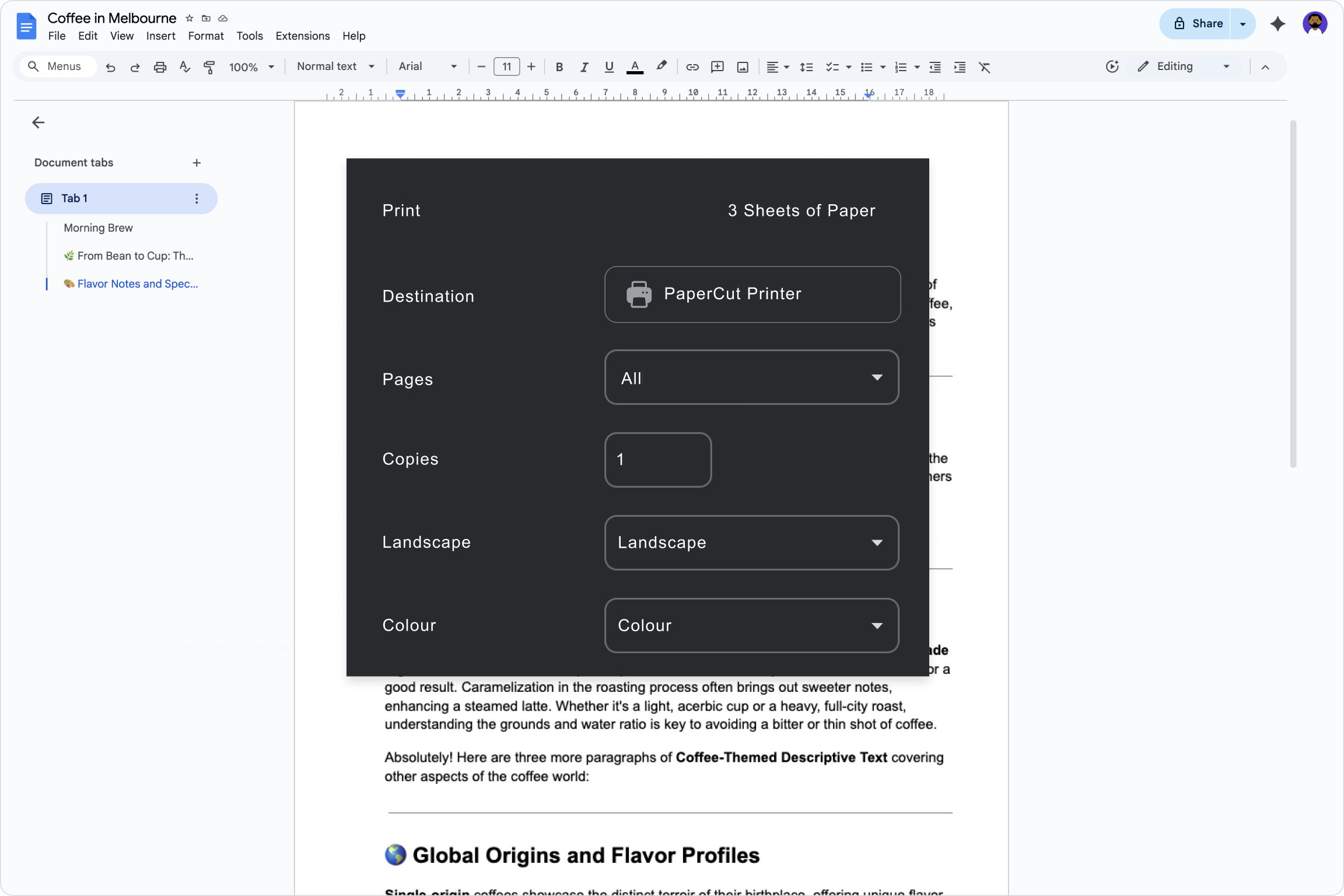
A print dialog showing one printer queue

Keep advanced finishing features

Simplicity doesn’t mean sacrificing power.

Need special finishing options like stapling or booklet making? No problem. You can configure your Find-Me queue to use a specific manufacturer’s driver, giving your users full access to all the advanced features of your MFDs.

For details read our guide to set up Find-me printing with PaperCut MF.

A Windows print dialog listing advanced finishing features

Empower your hybrid workforce with true “off-network printing.”

Combine Find-Me with Mobility Print, and users can print from any device (Windows, Mac, Chrome, iOS, and Android), from any location with an internet connection. Their jobs will be waiting securely for them when they arrive at the office.

For more detailed information see our Manual page setup Find-Me Printing on Multiple Operating Systems.

An illustration showing how users can print from any device and anywhere

Authenticate with the tech you already have*

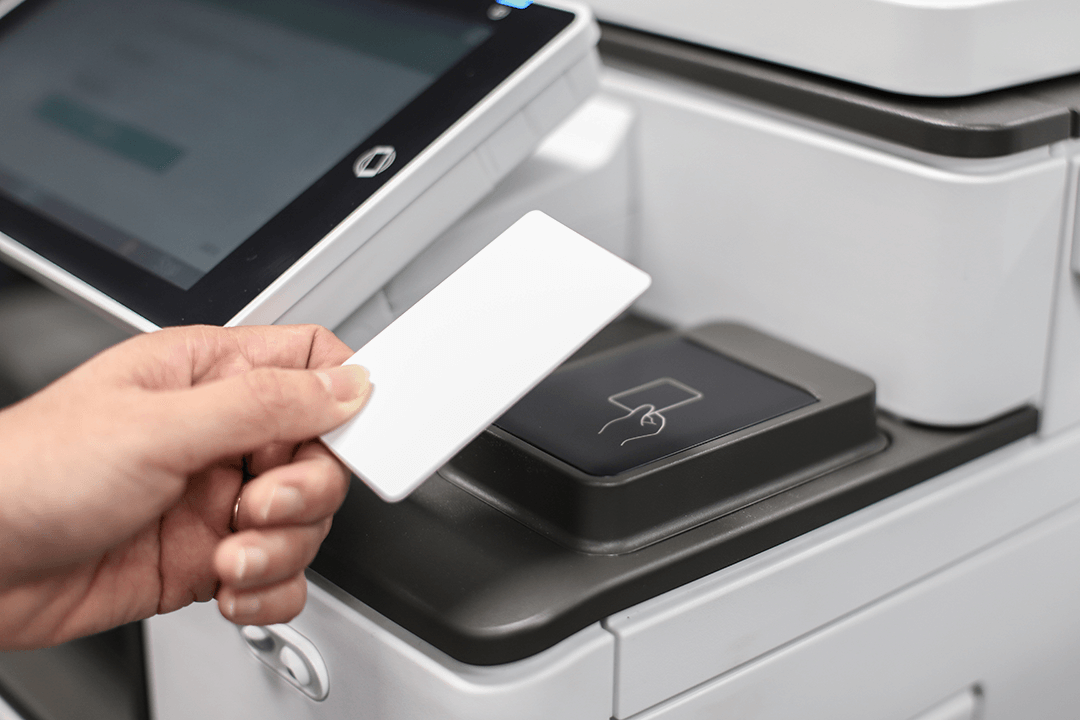
Provide a simple and familiar login experience for your users. To make deployment even easier, they can even register their own cards the first time they walk up to a device.

Authentication methods include:

  • ID card, badge, or fob (including RFID, Prox, Barcode, and Magstripe).
  • Username and password
  • Biometric readers for fingerprint scanning.

To learn more about securing your devices, see the Card/ID Number and Card Reader FAQ.

One familiar interface across printer brands

Users hate having to learn a different, clunky interface for every printer brand in the office.

PaperCut MF solves this with a unified, modern experience that looks and feels the same across different devices. This means fewer helpdesk calls for you.

From this one familiar screen, users get a final chance to make a smart printing choice.

  • Printed a draft by mistake? Delete it and prevent waste.
  • Sent a document in color? Switch it to grayscale at the MFD to save money.

For details on device compatibility, see the PaperCut MF supported devices page.


An image showing a user using PaperCut MF on a MFD screen

Guide users with helpful, automated nudges

Worried about the culture shock of changing a printing workflow? You can use custom workflows to guide users toward better habits.

The Gentle Nudge:
“This job will cost half as much on a larger copier. Would you like to reroute your job”

The Firm Policy:
“As an organizational policy, jobs over 50 pages are sent to a more cost-efficient central device. Your job has been rerouted.”

To see what’s possible, check out the Manual page Print scripting overview .

This is an image of a PaperCut MF alert that appears to nudge the user towards helpful printing habits