


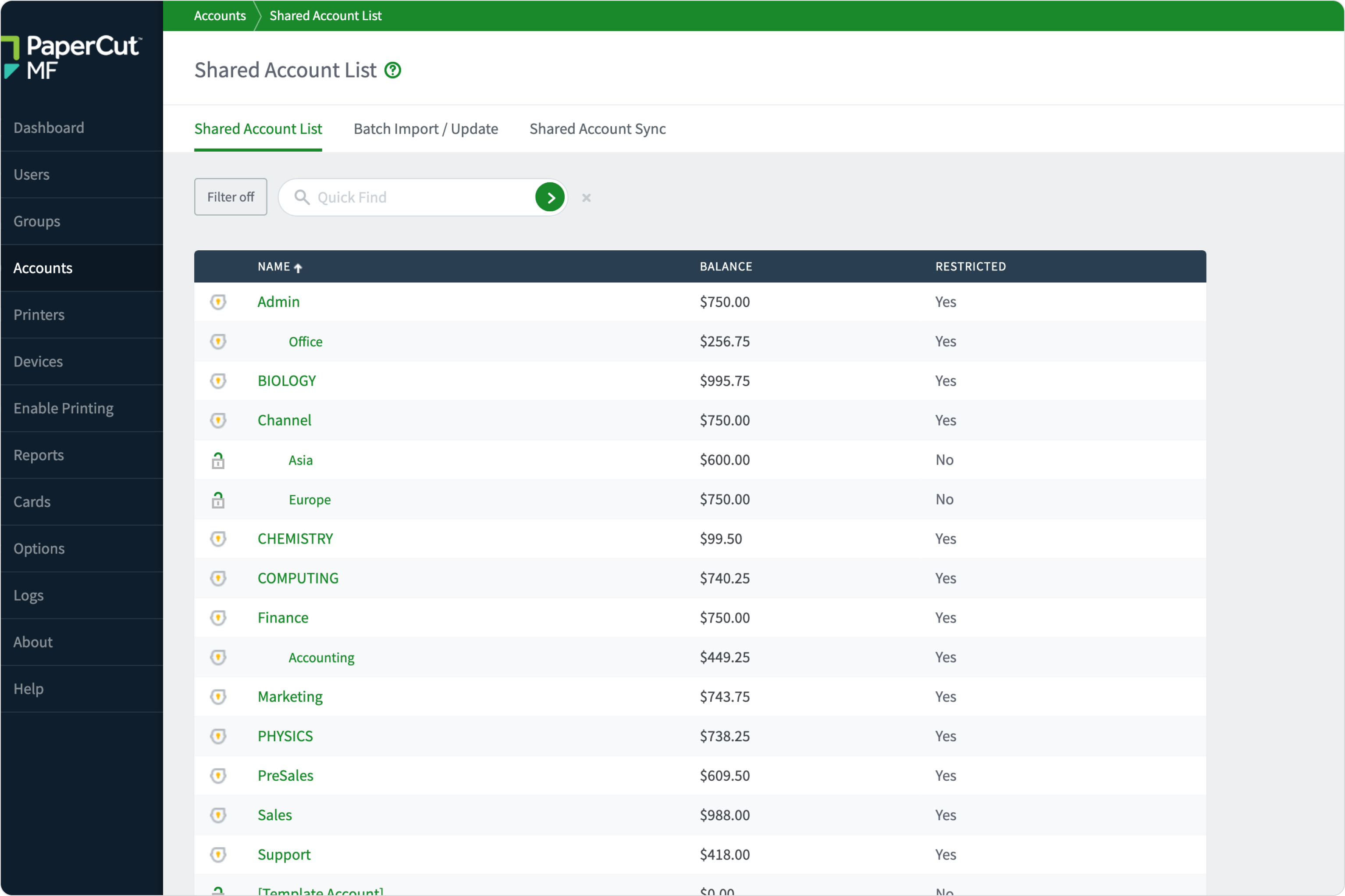
Most people wear many hats throughout their workday. A teacher might print for the Science department in the morning and the History department in the afternoon, requiring costs to be split correctly. Shared Accounts shifts the focus from who is printing to the reason they are printing.
For a deeper look, see the section of our manual dedicated to
Shared Accounts
.
Allocate costs to departments, not just people
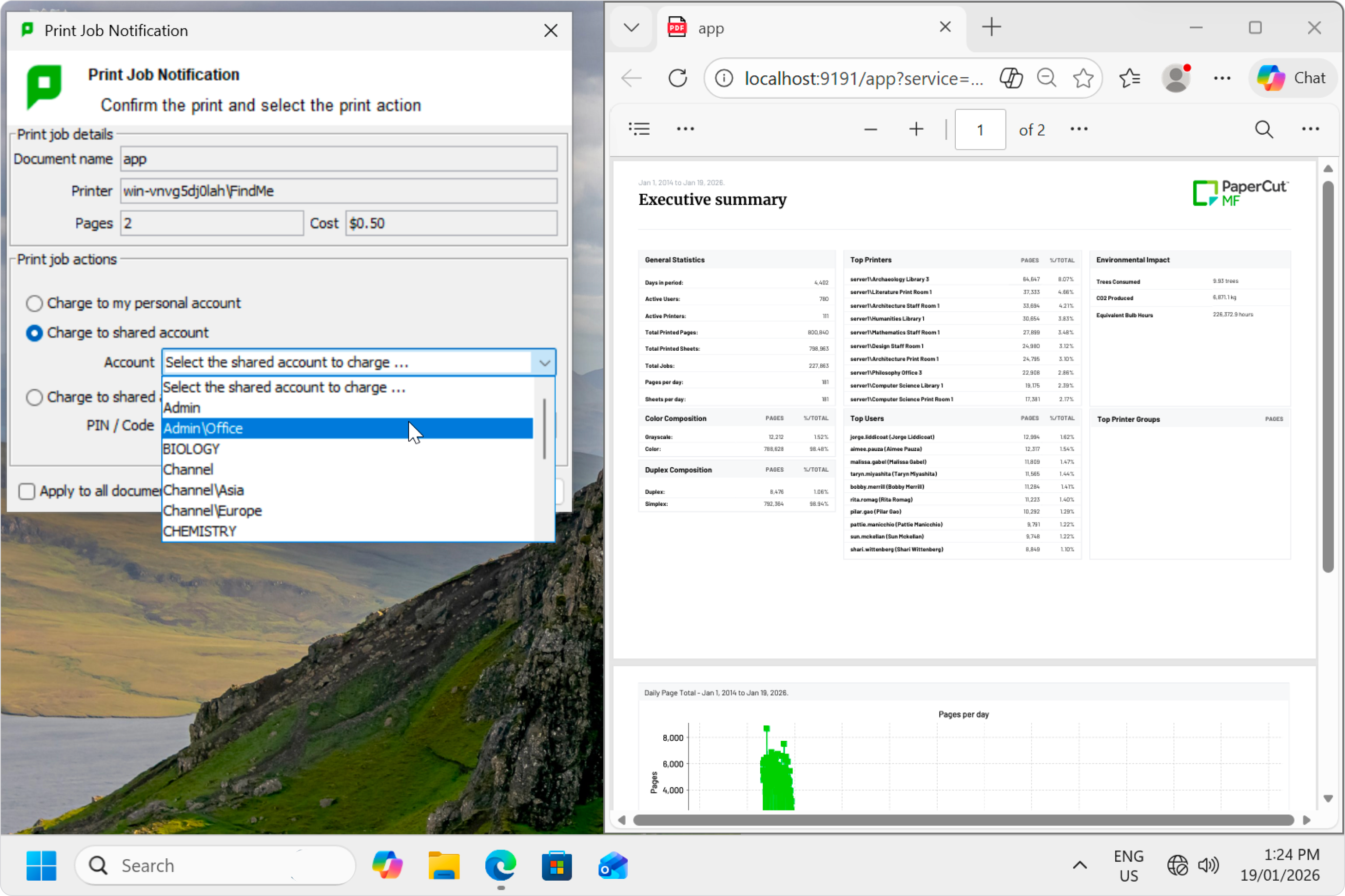
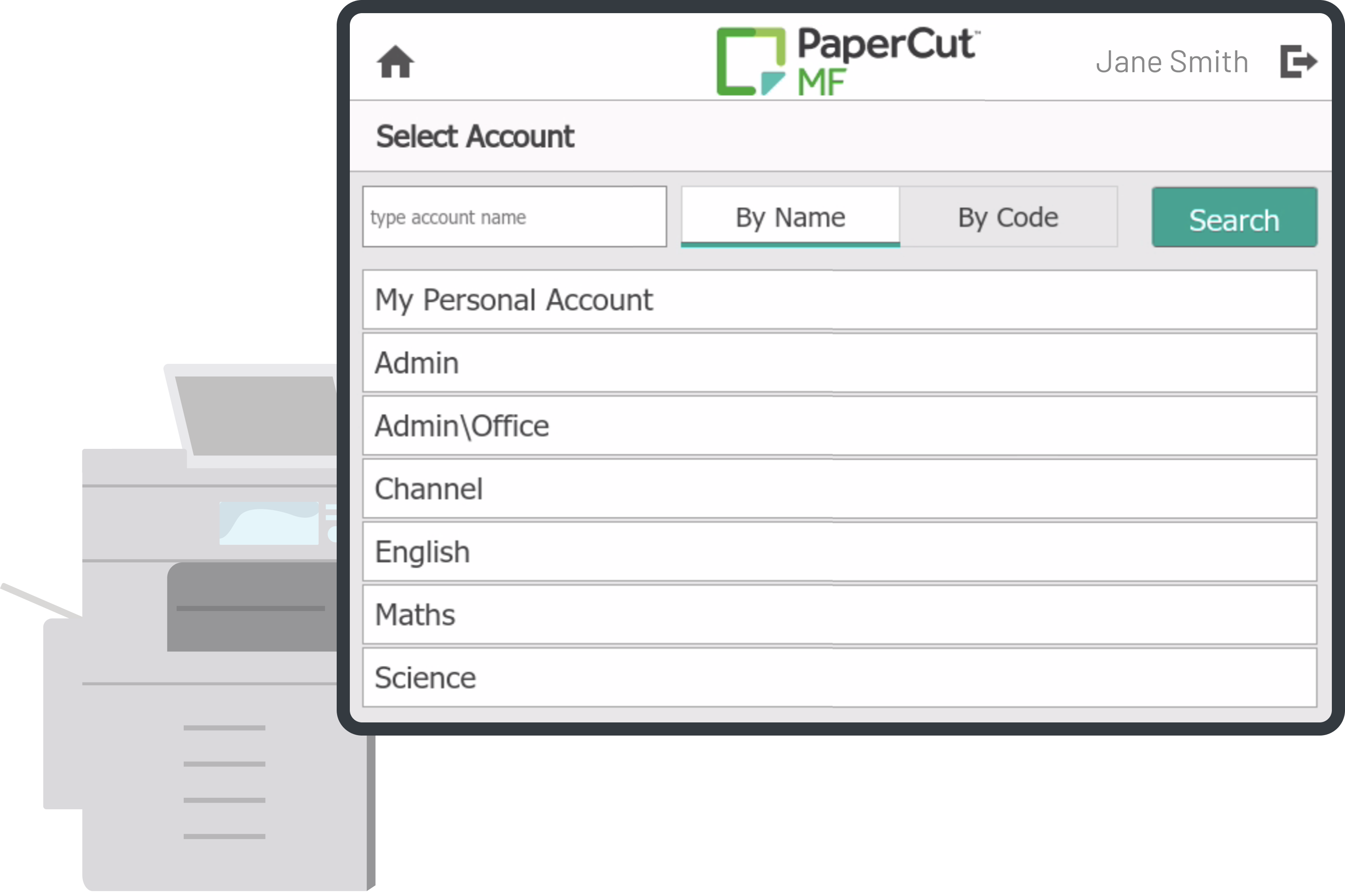
Select accounts with a tailored popup
Your users need an interface that matches their workflow. Provide a simple dropdown for staff with a few options, or a powerful, searchable window for legal and architecture firms managing thousands of projects and client matters. These popups remember recently used accounts to save time on repeat jobs.
To learn more, see the manual page on Account Selection .
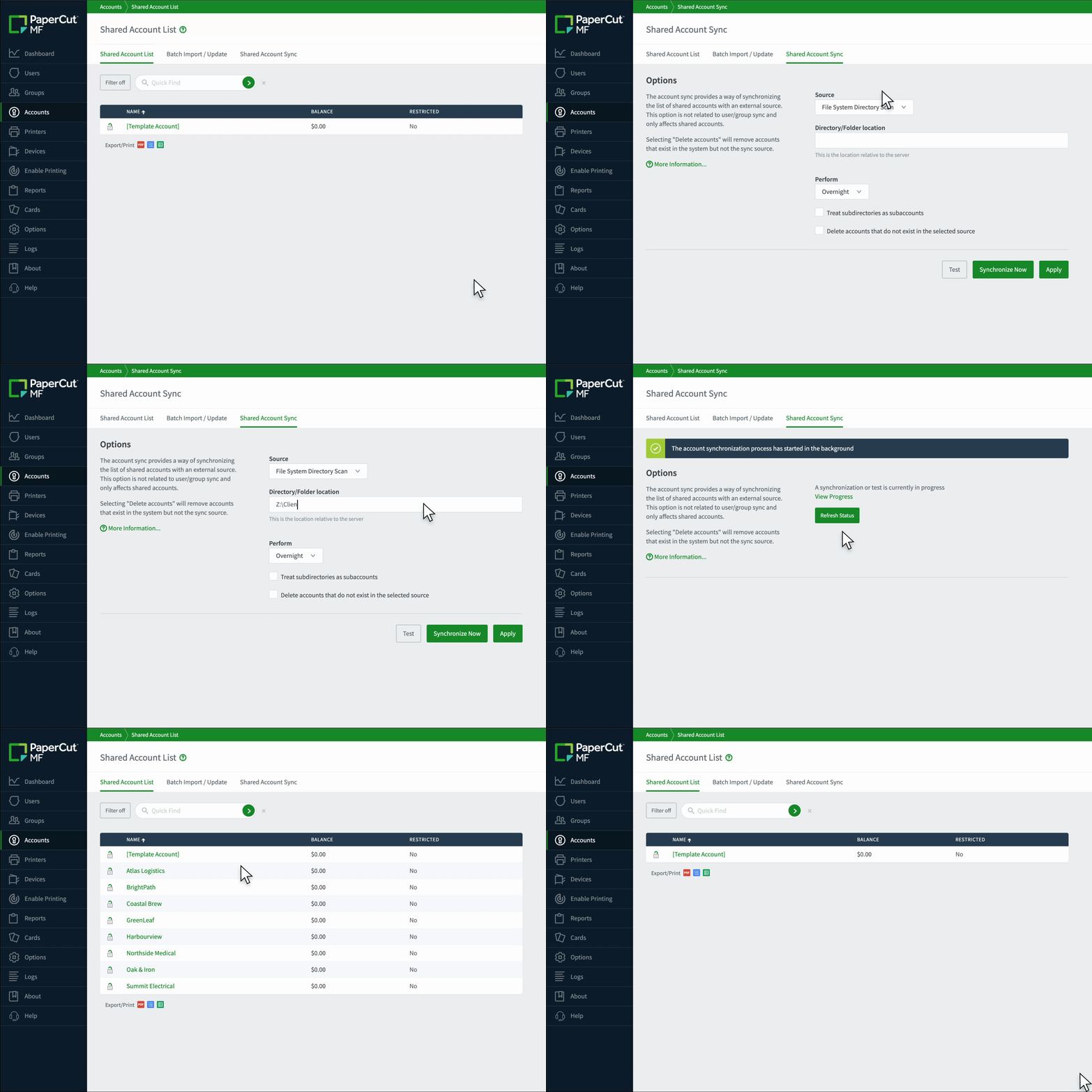
Automate account creation and syncing
Managing thousands of accounts shouldn’t be a manual chore. Automatically sync your account lists from existing directories, ERP systems, practice management systems, or text files to keep everything up to date. This is especially helpful for law firms where new matter numbers are generated daily.
For a more detailed look, see the guide on shared account synchronization .
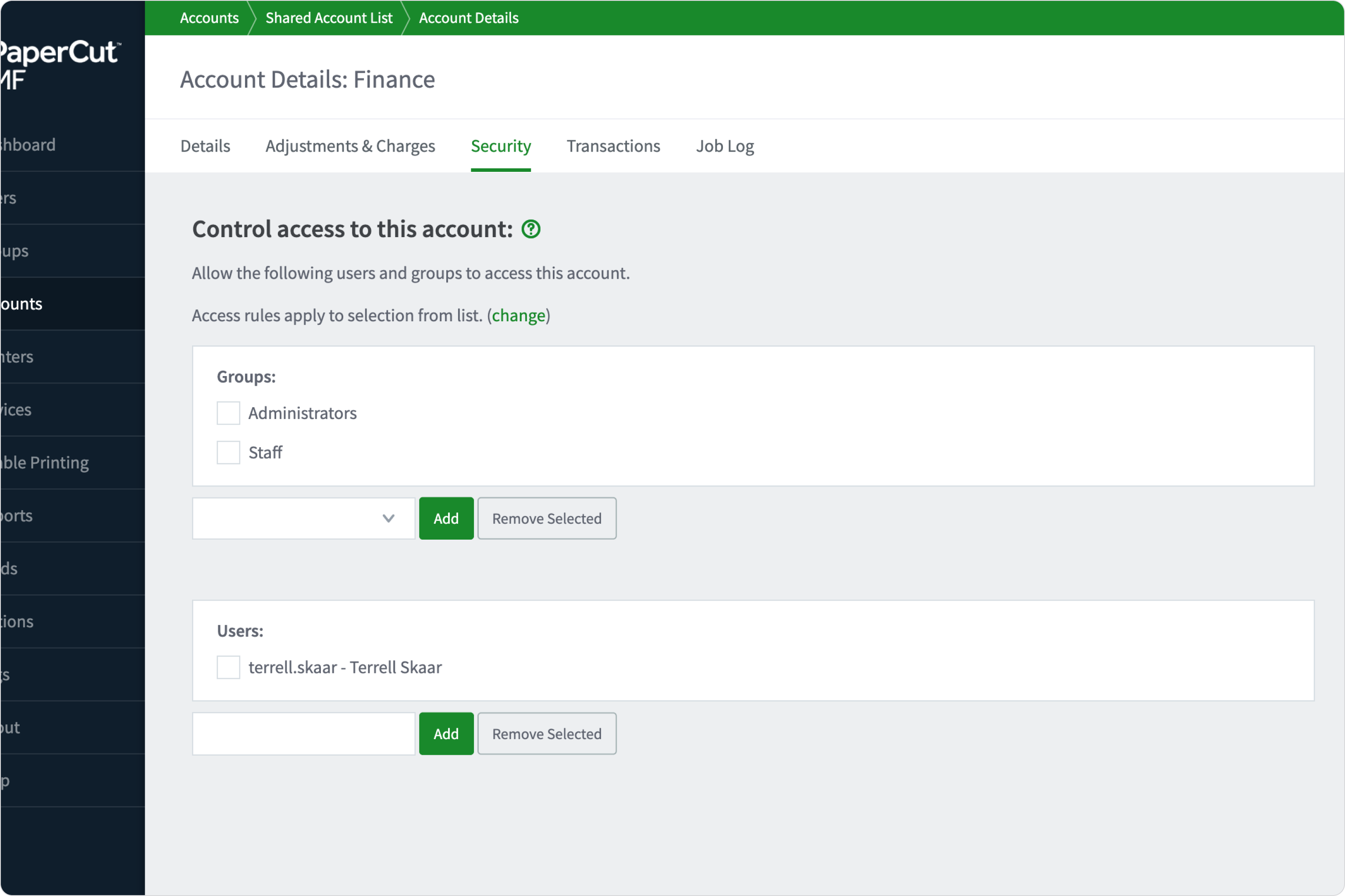
Control access with smart permissions
Keep your account lists clean by ensuring users only see what is relevant to them.
Restrict access based on group membership so a paralegal only sees the client list for the specific lawyer they support, rather than the whole firm’s database. This reduces selection errors and keeps sensitive client data private.
To learn more, see the manual page on
Account security using network group membership.
Generate professional reports and invoices
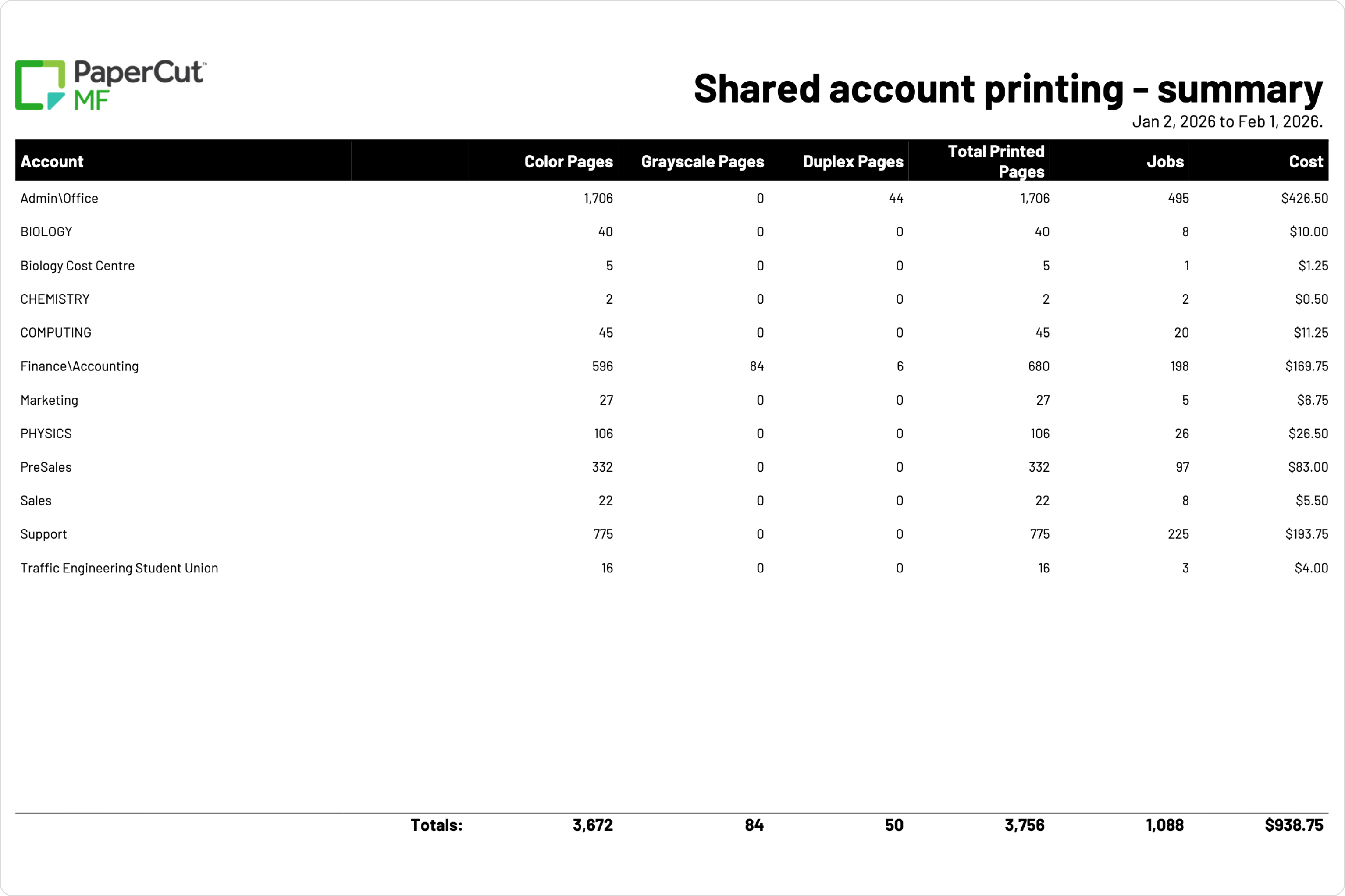
Data is only useful if you can act on it. Shared Accounts provides the foundation for one-click reports that break down usage by department, project, or client matter. Export this data as a CSV or PDF to simplify internal budgeting or external billing.
Dive into more detail about
Professional Client Billing
.
Customize workflows with print scripting
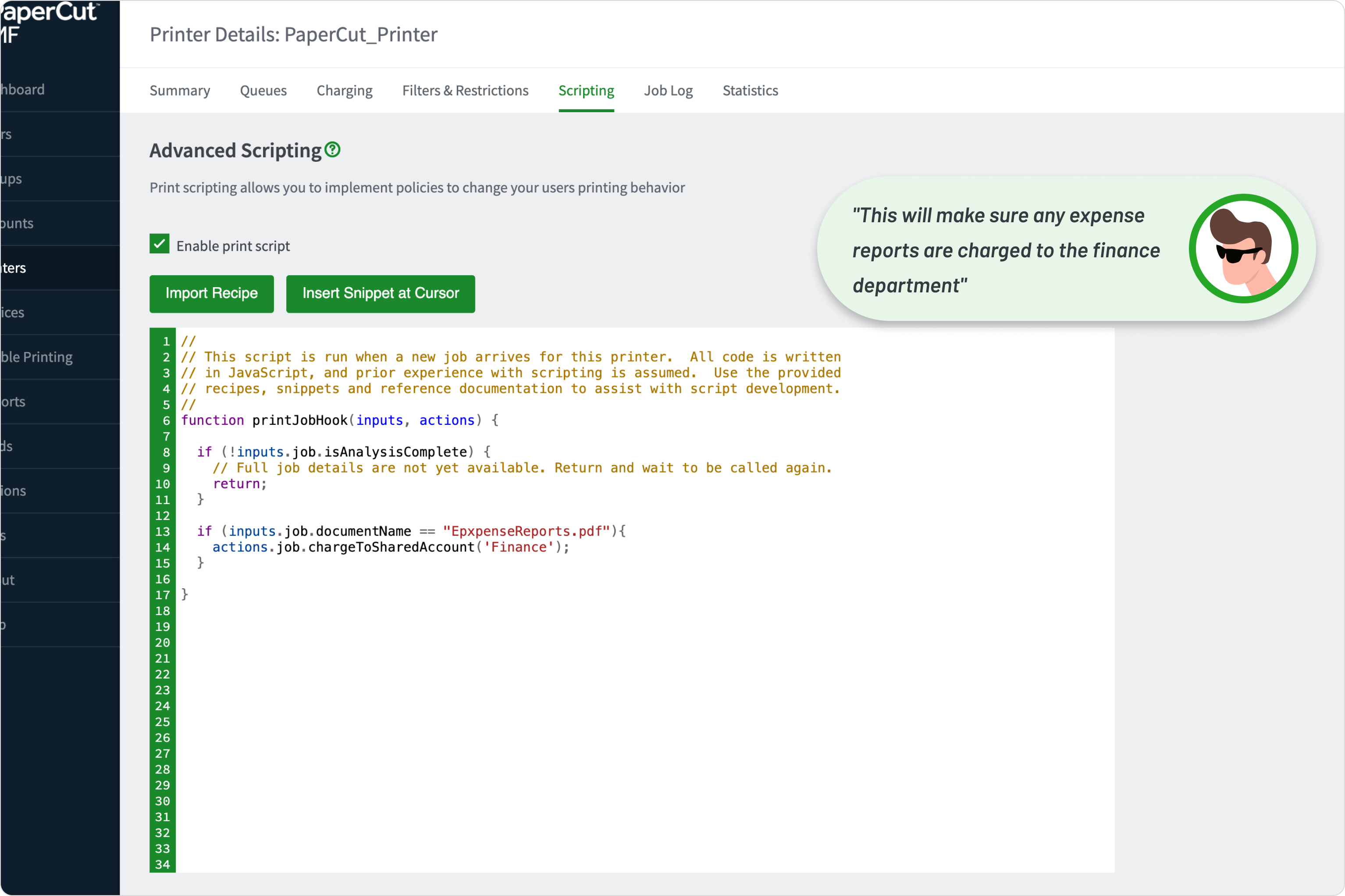
Every business has unique requirements that don’t always fit into a standard box. Use print scripting to handle advanced logic, such as automatically assigning an account based on a file name or requiring a “reason for printing” for high-volume jobs.
To learn more, see the manual page
Print Scripting/ Advanced Scripting overview
What to explore next

Enable printing in my organization

Track printing on all devices

Secure my printers

Manage the cost of printing
 you are here

Manage my users
