Choose your language

Choose your login

Support

User management and onboarding

PaperCut Hive and Pocket let you onboard users your way by integrating with Microsoft Entra ID, Google Workspace or email. Administrators get full control and flexibility, while users enjoy simple, secure access to printing.

Add users and sync with your directory

Connect PaperCut Hive to Microsoft Entra ID or Google Workspace to keep users and groups aligned with your directory. Choose the users and groups you want to bring into Hive and keep them updated through scheduled or manual syncs.

Once synced, groups can be used across PaperCut Hive to manage printing at scale, for example, by applying quotas or deploying print queues to departments, schools, or other groups of users.

For the full guide, dive into managing your users in our manual.

User management add ons available in PaperCut Hive

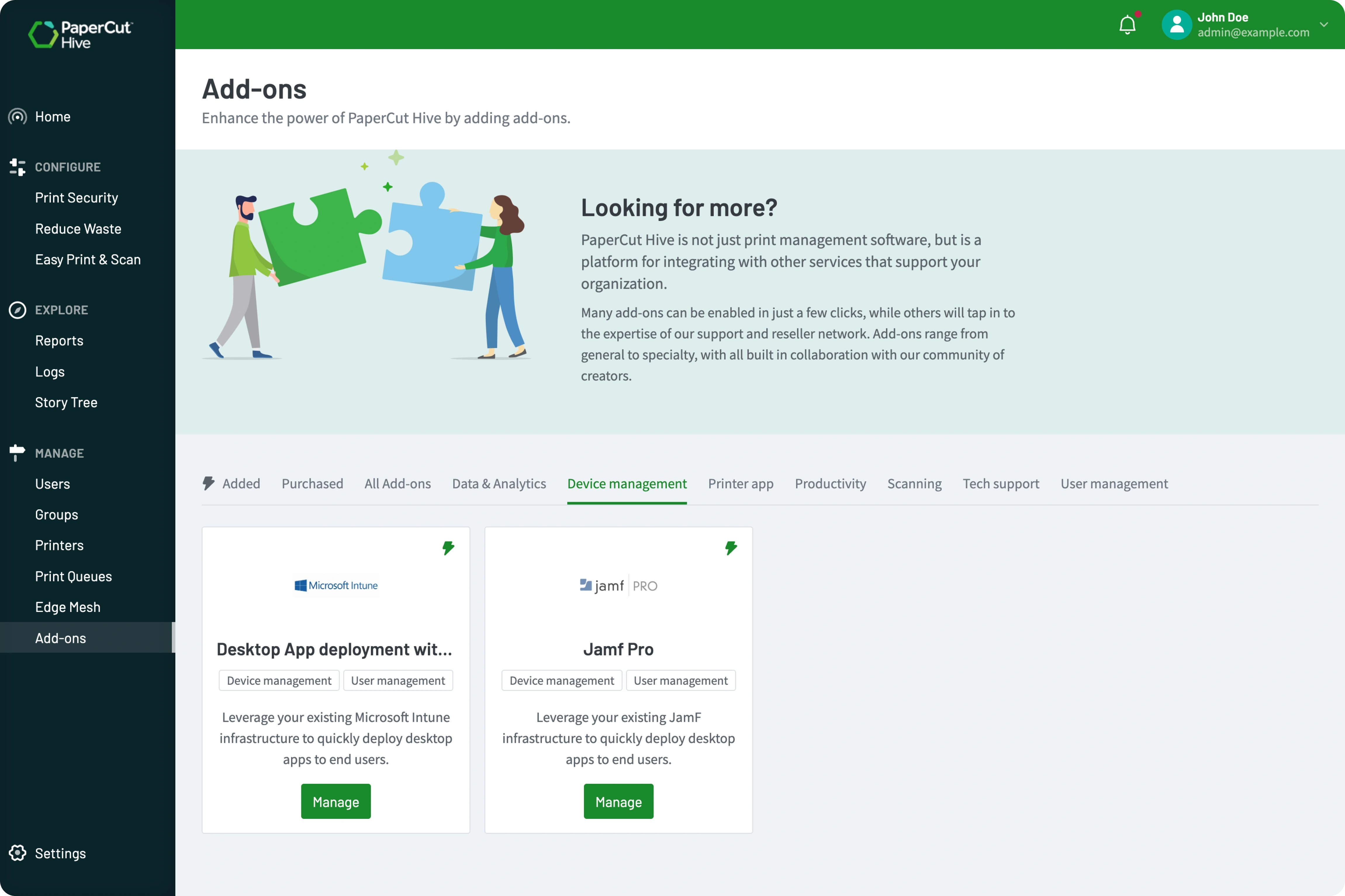
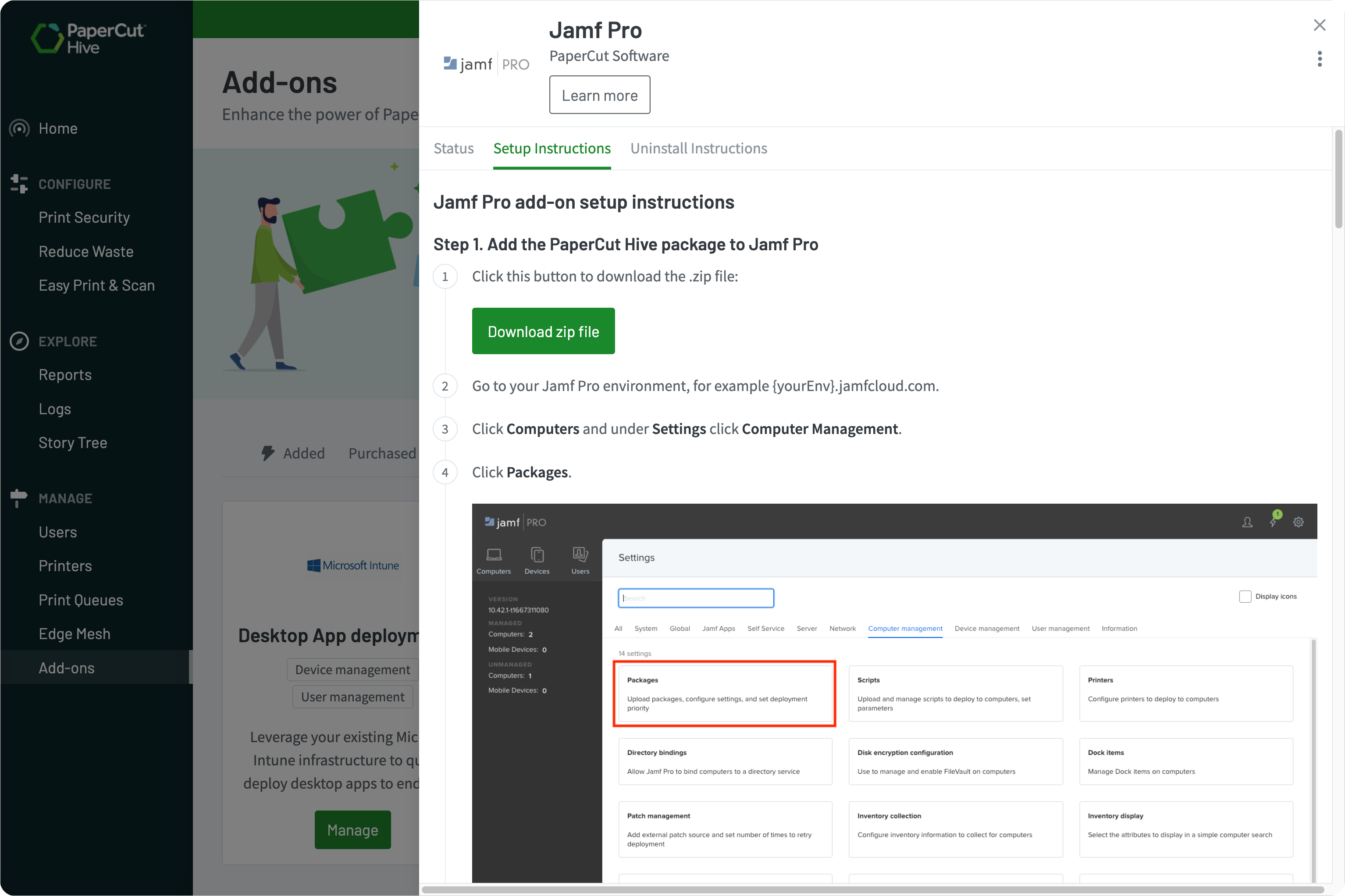
Silent Fleet Deployment

Getting the print client onto your users’ machines doesn’t require visiting every desk.

Use MDM tools such as Jamf Pro or Microsoft Intune to deploy PaperCut Hive across your managed devices without requiring users or IT teams to install the client machine by machine.

To learn more, read our guide on bulk deployment of PaperCut Hive and PaperCut Pocket.

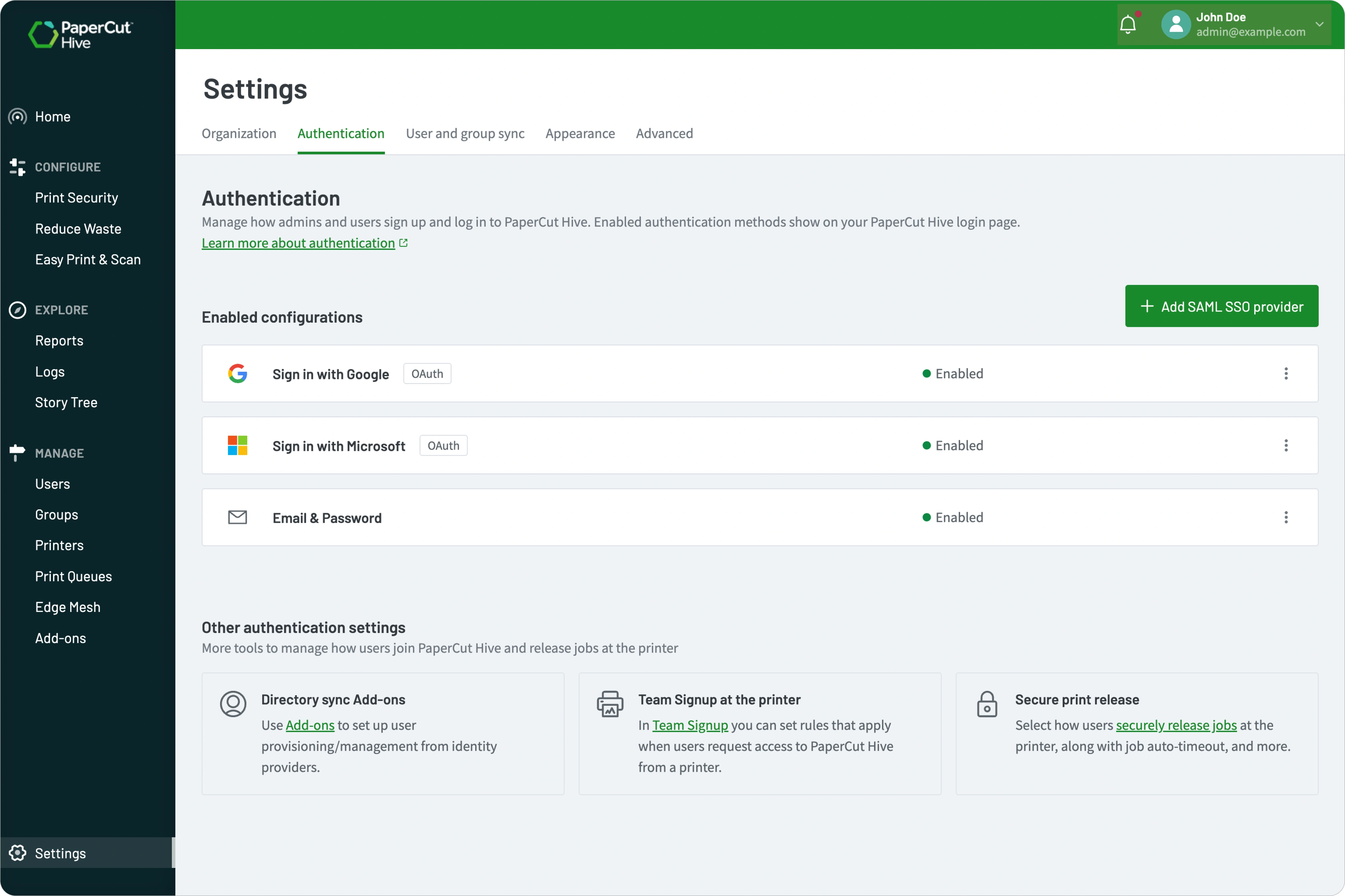
The PaperCut Hive settings showing the authentication panel.

Secure and familiar authentication

Use your existing identity provider for a familiar, secure sign-in experience.

PaperCut Hive supports SSO through Microsoft Entra ID, Okta, Google Workspace and other SAML 2.0 identity providers, allowing organizations to apply their existing authentication and MFA policies.

To learn more, read our guide on configuring Single Sign-on via SAML 2.0.

The PaperCut Hive cost profile editor showing how an admin can configure costs of print and copy jobs

Bypass invitations with Authenticate on Print

Give your team a smooth sign-in experience that matches your organization’s security policies. Users can authenticate directly through the System Tray app, respond to email invitations, or swipe their existing ID access cards synced straight from your directory.

When you deploy via MDM tools like Jamf or Microsoft Intune, users don’t need to hunt for invite emails. They simply hit ‘print’ on their first document and authenticate right then and there.

This “Authenticate on Print” workflow links their identity to the device instantly and securely.

Read our manual to learn how to Authenticate-on-Print.

The PaperCut Hive admin console, showing the setting to automatically delete uncollected print jobs after a specified time.tting to automatically delete

Support users on personal and mobile devices

PaperCut Hive and Pocket fully support mobile-first organizations.

Support users beyond your managed fleet. PaperCut Hive gives users flexible ways to print securely from personal laptops, tablets and smartphones, making it easier to support BYOD environments without bringing every device under IT management.

To learn more, see how to customize options in the User Portal.

Customize the User Portal to show only the download options your users need.

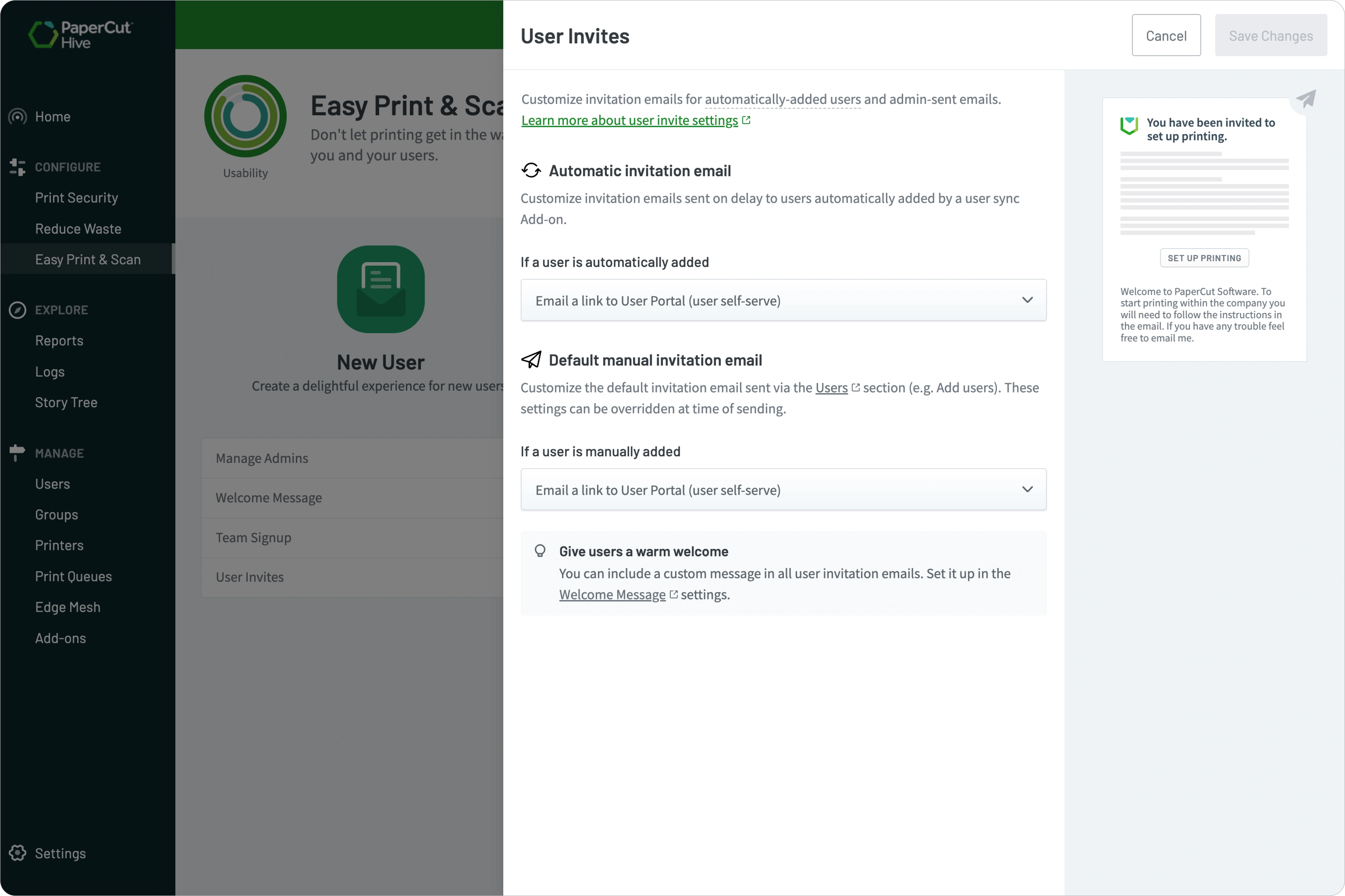
Control how and when users are invited

Customize welcome messages, send invitations via email, Slack, or Microsoft Teams, and choose between automatic or manual delivery.

You can even delay invitations to ensure your print environment is fully configured or to give new user inboxes time to provision before the invite arrives. If your setup doesn’t require an invitation at all, you can skip this step and bypass invitations entirely.

To learn more, read the manual page all about User Invitations.

Control exactly how and when users are invited.

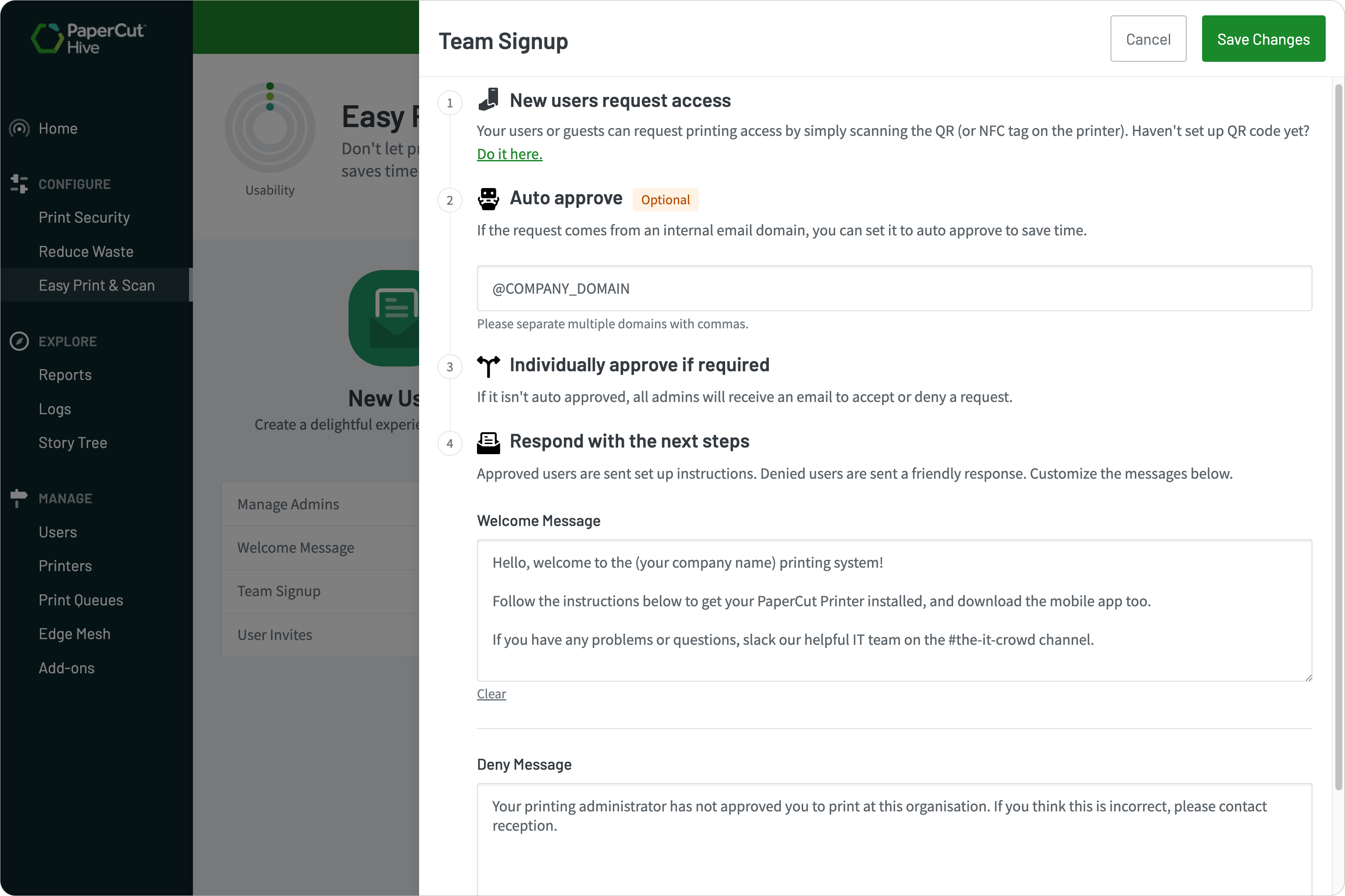
Automate approvals and personalize welcome emails

Make onboarding self-service without losing control. Let users from approved company domains join your PaperCut Hive organization without waiting for an administrator to approve every request.

Team Signup can automatically approve eligible users, reducing onboarding work while keeping access limited to trusted domains.

Learn more about team signup and auto approvals in this article.

Automate and personalise emails for approval

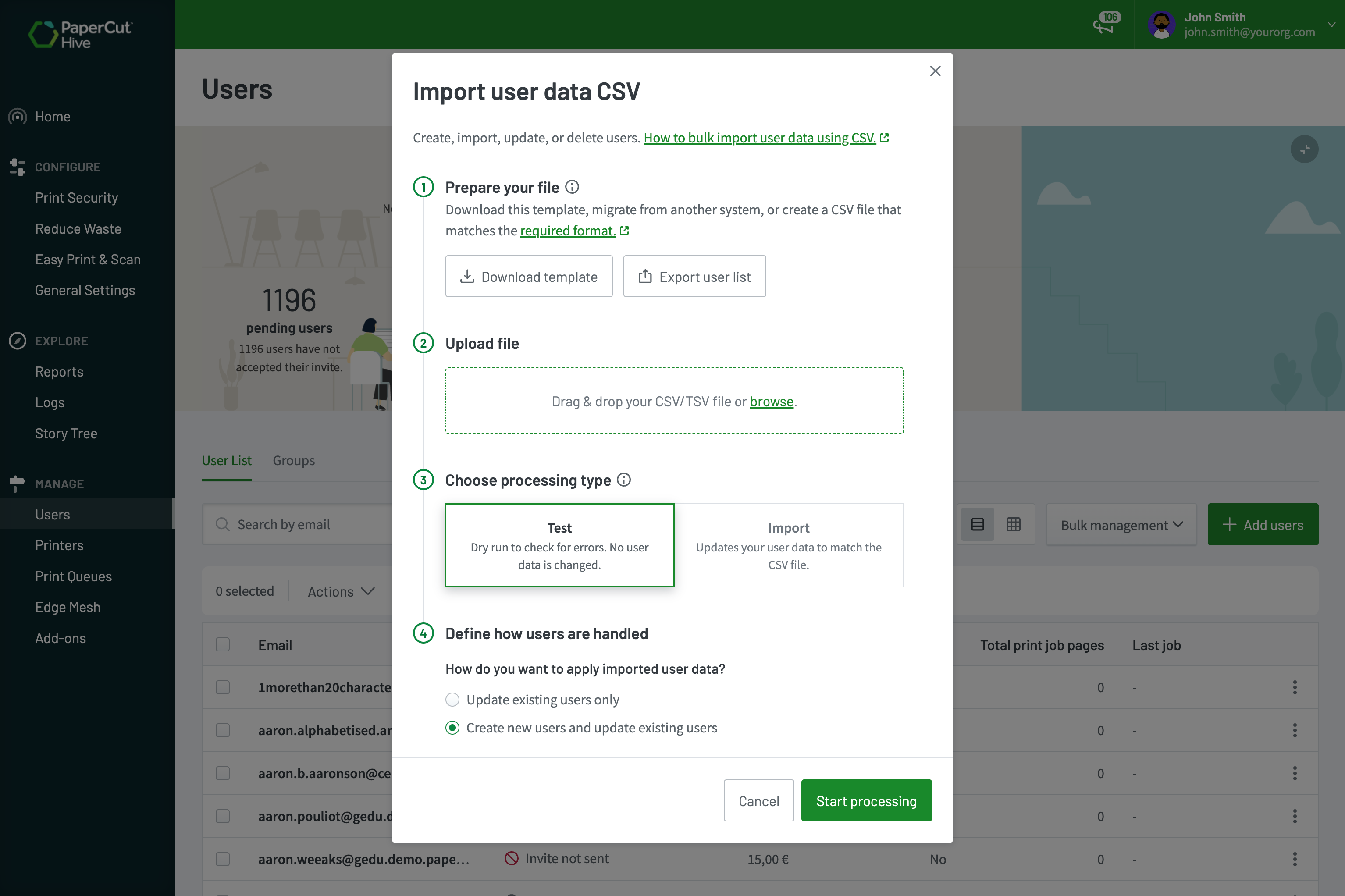
Bulk import user data with a CSV file

Add or update a large number of users without an identity provider. Use the user data import tool to add or update user data in bulk via a CSV or TSV file.

This is ideal for existing customers migrating from PaperCut MF or any other print management solution. You can manage large user lists or import specific data like access card numbers, quotas and user balances in bulk.

For a step-by-step best practice guide, see our manual on bulk importing user data.

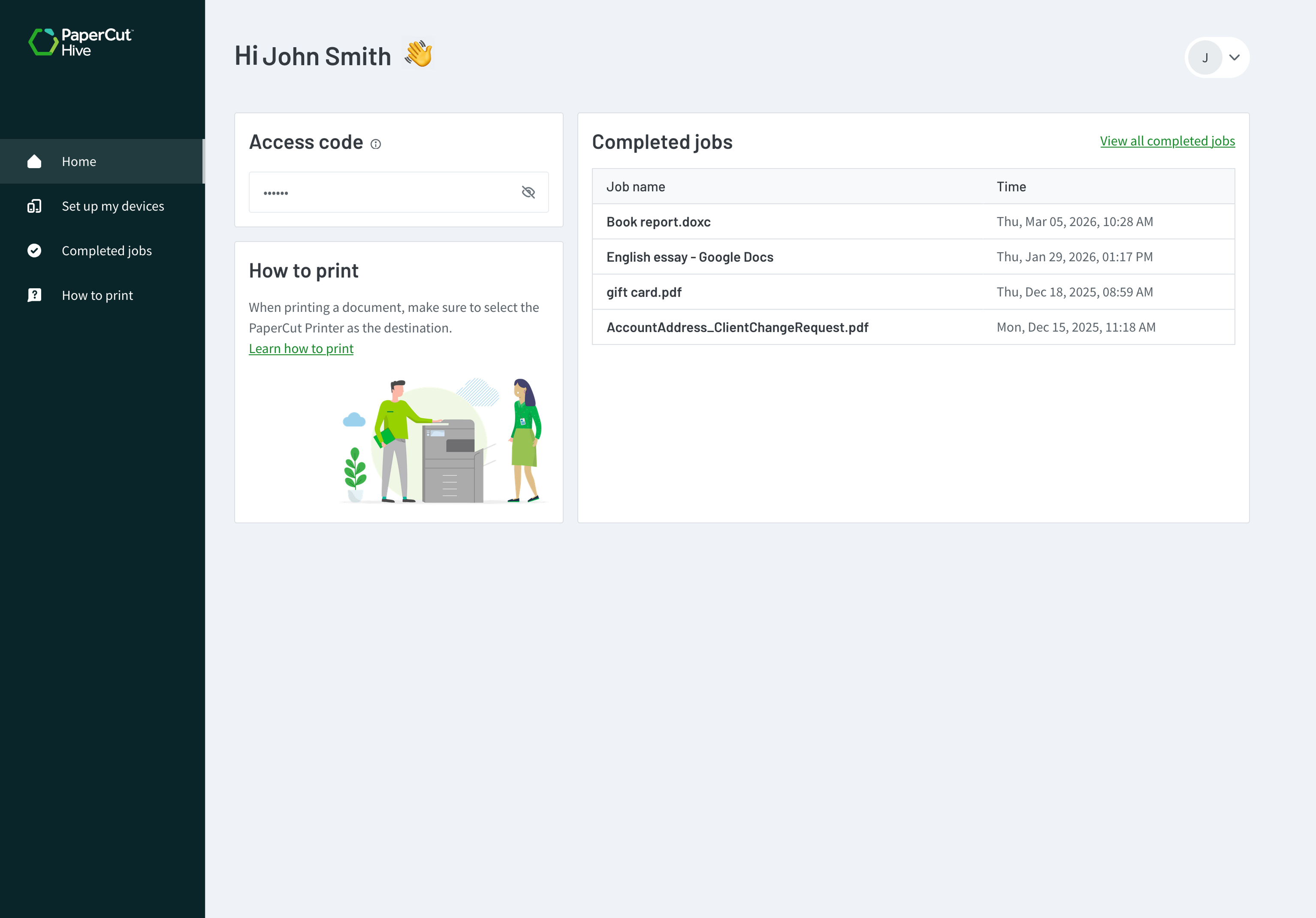
Simplify setup with the self-serve User Portal

Empower your users and reclaim your afternoon. The self-serve User Portal acts as a central hub where users can manage their own device setup, view their print history, view balances and find their access codes.

By letting users link their own mobile and desktop apps, you significantly reduce the volume of basic IT support tickets.

For an overview of the user experience, explore the user portal feature page.

The PaperCut Hive end user app and print app, showing the print release being denied due to the user having insufficient funds

Manage access codes and cards

Centrally manage physical ID cards and access codes, or let users self-associate their cards. Users can simply swipe a new card at the printer and link it to their account using the access code in their mobile app or User Portal.

Admins have full control over these codes, customize the length and format (numeric or alphanumeric) to match your security policies or user preferences.

See this manual page for details on managing user access codes and access cards.

The PaperCut Hive admin console, showing the setting to automatically delete uncollected print jobs after a specified time.tting to automatically delete