Choose your language

Choose your login

Support

How can we help?

PaperCut's AI-generated content is continually improving, but it may still contain errors. Please verify as needed.

Lightbulb icon
Lightbulb icon

Here’s your answer

Sources:

* PaperCut is constantly working to improve the accuracy and quality of our AI-generated content. However, there may still be errors or inaccuracies, we appreciate your understanding and encourage verification when needed.

Lightbulb icon

Oops!

We currently don’t have an answer for this and our teams are working on resolving the issue. If you still need help,
User reading a resource

Popular resources

Conversation bubbles

Contact us

Guest printing

Providing guest printing doesn’t have to be a security risk or a full-time job for your IT team. PaperCut MF and NG make guest printing invisible, allowing visitors to print in seconds while you stay in control.

Give your one-day visitors and contractors the fastest path to a printed document without them ever joining your corporate Wi-Fi.

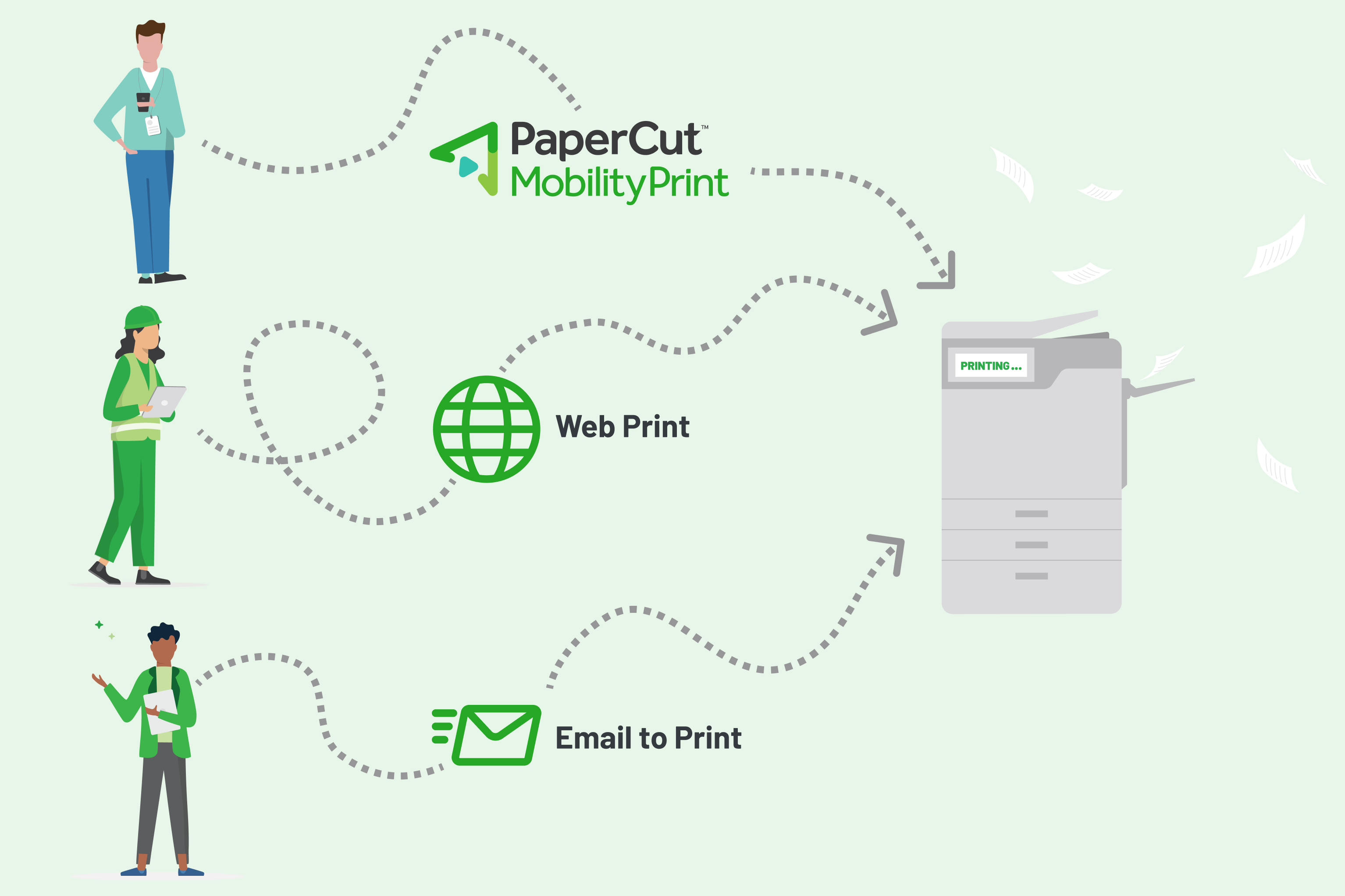
Users simply attach their document to an email and send it to your designated print address—no drivers, no apps, and no “help desk” tickets required.

Dive into our guide to Email to print in the manual for all the details.
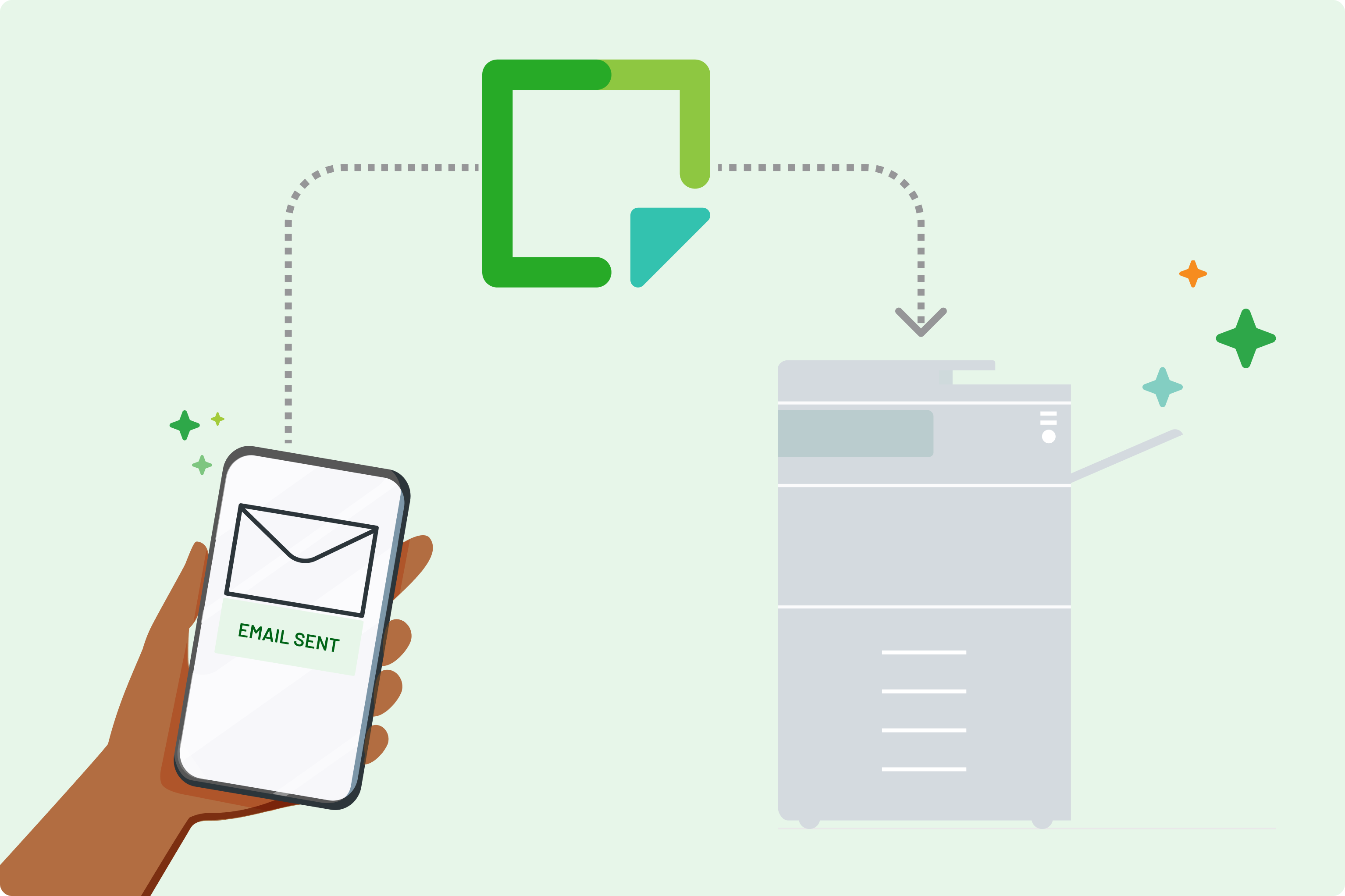
A mobile device sending a document via email to a PaperCut MF printer

Match your printing to any guest scenario

Not every visitor is the same, so your printing shouldn’t be either. Whether it’s a one-hour auditor, a long-term contractor, or a library patron, you can choose the best workflow—from anonymous email submission to temporary accounts.

You can provide guests the ability to register their own accounts via a web based registration form so they can begin printing immediately, and removes the need for staff intervention.

For more information, take a look at this article that provides a summary of options for guest user print management.

Different types of guest users, in different scenarios, using different methods of printing

Authenticate BYOD and unmanaged devices

Protect your core network by keeping unmanaged staff hardware and visitor laptops on a separate guest Wi-Fi.

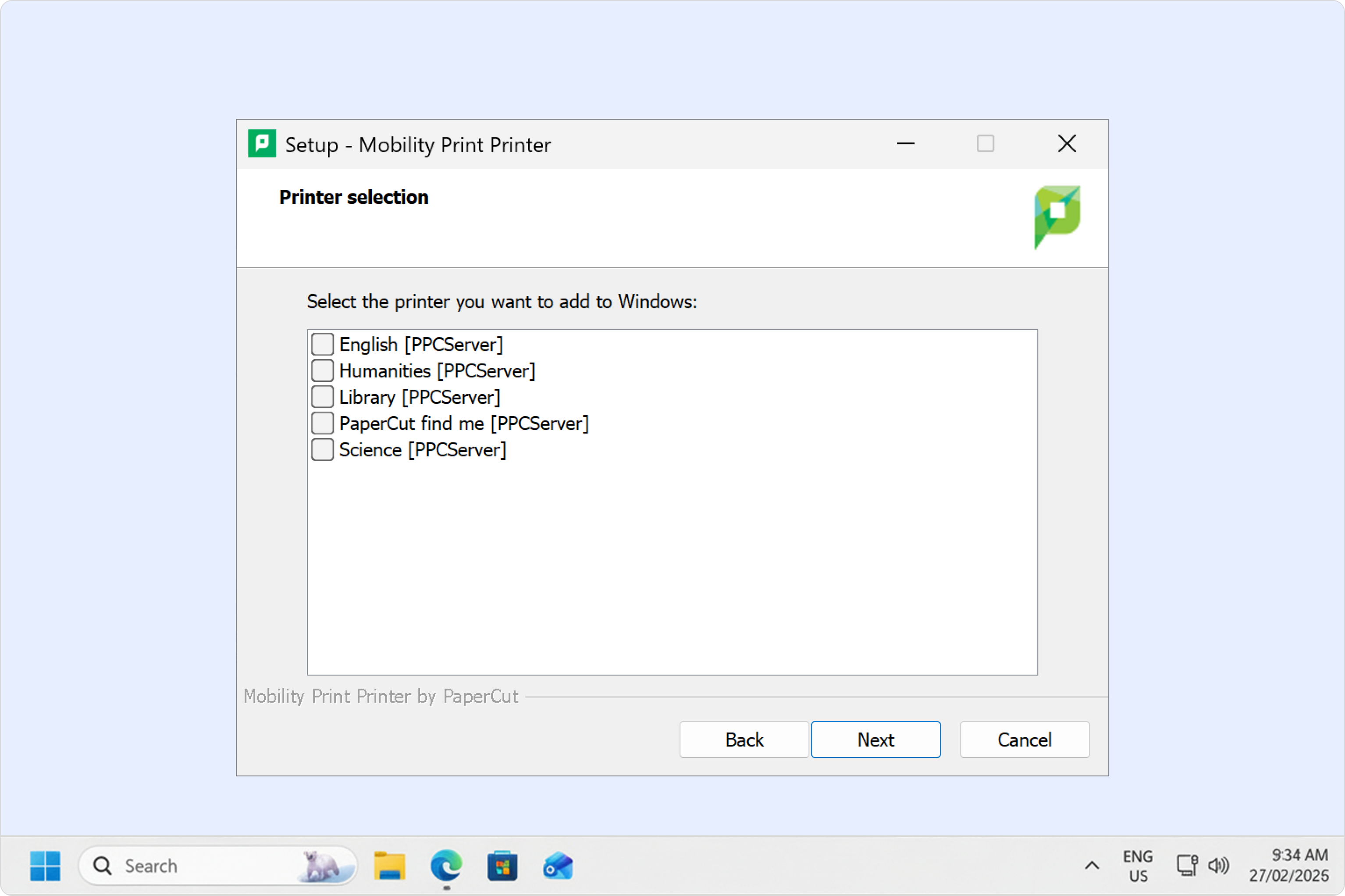
Mobility Print enables this by broadcasting your printers directly to any Windows, macOS, iOS, Android, or ChromeOS device using its own native print dialogue. This gives guests a familiar “Ctrl+P” experience without you needing to install drivers, manage local accounts, or poke holes in your internal infrastructure.

For a full setup flow, start from the main Mobility Print setup guide and then choose the discovery and advanced options that best match your guest network design.

Mobility Print interface on a laptop displaying available printers

Upload documents directly via Web Print

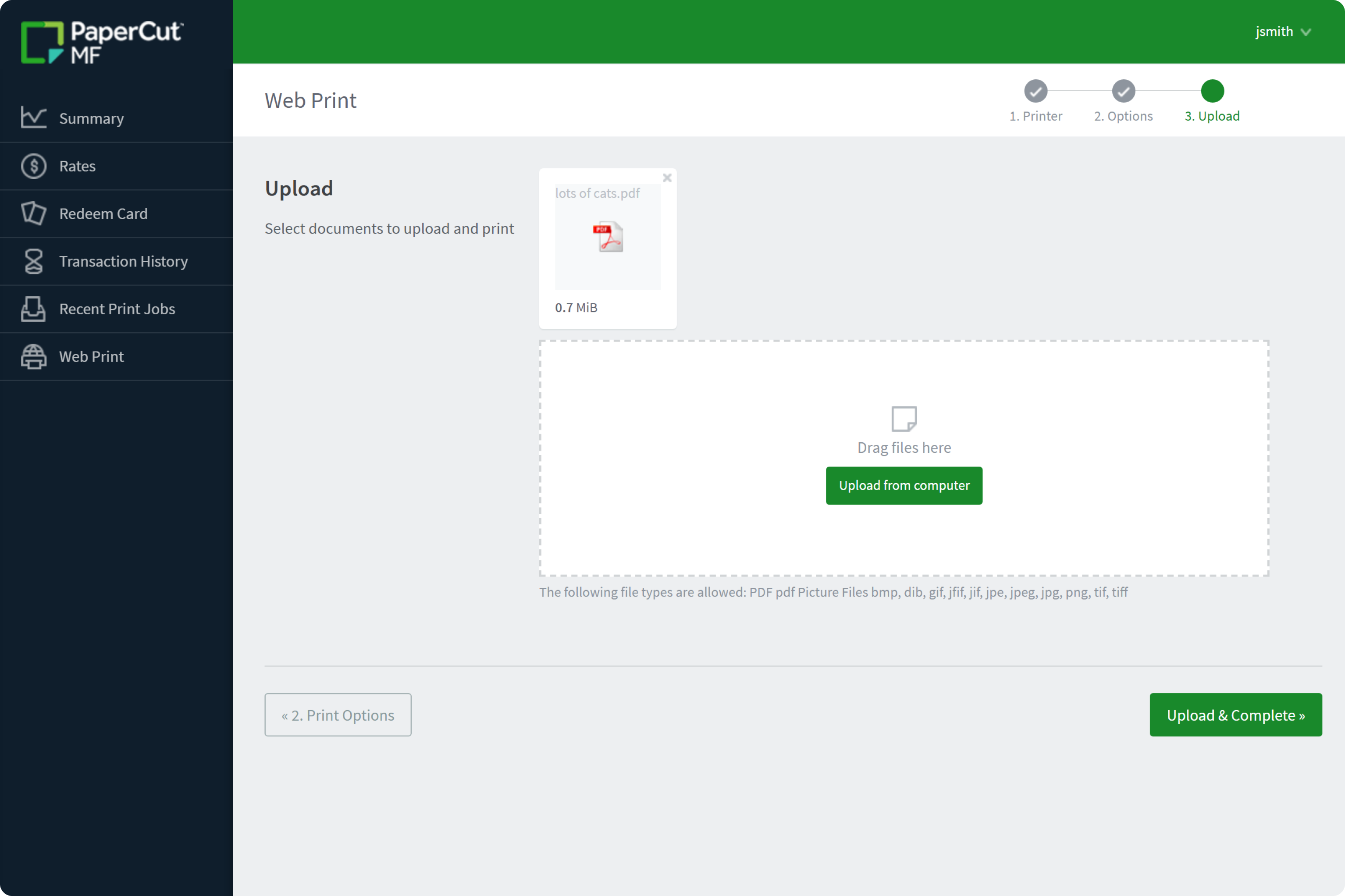
For high-traffic environments like universities or shared workspaces, Web Print offers a completely driverless, browser-based solution. Guests simply log in to a web portal and upload their files for immediate printing, making it the perfect choice for users with managed laptops that don’t allow software installs.

See the full list of supported file types and security considerations in our complete guide to Web Print in the manual.

The PaperCut MF Web Print user interface showing the document upload process

Maintain accountability and control

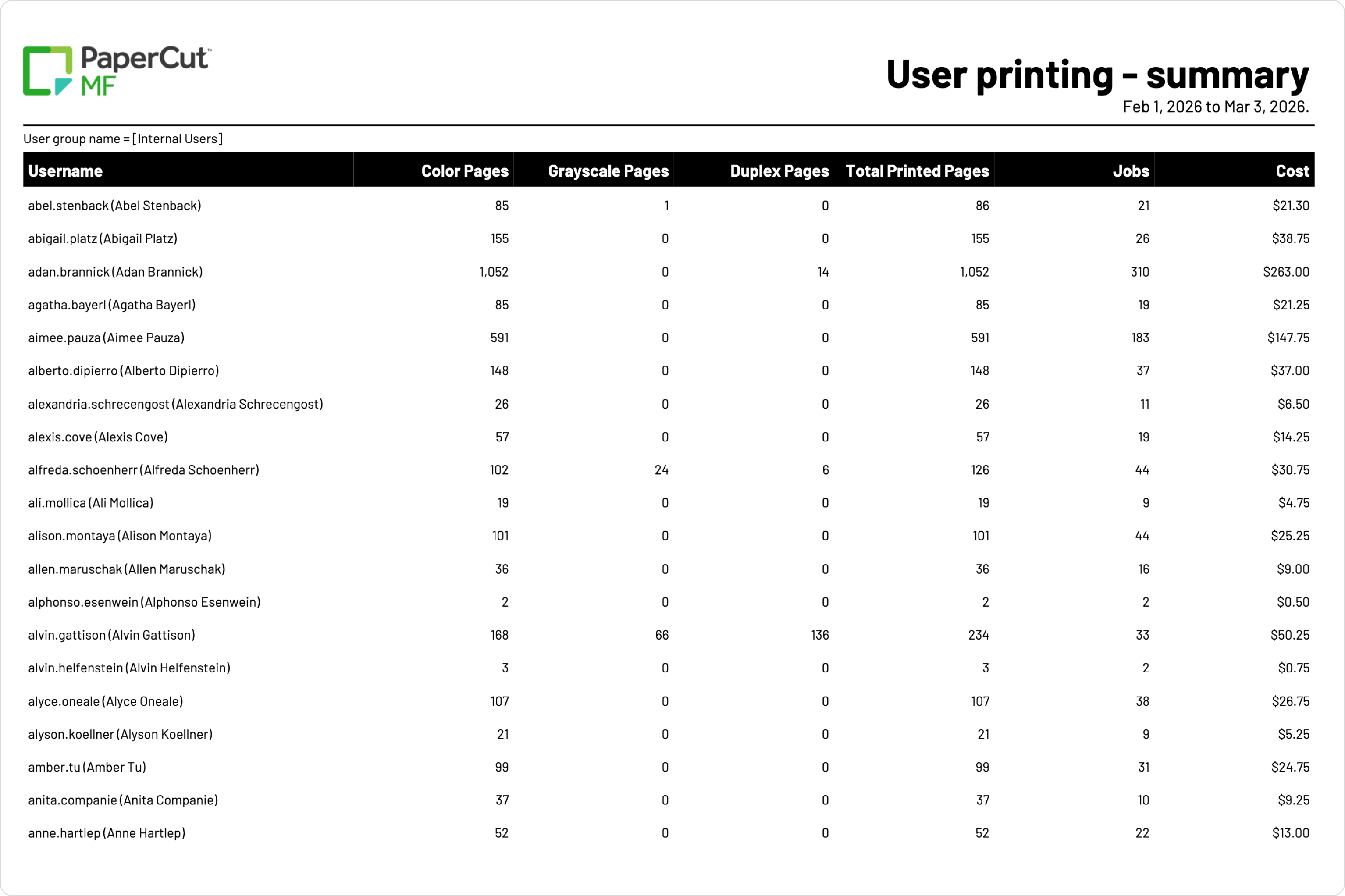
PaperCut MF and NG track every guest job, providing you with the same level of reporting and oversight you have for your permanent staff.

You can even set up “pay-as-you-go” options or internal quotas to ensure guests don’t run up your printing costs.

Click through to see examples of how you might tailor guest accounts in the manual.

PaperCut MF report displaying printing summaries for guest users.