Choose your language

Choose your login

Support

How can we help?

PaperCut's AI-generated content is continually improving, but it may still contain errors. Please verify as needed.

Lightbulb icon
Lightbulb icon

Here’s your answer

Sources:

* PaperCut is constantly working to improve the accuracy and quality of our AI-generated content. However, there may still be errors or inaccuracies, we appreciate your understanding and encourage verification when needed.

Lightbulb icon

Oops!

We currently don’t have an answer for this and our teams are working on resolving the issue. If you still need help,
User reading a resource

Popular resources

Conversation bubbles

Contact us

Access control

From the admin dashboard to the login screen, PaperCut MF and NG give you total control over administrator access levels, who can print, and where they can print.

Secure the front door with user authentication

Stop unauthorized usage before a single page is printed. Require users to identify themselves at the device using their existing credentials, whether it’s through Single Sign-On (SSO), a quick swipe of an ID card, or a secure PIN.

You can explore different options for User authentication in the manual to find the best fit for your team.
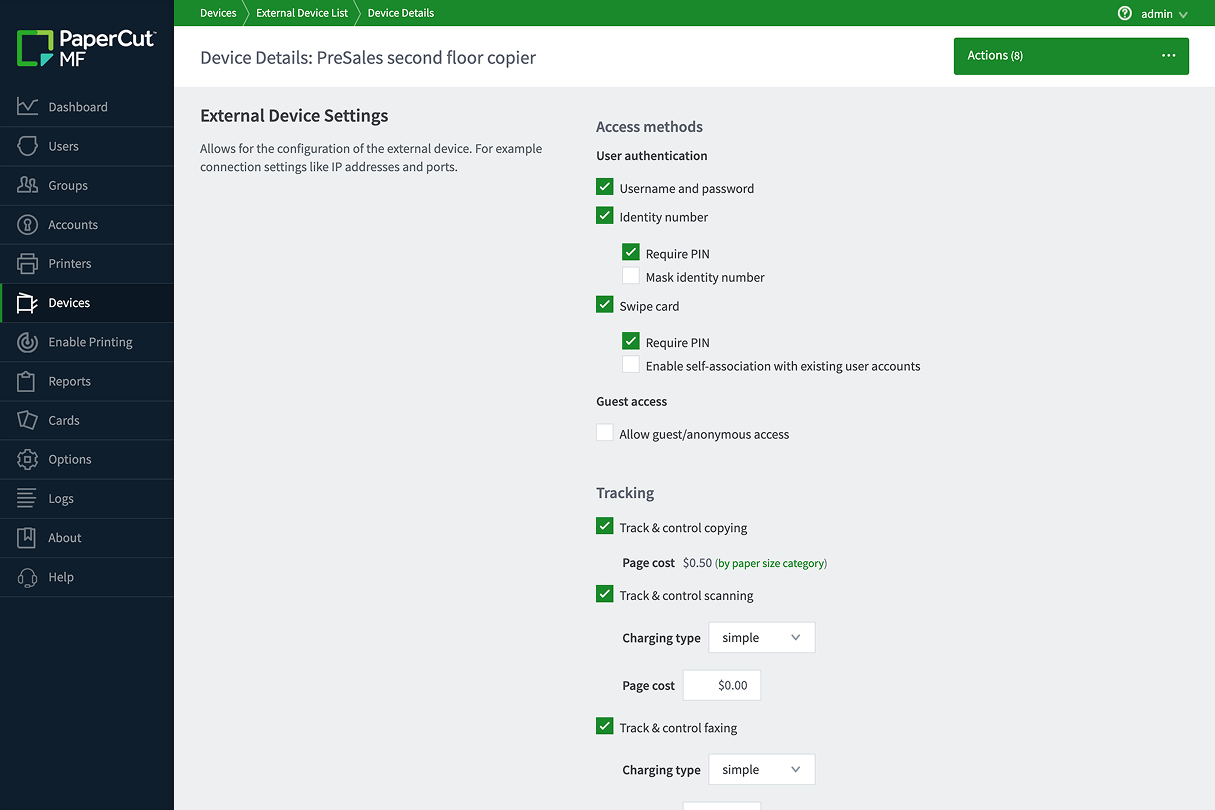
The PaperCut MF admin interface settings page where the administrator can configure the Single Sign on options for Microsoft and Google.

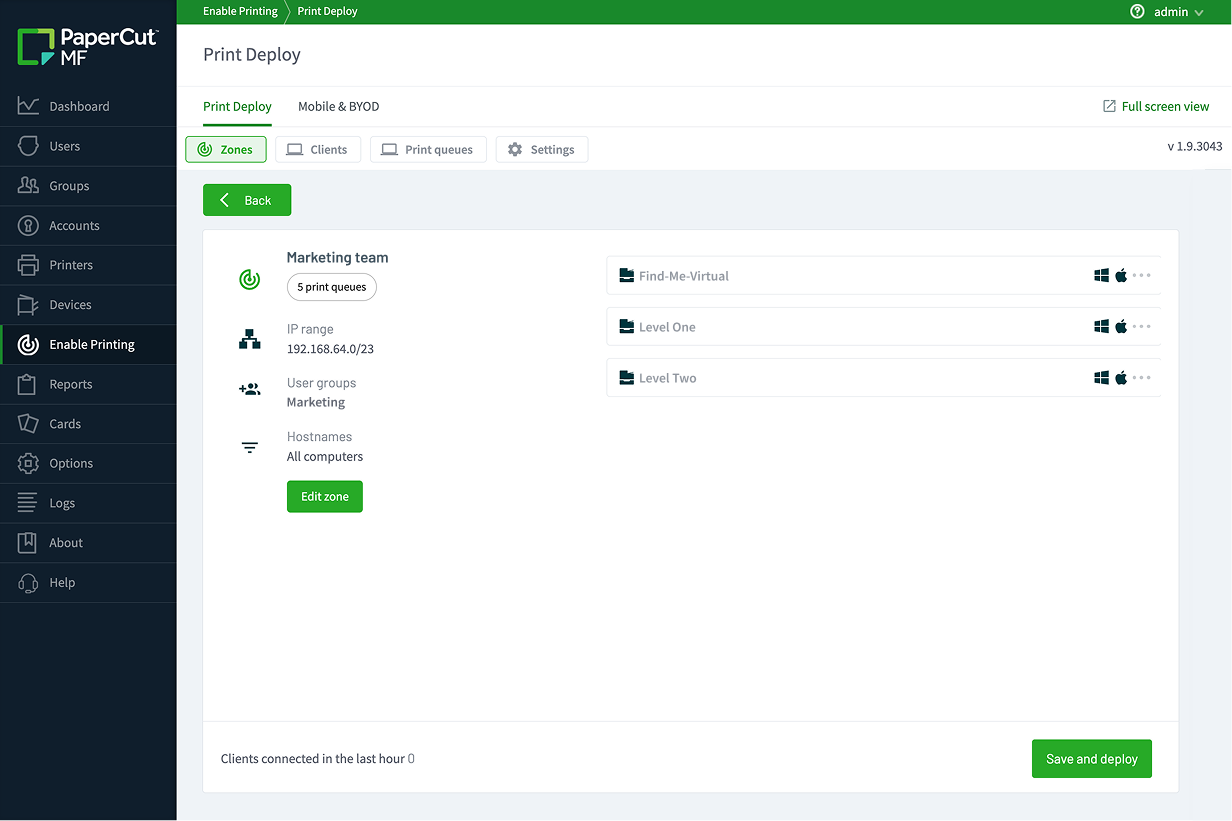
Deploy the right printers to the right people

Cut through the clutter by making sure users only see the printers they actually need. Use Print Deploy to automatically deliver print queues based on a user’s role or physical location, ensuring the high-volume marketing printer isn’t accessible to the whole office.

Dive into manual to learn all about Print Deploy automated deployment.

A screenshot of the PaperCut MF print deploy feature listing the print queues and drivers to the right person

Set boundaries with granular print policies

Promote responsible printing by defining exactly how and when your users print. You can create rules that limit color usage to specific departments or use scripting to prevent printing outside of office hours to keep your environment secure.

To learn more, check out our blog on What is a print policy, and do you need one?

An iilustration of a user sending a print job securely over the internet when they’re remote

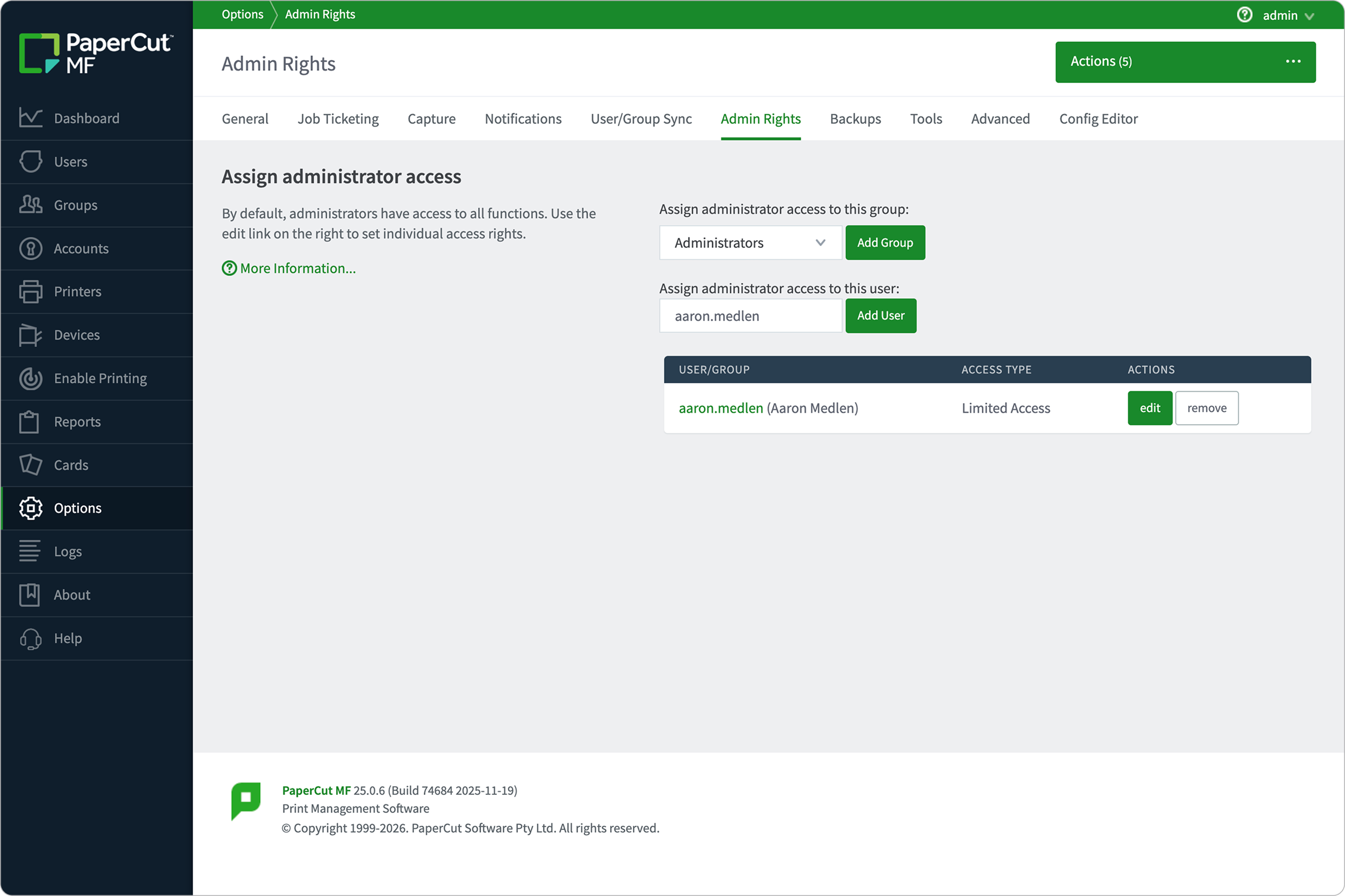
Delegate power with tiered Administrator rights

You don’t have to manage everything yourself, but you shouldn’t have to share the “keys to the kingdom” either.

Assign specific administrator roles to team members so they can manage their own departments or run reports without accessing sensitive system settings.

Read more about Assigning administrator access in our manual.

An image showing how web print offers simple, driver-free guest printing

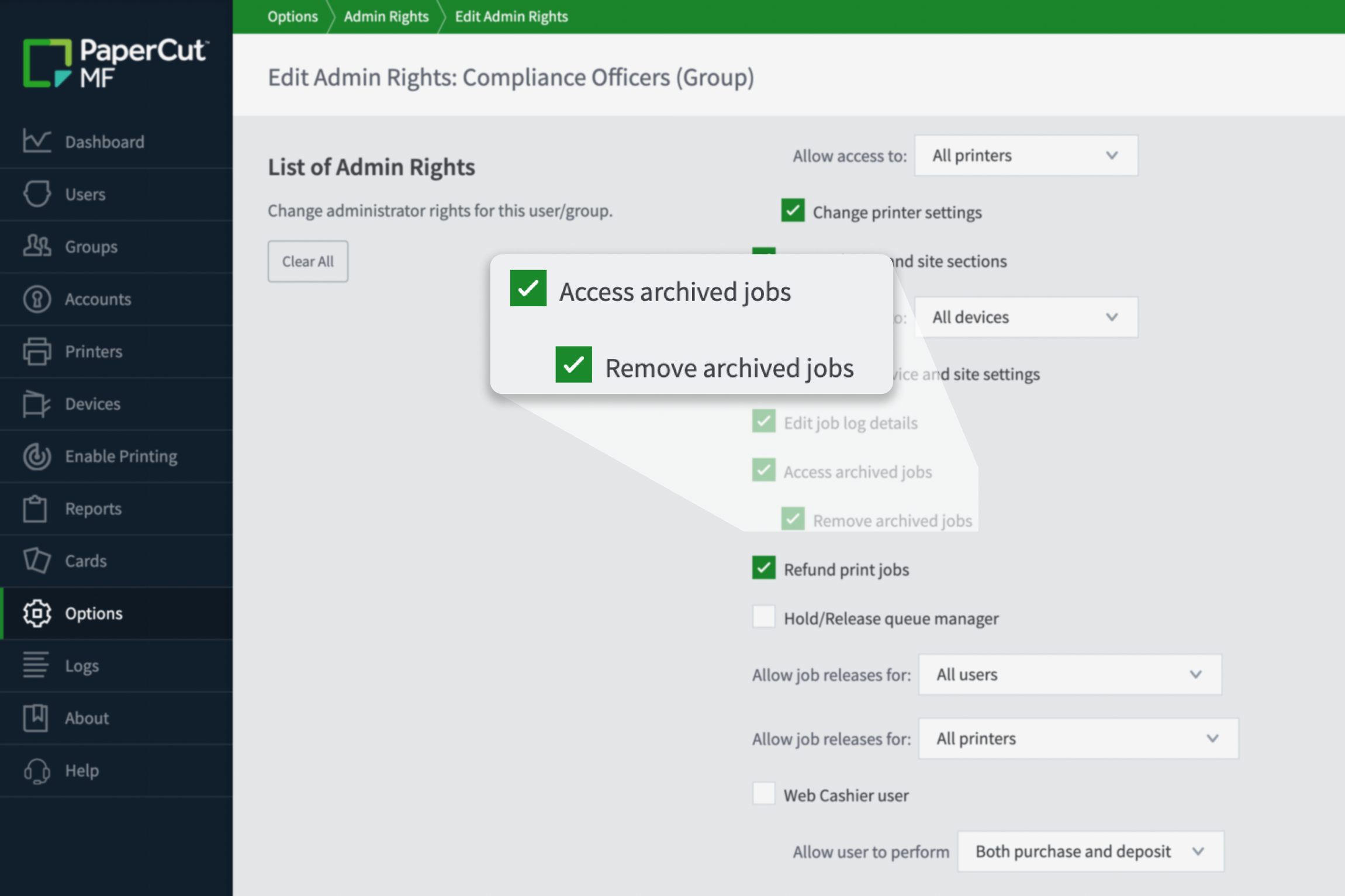
Protect privacy with restricted archive access

Keep your sensitive data under lock and key by separating system management from document oversight. Ensure that only authorized compliance officers have permission to view thumbnails or content in the Print Archive, keeping private information away from general IT staff.

Learn more about permissions to view the archived jobs in the PaperCut manual.

An illustration of a print job releasing their print job at any available printer of their choice