
Mysterious error messages. Paper jams. Faded prints. Cyan ink needed even when you’re only printing black and white. Sometimes printing doesn’t just work like it’s should.
It’s more than a workflow interruption. If you’re up against a deadline and the printer says no, that frustration can snowball into stress and fatigue. Printer problems aren’t a small workplace obstacle – they can block mission-critical tasks and deplete morale.
We can’t fix all your printing problems instantly, but we can give you our guide on how to troubleshoot some of the most common printing errors.
1. Offline printer
First, check that the printer is actually turned on and there are no error messages displayed on the printer touchscreen.
Check that the connection is working - i.e. USB cable, Wi-Fi, Bluetooth, etc. Try printing from another device. This helps to identify if the problem is the printer or the client.
If you’ve tried all the above and it’s still not working, uninstall and reinstall the printer software and drivers. This is the last-resort option, as it takes the longest. Honestly, the old “turn it off and on again” really does work sometimes, so if all else fails, restart all the devices involved.
2. Wi-Fi troubles
If your printer is Wi-Fi compatible and connected, slow processing times may mean you and your printer are both victims of slow internet. Try moving your printer and client (device i.e. printer, mobile, tablet) closer to your router/modem.
If this doesn’t make them speak to each other, try updating the firmware to deliver the speeds required. If the Wi-Fi is still slow, make like Tony Stark in Iron Man 2 and switch to hardware (i.e. a cable connection direct from the router to your printer/device).
3. Crooked text
Everything’s fine with your print job. The connection is perfect. The speed was quick. You’ve collected your document not long after pressing print. Only problem is… the text isn’t straight! Entire paragraphs are misaligned or some lines have printed over the top of each other.
This is pretty specific to inkjet printers. It’s usually because the print heads need to be calibrated – you can often see it happening after replacing an ink cartridge. The cartridge is new and the ink nozzles are clean, but new print heads mean you need to check the head alignment.
Even if you haven’t replaced the ink cartridge lately, print heads can become misaligned over time, so keep an eye on the head-alignment settings.
4. False low ink warning
You’ve just changed the ink cartridge, like, literally five minutes ago. But the printer’s saying your ink is empty.
Step 1: Turn the printer off and on again. It might need to reboot to detect there’s a new ink cartridge installed.
If this doesn’t work, check the utility software or your device settings on the client for a manual override. If it says it’s running out of ink, and you can still print, think of it like a slightly conservative car gas gauge that tells you you’re low while you’ve still got miles left in the tank.
The warnings can be early, or they can be accurate – this means it’s to your benefit to order replacements ahead of time, so when your ink and toner are really truly gone, you’re prepared.
5. Wet, streaky, smeared, or smudged ink
If your print job looks like a toddler’s finger painting, check that the ink cartridge and print heads are the right brand and model.
If all that checks out, it’s likely there’s an issue with the paper in the printer tray not matching up with what has been selected in your print settings (either in finish type or GSM).
6. Wrong color
On your screen, the color of your documents is perfect. On paper, they’re funky-looking impressionist masterpieces. Color on screen vs color on paper is… complicated, to say the least.
Unless you’re a professional designer with a sophisticated setup, the science of light from a screen into your eyeballs is different from the science of fusing color onto a page. A slight difference, like a shade or two darker or lighter, may be down to this screen vs paper anomaly.
If you’re printing a graphic, it may also be set up in RGB mode (designed for screens), when you need CMYK to be able to translate effectively to the page. If there’s a cataclysmic difference, like, it’s purple on the screen and orange on the page, you may want to manually recalibrate your screen or check your ink levels.
7. Jammin’
Not the Bob Marley type, unfortunately. Constant or frequent paper jams can occur for a variety of reasons. If there’s no clear paper snagged in the feeder or rollers, look for small foreign objects like paperclips, staples, or even dust.
All clear? Time to check for overfilled paper trays or incorrectly inserted paper stacks, paper trays, paper feeders, and printer rollers.
An easy fix is removing the paper stack and wiping it down with a dry cloth. Remove any static, dust, or tiny dirt particles. Check that all the sheets are straight and crinkle-free.
Give them a light fan or wave, straighten the stack like a giant deck of cards then re-insert into the tray gently, making sure the paper is flush with the margin guides on the bottom of the tray.
Check that the paper is all the same thickness and width too – sometimes a different paper brand makes for a thicker or thinner sheet and this can contribute to paper jams.
Still having trouble? Try to reduce the height/size of the paper stack in the tray, or even try a test sheet with one or a two sheets before investigating if there’s a problem with a whole stack.
8. Ghost jam
Your device indicates a “paper jam”… But you’ve opened up every paper tray. You’ve checked every roller. You’ve reshuffled the paper more than a card dealer with OCD. But there’s still no paper jam! That means you’ve encountered the nightmarish “ghost jam”.
What’s happened here, is, over time, paper lint cakes up on the printer’s gears and paper feeding mechanism. This produces a false “jam” error. The solution is simple: clean the paper feeder and all the gears.
If you don’t know how to clean it or want to prevent this paper lint bog, this is where a Managed Print Service vendor comes in handy.
9. Slow print speeds
If your print speed is slower than a sloth working at the DMV , you’re most likely using an inkjet printer. These are known for being slow because the mechanical process is intensive and the ink needs to dry, but slow sprint speeds can happen with laser printers as well.
If your document is printing slowly, check the type of document and the orientation. For example, if you’re printing a horizontal PowerPoint or Slide deck in color, it takes longer. If you’re printing duplex (double-sided) the printer needs to flip the page, which also adds to the printing time.
If you’re printing a simple one or two-page black-and-white document, and it’s taking a long time, check your printer settings. For quick printing of basic documents, make sure you’ve got the same type of basic printer settings enabled.
10. Spooling errors
Print spooling programs buffers print jobs between the client and the printer. It’s what allows you to line up multiple print jobs at the same time on one shared print queue.
In Windows systems, it’s known as the Print Spooler. macOS and Linux clients use CUPS (Common UNIX Printing System). There are lots of ways print spooler errors can occur. A common issue is a perpetual “Paused - Spooling” message.
Most print spooler errors essentially boil down to your computer and printer dropping their connection.
Think of spooling errors like a canary in a coal mine for your print environment – if spooling issues happen frequently, there’s something else amiss with your print setup, and it’s often the driver.
Talk to your system administrator and don’t just keep hitting ‘print’ button hoping it will solve itself. This will only add to the spooling delay. Or it could waste paper when/if those print jobs do eventually leave the spooler.
Read more on printer spooler issues and how to fix them .
11. Print driver
A lot of printing issues start and end with the print driver. Some printer drivers aren’t compatible with your printer and compromise printing speed and quality. An easy fix is to regularly update your printer drivers.
While they appear simple enough to install they can be complex, and present challenges to download and implement.
Read more on our top printing workarounds with various printer driver alternatives.
12. Expensive print jobs
Cost per page is formulated based on the ink, toner, and paper used to produce one print job. But if you’re burning through ink cartridges and find that your printing is just too expensive, or not cost-effective, there are some quick and easy ways to reduce your printing costs.
The first is defaulting all print jobs to duplex (double-sided) and greyscale (black and white). Duplex printing halves your paper use, and black and white means less ink. Quick, easy savings.
Beyond that, it’s always helpful to check how many pages you need to print. Maybe you only really need pages 2, 3, and 6.
When it comes to costly ink use, check if your ink cartridge is low or high capacity. High-capacity ink cartridges cost more upfront but go further, producing more print jobs than the low-capacity “cheaper” cartridges.
Also, double-check the quality of your ink. If it’s not from your manufacturer, and came from a third party, the quality can be lower and contribute to a higher cost-per-page.
In terms of larger ongoing print expenses, the type of printer or MFD you’ve purchased or leased can inflate your cost per page. This is why many organizations lease higher-end MFDs and printers, as they return a low cost-per-page in the long term, even if the initial costs are higher.
13. Clogged or banding print head nozzles
Inkjet exclusive problem here. Inkjet printers have literal nozzles, or ‘printer heads’, like tiny little spray cans, shooting ink onto paper. Sometimes, these can get clogged or backed up from dust, dirt, or dried ink.
If your ink looks too heavy or too light, this is known as ‘banding’ and usually happens due to faulty printer drivers or hardware. For clogged or banding nozzles, check the print head and replace it if it’s worn out or old.
14. Security breaches
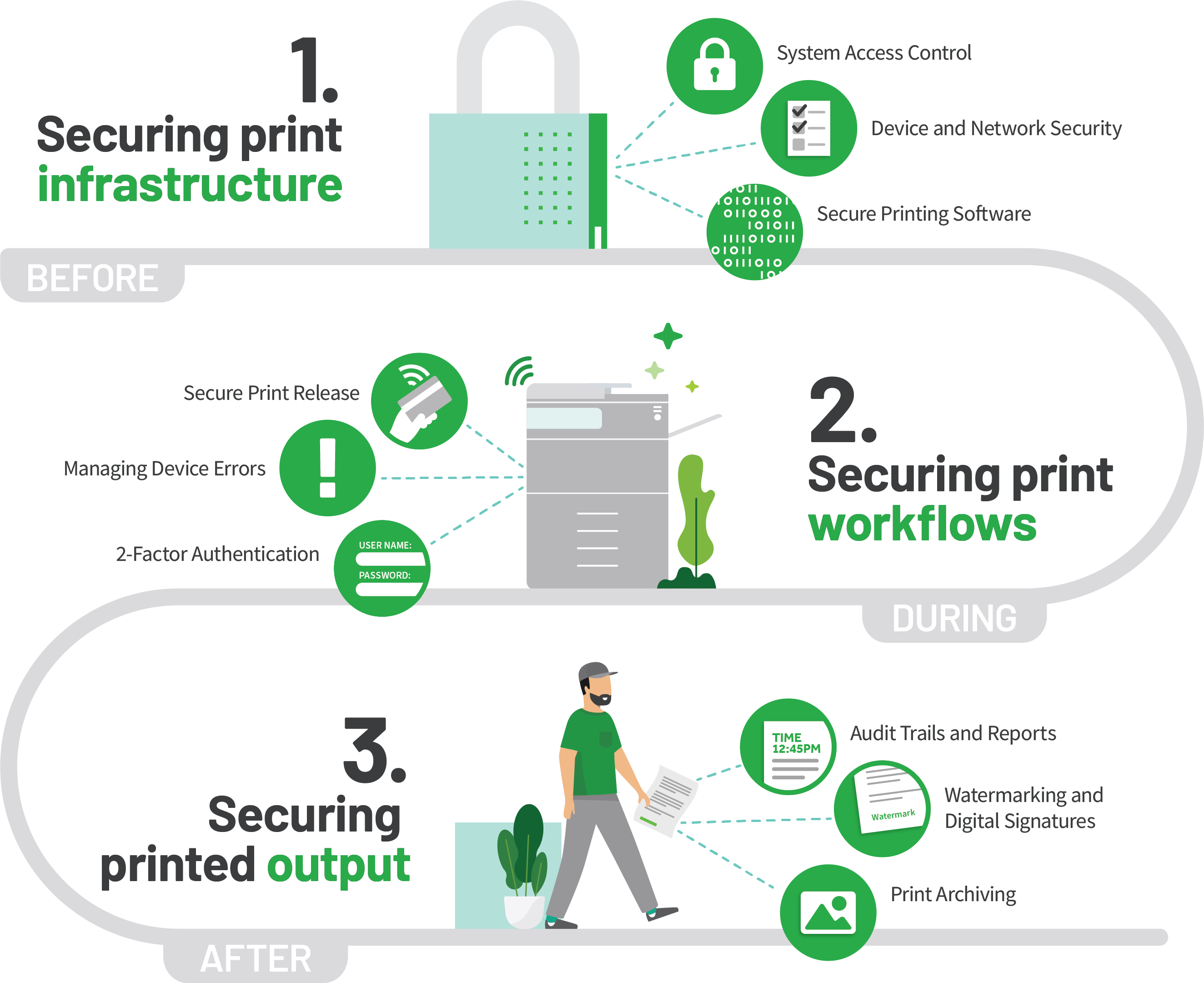
Concerned about your cyber security but haven’t even thought about your printer? The humble printer can be targeted by hackers to provide back-door access to your network.
Then they can unleash chaos like uploading malware or ransomware packets. The number one thing you can do: change the default password your printer was packaged with.
Then ensure your system is protected with up-to-date firmware and software security updates and patches. Old and deprecated versions of the software are vulnerable to exploits and unfixed bugs, so it’s vital to keep firmware and software up-to-date.
15. Mobile device printing
If you can’t print from your mobile, check what software you’re using. There might be a problem with the manufacturer or OS app you’re using. You might need to manually update the app software.
Or, try another app. Like, hey,
PaperCut Mobility Print
.
Solve your printing problems with PaperCut print management software
When it comes to the software side of things, like the automation of print driver and print queue deployment, or centralizing print policies and print settings, a tried and tested way of solving most problems is by implementing PaperCut software.
We have a full suite of solutions providing print enablement and management functionality.
Want to solve your printing problems for good? We can help you get up and running:
Speak with us