


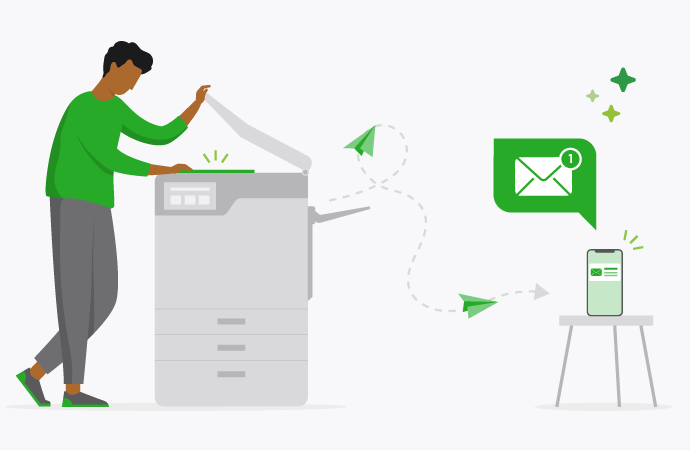
It’s a funny thing – a lot of businesses will spend big money on multi-function printers… and then only use them for printing.
Most modern MFDs have all sorts of nifty features, including scan to email . This is a great time-saver, especially if you find yourself constantly bouncing between printer and computer, printer and computer, printer and computer.
With one click, you can scan a document and email it directly to a nominated address.
So, how do you email scanned documents?
What does ‘scan document to email’ mean?
Scan to email allows users to scan documents and automatically send them to a nominated email address. This eliminates the need to manually scan every page, then attach the files to an email, or save them to your computer.
There are a couple of perks to this: it saves time, and it saves paper. Scan to email is an important part of the much-touted ‘paperless’ office.
Should you use the scan to email feature?
Whether or not your use scan to email will depend on your business, and what cloud printing solutions you feel comfortable with. For example, if you need to scan a bunch of documents at high resolution, it may be more efficient to use a commercial flatbed scanner.
Some companies or industries (particularly healthcare ) have legislative requirements around document privacy, which necessitates a secure file transfer service, or an encrypted email.
E-signature solutions, like DocuSign, are a great alternative to scan to email, especially if all you’re doing is signing endless documents.
How to email scanned documents
The scan to email process differs slightly for every printer/scanner model, but here are the basics:
1. Place your document on the scanner bed.
2. Head to your computer’s control panel and find Scanners.
3. Select Scan To Email.
4. Pick your file type (JPEG, PDF etc.)
5. Enter the recipient email address.
6. Press Send or Scan to transmit the document.
Scan to cloud
Another great cloud print solution is scan to cloud storage , which is pretty much what it sounds like. Instead of scanning documents to email, you can automatically scan and save them to a nominated cloud storage folder, like OneDrive or Dropbox.
Central admin
With PaperCut’s centralized web admin , you can quickly set up scan to cloud storage with multiple service providers.
Easy access
Some people don’t use scan to email or scan to cloud storage because logging on at the MFD is a pain, but with PaperCut, you only have to enter your details once. The system will remember the device. Neat, huh?
No firmware add-ons
As new cloud providers come online, any MFD running PaperCut scan to cloud storage will automatically be able to access them. No need for firmware updates.
Keeping scan to email secure
Scan to email isn’t the most secure file transfer solution, but it’s what we call ‘good enough’, especially if you’ve got your regular network security firing on all cylinders. To make scan to email as safe as possible, make sure you’ve got the following:
Encryption
Make sure your MFD supports email encryption to protect any sensitive information on the scanner bed. Your print server should also be encrypted , ideally with IPPS.
Access control
User authentication at the MFD is one of the best ways to secure your scan to email documents. This can include passwords, keycards or biometric login credentials.
Audit trails
Audit trails are especially important for scan to email, since you really don’t want staff sending un-trackable information to private email addresses. Check out our Audit logging feature for more info.
Print network security is no joke. We recommend reading up on the common issues , and some simple print management solutions.
Want to learn how to tame your printer or MFD?
We know print management can be complex - we can’t teach you how to telepathically communicate with your printer or multi function device (MFD), but we’ve got the next best thing.
If you’re after print tips to help you make printing seamless for end-users and save money on print costs, our blog is full of nifty and useful information.
If you want to dive even deeper into the possibilities of print management software, our Knowledge base is full of clever information and insights from our team of very very clever experts, designed to help IT administrators and sysadmins take on every issue.
Not sure what product is right for your business? We can help with that too:
speak with our team
