




Contents
User license limit exceeded
THE PAGE APPLIES TO:




Last updated September 30, 2025
Contents
PaperCut NG licensing is partially based on the number of users.
When the number of allowed users is exceeded, you will see one or both of these errors message in the admin interface:
- “Your license is invalid as you have exceeded your license user limit. Monitoring will continue as normal but access to administration pages will be restricted. Please contact sales to upgrade your license.”
- “You currently have more users than your license allows”
There’s no need to panic though, users will still be able to print and release jobs. No data will be deleted.
We promise this is an easy DIY fix. Even when locked out, you still have access to the sections in PaperCut that allow you to manage users.
Get yourself a cup of coffee and read through this article to get working again.
What happens if I exceeded the user limit?
Whether you’re using the free 5 user free license or licensed for thousands of users the result is the same if you go over the limit. Here’s what will happen.
- The admin console will warn that an additional license is required and needs to be updated within the next 40-days. The warning message will display on every admin login during this period. You can also set up the application to automatically email you if/when the license is exceeded (see the Options → Notifications section of the admin interface).
- If the user count has not been reduced by the end of the warning time, then most areas of the admin interface including configuration pages and reports will be “locked down”.
The good news is that printing and tracking will continue as normal and you will not lose any data. Certain sections of the admin interface related to user management will still be accessible to let you reduce the number of users.
Here’s what still works…
- The Options → User/Group Sync section, to modify user sync settings.
- The About tab, to see how many users you are licensed for.
- The Users tab, in order to delete users. (Only from version 22.0.11 and above).
How did I exceed my limit?
This error happened because too many user accounts were created in PaperCut. Note that users can be created a few different ways.
- Users may be automatically synchronized from a directory. The Sync process configured under Options → User/Group Sync will perform a sync nightly that adds any new users to the PaperCut users list. This process only adds users and doesn’t take any away. (We assume you don’t want us to delete your users without asking).
- Users can be created via “On-demand” user creation upon printing. Take a look under Options → User/Group Sync → On Demand User Creation - if that is switched to ‘Create the user’, then if a user who doesn’t exist in your sync source prints a job, that user will get created automatically in PaperCut. Follow the same Deleting Users from PaperCut instructions to delete any users that you don’t want included in the user count.
Getting back to normal after exceeding the license
There are two options for resolving the license exceeded issue:
- Add more users to your license. For PaperCut NG customers, use our online order system add users to your license. For PaperCut MF customers, you might be on the old license model, contact your Reseller or Authorized Solution Center .
- Reduce the number of users in PaperCut. Even when locked out, you still have the ability to access to a few sections in the admin interface to see your license details, manually remove individual users, or update your sync settings.
Reducing the number of users in PaperCut
There are a few methods for reducing the number of users in PaperCut, depending on how users are created in your system. We highly recommend taking a backup of your system prior to deleting users - just in case!
Below we talk about two methods to remove users from PaperCut.
- Manually removing users
- Deleting users synced from a directory
For other, more automated ways to delete users, see Deleting Users from PaperCut NG or PaperCut MF .
Manually removing users
With 22.0.11 or later, you can now access the Users tab, even when you’re locked out of the other administration interface tabs.
To remove individual users:
- In the PaperCut Admin interface, navigate to Users.
- Select a user you want to delete.
- In the upper right corner, choose Actions, then Delete user.
- The above steps should clear the license error, but you may need to restart the Application Server service in order to force another license check.

Deleting users synced from a directory
PaperCut NG/MF can be configured to synchronize users from a directory such as LDAP, Active Directory, Microsoft Entra ID, or Google Workspace. However these users are not automatically deleted and can build up over time.
To remove synced users:
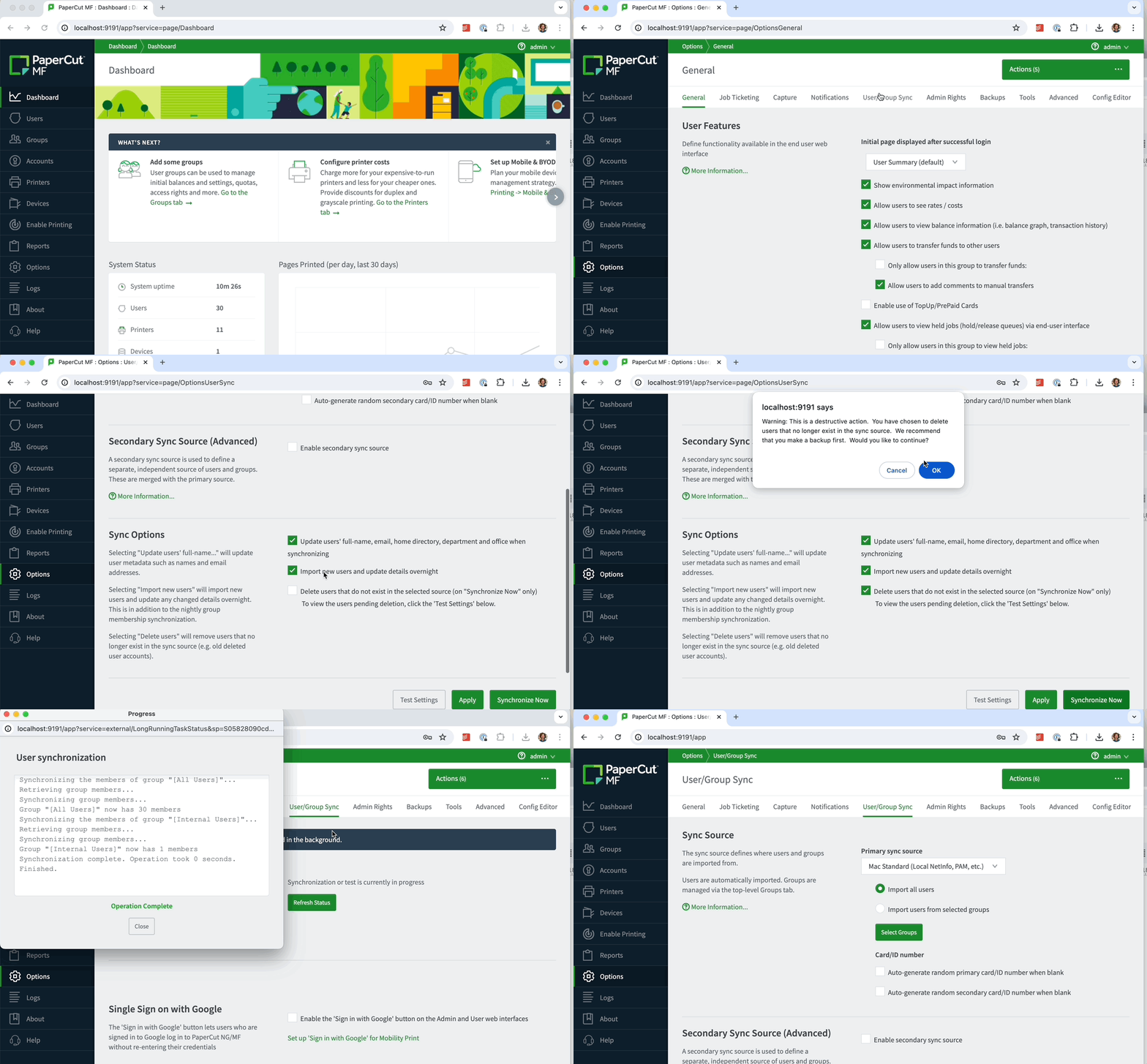
- In the PaperCut Admin interface, navigate to Options → User/Group sync.
- Check the box Delete users that do not exist in the selected source.
- Next, use the Test settings button to perform a test sync - and scroll up in the output to preview what will happen, for example “A real operation would add 0 user(s) and if the “delete users” option was selected, would delete 20 user(s).” If this matches the number you’re expecting then continue.
- After testing, click the Synchronize Now button to remove users.
- The above steps should clear the license error, but you may need to restart the Application Server service in order to force another license check.
What if no users are removed?
You may need to adjust some settings.
- Configure PaperCut to import certain groups. It’s possible to configure PaperCut to import users from selected groups to import only the groups that you need. Review these settings to ensure that PaperCut is synchronizing only users that print from your directory.
- Don’t import “disabled” Active Directory/Entra ID users. By default PaperCut will also import disabled users from Active Directory and Entra ID. This setting can be toggled off by unchecking the box Import disabled users .
Video walkthrough of the exceeded license scenarios
A video on how to delete users is available here. See below for the video times of different topics:
- 0:00 Introduction
- 1:13 Purchasing a new license with additional users
- 2:10 Setting up a license limit notification
- 2:47 Typical scenarios where customers go over their licensed limit and solutions
- 5:04 Deleting users manually using a server command
Applying for a license exception
In some rare scenarios customers may apply for a License Exception . Organization’s who are issued an exception must agree to run a report once a year to verify that the active user count remains below the license limit. Active user count is defined as the number of users that print at least once a year.
Manually removing users (old steps)
With version 22.0.11 or later, you can now access the Users tab, even when you’re locked out of the other administration interface tabs. However, if you’re stuck on an older version then you can follow these steps instead:
- On the server running PaperCut open a command prompt window.
- Change to the PaperCut directory using cd
c:\Program Files\PaperCut NG\server\bin\win - Enter the command
server-command delete-existing-user <username>but replace<username>with the name of a user you want to remove. - Repeat as necessary until enough users have been deleted.
- Log into the web interface of the PaperCut server as administrator and navigate to Options → User/Group Sync, then uncheck the box next to Import new users and update details overnight. This will stop PaperCut from re-importing the accounts you just deleted, so you will only need to delete the accounts once. If you need to add new users at a later time you will want to manually add new users on the Users Tab of the Admin console.
Category: FAQ
Subcategory: User Management
Keywords: reducing user count, license exceeded, license exceeded, user import, expire, invalid license, users exceeded, delete users, bulk user deletion, additional users, too many users, Exceeding the license limit, user count exceeded
Comments