Why Is My User Client Running Slowly?
THE PAGE APPLIES TO:




The PaperCut NG and PaperCut MF User Client could be behaving slowly for one of the following reasons. Please take some time to investigate these issues in order:
DNS settings
The User Client software uses the server-name first when attempting to connect to the primary Application Server. If that fails, it then tries to connect using the IP address of the server. This process can result in a perceivable delay when the User Client first starts, as the first connection attempt will need to timeout before the second, successful connection attempt can be made.
The server-name is defined in the User Client’s config.properties file, located under [app-path]/client/[platform] on the primary Application Server when running the User Client directly over the network, or under the User Client’s installation directory when it has been deployed locally to a workstation. Try pinging the DNS server name as defined in the above config.properties from your workstation; if this ping test takes a long time to resolve, then there’s a good chance you’ve identified the cause of your troubles!
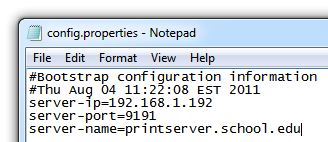
If DNS resolution in your environment is successful, but generally slow enough to still result in a delay for the User Client, you can override the server-name by supplying an IP address instead. Simply replace the server-name value with your server’s IP address, and restart the User Clients.
If you have a number of local installs of the User Client, it can be much quicker to rollout this changes by simply reinstalling it on each workstation after editing the config.properties file on the Application Server, rather than manually updating the local copy of the config.properties file on all of those workstations.
SSL Port
PaperCut NG and PaperCut MF use 9192 as the default port for SSL. The User Client software connects from workstation to server. Please make sure this port is not blocked by a firewall, or antivirus software on the Application Server. If the port is blocked or otherwise unresponsive, it might end up slowing the responsiveness of the User Client. This can be tested by using a web browser on a workstation to load a URL such as the following, where [server-name] is the hostname or IP address of your Application Server:
https://[server-name]:9192/
Please note that the User Client will initially use TCP port 9191 before bootstrapping the connection to TCP port 9192 where required. If you have the Options->Advanced->Security->Redirect to HTTPS/SSL if available option enabled, the User Client will still need to utilize port 9191 for this bootstrap process. Do not modify the User Client to use TCP port 9192 for this initial connection.
Important: If you have enabled TCP 80 (HTTP) for the Application Server, the User Client will attempt to use TCP port 443 (HTTPS) for many tasks and will timeout before reverting to trying TCP port 80 (HTTP) again. It is assumed that if you use TCP port 80, you also use TCP port 443.
Local Cache Deployment
When running the pc-client executable directly off the network share, it needs to download the entire User Client off the share across the network before it can start. This might be the reason why it’s taking a long time to load up the software in your network.
The recommended way to run the client for Windows workstations is to use the local cache version using the pc-client-local-cache executable. This version of the User Client will keep itself up-to-date by copying all relevant files from the network share to a directory under C:\Cache at startup, and then running from there. The next time it starts, it will quickly check the cached version on the local hard drive, compare it to the version available on the Application Server, and only copy the files over the network again if the local copy is older than the latest available. This minimizes the amount of network traffic greatly, and generally speaking, hard drives are much quicker than networks!
Various ways to run the client software are described in the README.txt file located under the [app-path]/client directory.
Wireless Networks
The cause could be simple as an intermittent network disconnection. By their very nature, wireless networks are more prone to disruption than wired alternatives. It’s worth spending some time ensuring your wireless network is stable; although the most direct method of troubleshooting your network is to simply disable wireless connectivity, plug-in a cable, and see if conditions improve.
Sometimes Size Matters
User Client popups should typically display within a few seconds of a print job beginning. If a popup needs to display job properties, such as the number of pages or total cost, the corresponding fields could take a few moments to populate when printing larger files.
Slow To Wake Up
The User Client maintains its connection to the Application Server by periodically “calling in” to it, reconfirming that the session is still active. In the past, if the User Client was being run from a laptop and the laptop was closed, the User Client would not take into account that the machine had gone to sleep. When the laptop was subsequently reopened and the User Client resumed, it would simply assume that no time had passed at all between the machine first going to sleep, and when it was later reawakened. However, if the laptop was asleep for some time, the Application Server would have independently decided that the session was no longer active, and the connection would be assumed to be severed.
If the User Client had just called in to the Application Server to confirm its session immediately prior to the laptop being closed, when it woke back up it would still be under the impression that it had very recently spoken with the Application Server, and that the connection was still active. But the Application Server would have long since killed the connection, leaving the User Client session inactive. Because the User Client would believe that it had very recently checked in with the Application Server, it would then wait for as long as two minutes before checking in again, at which point it would learn that its connection had been closed, and that reconnection would be required, accordingly. The resulting behavior would be that a user may reopen their laptop only to have the User Client seemingly be unable or unwilling to connect to the Application Server for a long time; very frustrating, if you’re needing to quickly print a document on the go!
As of version 17.3 of PaperCut NG and PaperCut MF, the User Client will intelligently detect when its host machine has been sent to sleep, and immediately attempt a reconnection to the Application Server when it is resumed, eliminating this potential delay. If your users are noting this behavior in your environment, ensure that they are running a version of the User Client at or greater than 17.3.
If you’re still having issues, and you’re running PaperCut MF, you can reach out to your PaperCut partner or reseller for assistance; their details can be found under the Support section of the About tab in the Admin web interface. If you’re running PaperCut NG, touch base with the PaperCut Support Team.
Categories: Troubleshooting Articles , User Client
Keywords: delayed , laggy , lag , time out , timeout , trouble loading client , slow loading , loading , FQDN , slow popup , popup client , slow balance window , print client , authentication , login , account selection
Last updated March 15, 2024
Comments